

What are Data filters in Google Analytics 4?
In Google Analytics 4 (GA4), you can include or exclude certain event data via a setting called ‘Data Filters’:
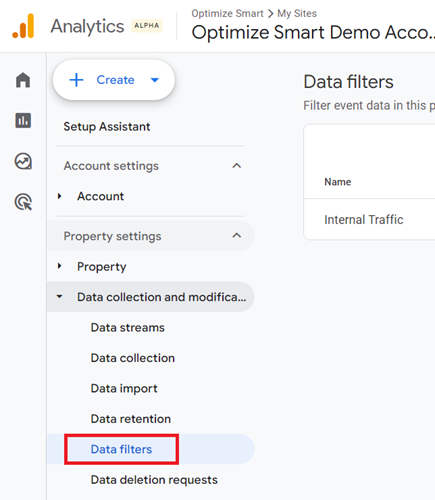
As you can see from the screenshot above, the GA4 data filters are configured at the property level.
The GA4 data filters do not work retroactively. So they will have no impact on the historical data.
Once you apply a data filter, its effect on your GA4 data is permanent and cannot be reversed.
In Universal Analytics (GA3), you can create and use a test view to test your data filters. However, the GA4 property comes with only one reporting view.
Therefore it makes sense to create and use another GA4 property (also called the GA4 test property) to test your data filters before you apply them to your live GA4 property.
Note: You can create up to 10 data filters per GA4 property.
The types of data filters in GA4
GA4 supports two types of data filters:
- Developer traffic
- Internal traffic
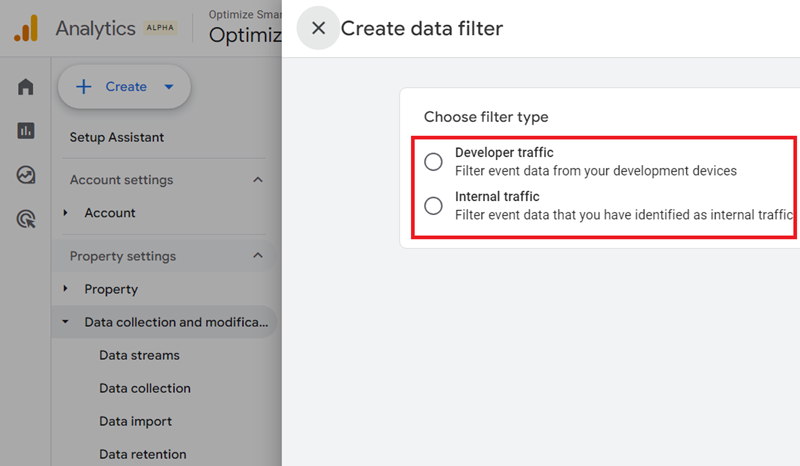
What is the ‘Developer traffic’ data filter in GA4?
‘Developer Traffic’ data filter is used to include or filter out event data that you identified as developer traffic from your GA4 reports.
Here, the word ‘developer’ refers to someone who sets up and fixes tracking on your website/mobile app.
When developers work on your website/mobile app, they need to visit your website/mobile app often in order to debug tracking setups. Such traffic to your website is called ‘Developer Traffic’.
Developers are not your target audience; therefore, we don’t need to track them in our GA4 reports.
To exclude developer traffic from GA4 reports, we create and use the ‘developer traffic’ data filter.
GA4 defines developer traffic as the event data with the parameter name ‘debug_mode‘ or ‘debug_event’ and parameter value ‘1’
If you exclude developer traffic using the ‘developer traffic’ data filter, you won’t see that data in real-time reporting since it is excluded.
But you can still see the excluded developers’ traffic data in the DebugView report and validate your implementation using the Google Analytics Debugger Chrome extension.
So the main advantage of using the ‘developer traffic’ data filter is that your developer can continue testing on your GA4 property without skewing your analytics data.
But since we use the GA4 test property, we don’t really need the ‘developer traffic’ data filter. Do we?
What is the Internal traffic data filter in GA4?
Internal Traffic data filter is used to include or filter out event data that you identified as internal traffic from your GA4 reports.
Internal traffic is the traffic generated by you or your employees, suppliers and other service providers to your website.
These people are not your target audience; therefore, we don’t need to track them.
Internal traffic can easily skew your website usage metrics and must be filtered out from your GA4 reports.
Internal traffic can also include the traffic generated by your developers.
But to exclude such type of traffic, we use the ‘developer traffic’ data filter and not the ‘internal traffic data filter’.
This is because if you exclude the ‘developer traffic’ via the internal traffic data filter, then your developer will not be able to see the test data in the DebugView report.
If you do not see data even in DebugView, it may be due to other issues, such as implementation errors.
Check the configuration settings of your internal traffic data filter to make sure that your own IP address is not a part of the exclusion.
Every GA4 property comes with a default internal traffic data filter built in.
But this filter needs to be configured and activated before it can be used:
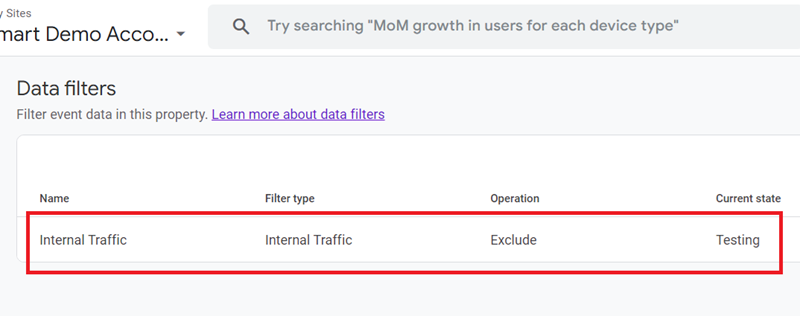
From the screenshot above, we can conclude that the current status of the ‘Internal Traffic’ data filter is ‘Testing‘.
What that means, the filter is not active yet.
By default, GA4 defines internal traffic as the event data with the parameter name ‘traffic_type’ and parameter value ‘internal’
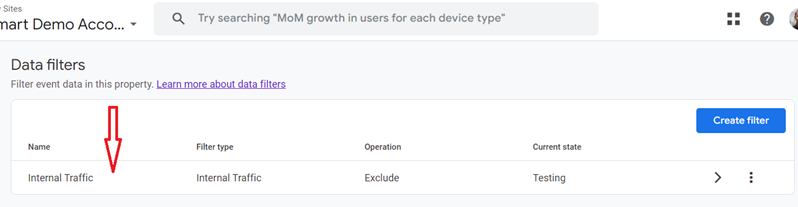
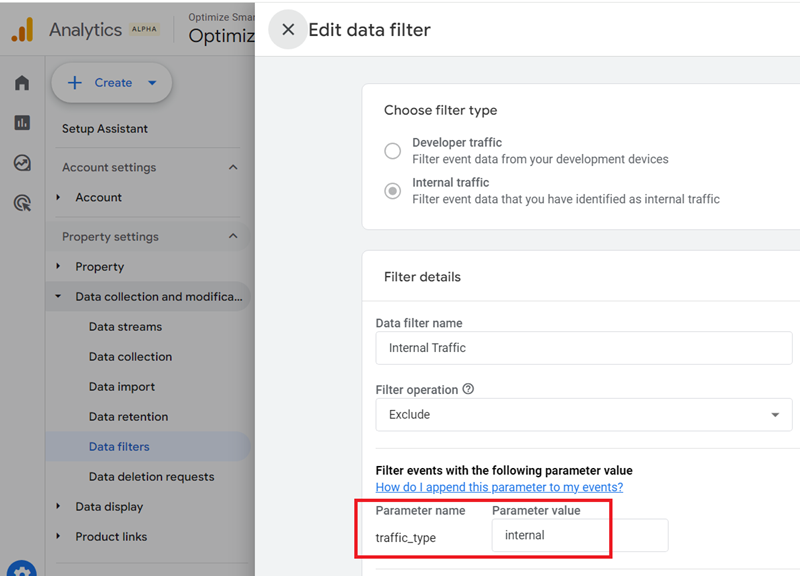
You cannot change the parameter name, but you can change the parameter value if you want to create two or more internal traffic filters:
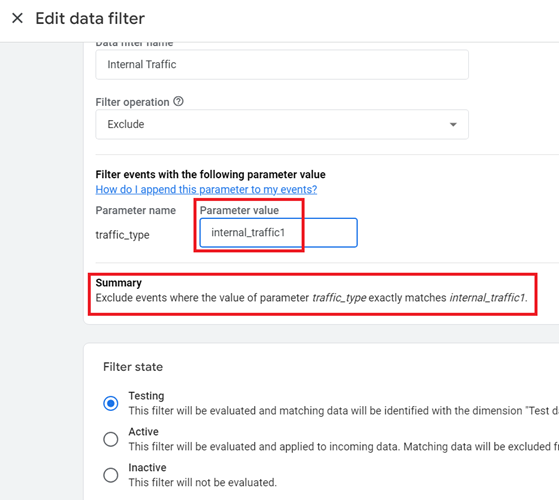
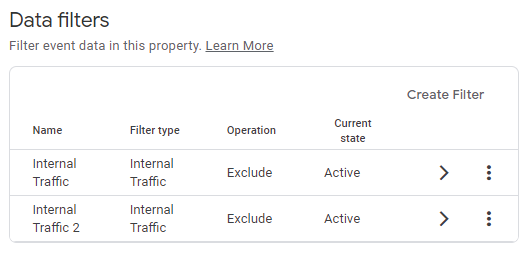
Following is an example of two internal traffic data filters:
Related Article: Exclude internal traffic in GA4 (Google Analytics 4) via IP filter.
Data Filter operations in GA4.
Data filters in GA4 can be further classified into include and exclude filters depending upon the filter operation being used.
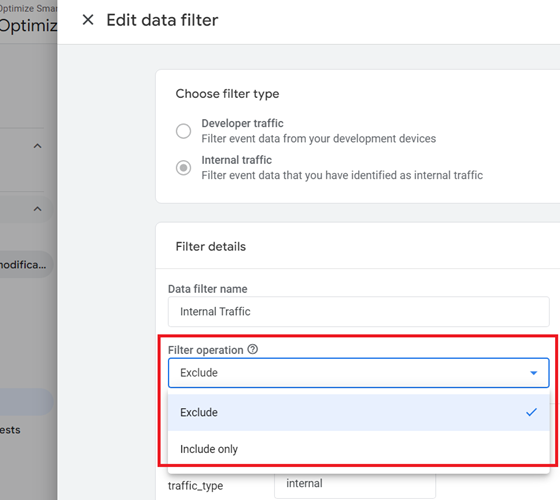
In GA4, you can carry out two types of operations with data filters:
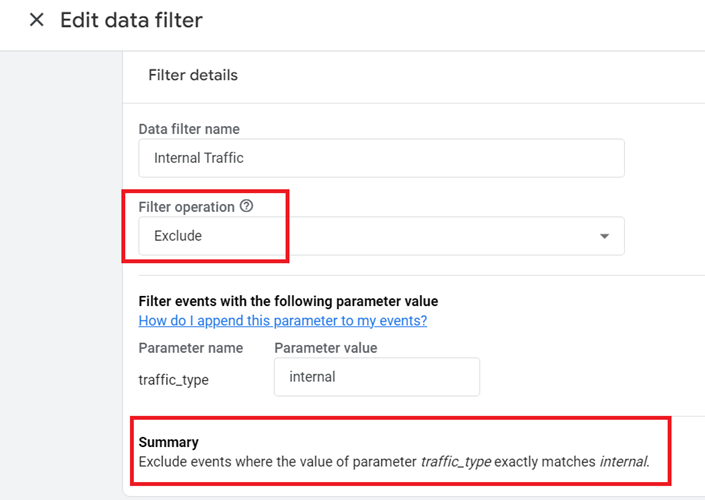
#1 Exclude: When you use the ‘Exclude’ option, GA4 will not process any event data that matches the filter (in our case ‘traffic_type = internal‘):
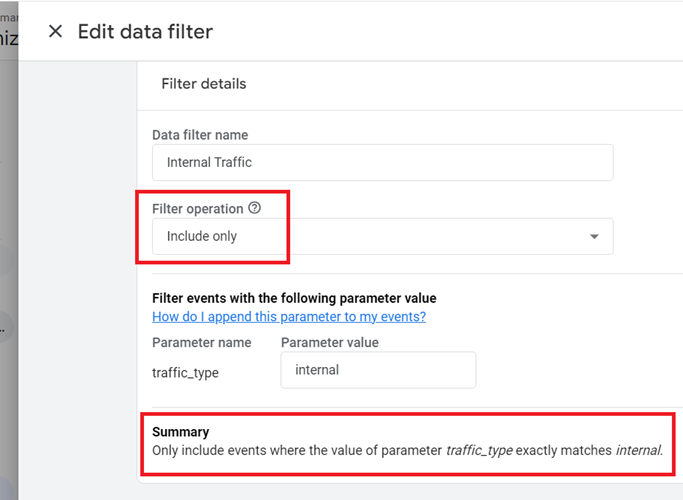
#2 Include only: When you use the ‘Include only’ option, GA4 will process only that event data that matches the filter (in our case ‘, traffic_type = internal‘):
Note(1): If you apply both include and exclude filters to your GA4 property, the include filters will be evaluated first before the exclude filter.
Note(2): If you apply multiple include filters to your GA4 property, all the include filters will be evaluated as a single group.
Note(3): If you apply multiple exclude filters to your GA4 property, each exclude filter will be evaluated one at a time.
Filter modes (states) in GA4
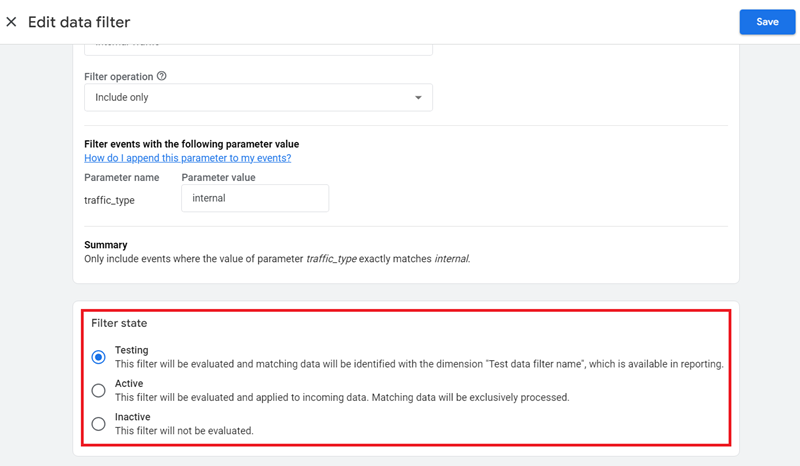
Every GA4 Data filter has one of the three states (modes):
- Testing
- Active
- Inactive
Testing state
Use the ‘Testing’ filter state if you want to first test your filter before making it active (i.e. live).
When a data filter is in the testing state, it is evaluated by GA4, but it does not make any permanent changes to your analytics data.
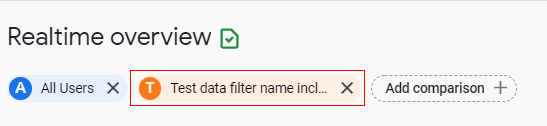
However, you can see the filtered data by adding a comparison to your GA4 report that uses the dimension named ‘Test data filter name‘:
Active State
Use the ‘Active’ filter state if you want to make your data filter live.
Once your data filter is active, it permanently changes your analytics data.
Inactive State
Use the ‘Inactive’ filter state if you want to disable your data filter.
Once your data filter is inactive, it is no longer evaluated by GA4 and no longer makes permanent changes to your analytics data.
Note: When you change the current state of a data filter, the changes made to your data collection are not instantaneous. So, you may need to wait for 30 minutes to an hour before you resume your testing.
Difference between Developer traffic and Internal traffic data filters in GA4
The key difference between these filters is that developer traffic, when excluded, can still be viewed in the DebugView report, allowing for testing and troubleshooting without affecting main reports.
Internal traffic, when excluded, is completely removed from all reports, including DebugView.
Can you use a developer traffic data filter to block internal traffic?
The developer traffic data filter only works when debug mode is enabled (e.g., using GTM Preview mode or when the debug_mode parameter is set).
Regular employee browsing (without debug mode) would still be included in reports if only the developer filter is used.
Some organizations may want to completely exclude all internal traffic, including from DebugView, in which case the internal traffic filter would be necessary.
Why I don’t use or recommend using GA4 data filters
I don’t use the developer traffic and internal traffic data filters.
Many internet service providers assign dynamic IP addresses to their customers, which can change any day or time without prior notice.This means an IP address you filtered today may no longer be valid for the same user tomorrow.Users can easily bypass IP-based filters by using VPNs or proxy servers.
You also risk blocking genuine traffic when the IP address you used to block traffic from employees is now assigned to some other person outside of your company.
To maintain accurate filtering, you would need to regularly check and update the filtered IP addresses, which is time-consuming and impractical.
Accidentally blocking external traffic can lead to underreporting of website visits and skew your analytics data for good.
Remember, once you apply a data filter, its effect on your GA4 data is permanent and cannot be reversed.
So, if your data filter is no longer valid or there is some configuration error, you have permanently skewed your GA4 data.
I use and recommend using a browser extension (like ‘Google Analytics Opt-out Add-on‘) for disabling Google Analytics.
These extensions can easily be enabled/disabled for testing purposes.
Even for internal traffic filtering, use browser extension on your work laptops.
How to create and test filters in Google Analytics 4.
Let’s create and apply a second exclude internal traffic data filter to your GA4 property?
Follow the steps below to create a second exclude internal traffic filter:
Step-1: Navigate to the ‘Admin’ section of your GA4 property.
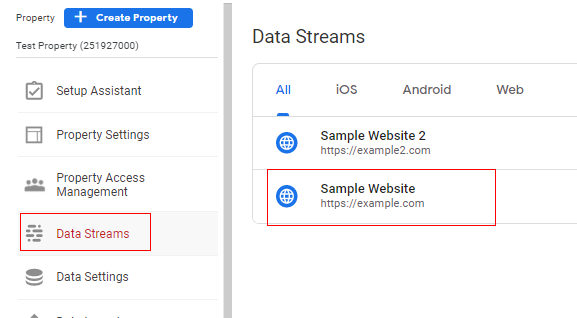
Step-2: Click on ‘Data Streams’ under the ‘Property’ column.
Step-3: Click on the name of the data stream for which you want to exclude internal traffic:
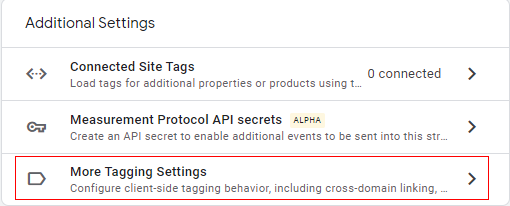
Step-4: Scroll down your screen and then click on ‘Tagging Settings’ under the ‘Additional Settings’ section:
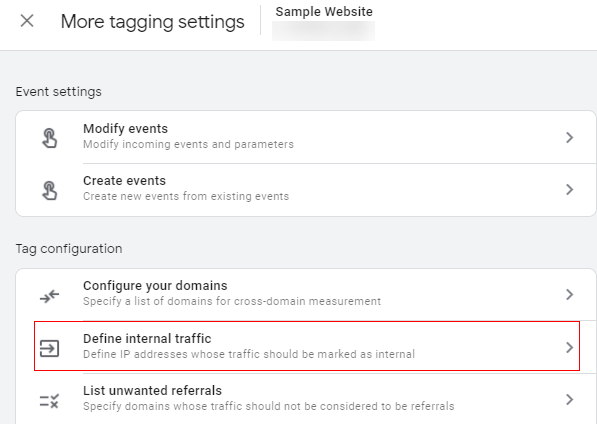
Step-5: Click on ‘Define internal traffic’:
Step-6: Click on the ‘Create’ button:
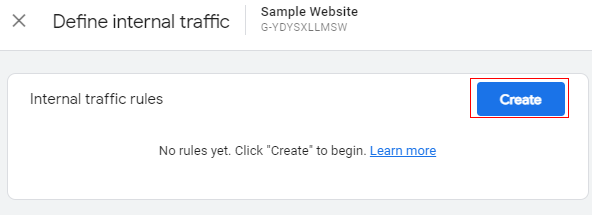
You should now see a screen like the one below:
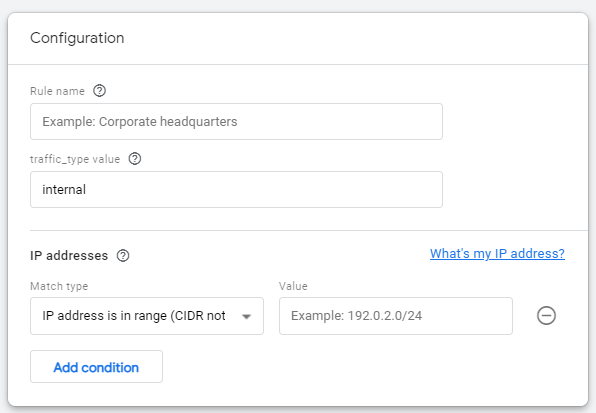
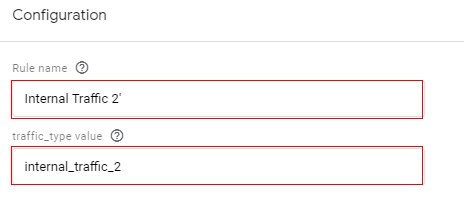
Step-7: Name our filter (say ‘Internal Traffic 2’).
Step-8: Set a different value for the ‘traffic_type value’ parameter (the default value is ‘internal’):
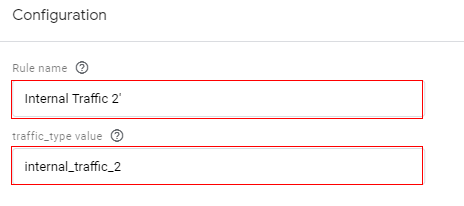
Note: You would need to use distinct values for ‘traffic_type’ parameters to help you differentiate and filter different sets of traffic.
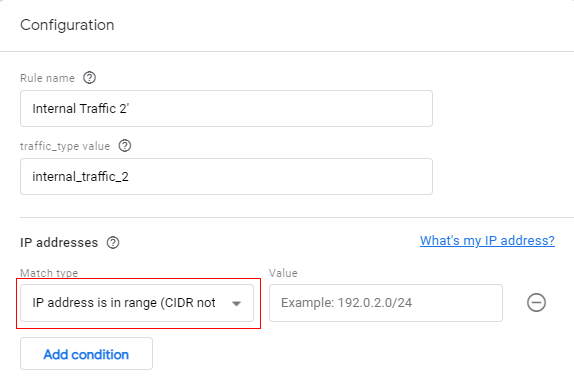
Step-9: Click on the drop-down menu under ‘Match Type’ and select your match type:
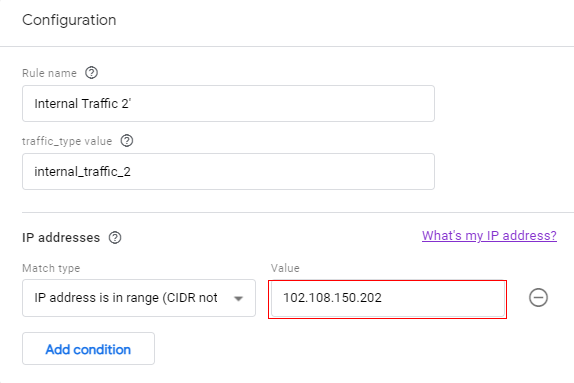
Step-10: Enter the IP address from which you want to exclude your internal traffic:
Step-11: Click on the ‘Create’ button at the top right-hand side.
Your new internal traffic rule will now appear like the one below:
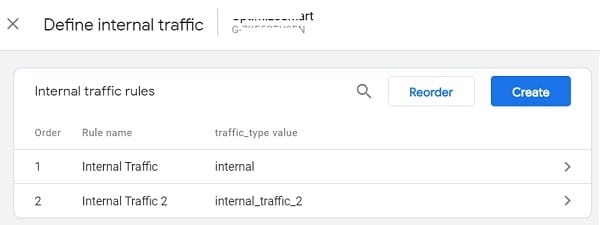
Step-12: Click on the cross button (at the top left of your screen) three times to navigate back to the admin section of your GA4 property.
Step-13: Click on ‘Data Filters’ (under ‘Data Settings’):
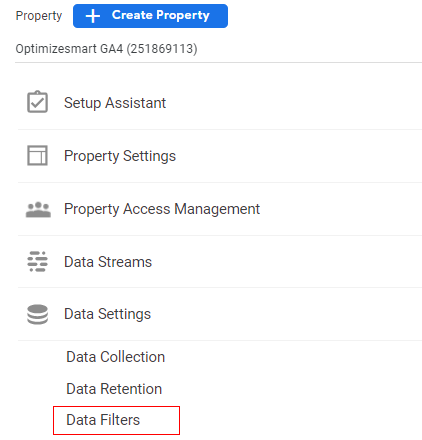
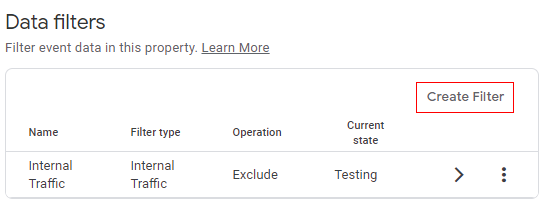
Step-14: Click on the ‘Create Filter’ button:
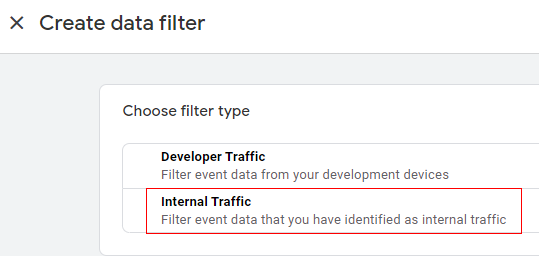
Step-15: Click on ‘Internal Traffic’:
Step-16: Name your new filter and then set the value of the ‘traffic_type’ parameter to ‘internal_traffic_2’
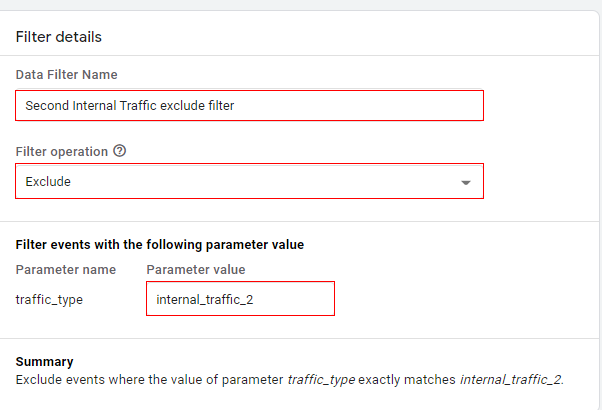
Note: The value of the ‘traffic_type’ parameter should match the corresponding value you set while defining your internal traffic:
Step-17: Click on the ‘Create’ button at the top right-hand side.
You will now see a series of instructions regarding what to do next:
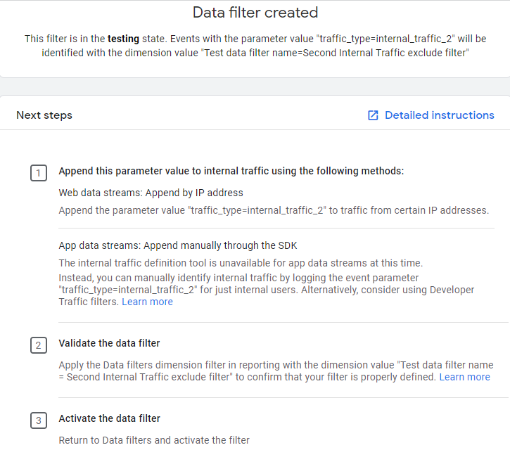
We have already carried out the first step of ‘Append this parameter value to internal traffic using the following methods:‘ by defining our internal traffic. Now we just need to validate the data filter and then make it live.
Step-18: If you are excluding traffic from your own device then navigate to your website via your device. If you are excluding traffic from an IP address that doesn’t belong to your device then ask the person whose IP address you added (while creating the exclude internal filter) to visit your website.
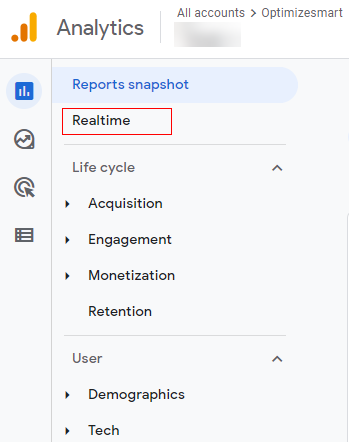
Step-19: Navigate to your ‘Realtime’ report:
Step-20: Click on the ‘Add Comparison’ button:
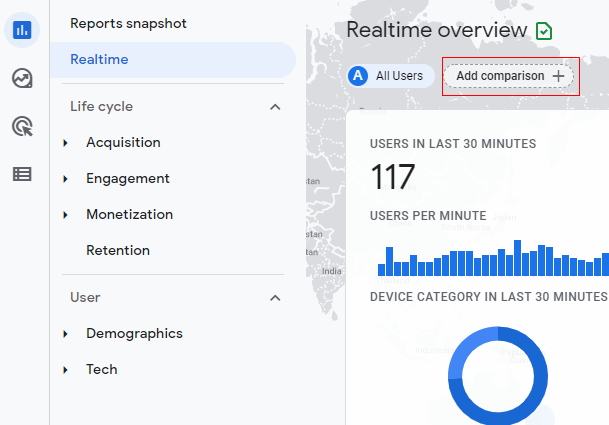
Step-21: Click on the drop-down menu under ‘Dimension’:
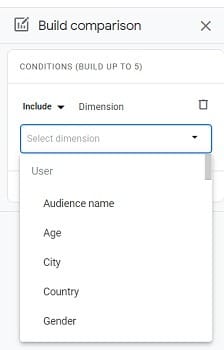
Step-22: Type ‘Test’ and you will see the dimension ‘Test data filter name’ available below:
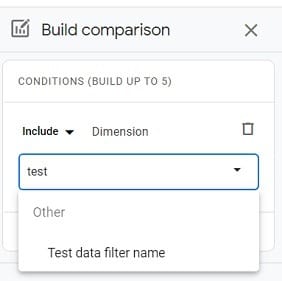
Note: If this dimension appears disabled then it is not available to you because you did not navigate to your website as mentioned in one of the previous steps.
Step-23: Click on the dimension name (‘Test data filter name’) in order to select it.
Step-24: Click on the drop-down under ‘Dimension Values’:
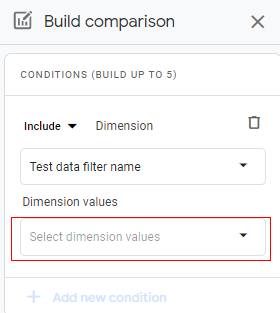
Step-25: Click on the checkbox next to ‘Second Internal Traffic Exclude’:
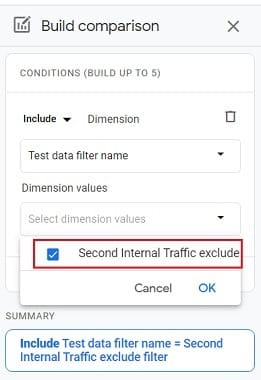
Step-26: Click on the ‘OK’ button.
Step-27: Click on the ‘Apply’ button:
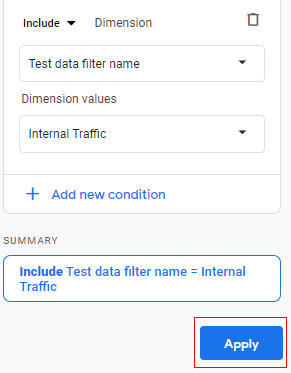
You should now see the new comparison applied to your report:
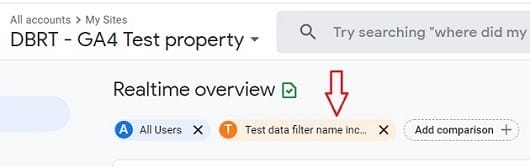
Step-28: Refresh your browser window.
You should now also be able to see the filtered data under ‘Test data filter name..”:
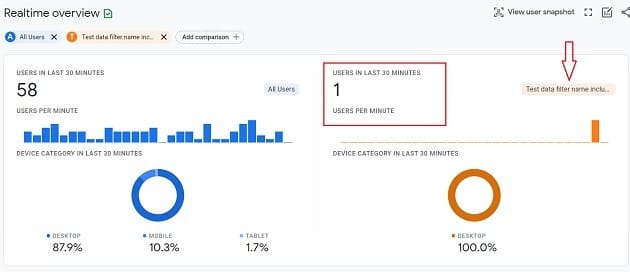
The real-time view in the orange column is showing us the traffic coming from the internal IP address that we defined earlier.
This is proof that our filter is working perfectly fine and we can now make it live.
Step-29: Click on the ‘Admin’ link in your reporting interface:
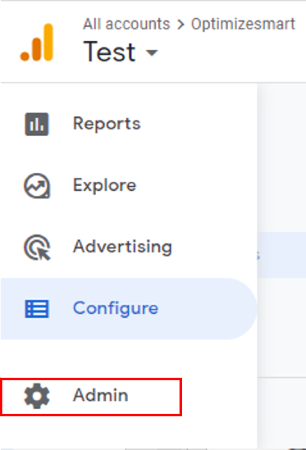
Step-30: Click on the ‘Data Settings’ drop-down menu and then click on ‘Data Filters’:
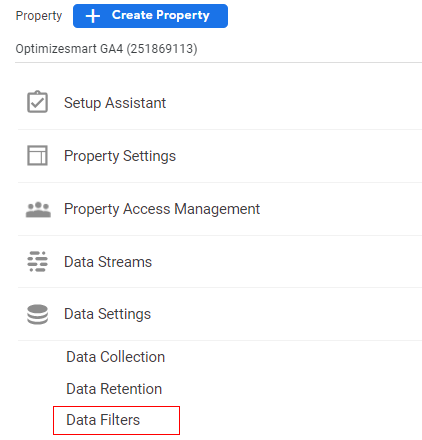
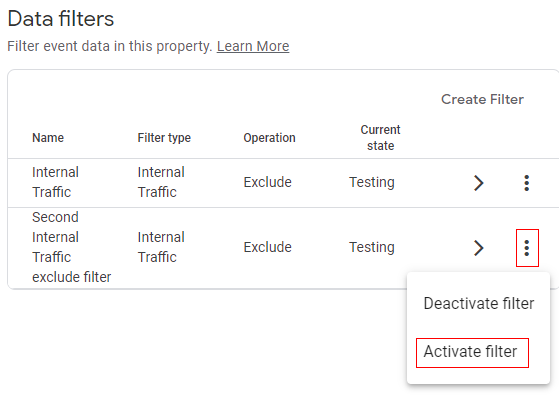
Step-31: Click on the three dots menu next to the ‘Second Internal Traffic exclude filter’ and then click on ‘Activate Filter’:
Step-32: Click on the ‘Activate Filter’ button:
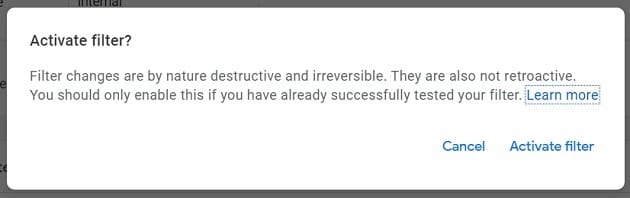
You should now see your second exclude internal traffic filter listed as ‘Active’.
That’s it. Congratulations!
You have successfully set up your second filter in GA4 to exclude internal traffic.

Other Articles on GA4.
- How to Create Landing Page Report in Google Analytics 4.
- How to segment Google Analytics 4 data by data stream.
- Setup Cross Domain Tracking in Google Analytics 4.
- How to see full page URLs in Google Analytics 4.
- Roll up Property in Google Analytics 4 – Tutorial.
- The Best Tag Auditing Tools for Google Analytics 4.
- How to Exclude URL Query Parameters in Google Analytics 4.
- How to Track Email Campaigns in Google Analytics 4.
- Google Analytics 4 Attribution Modelling Tutorial.
- Understanding Service Worker in GTM Server Side Tagging.
- Cohort Exploration Report in Google Analytics 4 (GA4).
- Google Analytics 4 vs Google Ads conversion tracking.
- Google Analytics 4 Custom Dimensions Tutorial.
- Google Analytics 4 Dimensions Tutorial.
- Event Scoped Custom Dimensions in Google Analytics 4.
- Google Analytics 4 Search Console Integration Tutorial.
- Fixing unassigned issues with GTM Server Side Tagging.
- How to exclude internal traffic in Google Analytics 4.
- Understanding data filters in Google Analytics 4.
- Conversion Funnel Analysis in Google Analytics 4.