

GA4 (Google Analytics 4) provides two types of reports: Standard reports and explorations.
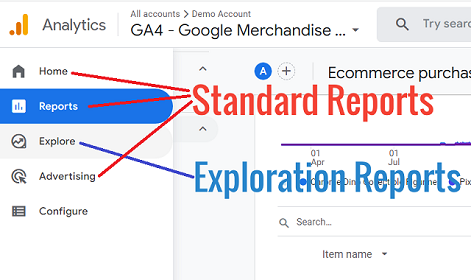
The following are the various GA exploration reports:
- Free Form report.
- Funnel exploration report.
- Path exploration report.
- Segment overlap report.
- User explorer report.
- Cohort exploration report.
- User lifetime report.
In this article, we will learn to create and use the Free Form report in Google Analytics 4 (GA4).
Table of Contents
- Free Form report overview
- Introduction to available configuration options
- How to create a sample report
- How to apply filters and segments to the Free Form report
- How to share and download the Free Form report
- GA4 Exploration reports are better than GA4 Standard reports
Free Form report overview
The Free Form report represents your data in a dynamic table layout. You can arrange rows and columns as you like and apply custom segments and filters to refine your data.
In the earlier legacy version of Google Analytics (known as Universal Analytics), you had the option to create a custom report under the ‘Customization’ menu option.
In the case of GA4, the custom report is replaced by the Free Form report with a more advanced user interface and new functionality.
Introduction to available configuration options
Here we will see the various options available while configuring the Free Form report. Follow the below steps to know more.
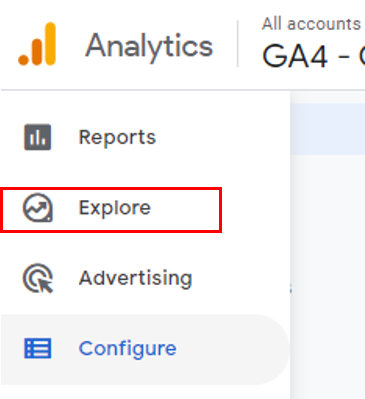
Step 1: Navigate to your Google Analytics 4 property and click on the ‘Explore’ menu.
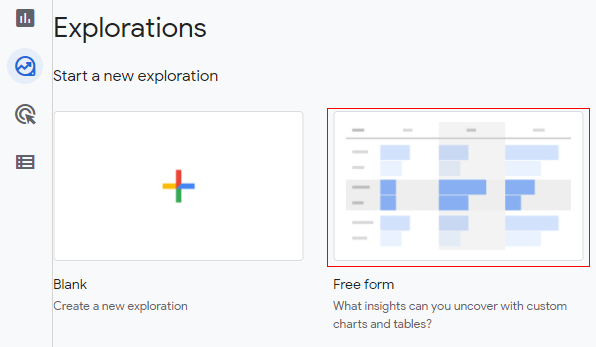
Step 2: You will see the various analysis templates. Click on the Free Form template.
Step 3: A new console will open like below.
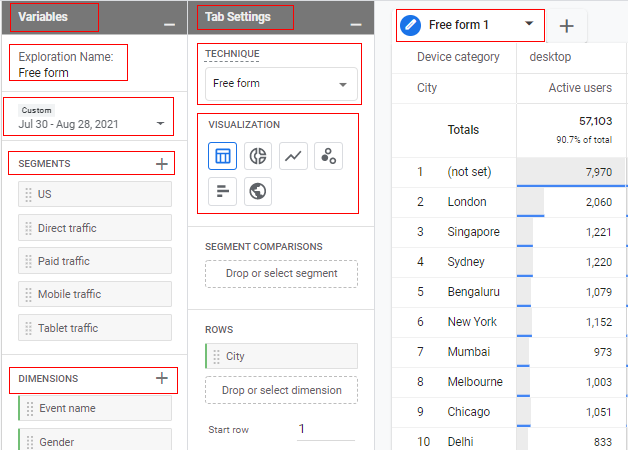
The screen is divided into three columns; ‘Variable’, ‘Tab Settings’ and ‘Free Form’.
Variable Tab:
In the context of analysis, segments, dimensions and metrics are called variables. You can also change the date range and report name under the ‘Variable Panel’ column.
Tab Settings:
The ‘Tab Settings’ column configures report techniques such as exploration, cohort analysis, path analysis, etc. You can also select the visualization type here, e.g. table, pie chart, bar chart, etc.
Free Form Tab:
The ‘Free form 1’ tab is where the data is shown to the user. Whatever configuration we do in the ‘Variables’ tab and available in ‘Tab Settings’ will be reflected in the ‘Free form 1’ tab.
Step 4: Now click on ‘Exploration Name’ to give a descriptive name to the report.
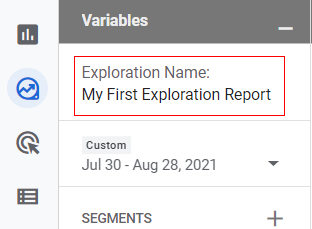
Step 5: Click on the drop-down arrow to change the date range.
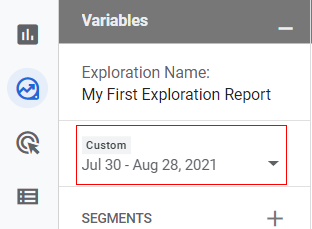
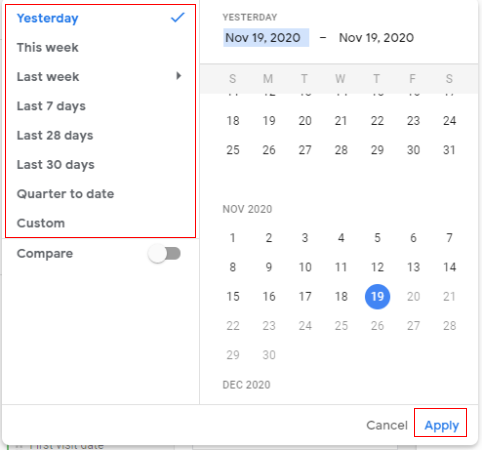
Step 6: You will get a small pop-up window where you can specify the date range, i.e. yesterday, this week, last seven days, etc., or set a custom date range. Select your date range and click on ‘Apply’.
Step 7: Now, add segments to our report (optional). You can apply a segment by clicking on the three vertical dots on the segment name and then clicking on ‘Apply’.
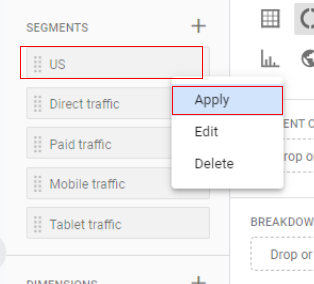
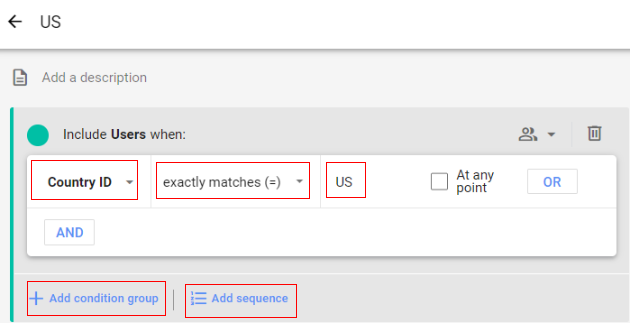
You also get the option to edit and delete the segments. Click on ‘Edit’ if you want to edit the segment configuration. A new overlay will come like below, where you can modify the segments by adding more conditions.
If you want to create a new segment, click on the ‘+’ button and define the conditions of your segment.
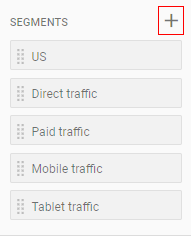
You can apply up to four segments to your report.
Step 8: Just like segments, you can create a dimension for the report by clicking on the ‘+’ button under ‘Dimensions’.
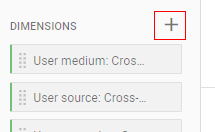
If you want to use the existing dimension, simply drag and drop the dimension either under ‘Rows’ or under ‘Columns’ in the ‘Tab Settings’.
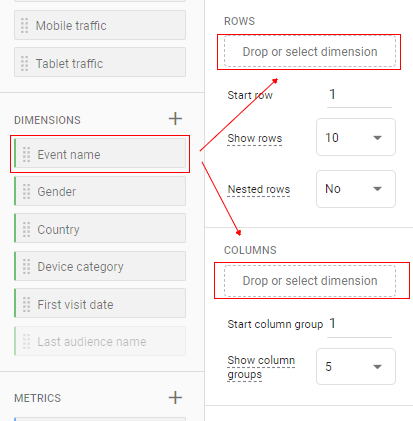
You can also double-click on the dimension name to directly add to the ‘Rows’ section.
If you want your dimension to appear as a row, then drag it under the ‘Rows’ section and if you want it to appear as a column, then drag it under the ‘Columns’ section.
If you want to delete a dimension, click on the cross ‘X’ in front of the dimension.
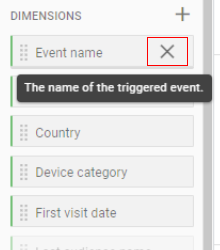
You can apply up to five dimensions in rows and two dimensions in columns for your data table.
Step 9: Just like dimensions, you can create a metric for the report by clicking on the ‘+’ button under ‘Metrics’.
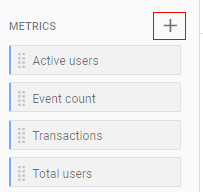
If you want to use the existing metric, simply drag and drop the metric under ‘Values’ in the ‘Tab Settings’.
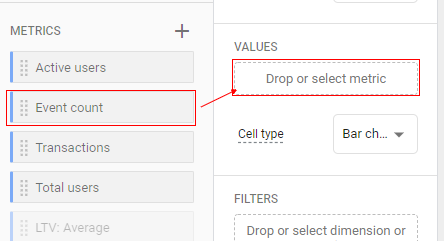
You can also double-click the metric name to add to the values section directly.
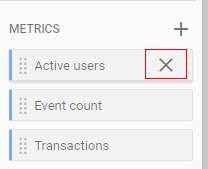
If you want to delete a metric, click on the cross ‘X’ in front of the metric.
Step 10: You can use the ‘Tab Setting’ column to change the configuration of the tabs. If you want to add a new tab, click on the ‘+’ button in the ‘Tabs’ panel.
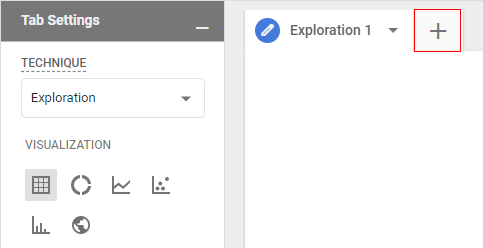
Step 11: A small pop-up will open as below. To continue, select the report technique you want.
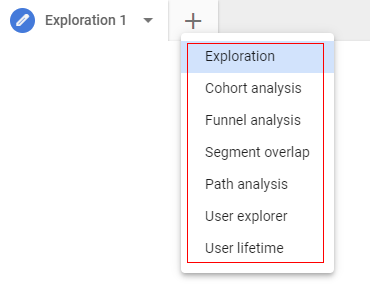
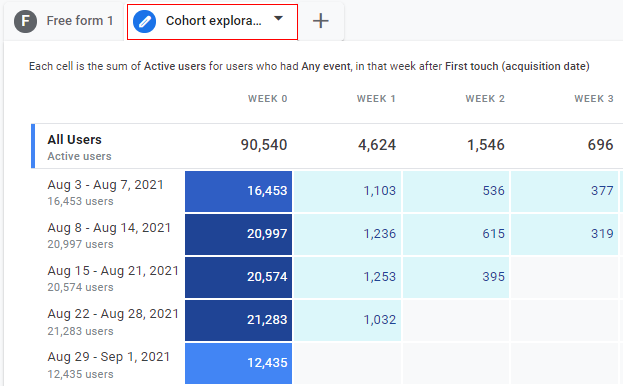
For example, let’s click on ‘Cohort Exploration’, A new tab will open like below.
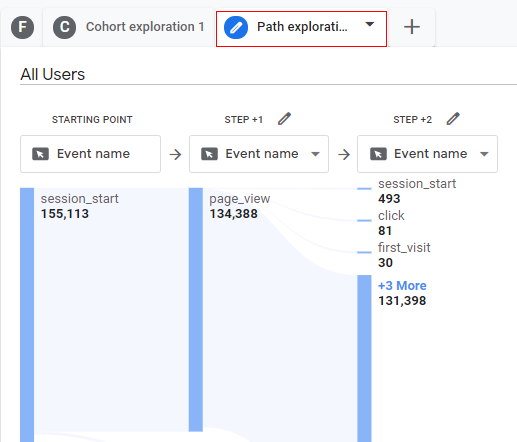
If you want to add a new tab again, click on the ‘+’ button in the ‘Tabs’ panel, Let’s add the Path Exploration report as an example. Click on ‘Path Exploration’, and you will see the third tab added as below.
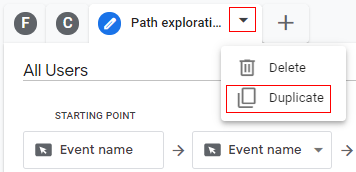
If you want to create a duplicate of the tab, click on the drop-down menu of the current tab and then click on ‘Duplicate’. This will create a duplicate tab.
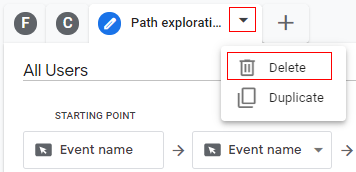
If you want to delete a tab, click on the current tab’s drop-down menu and then click on ‘Delete’.
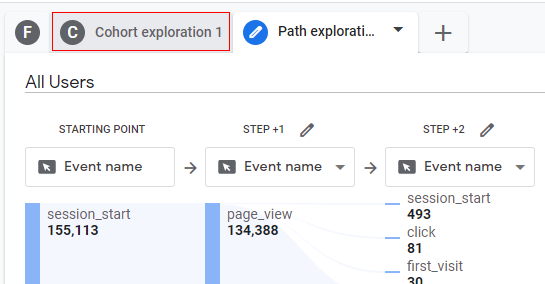
If you want to switch between the tabs, hover your mouse on a tab and then click on it.
You can change the reporting technique for the report through the ‘Tab Settings’ column.
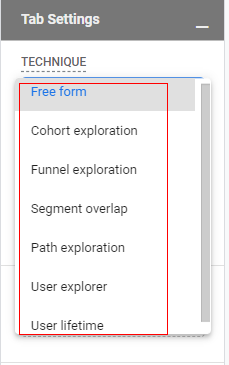
Just click on the drop-down under ‘Technique’.
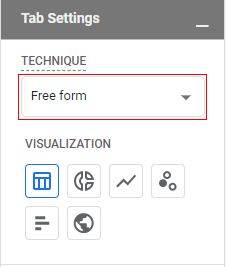
A drop-down will pop up like the one below, Select the technique you want from the available list.
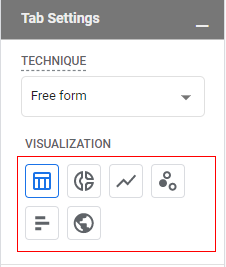
You can also select the visualization type here. Available visualizations are table, pie chart, line chart, scatter plots, bar chart and geo map.
How to create a sample report
Let’s create a sample Free Form report by following the below steps.
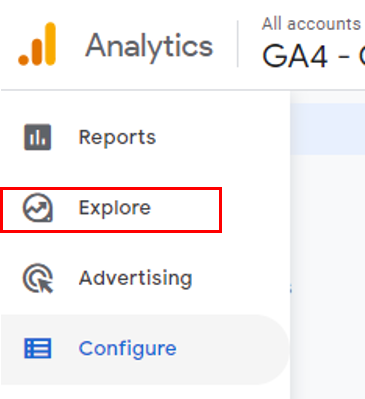
Step 1: Navigate to your Google Analytics 4 property and click on the ‘Explore’ menu.
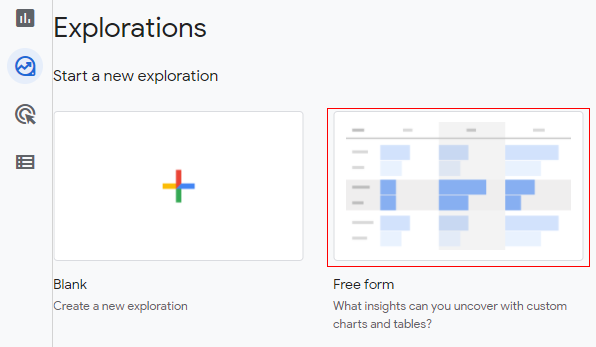
Step 2: You will see the various analysis templates. Click on the ‘Free form’ template.
Step 3: Now click on ‘Analysis Name’ to give a descriptive name to the report.
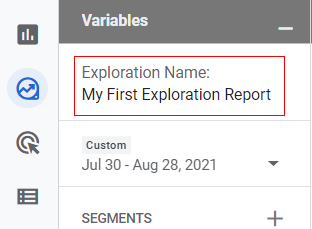
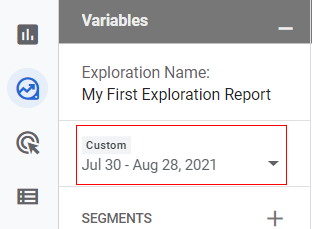
Step 4: Click the drop-down arrow to change the date range.
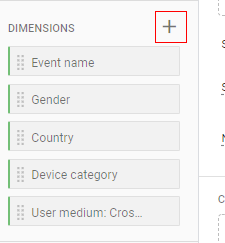
Step 5: let’s apply a dimension to the report. As an example, we will apply ‘Region’ as a dimension. If you look at the image below, the ‘Region’ dimension is unavailable, so we need to create a new dimension. Click on the ‘+’ sign.
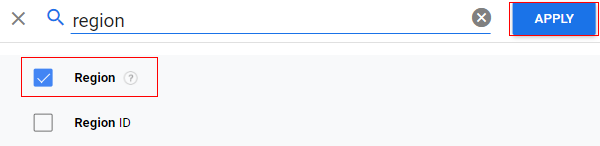
Step 6: An overlay will appear as below. Search for the ‘Region’ dimension.
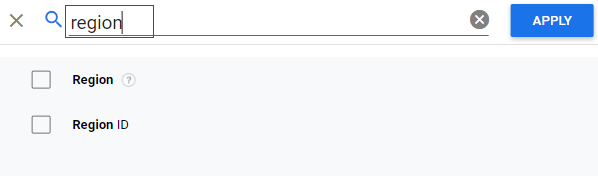
Step 7: Select it and then click on ‘Apply’.
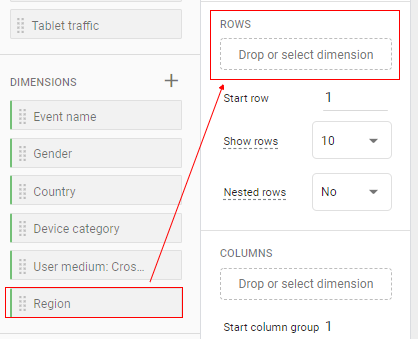
Step 8: Now you can see the ‘Region’ dimension available under the ‘Dimension’ section. But this dimension is still not applied to our report. To apply, drag and drop it under the ‘Rows’ section in the ‘Tab Settings’ column.
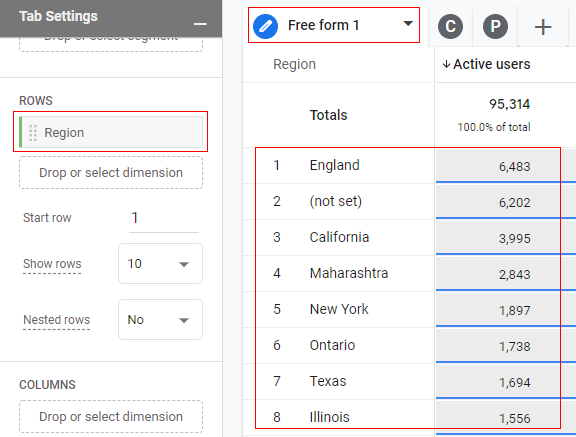
Step 9: Now you will see the dimension applied in the ‘Free form 1’ tab, as below.
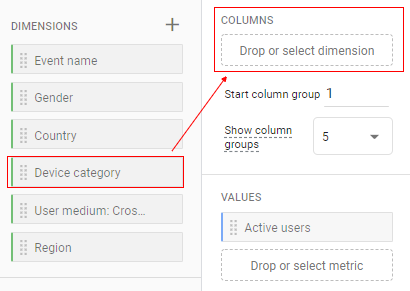
Step 10: Now, let’s add another dimension, ‘Device Category’. And this time, we will drag it under ‘Columns’.
Step 11: Now, you will see two dimensions appearing in the ‘Free form 1’ tab. ‘Region’ as a row and ‘Device Category’ as a column, like below.
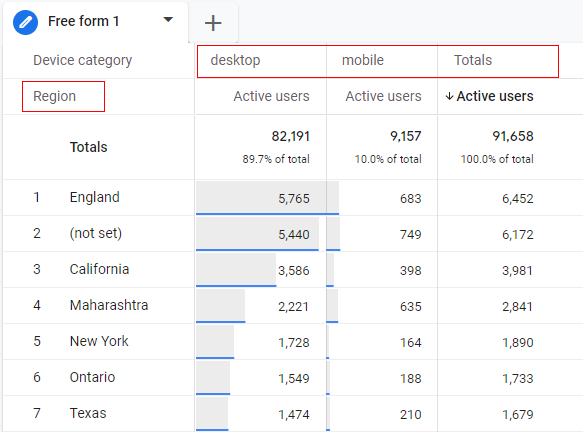
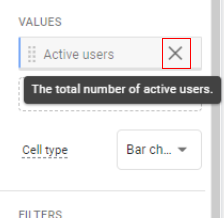
Step 12: Now, as you can see from the above image, the selected metric is ‘Active Users’. Let’s remove this metric and add a new ‘Sessions’ metric. Click on the cross ‘X’ in front of ‘Active Users’ to remove it.
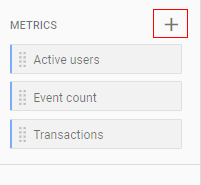
Step 13: In the ‘Metrics’ section, sessions are unavailable, so we need to create them. Click on the ‘+’ button under the ‘Metrics’ section.
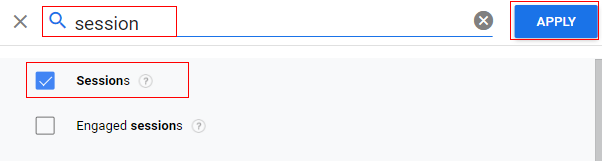
Step 14: An overlay will appear like below. Search for ‘sessions’, select it and then click ‘Apply’.
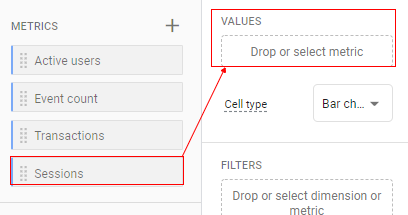
Step 15: Now you can see the ‘Sessions’ metric available under the ‘Metrics’ section. But this metric is still not applied to our report. To apply, drag and drop it under the ‘Values’ section in the’ Tab Settings’ column.
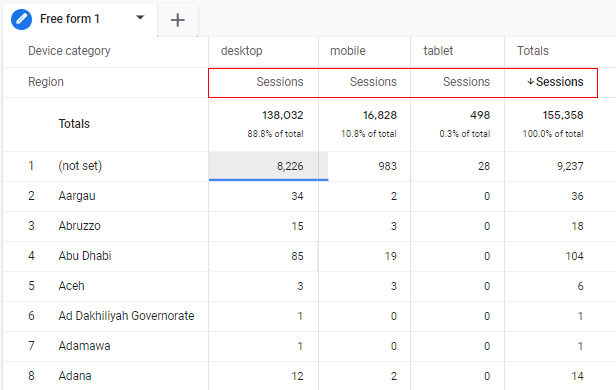
Step 16: You can now see in the ‘Exploration’ tab that the ‘Session’ metric has been added to our report, as below.
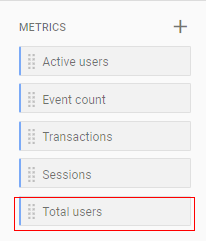
Step 17: Now let’s add another metric, say ‘Total Users’. This time it is already available in the ‘Metrics’ section. Double-click on it to add it to the report.
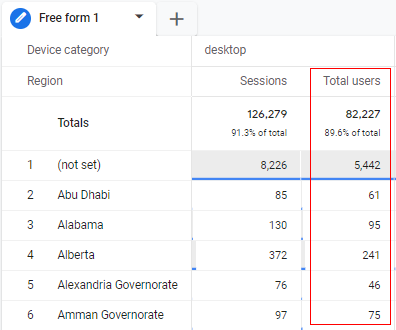
Step 18: The new metric ‘Total Users’ is applied to the report like below.
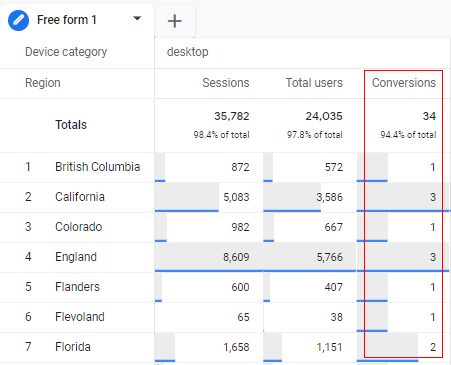
Step 19: Let’s add one more metric to the report, let’s say ‘Conversions’. Since it is not available in the ‘Metrics’ section, we will create it just like we did in the case of ‘Sessions’. Once created, apply it to the report by double-clicking, and you will see it in the ‘Reporting’ tab, as below.
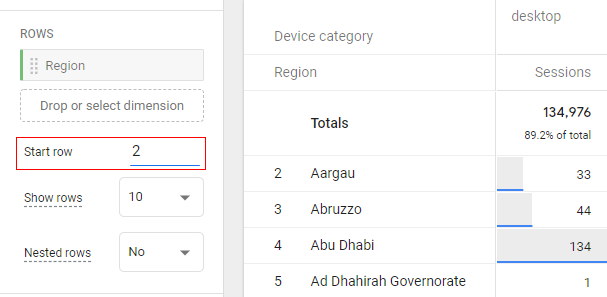
Step 20: If you want your report to start from the second row, you can change the setting to start at row 2, like below, and you will see that the table will start from the second row.
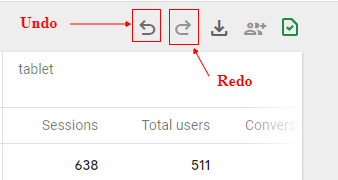
Step 21: If you want to revert to the previous settings option at any time, you can click on the ‘Undo’ button at the top of the ‘Reporting’ tab. You can also use the ‘Redo’ button to reverse the last ‘Undo’ action.
Step 22: By default, the report only shows ten rows. If you want to show more rows, click on the drop-down menu and select the number of rows you want to show.
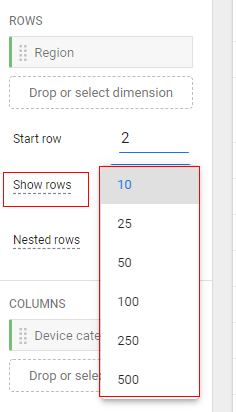
You can see up to 500 rows in your data table.
Step 23: Now, the next setting is ‘Nested Rows’. This setting will only work when you have two or more dimensions in rows. If you enable it to ‘Yes’, your data in the ‘Reporting’ tab will look like below.
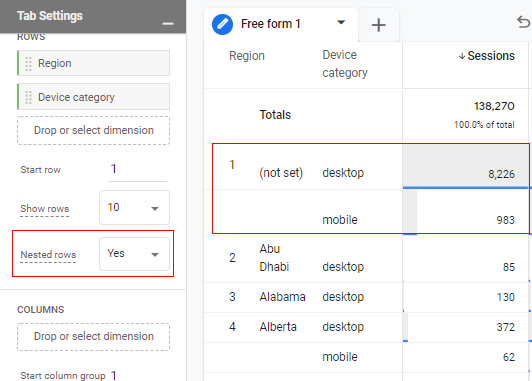
Step 24: If you see from the image, our columns are in the sequence ‘Sessions’, then ‘Total Users’, and then ‘Conversions’.
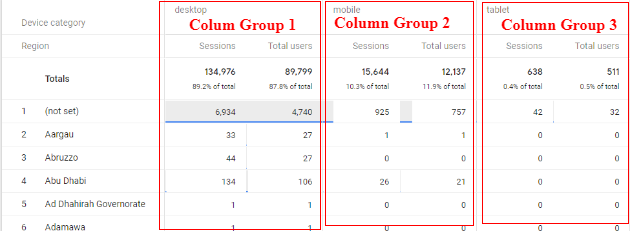
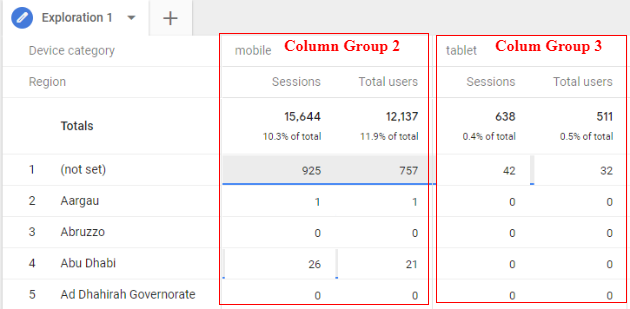
If you want your report to start from the second column, you can change the settings in ‘Start Column Group’ like below and see the changes in the ‘Reporting’ tab.
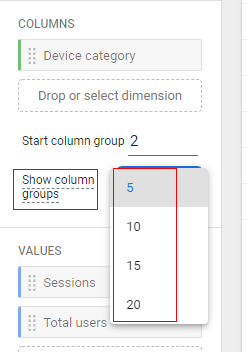
By default, the report shows only five column groups. If you want to show more, then change the settings at ‘Show Column Groups’ up to 20.
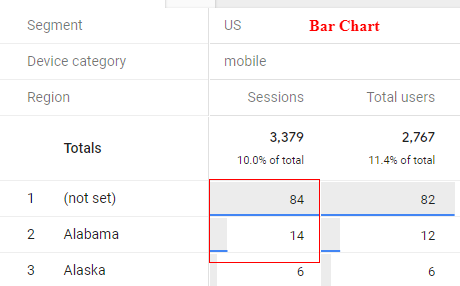
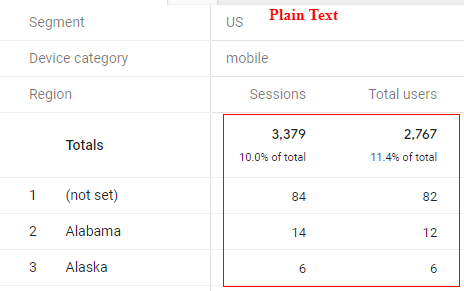
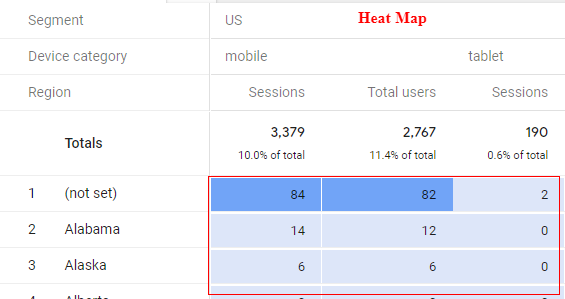
Step 25: The ‘Value’ section adds metrics to your report. You can add up to ten metrics to your report. The ‘Cell Type’ setting changes how your metrics look in your report. Available options are bar charts, plain text, and heat maps.
How to apply filters and segments to the Free Form report
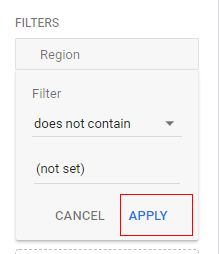
Step 26: Now, let’s apply filters to our report. Suppose you do not want to see the (not set) values. Click on the square box under ‘Filter’.
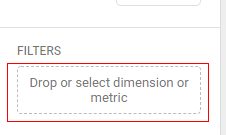
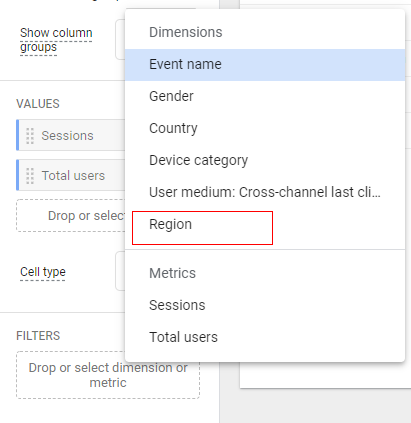
Step 27: A small pop-up window will open. Since we are looking at ‘Region’ as a dimension in our example, select it from the pop-up.
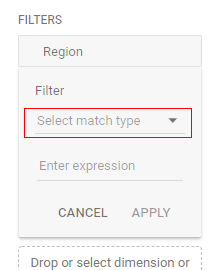
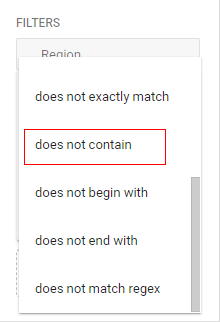
Step 28: Click on the drop-down to select ‘Match Type’ and select ‘does not contain’.
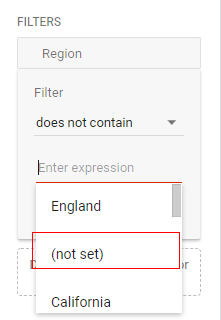
Step 29: Now click on ‘Enter Expression’ and select ‘(not set)’.
Step 30: Click on ‘Apply’.
You will see in the ‘Reporting Tab’ that the ‘(not set)’ value is removed, as below.
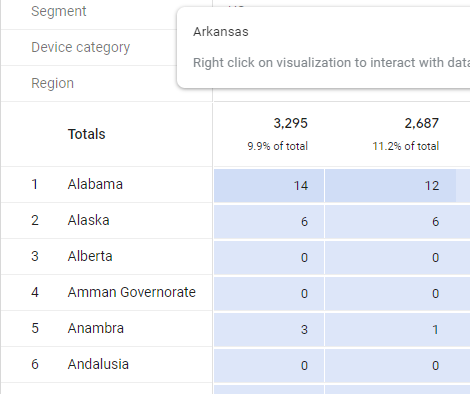
So that’s how you can apply a filter to your Free Form report. One important thing to remember is that if you apply more than one filter, it will be applied using AND logic.
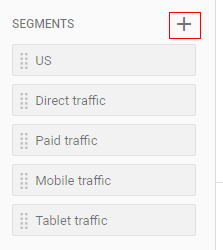
Step 31: Now, let’s apply a segment to the report. For example, we will apply a segment to show traffic coming from organic. Since this segment is not available, we are going to create a new segment. Click on the ‘+’ icon under the ‘Segments’ section.
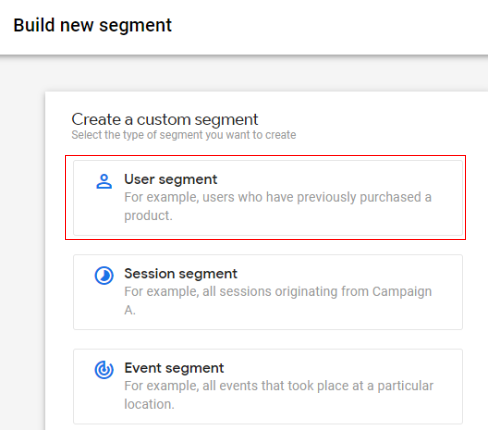
Step 32: An overlay will appear like below. Click on ‘User Segment’.
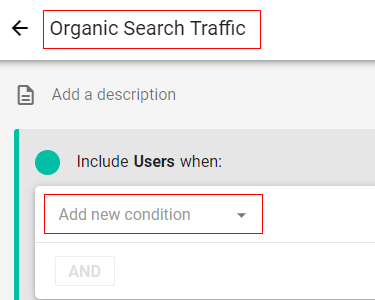
Step 33: Give a descriptive name to your segment, and then click on the drop-down to add a new condition.
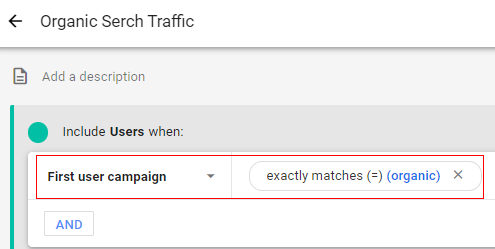
Step 34: Select the dimension’ First user campaign’, then match the type to ‘exactly matches(=)’, and the value as ‘organic’.
Step 35: Now click on ‘Save and Apply’.
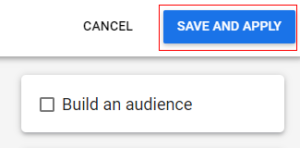
The new segment will be created and automatically applied to your report.
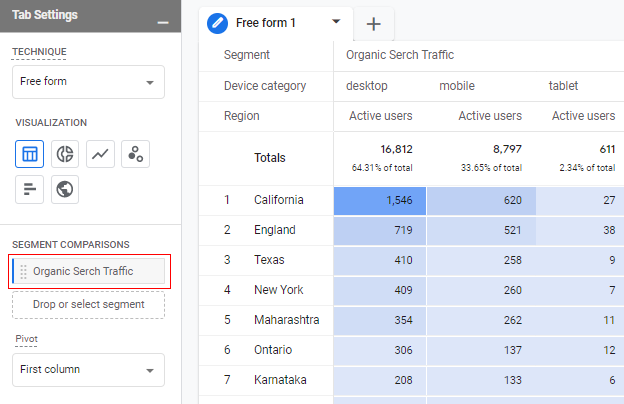
Step 36: Once you define and apply the segment, a new setting called ‘Pivot’ is available under the ‘Segments’ section showing how your segment is displayed in the report.
Multiple options are available in the settings like now our segment is displayed as ‘First Column’.
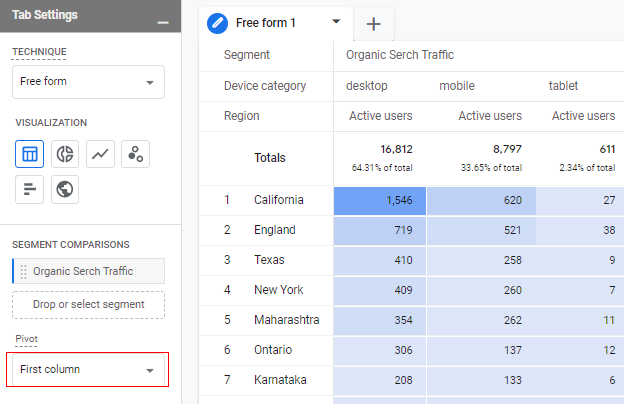
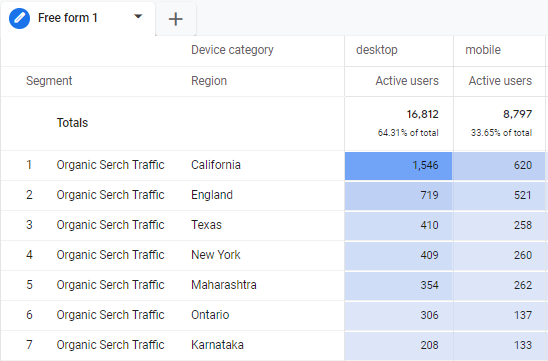
You can also select other options; for example, let’s select ‘First Row’ from the drop-down in the pivot, and our report will look like below.
You can also apply a filter in the ‘Reporting’ tab. Let’s say you only want to see data for California. Right-click on it to get options like below.
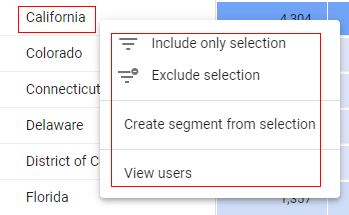
Select the filter you want to apply (‘Include only selection’ or ‘Exclude selection’), and it will reflect in your report.
Option 1: If you select ‘Include only selection’, it will also be reflected in the ‘Reporting’ tab, as in the below image.
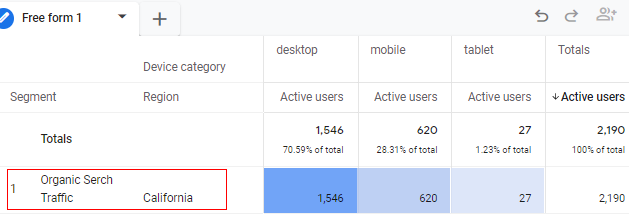
Option 2: If you select ‘Exclude selection’, regions other than California will be shown.
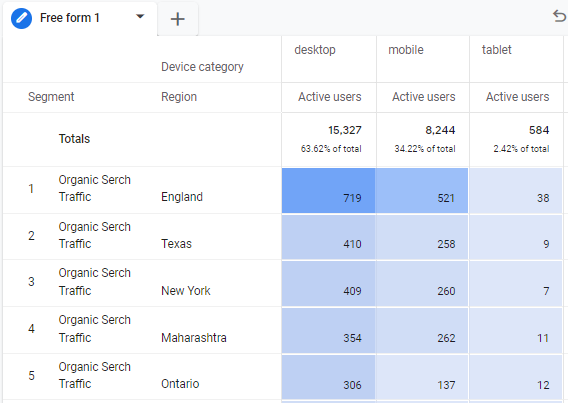
Option 3: You can also create a segment from a selection. It will open a new overlay like below.
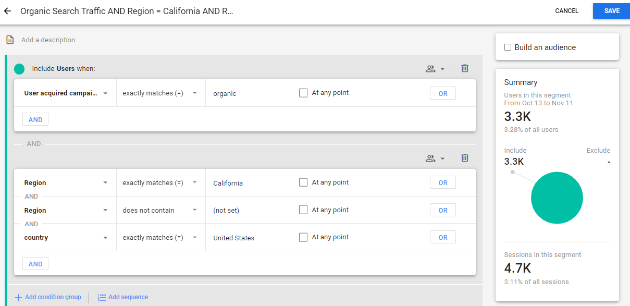
Click on ‘Save’
Option 4: You also get the option to view users for the selected dimension. Just click on ‘View user’, and your report will show user details as below (a new ‘Reporting’ tab will open).
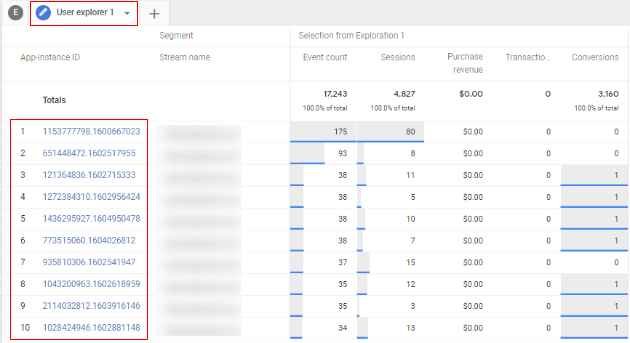
With the ‘User Details’ tab, you can explore more on the activities done by users in great detail.
How to share and download the Free Form report
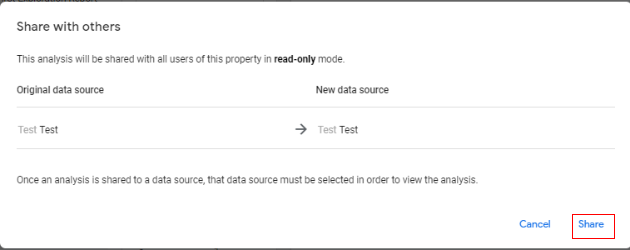
Step 37: You can also share the report template with other colleagues. Just click on the ‘Share’ icon in the upper right corner of the ‘Reporting’ tab.
Step 38: It will open an overlay with details as below. Click on ‘Share’.
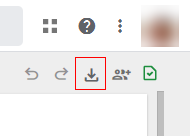
Step 39: You also get an option to download the report. Click on the ‘Download’ button.
A small pop-up will appear, as below, where you can specify the report format type.
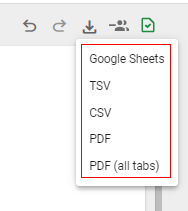
Available options are
- Google Sheets
- TSV (Tab Separated Value)
- CSV (Comma Separated Value)
- PDF (all tabs): this will download all the tabs in reporting panel in PDF format.
The green check icon means that your report is not sampled.
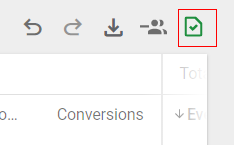
If your data crosses ten million rows, your report will be sampled.
This is how you can use the ‘Exploration’ report and various options available in Google Analytics 4.
GA4 Exploration reports are better than GA4 Standard reports
Relying upon and/or recommending standard GA4 reports for data analysis and reporting is not recommended.
Don’t waste time in customizing reports and adding them to the library.
Create and use exploration reports at every opportunity.
Exploration reports do not suffer from cardinality issues and provide access to raw event and user data. They provide advanced data visualization and manipulation capabilities.
GA4 provides the opportunity to convert a standard report into an exploration report by just clicking on a couple of buttons.
Instead of creating an exploration report from scratch, use a standard report to create a new exploration report by following the steps below:
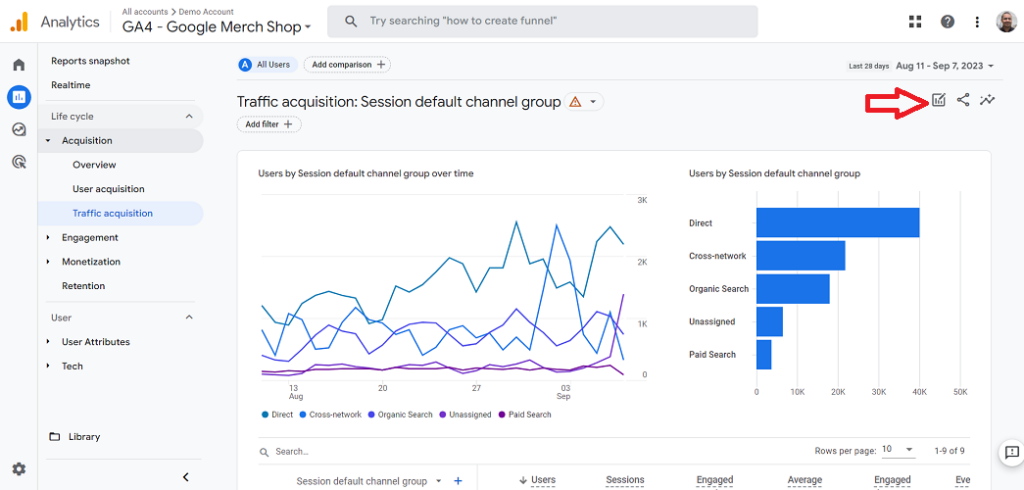
1) Navigate to a GA4 report that contains a data table (exclude overview reports).
2) Click on the ‘Edit Comparison‘ button at the top right of your screen.
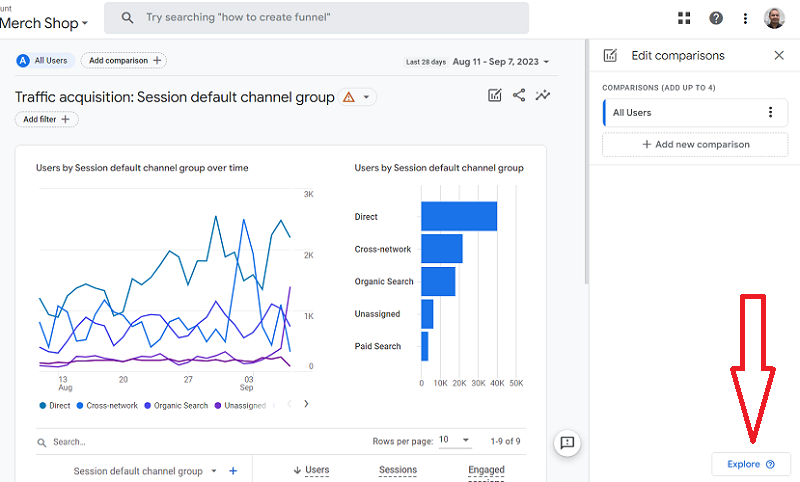
3) Click on the ‘Explore‘ button at the bottom.
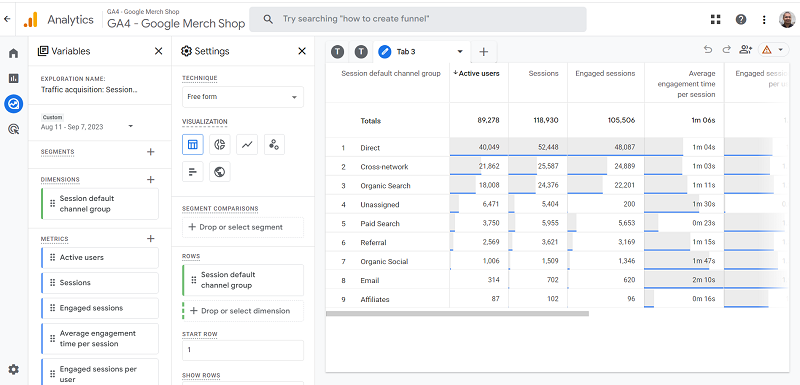
You should now see your standard report opened as an exploration report:
Exploration reports are the next best thing in GA4 after GA4 BigQuery Export data tables.
If you can’t use GA4 BigQuery Export data tables for whatever reason, at least use the Exploration reports.
Standards reports are meant for novice users, who are just starting out, and who are just getting their feet wet.
Now when I see a business operating a GA4 property with zero exploration reports, I know immediately they need a lot of training and education.
Note: For certain reports, you may see the following message while opening a standard report as an exploration report: “You do not have access to the account, property, or view. Contact an Analytics administrator who has the Manage Users permission.“. It’s a bug.

Other Articles on GA4.
- How to overcome GA4 BigQuery Export limit.
- ChatGPT Workflow That Simplifies GA4 Data Analysis.
- Understanding Google Analytics 4 Sessions.
- Total vs Active, New, Returning users in Google Analytics 4.
- BigQuery Cost Optimization Best Practices.
- Google Analytics 4 Data Import Tutorial.
- Tracking ad impressions and ad clicks in Google Analytics 4.
- Testing Google Analytics 4 via Test Property.
- Google Analytics 4 GDPR Compliance Checklist.
- Google Analytics 4 Behavioral and Conversion Modeling.
- GA4 – Missing Deep Links in your App [Fixed].
- How to create custom insights in Google Analytics 4 (GA4).
- Fixing data threshold issue in Google Analytics 4 (GA4).
- (organic) or (not set) as ‘session campaign’ for google / cpc in GA4.
- Session Fragmentation Is Ruining Your GA4 Attribution Data.
- Tracking Outbound Links/Clicks in Google Analytics 4.
- Understanding Data Sampling in Google Analytics 4 (GA4).
- User Explorer Google Analytics 4 Tutorial.
- Google Analytics 4 Explorations Tutorial.
- How to Change Attribution Models in Google Analytics 4.