

To track email campaigns in GA4, we will create a new exploration report from scratch. This new report would have nine tabs.
Each tab would display one sub-report, which measures the performance of your email marketing campaigns and email traffic.
Following are the nine sub-reports we would create in our exploration report:
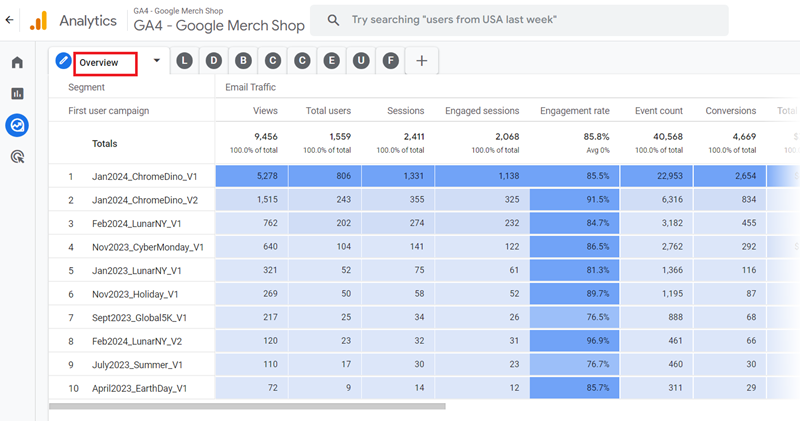
#1 Overview – This report provides an overview of each email marketing campaign:
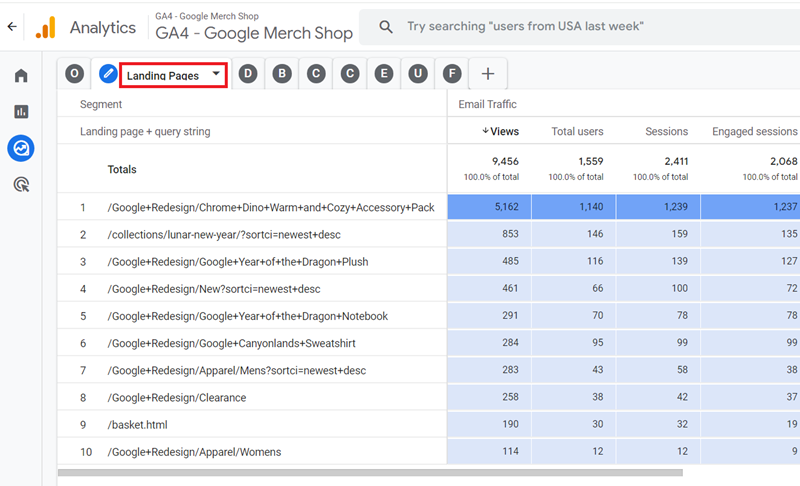
#2 Landing Pages – Use this report to measure the performance of landing pages from email traffic:
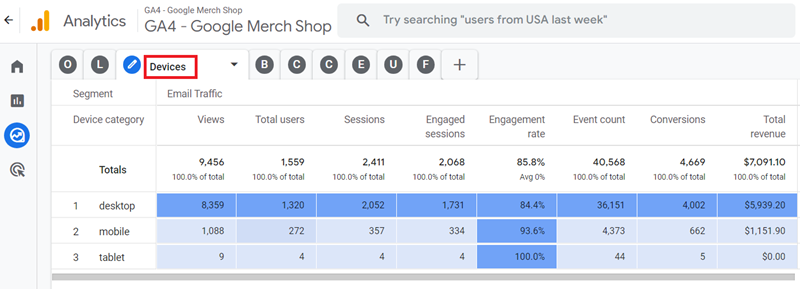
#3 Devices – Use this report to measure the performance of different devices (desktop, mobile, smart TV, tablet) which sent email traffic to your website:
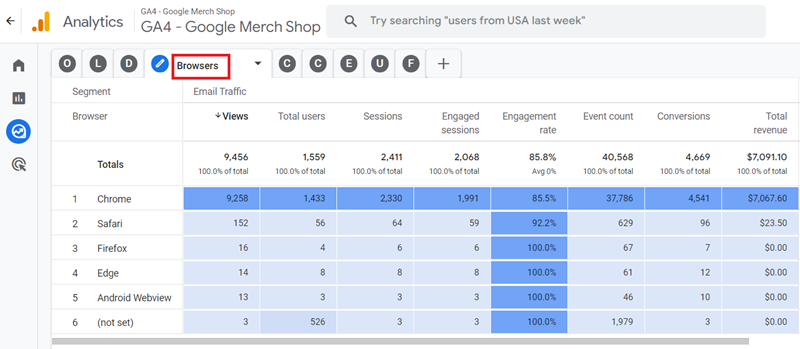
#4 Browsers – Use this report to measure the performance of different web browsers which sent email traffic to your website:
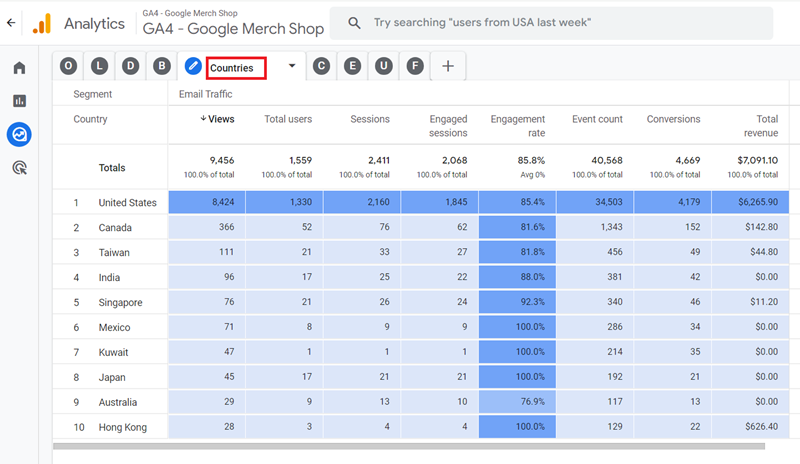
#5 Countries – Use this report to determine the countries which sent email traffic to your website:
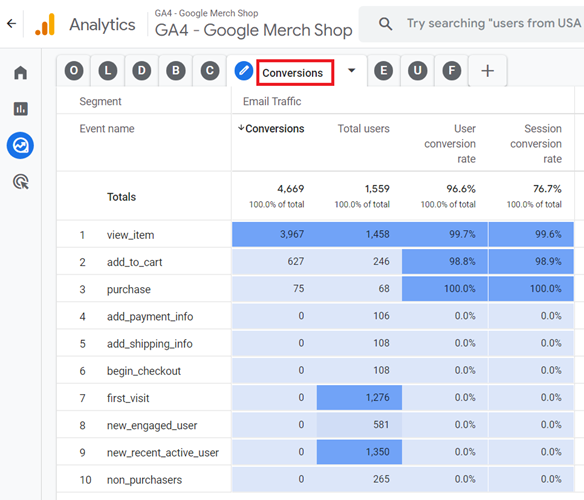
#6 Conversions – Use this report to determine all the conversions generated by email traffic on your website:
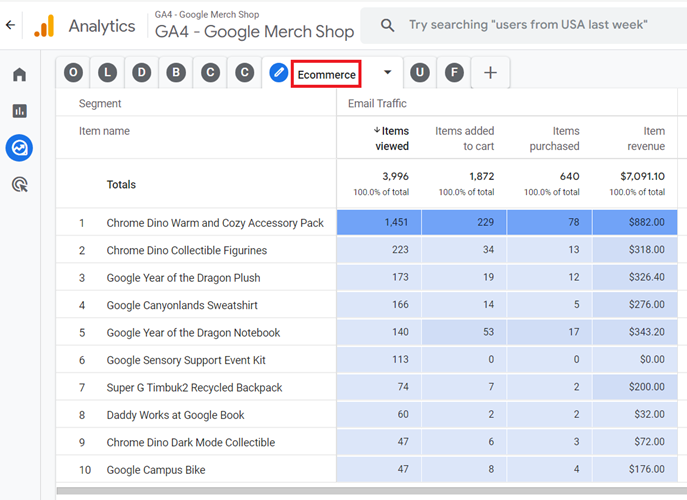
#7 ECommerce – Use this report to measure the ecommerce performance of email traffic to your website:
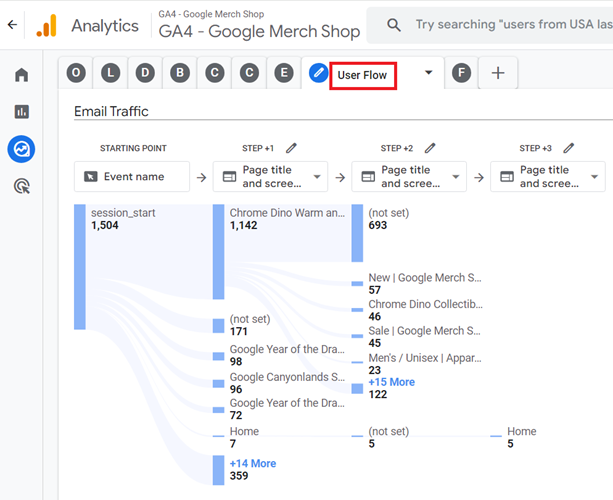
#8 User Flow – Use this report to determine how the email traffic is using your website:
#9 Funnel – Use this report to determine how email traffic is converting on your website:
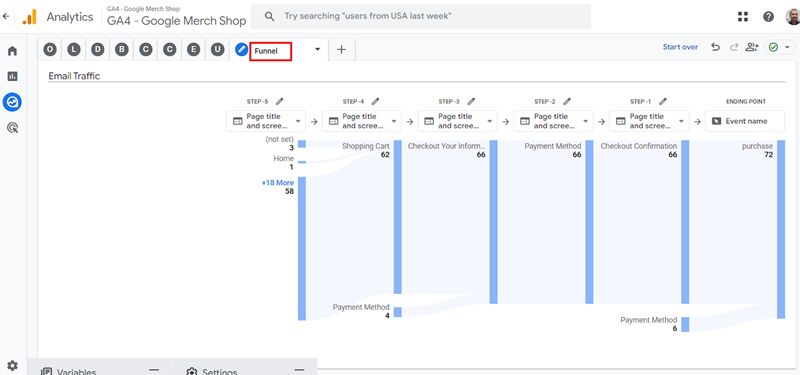
Follow the steps below to create the email tracking report in GA4:
Step-1: Login to your GA4 property.
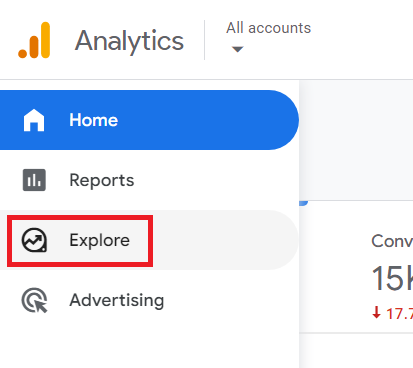
Step-2: Click on Explore from the left-hand side menu:
Step-3: Scroll down and navigate to the report named ‘Organic Search Traffic Analysis‘:
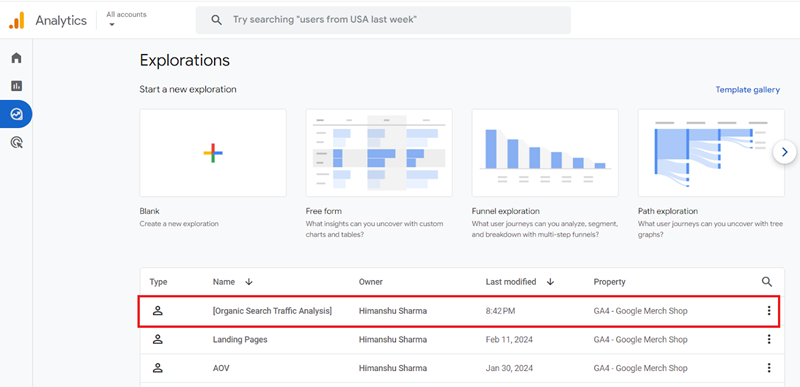
Note: If you do not already have this report, then stop reading this article for now and create this report first. We will use this report as a template to create a new report. Follow the instructions in this article: Tracking Organic Traffic in GA4 - Complete Guide.
Step-4: Click on the three dots menu and then click on the ‘Duplicate‘ option from the drop-down menu:
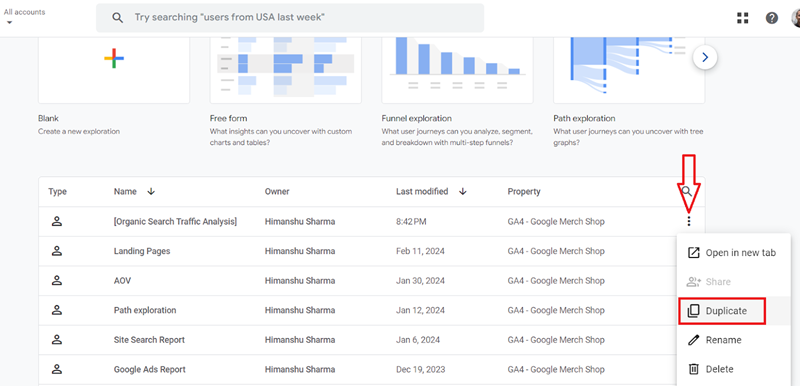
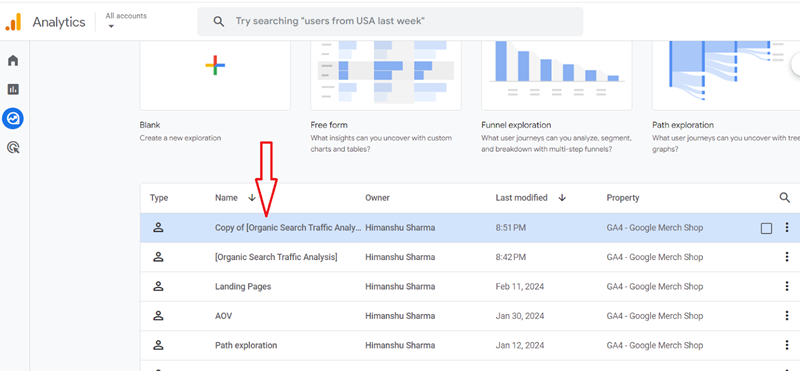
Step-5: Click on ‘Copy of [Organic Search Traffic Analysis]‘:
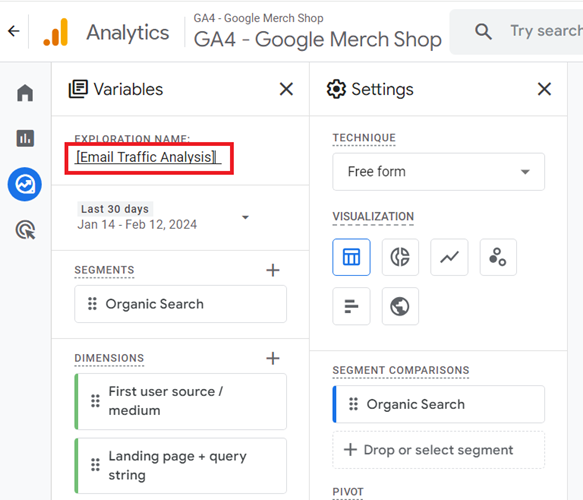
Step-6: Rename the report to [Email Traffic Analysis]
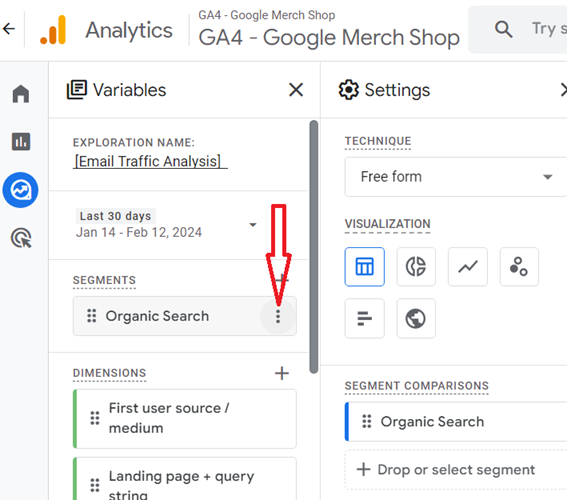
Step-7: Hover your mouse over the ‘Organic Search‘ segment and then click on the three dots menu next to it:
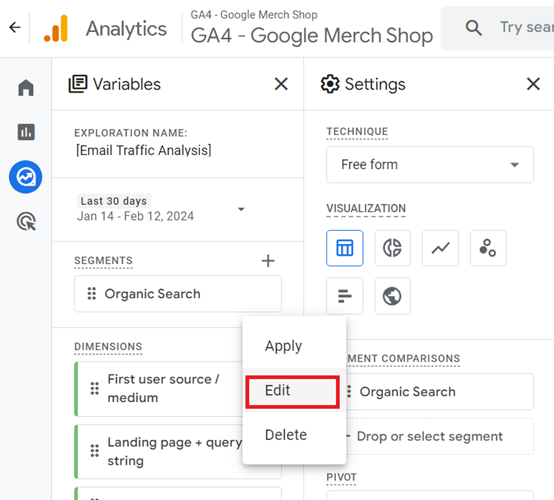
Step-8: Click on the ‘Edit‘ option from the drop-down menu:
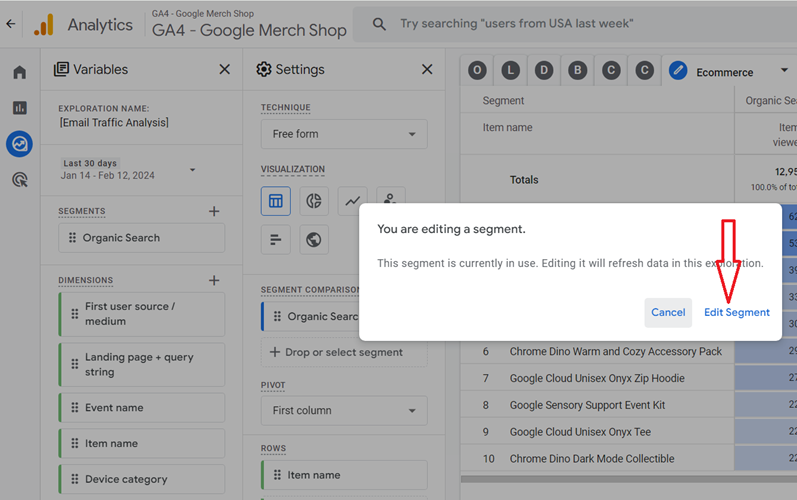
Step-9: Click on the ‘Edit Segment‘ button:
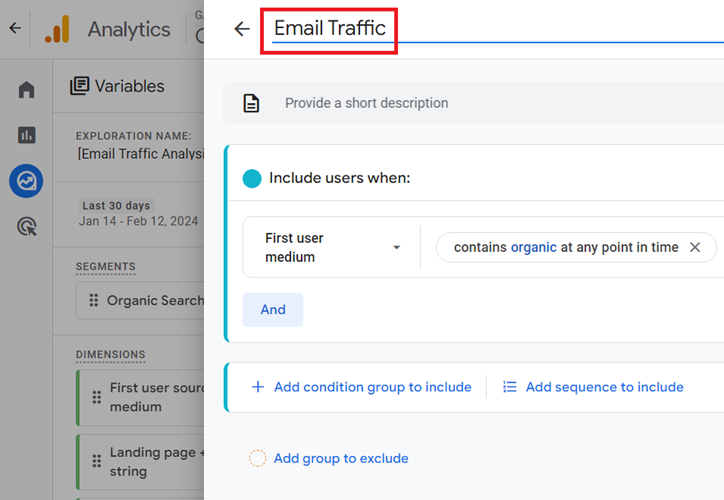
Step-10: Rename the segment to ‘Email Traffic‘:
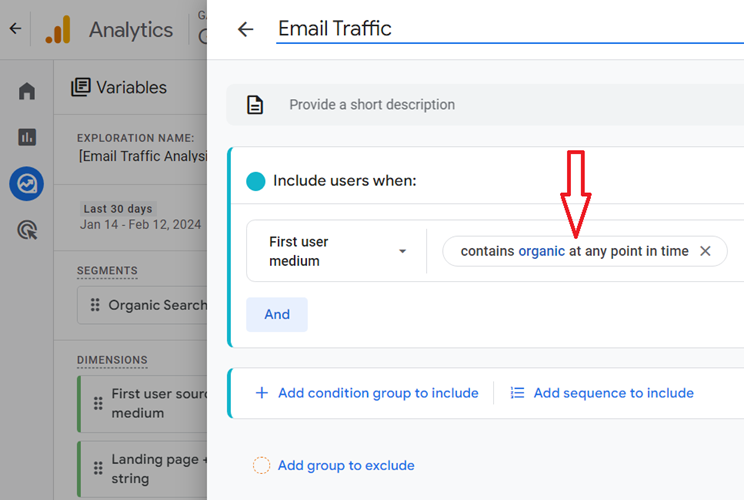
Step-11: Click on the button ‘contains organic at any point in time‘:
You should now see a screen like the one below:
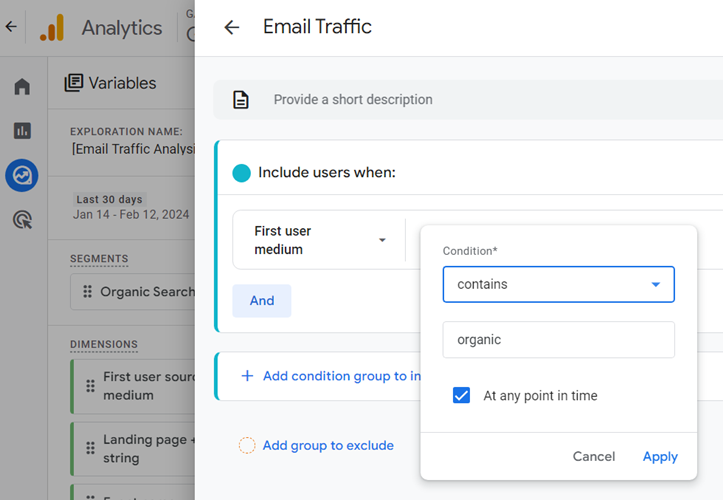
Step-12: Replace the text ‘organic‘ with ‘email‘ and then click on the ‘Apply‘ button:
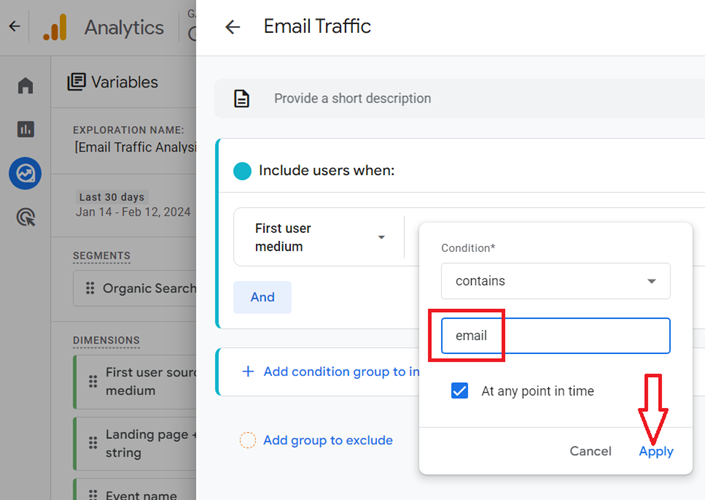
Step-13: Click on the ‘Save‘ button at the top right-hand side of your screen:
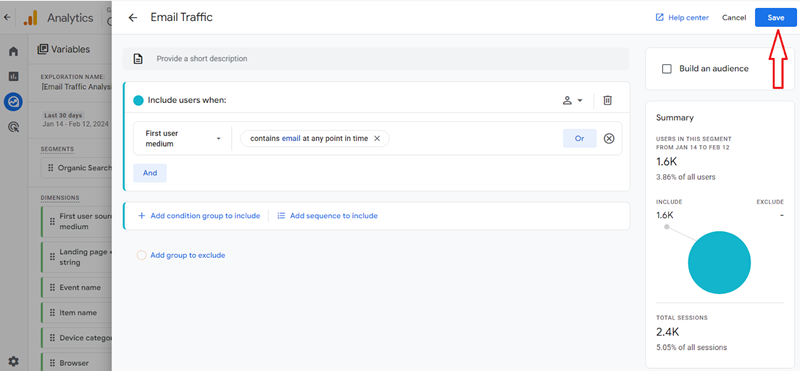
You should now see your new segment listed under the ‘SEGMENTS’ column:
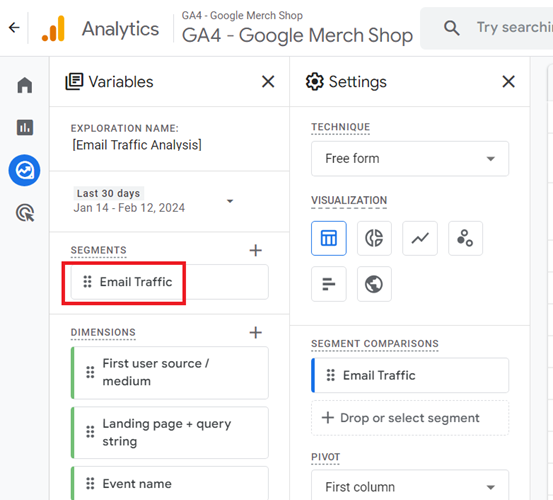
Step-14: Click on the ‘Overview’ tab:
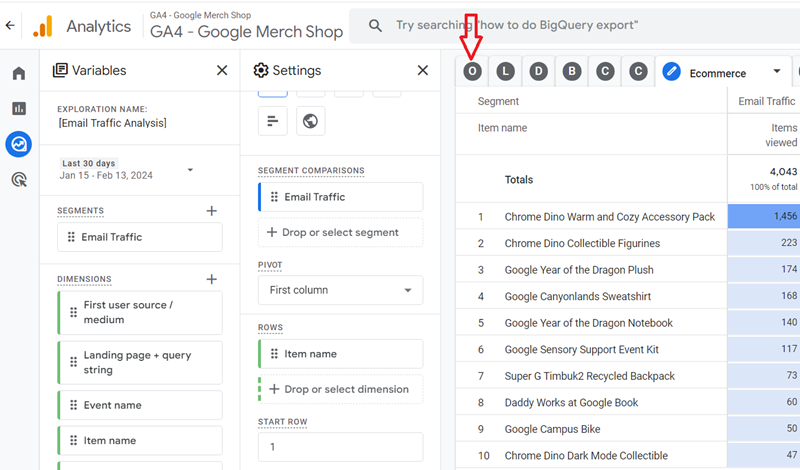
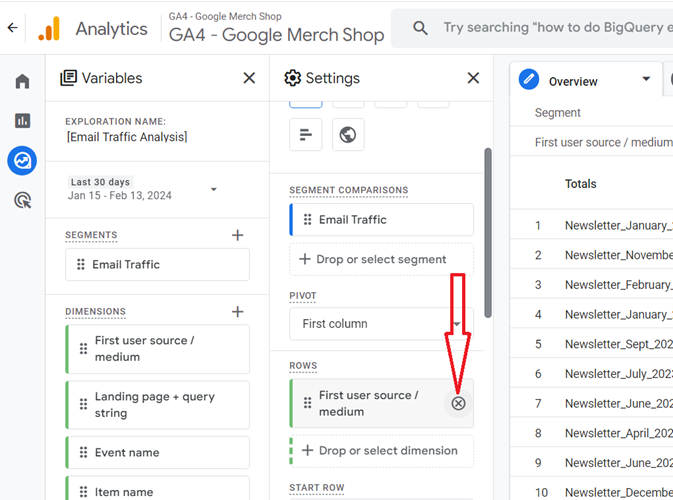
Step-15: Hover your mouse over the dimension ‘First user source / medium‘ and then click on the cross button next to it to delete it from the canvas on the right:
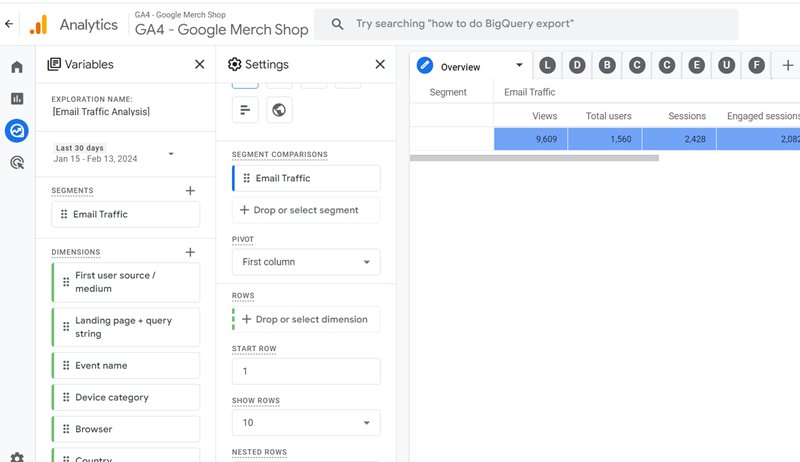
You should now see a screen like the one below:
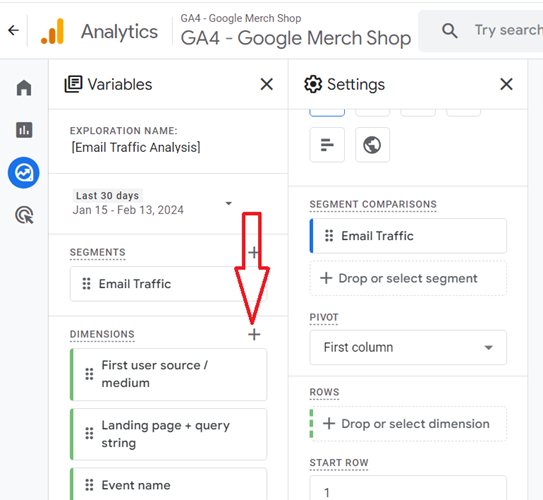
Step-16: Click on the + button next to ‘DIMENSIONS‘ and then import the ‘First user campaign’ dimension:
You should now see the new imported dimension listed under the ‘DIMENSIONS’ column:
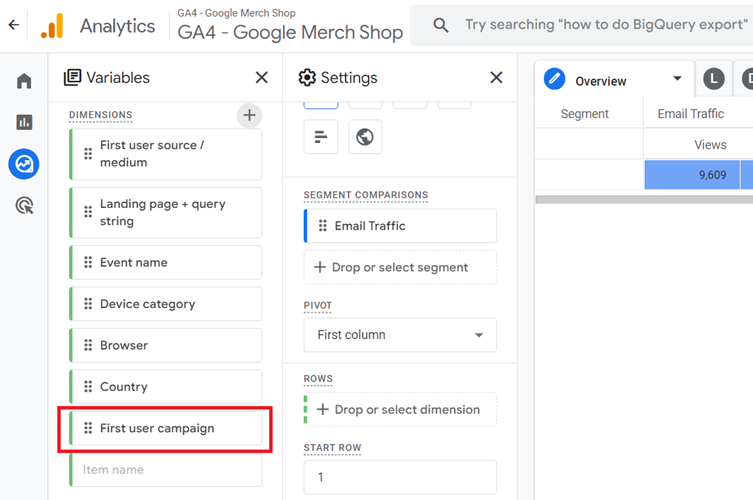
Step-17: Double-click on the dimension ‘First user campaign’ so that it is automatically added to the canvas on the right:

That’s how you can create various reports to track email campaigns and traffic in GA4.

Other Articles on GA4.
- User Explorer Google Analytics 4 Tutorial.
- Google Analytics 4 Explorations Tutorial.
- How to Change Attribution Models in Google Analytics 4.
- Google Analytics Real-time report not working? Here is the fix.
- Google Signals in Google Analytics 4 - See demographics (gender, age) data.
- How to Create Landing Page Report in Google Analytics 4.
- How to segment Google Analytics 4 data by data stream.
- Setup Cross Domain Tracking in Google Analytics 4.
- How to see full page URLs in Google Analytics 4.
- Roll up Property in Google Analytics 4 – Tutorial.
- The Best Tag Auditing Tools for Google Analytics 4.
- How to Exclude URL Query Parameters in Google Analytics 4.
- How to Track Email Campaigns in Google Analytics 4.
- Google Analytics 4 Attribution Modelling Tutorial.
- Understanding Service Worker in GTM Server Side Tagging.
- Cohort Exploration Report in Google Analytics 4 (GA4).
- Google Analytics 4 vs Google Ads conversion tracking.
- Google Analytics 4 Custom Dimensions Tutorial.
- Google Analytics 4 Dimensions Tutorial.
- Event Scoped Custom Dimensions in Google Analytics 4.