

What is Google Signals in GA4 (Google Analytics 4)
Google Signals GA4 is an advertising reporting feature through which Google Analytics 4 can collect cross-device data from those website users who have signed in to one of their Google accounts (Gmail, YouTube, etc) and have turned on ad personalization.
Advantages of activating Google Signals for GA4 property
When you activate Google Signals for your GA4 property, you can:
- More accurately track users across different devices and platforms.
- Remarket to more website users across devices.
- Analyze users’ data by age, gender and interest.
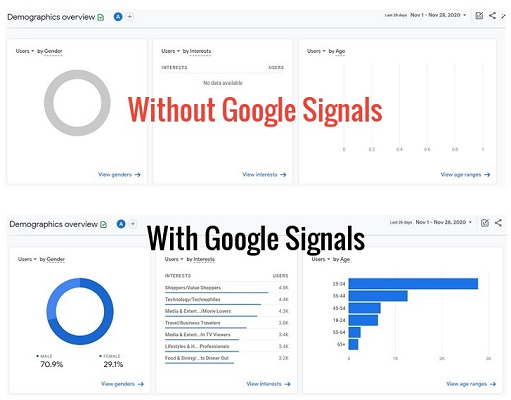
Note: Google Signals is not enabled by default in GA4.
How to activate Google Signals in GA4?
Follow the steps below to activate Google Signals for your GA4 property:
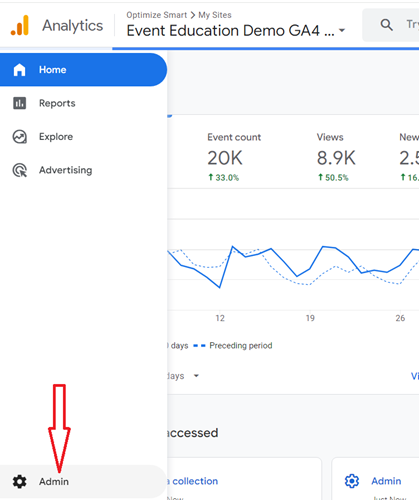
Step-1: Navigate to the ‘Admin’ section of your GA4 property.
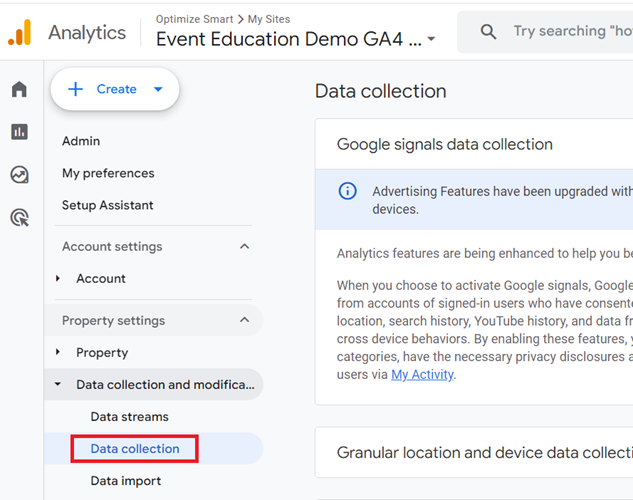
Step-2: Click on ‘Data Collection‘ under the ‘Data Collection and Modification‘ column:
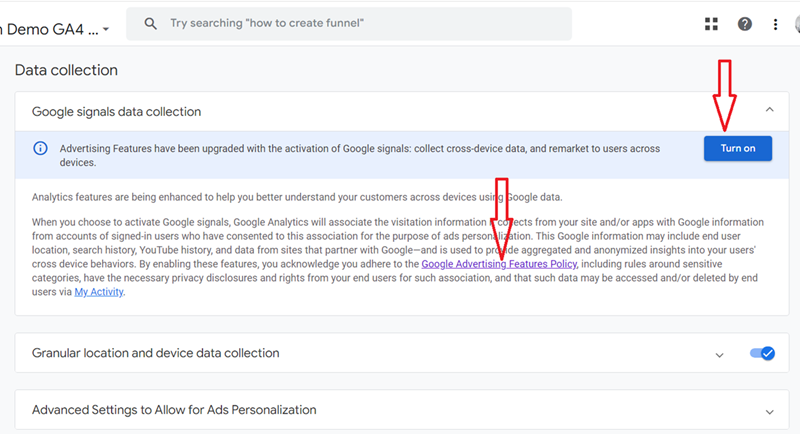
Step-3: Find and click on the link named ‘Google Advertising Features Policy‘ link and go through the policy:
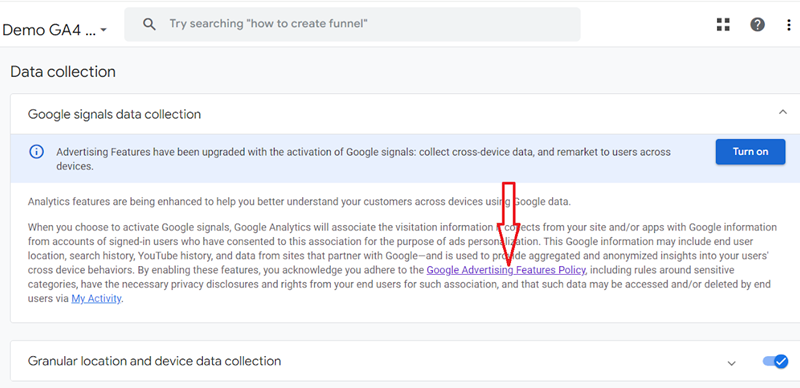
If your company can not agree with the Google Advertising Features policy, you should not activate Google Signals.
Step-4: If you agree with the Google Advertising Features policy, then click on the ‘Turn on‘ button:
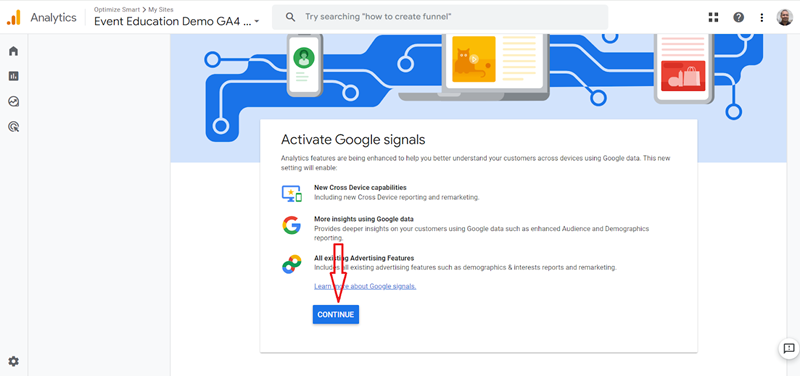
Step-5: Click on the ‘Continue‘ button:
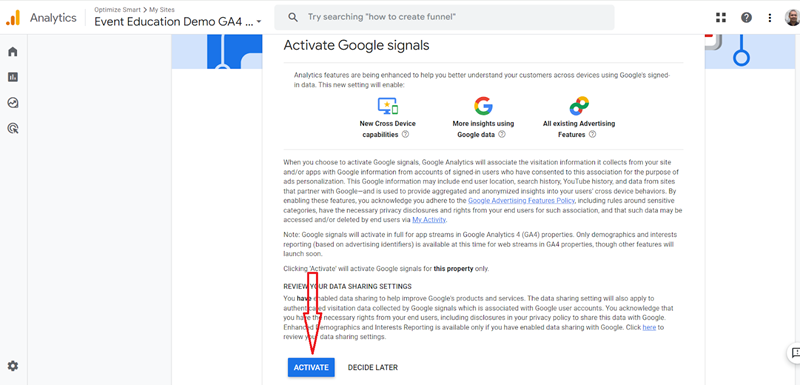
Step-6: Scroll down and click on the ‘Activate‘ button:
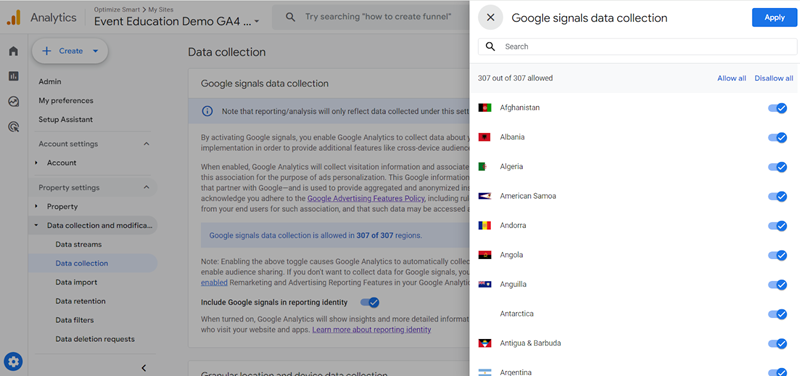
Step-7: Click on the wheel button if you have to turn off Google Signal data collection in particular countries (optional).
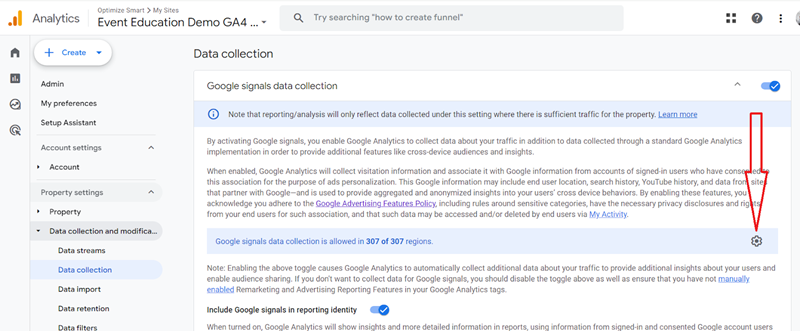
Step-8: Turn off the toggle button next to ‘Include Google signals in reporting identity‘ (optional).
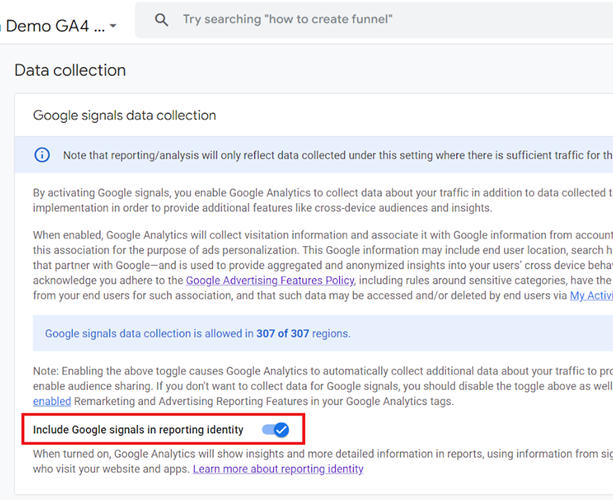
When turned on, the demographic and interest data will be available in your reports, but it will increase the likelihood of data thresholding.
When turned off, the demographics and interest data will be omitted from your reports, but at the same time, GA4 will still continue to collect Google signals data in audiences and conversions and share the data with linked Google Ads accounts for remarketing and bid optimization.
This setting allows you to turn off Google Signals data in reporting identity without disabling Google Signals in GA4.
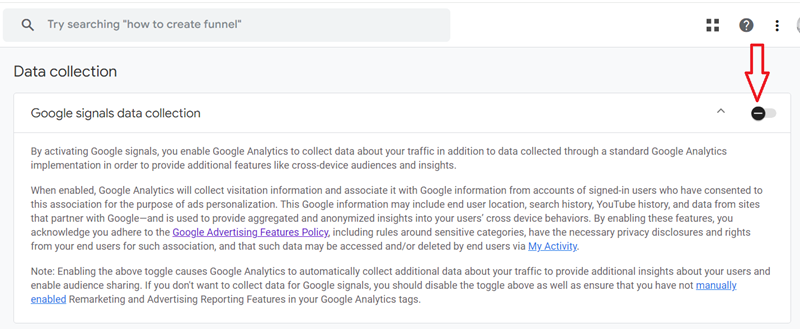
If, in the future, you want to disable Google Signals, just turn off the toggle button next to ‘Google Signals data collection‘:
Step-9: After 24 hrs have elapsed, navigate to the ‘Overview‘ report under ‘User Attributes‘:
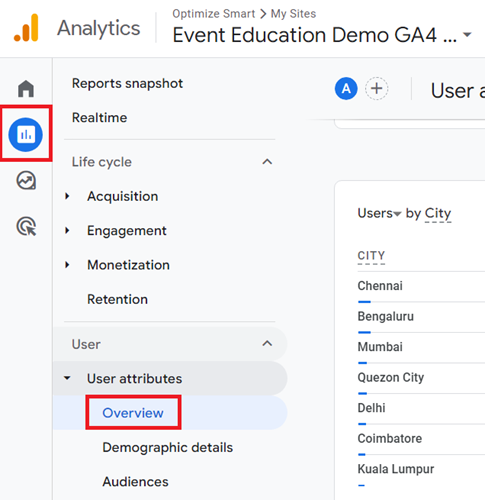
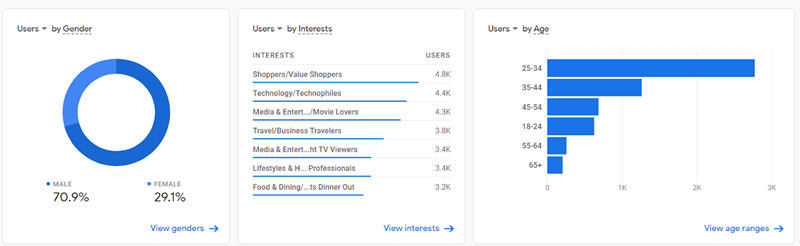
If you can see the users’ data by gender, interest and age, then it means Google Signals data has started flowing in your GA4 reports:

Other Articles on GA4.
- Google Analytics 4 GDPR Compliance Checklist.
- Google Analytics 4 Behavioral and Conversion Modeling.
- GA4 – Missing Deep Links in your App [Fixed].
- How to create custom insights in Google Analytics 4 (GA4).
- Fixing data threshold issue in Google Analytics 4 (GA4).
- (organic) or (not set) as ‘session campaign’ for google / cpc in GA4.
- Session Fragmentation Is Ruining Your GA4 Attribution Data.
- Tracking Outbound Links/Clicks in Google Analytics 4.
- Understanding Data Sampling in Google Analytics 4 (GA4).
- User Explorer Google Analytics 4 Tutorial.
- Google Analytics 4 Explorations Tutorial.
- How to Change Attribution Models in Google Analytics 4.
- Google Analytics Real-time report not working? Here is the fix.
- Google Signals in Google Analytics 4 - See demographics (gender, age) data.
- How to Create Landing Page Report in Google Analytics 4.
- How to segment Google Analytics 4 data by data stream.
- Setup Cross Domain Tracking in Google Analytics 4.
- How to see full page URLs in Google Analytics 4.
- Roll up Property in Google Analytics 4 – Tutorial.
- The Best Tag Auditing Tools for Google Analytics 4.