

Introduction to Query Parameters
Before you can understand the concept of query parameters, you need to understand the concept of query string.
A query string is part of the URL which comes after the ‘?’ character.
For example, in the URL:
https://www.abc.com/fold1?ThemeId=8904&iPathId=38715
The query string is:
ThemeId=8904&iPathId=38715
The query string is made up of one or more parameters (called query parameters), and each parameter is made up of a ‘key=value’ pair.
For example, in the URL:
https://www.abc.com/fold1?ThemeId=8904&iPathId=38715
The query string is:
ThemeId=8904&iPathId=38715
This query string is made up of the following two query parameters:
ThemeId=8904
iPathId=38715
The query parameter ‘ThemeId=8904’ is made up of the key called ‘ThemeId’ and the value called ‘8904’
Similarly,
The query parameter ‘iPathId=38715’ is made up of the key called ‘iPathId’ and the value called ‘38715’
Why should you exclude URL query parameters in GA4 (Google Analytics 4)?
By default, GA4 treat the same page as two different web pages if they contain different query parameters.
For example, for GA4, the following two web pages are different (even if they display exactly the same contents):
https://www.abc.com/fold1?ThemeId=8904
https://www.abc.com/fold1?ThemeId=8905
If a query parameter does not change the contents of a web page, then you should exclude it from your GA4 reports.
Failing to do so will result in multiple entries being reported for the same page in your GA4 reports.
For example, if the following two pages display exactly the same content:
https://www.abc.com/fold1?ThemeId=8904
https://www.abc.com/fold1?ThemeId=8905
Then GA4 may report traffic to these pages like the one below:
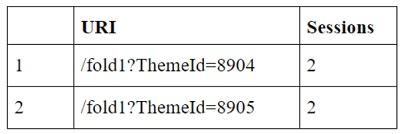
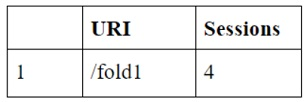
Once you exclude the query parameter ‘ThemeId’ then GA4 will consolidate the traffic of the two pages and will report the traffic as:
Now, imagine your website uses thousands of query parameters for the same page.
In that case, without excluding query parameters, you would see thousands of different entries for the same page in your GA4 reports.
A dimension (like ‘Page Path + Query String) with many different values is called a high cardinality dimension.
The presence of a high cardinality dimension in a GA4 report can result in the ‘(other)’ category appearing in the GA4 reports:
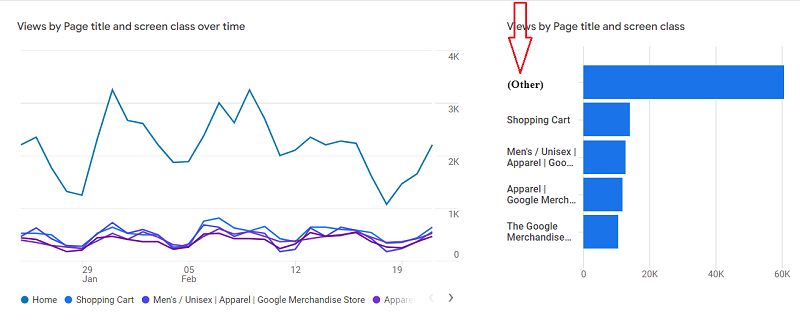
You can reduce the impact of ‘(Other)’ in GA4 Reporting by removing all the unwanted query parameters from your page path before you send the page tracking data to GA4.
Steps to exclude URL Query Parameters in GA4.
Follow the steps below:
Step-1: Find the list of query parameters to remove from your GA4 reports.
Ask your web developer to send you a list of query parameters that are being used on the website but which do not change the contents of a web page.
Step-2: Decide what other query parameters you would like to exclude from your GA4 reports.
Step-3: Decide the query parameters you would like to keep in your GA4 reports. I do not recommend excluding the following parameters from your GA reports:
- Search query parameters
- gclid, gclsrc, dclid, gclsrc, srsltid
- utm parameters (utm_source, utm_content, utm_id, utm_medium, utm_campaign, utm_term, utm_id, utm_source_platform etc)
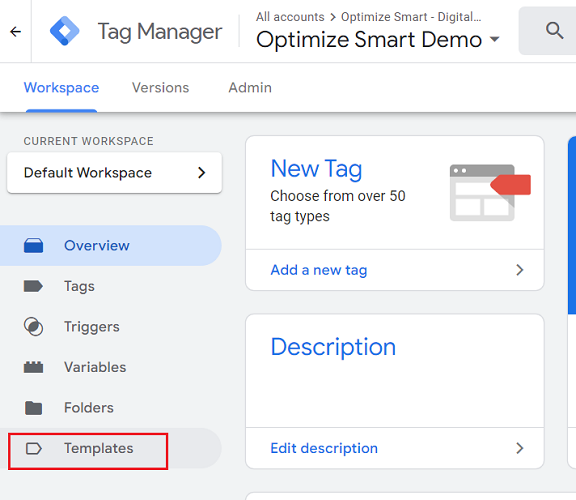
Step-4: Login to your Google Tag Manager account and then click on the ‘Templates’ link from the left-hand side navigation:
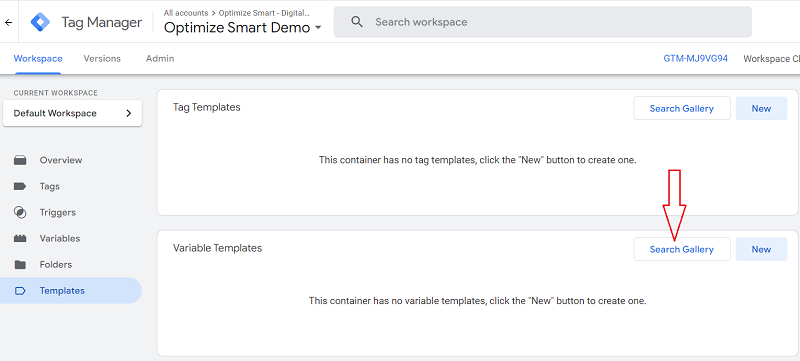
Step-5: Click on the ‘Search Gallery’ button next to ‘Variable Templates’:
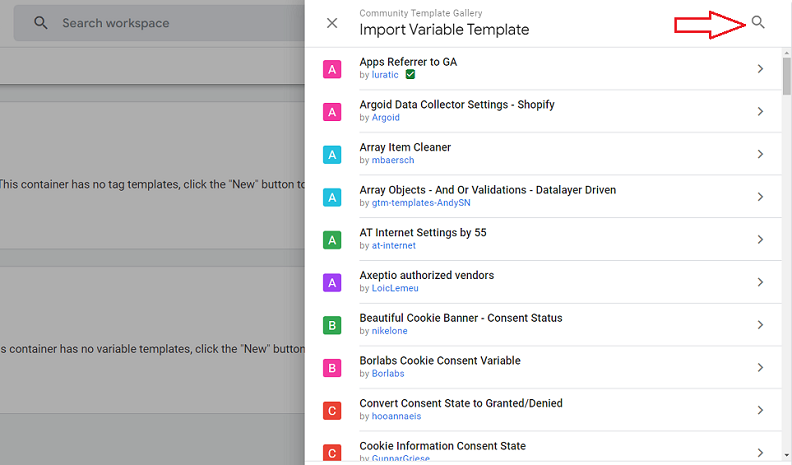
Step-6: Click on the magnifying glass to enable the search box:
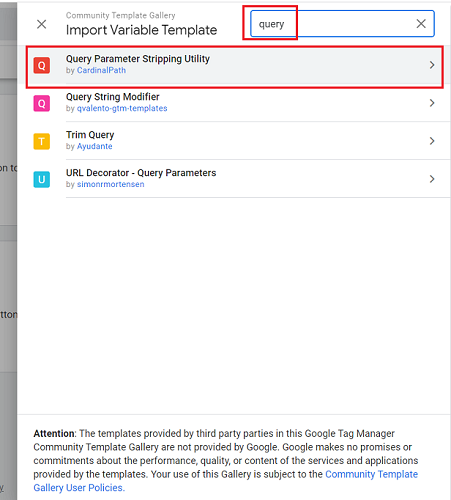
Step-7: Type ‘query’ in the search box and then click on ‘Query Parameter Stripping Utility’:
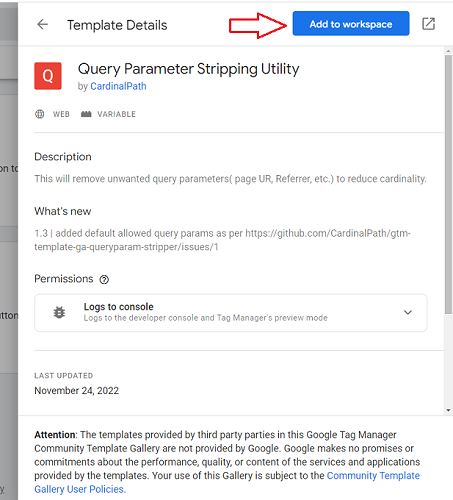
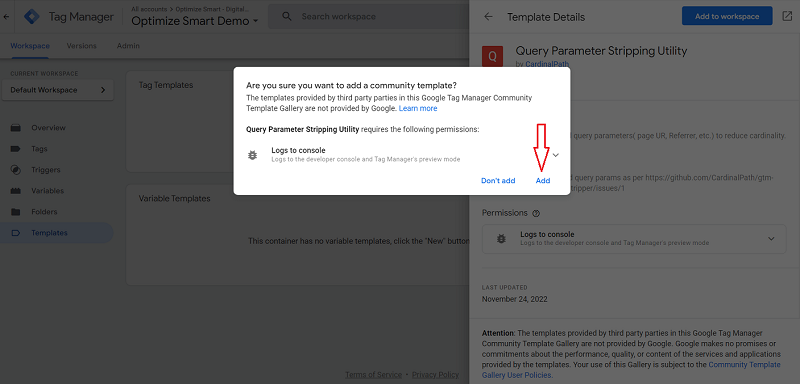
Step-8: Click on the ‘Add to workspace’ button:
Step-9: Click on the ‘Add’ button:
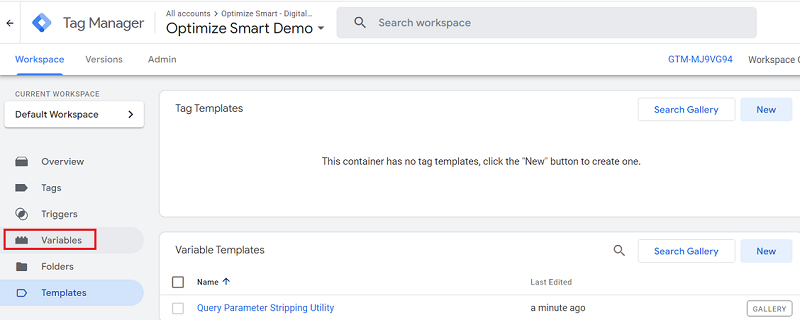
Step-10: Click on the ‘Variables’ link from the left-hand side navigation:
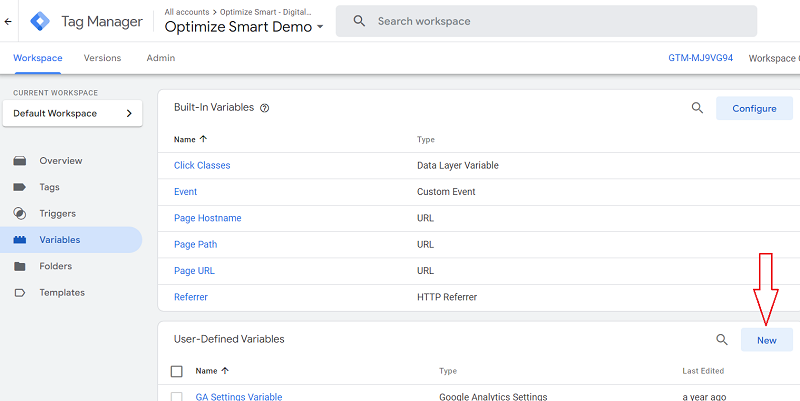
Step-11: Click on the ‘New’ button next to ‘User-Defined Variables’:
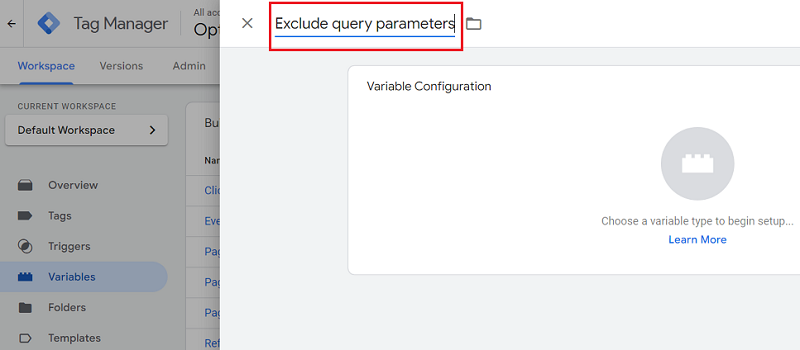
Step-12: Name the new variable ‘Exclude query parameters’:
Step-13: Click on the button ‘Choose a variable type to begin setup..’:
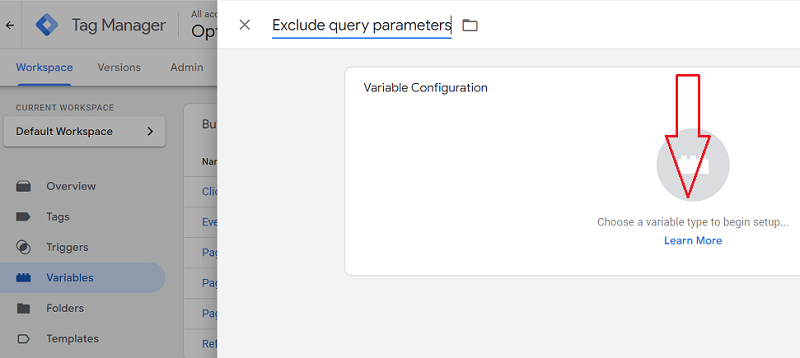
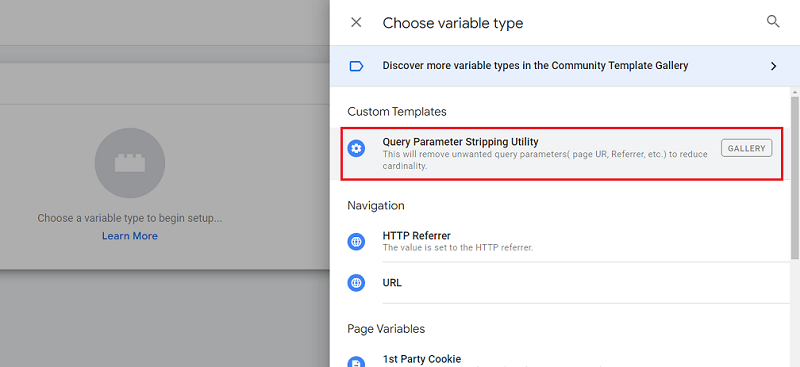
Step-14: Click on ‘Query Parameter Stripping Utility’:
Step-15: Enter the query parameters you don’t want to exclude from your GA4 reports under ‘Exclude All Parameters’:
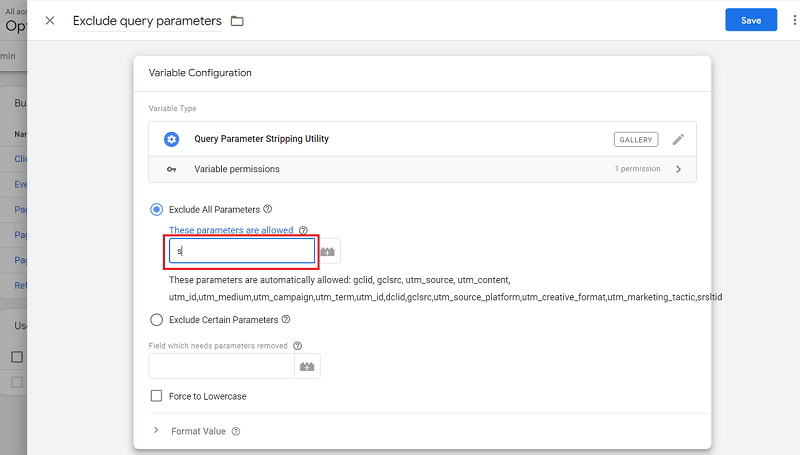
I only want to exclude the search query parameter (‘s’) that I use on my website. That’s why I entered only ‘s’ in the text box.
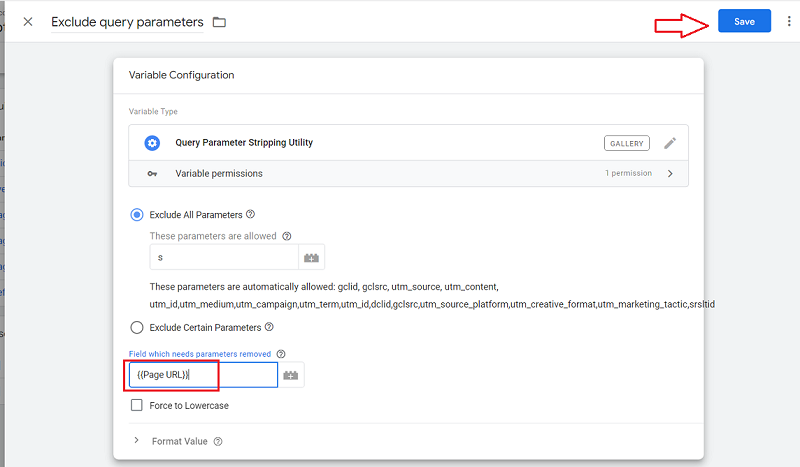
Step-16: Type the variable {{Page URL}}in the text box under ‘Field which needs parameters removed’ and then click on the ‘Save’ button:
Step-17: Click on the ‘Tags’ link from the left-hand side navigation:
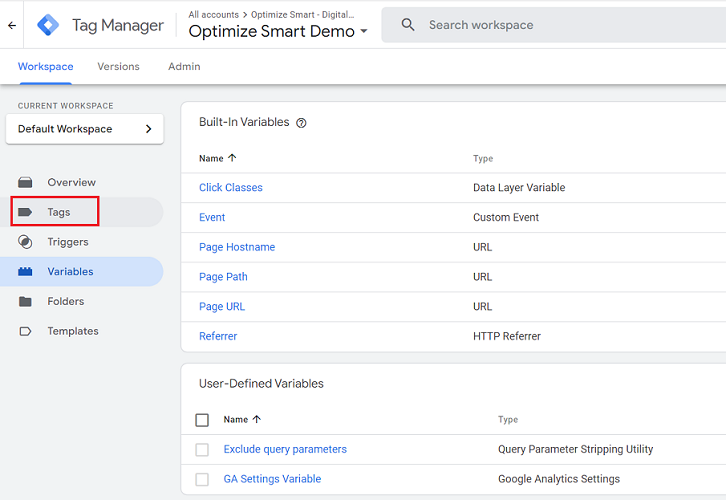
Step-18: Find and click on the tag of type ‘Google Analytics: GA4 Configuration’:
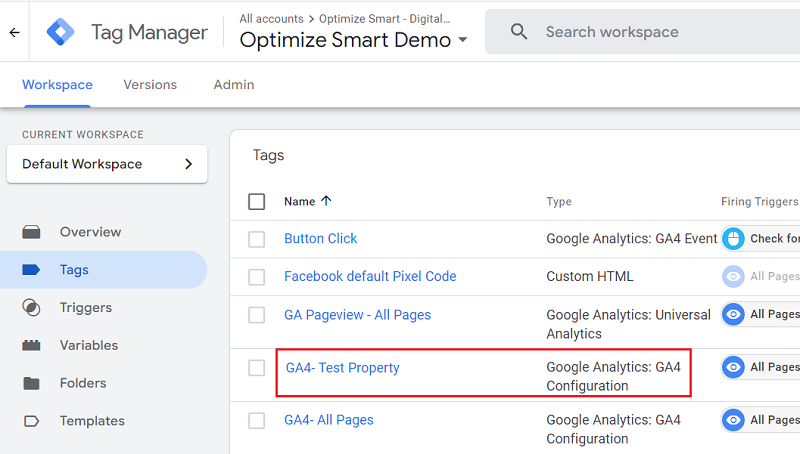
Note: I recommend editing the configuration tag meant for the GA4 test property before deploying changes to the live website.
Step-19: Click on ‘Tag Configuration’:
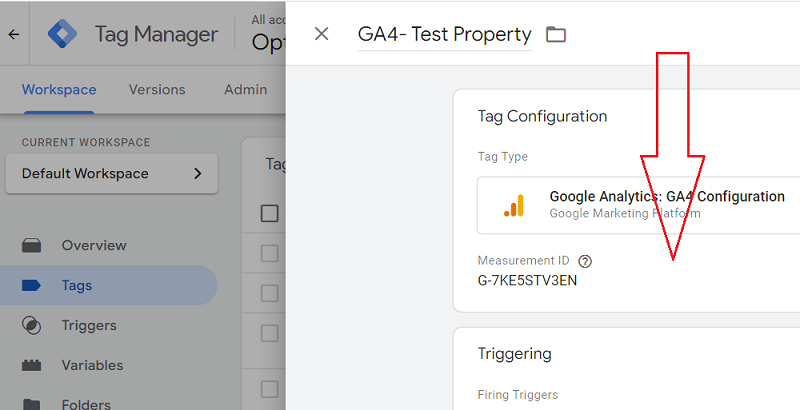
Step-20: Click on ‘Fields to set’ drop-down menu:
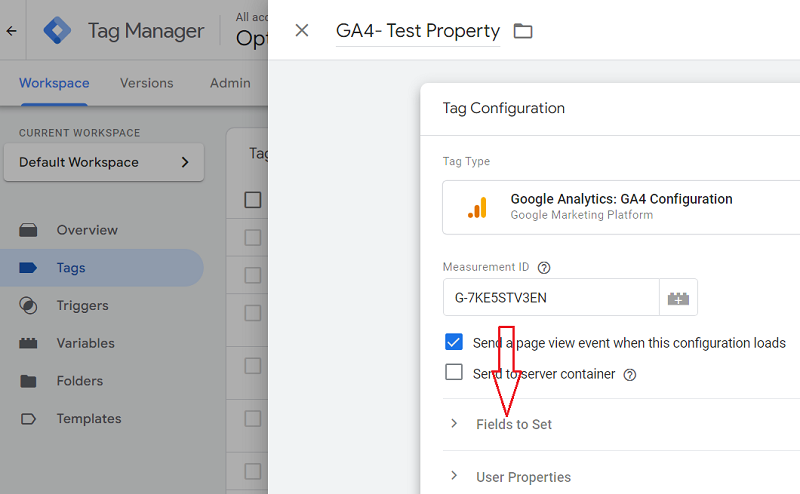
Step-21: Click on the ‘Add Row’ button:
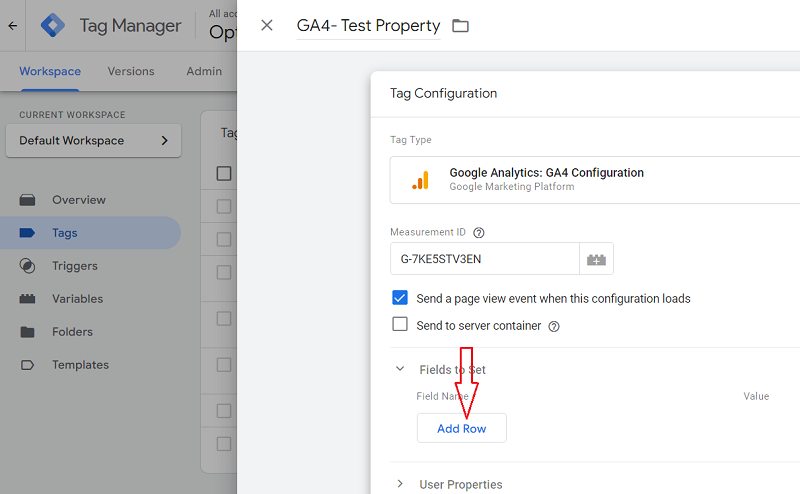
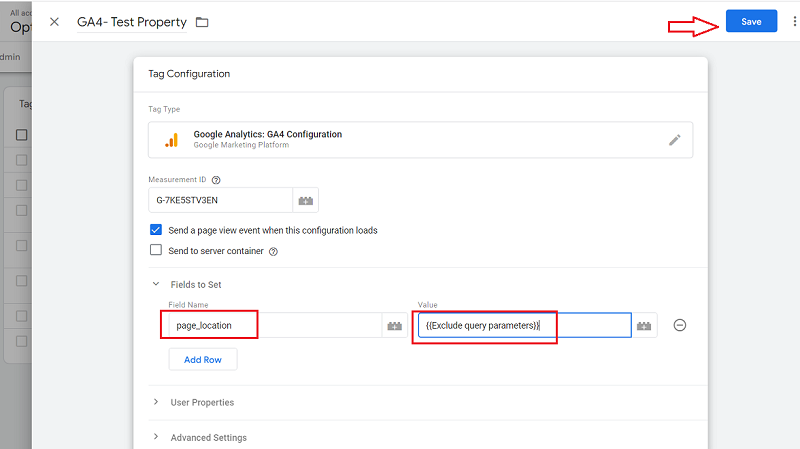
Step-22: Enter ‘page_location’ in the text box under ‘Field Name’ and ‘{{Exclude query parameters}}’ in the text box under ‘Value’ and then click on the ‘Save’ button:
Step-23: Make sure you have installed the Google Analytics Debugger chrome extension and it is enabled.
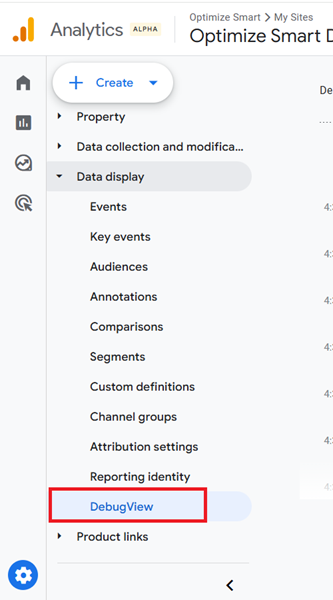
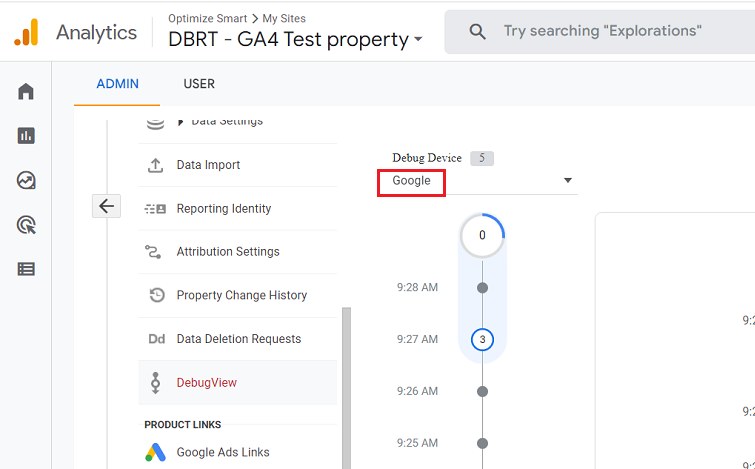
Step-24: Navigate to the admin area of your GA4 property and then click on the ‘DebugView’ link to open the GA4 debug View report:
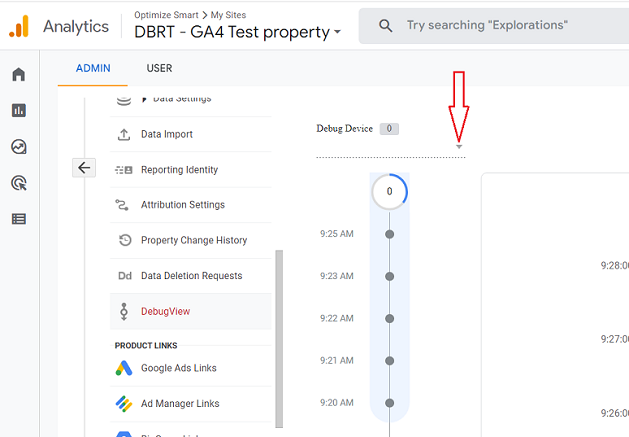
Step-25: Click on the drop-down menu under ‘Debug Device’ and then select ‘Google’:
Step-26: Copy the URL which contains the query parameters you want to exclude from your reports.
For example, in the URL below, I want to exclude the fbclid query parameter:
https://www.optimizesmart.com/web-analytics-2-0-improve-conversions/?fbclid=IwAR0zUpHjz66vXpB2rn2vVnBjkCZ3ZTqco36eRZD2WCkAXtIvKrgbBmGV3w8
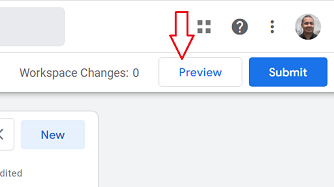
Step-27: Navigate back to your GTM account and then click on the ‘Preview’ button:
Step-28: Paste the URL that you copied earlier and then click on the ‘Connect’ button:
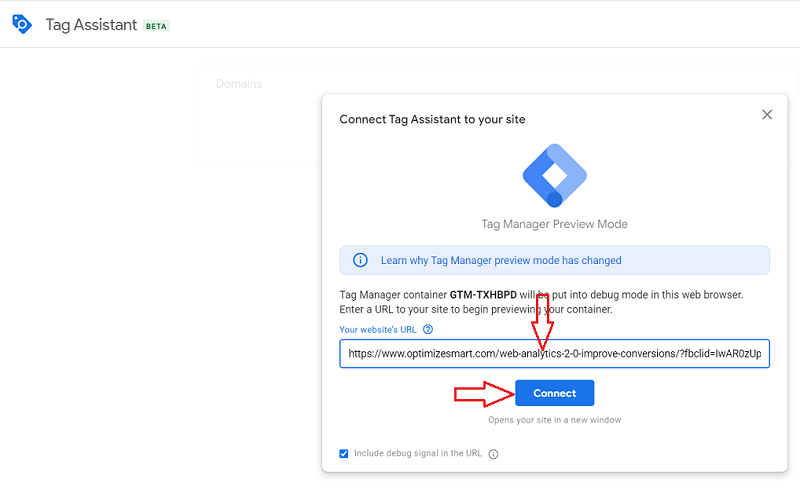
You should now be automatically redirected to the page whose URL you entered earlier.
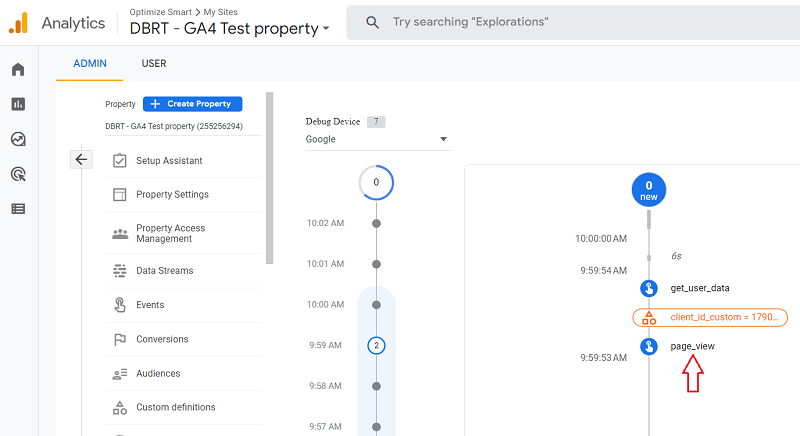
Step-29: Navigate back to the Debug View report in your GA4 property and then find and click on the ‘page_view’ event:
Step-30: Find and click on the ‘page_location’ drop-down menu:
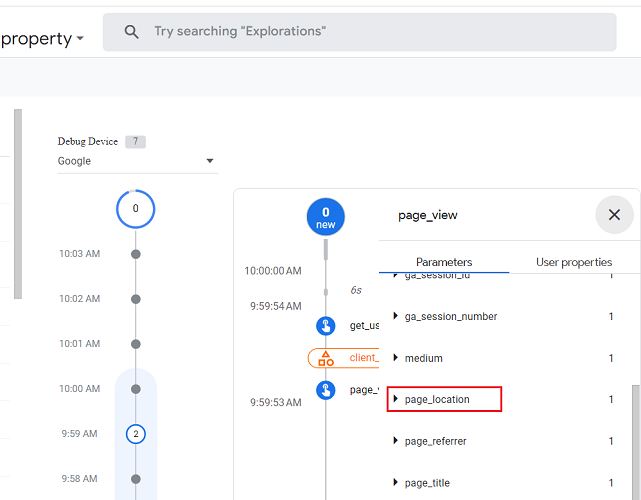
You should now see the URL without query parameters:
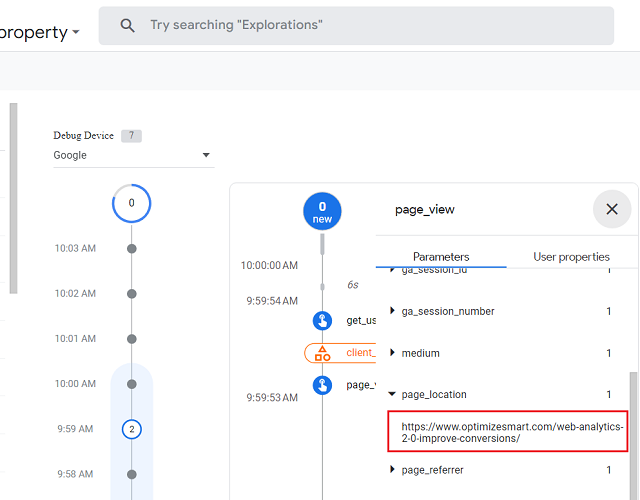
This proves that our tagging setup works correctly.
Step-31: Navigate back to your GTM account and then click on the ‘Submit’ button to publish your container:
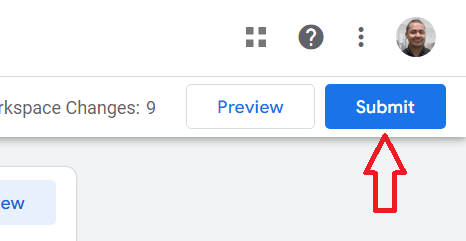
That’s how you can exclude query parameters in Google Analytics 4 reports.
CAVEAT: Do Not Exclude ‘Search Query Parameters’
Do not exclude ‘search query parameters’. Otherwise you won’t see any data in your ‘site search’ reports.
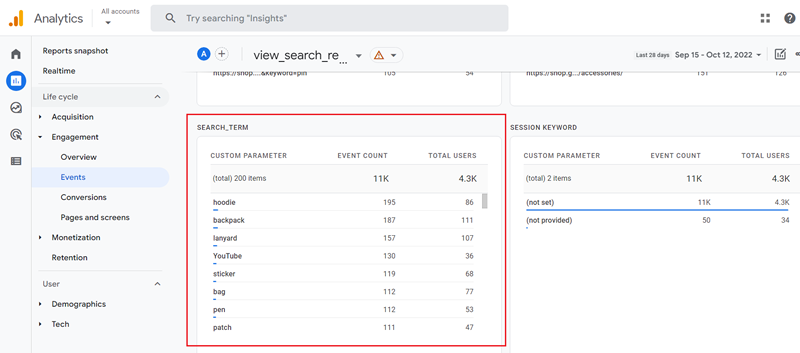
Introduction to Search Query Parameters
When users search on your website (via the search box), their queries are usually included in the URL.
For example, if you search for ‘utm parameters’ on my website, you would see ‘s’ (search query parameter) followed by your query:
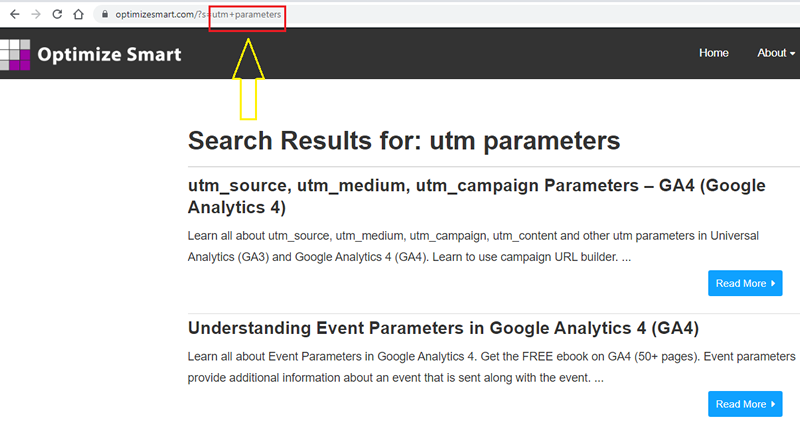
Here, the query parameter is part of the URL which comes after the ‘?’ character.
So the query parameter is:
s=utm+parameters
The following is the search term used in the query parameter:
utm+parameters
If I exclude this search query parameter from my GA4 reports, then GA4 will not be able to capture any site search data in my reports.
If you are not sure what your site search query parameter looks like, then ask your web developer.

Other Articles on GA4.
- User Explorer Google Analytics 4 Tutorial.
- Google Analytics 4 Explorations Tutorial.
- How to Change Attribution Models in Google Analytics 4.
- Google Analytics Real-time report not working? Here is the fix.
- Google Signals in Google Analytics 4 - See demographics (gender, age) data.
- How to Create Landing Page Report in Google Analytics 4.
- How to segment Google Analytics 4 data by data stream.
- Setup Cross Domain Tracking in Google Analytics 4.
- How to see full page URLs in Google Analytics 4.
- Roll up Property in Google Analytics 4 – Tutorial.
- The Best Tag Auditing Tools for Google Analytics 4.
- How to Exclude URL Query Parameters in Google Analytics 4.
- How to Track Email Campaigns in Google Analytics 4.
- Google Analytics 4 Attribution Modelling Tutorial.
- Understanding Service Worker in GTM Server Side Tagging.
- Cohort Exploration Report in Google Analytics 4 (GA4).
- Google Analytics 4 vs Google Ads conversion tracking.
- Google Analytics 4 Custom Dimensions Tutorial.
- Google Analytics 4 Dimensions Tutorial.
- Event Scoped Custom Dimensions in Google Analytics 4.