

You can change attribution models in GA4 through:
- Model Comparison report.
- Conversion Paths report.
- Attribution settings.
How to change attribution models in GA4 through the Model Comparison report
In order to change attribution models in GA4 through the Model Comparison report, follow the steps below:
Step-1: Navigate to your GA4 property.
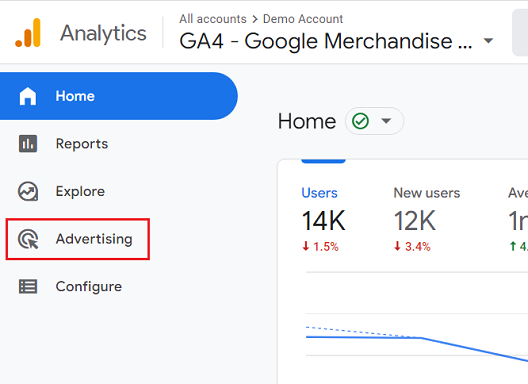
Step-2: Click on the ‘Advertising’ link from the left-hand side navigation:
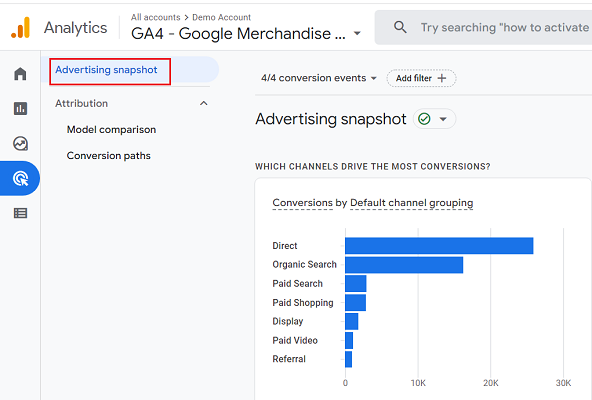
You should now see the Advertising Snapshot report:
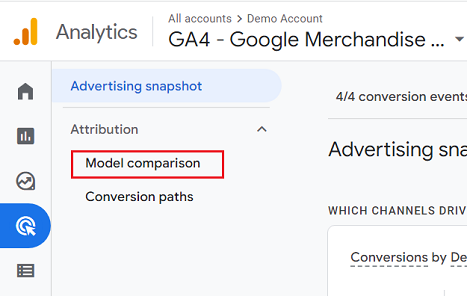
Step-3: Click on the ‘Model Comparison’ link on the left-hand side navigation:
Step-4: Select the reference attribution model from the first attribution model drop-down menu:
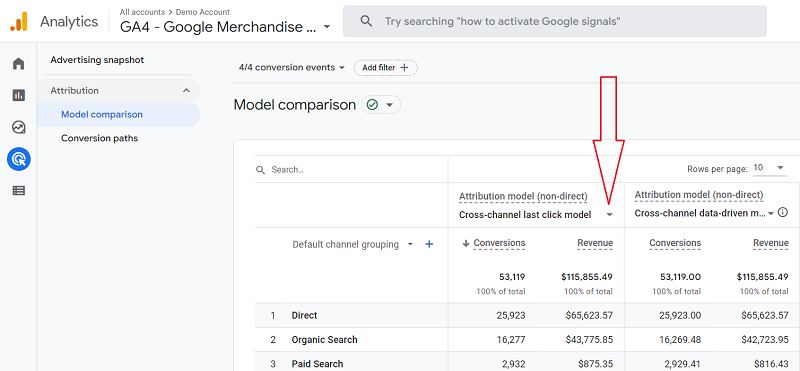
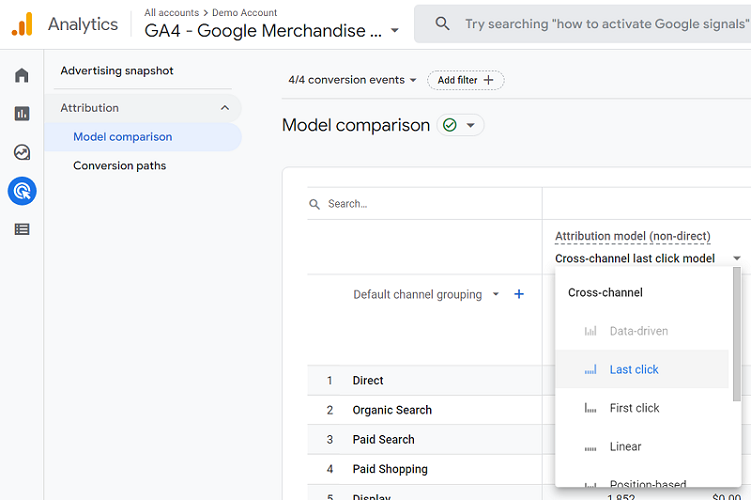
Step-5: Select the comparison attribution model from the second attribution model drop-down menu:
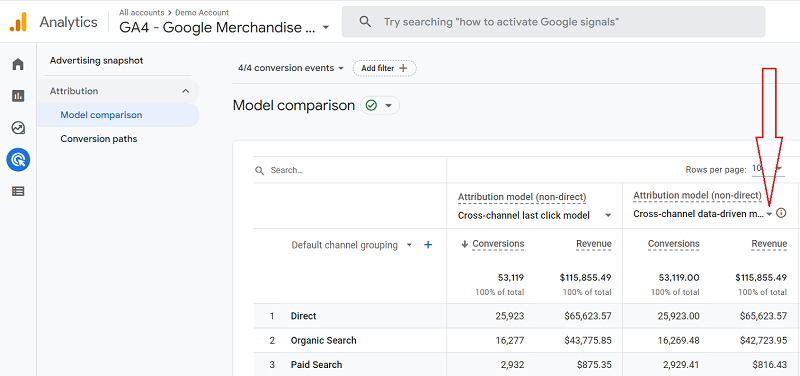
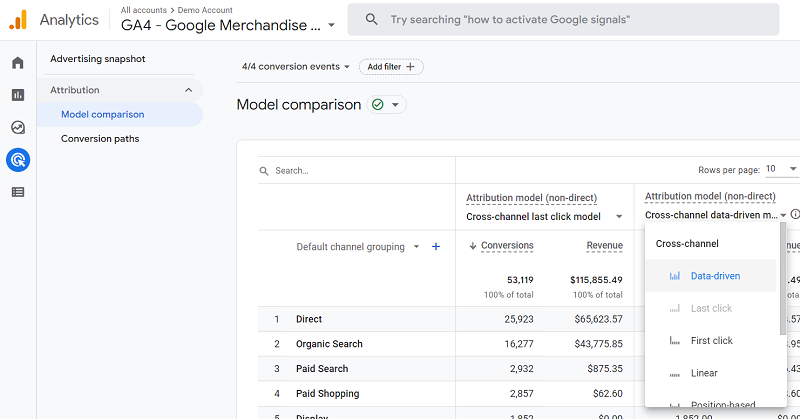
That’s how you can change the attribution models in GA4 via the Model Comparison report.
How to change attribution models in GA4 through the Conversion Paths report
In order to change attribution models in GA4 through the Conversion Paths report, follow the steps below:
Step-1: Navigate to your GA4 property.
Step-2: Click on the ‘Advertising’ link from the left-hand side navigation.
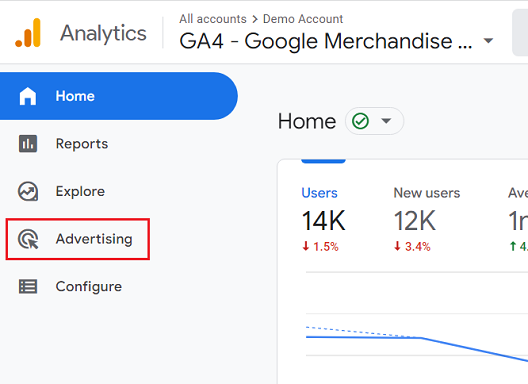
You should now see the Advertising Snapshot report:
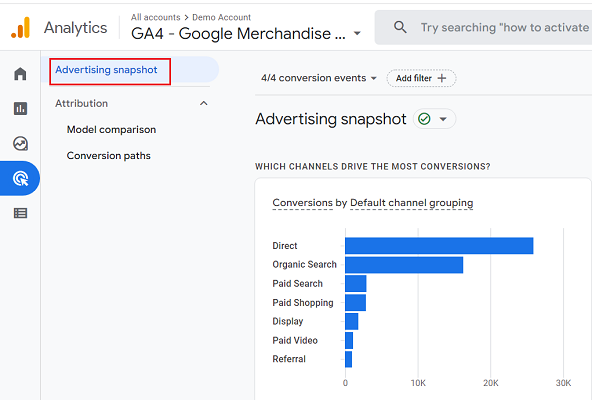
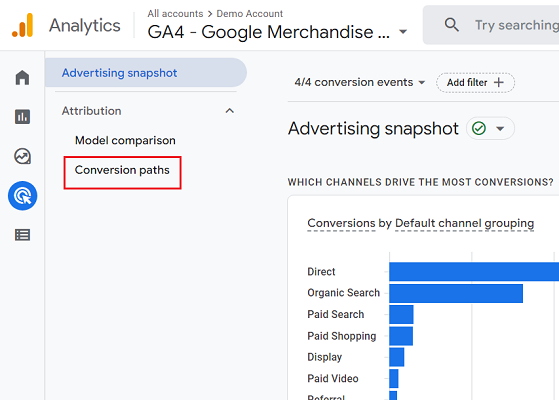
Step-3: Click on the ‘Conversion paths’ link on the left-hand side navigation:
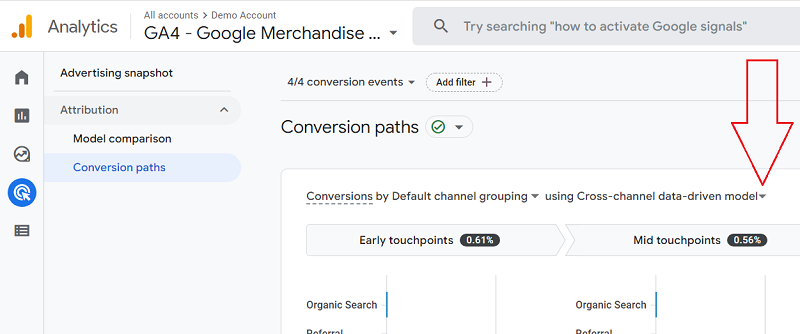
Step-4: Select the attribution model you want to use for your conversion paths analysis by clicking on the attribution model drop-down menu:
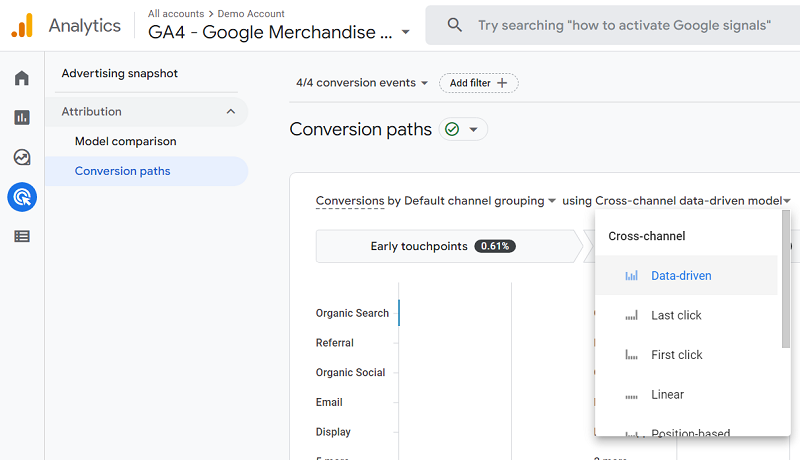
That’s how you can change the attribution models in GA4 via the Conversion Paths report.
How to change attribution models in GA4 through attribution settings
Through the attribution settings, you can change the reporting attribution model for your GA4 property.
The reporting attribution model is used by GA4 to calculate conversion credit in all of your GA4 reports and also within the conversions reports of any linked Firebase projects.
By default, GA4 uses the cross-channel data-driven model as the reporting attribution model.
However, you can change the reporting attribution model to any one of the following models:
- Last Click
- First Click
- Linear
- Position-based
- Time decay
- Ads-preferred last click
Avoid using the Ads-preferred last click model as the reporting model for your GA4 property because then all the conversion credit calculations will be Google ads biased.
Because the Ads-preferred last click model gives 100% conversion credit to the last Google Ads click on a conversion path.
Therefore I do not recommend changing your reporting attribution model to the Ads-preferred last click model.
Follow the steps below to change attribution models in GA4 through attribution settings
Step-1: Navigate to your GA4 property.
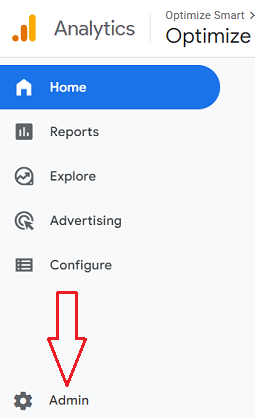
Step-2: Click on the ‘Admin’ link from the left-hand side navigation:
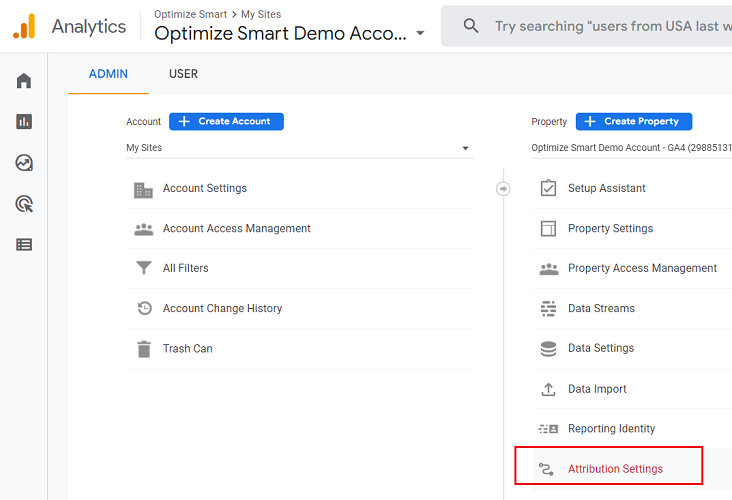
Step-3: Click on ‘Attribution Settings’ under the property column:
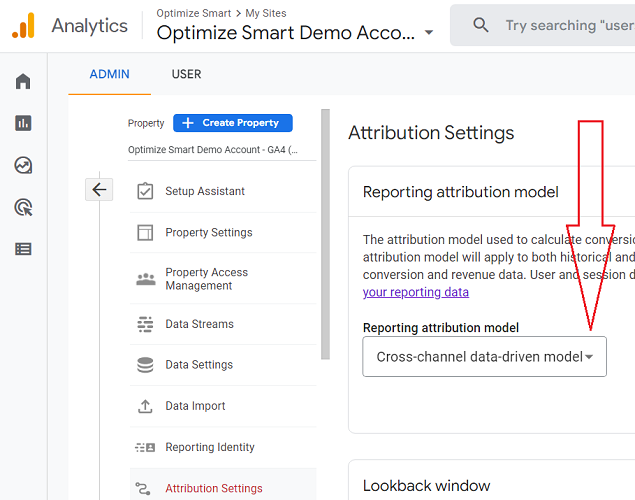
Step-4: Click on the ‘Reporting Attribution Model’ drop-down menu:
Step-5: Select the attribution model you want to use:
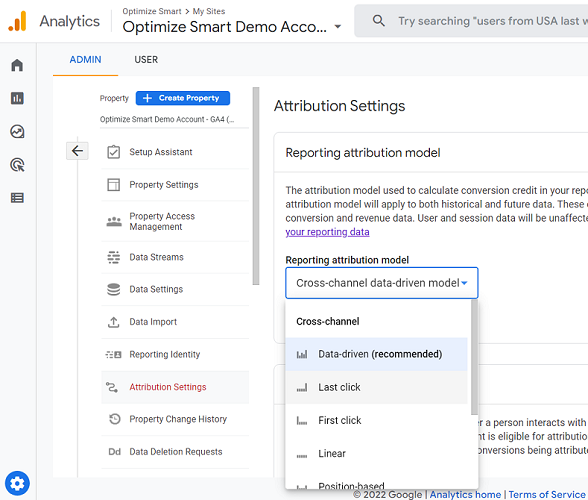
Note: Google recommends that you use the ‘Data-driven’ attribution model.
Step-6: Scroll down the screen and then click on the ‘Save’ button:
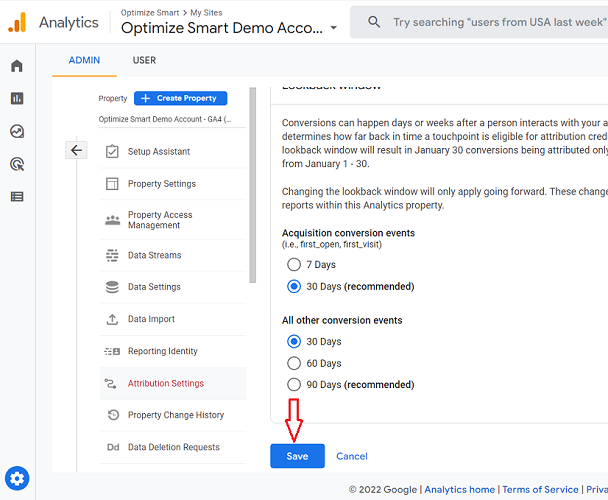
Note(1): Changing the reporting attribution model will apply to both historical and future data in your GA4 property.
These changes will be reflected in all reports that use event-scoped traffic dimensions (like ‘Source’, ‘Medium’, ‘Default channel grouping’, etc.).
The conversions report and exploration reports are also impacted by the changes in the reporting attribution model.
However, user and session-scoped traffic dimensions (like ‘Session source’) will remain unaffected by changes to the reporting attribution model.
Note(2): The various attribution reports (Model Comparison report, Conversion Paths report) under ‘Advertising‘ in your GA4 property are not affected by the changes to the reporting attribution model.

Other Articles on GA4.
- ChatGPT Workflow That Simplifies GA4 Data Analysis.
- Understanding Google Analytics 4 Sessions.
- Total vs Active, New, Returning users in Google Analytics 4.
- BigQuery Cost Optimization Best Practices.
- Google Analytics 4 Data Import Tutorial.
- Tracking ad impressions and ad clicks in Google Analytics 4.
- Testing Google Analytics 4 via Test Property.
- Google Analytics 4 GDPR Compliance Checklist.
- Google Analytics 4 Behavioral and Conversion Modeling.
- GA4 – Missing Deep Links in your App [Fixed].
- How to create custom insights in Google Analytics 4 (GA4).
- Fixing data threshold issue in Google Analytics 4 (GA4).
- (organic) or (not set) as ‘session campaign’ for google / cpc in GA4.
- Session Fragmentation Is Ruining Your GA4 Attribution Data.
- Tracking Outbound Links/Clicks in Google Analytics 4.
- Understanding Data Sampling in Google Analytics 4 (GA4).
- User Explorer Google Analytics 4 Tutorial.
- Google Analytics 4 Explorations Tutorial.
- How to Change Attribution Models in Google Analytics 4.
- The Best Tag Auditing Tools for Google Analytics 4.