

Google Analytics 4 (GA4) provides a landing page report through which you can determine the top landing pages for your website.
A landing page is the first page a user visits when they land on your website.
Three methods to access the landing page report in GA4
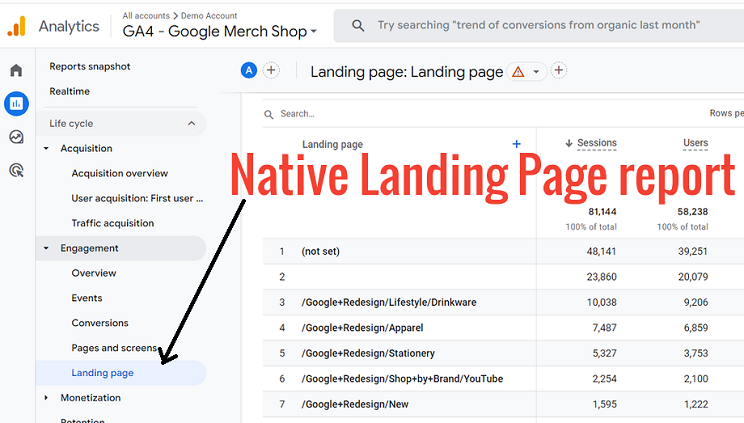
#1 You can use the landing page report provided by GA4 (let’s call it the native landing page report for easy reference). (not recommended).
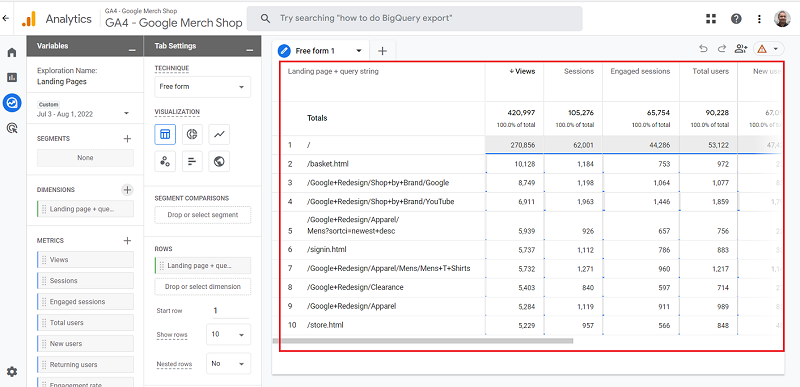
#2 You can create a landing page report from scratch by using the exploration report template. (recommended).
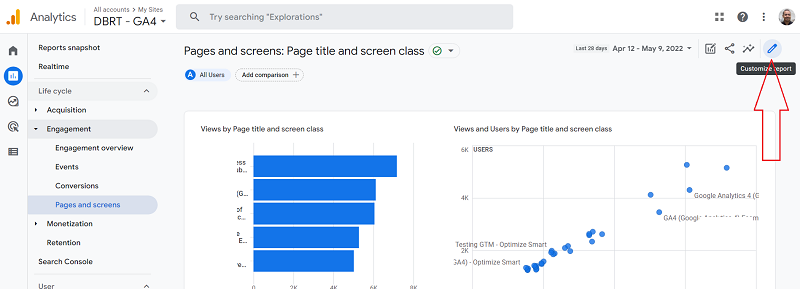
#3 You can create a landing page report by customising the ‘Pages and Screens’ report. (not recommended).
Why you should use the exploration report template to create a landing page report in GA4.
When you use the native landing page report, you use the landing page dimension.
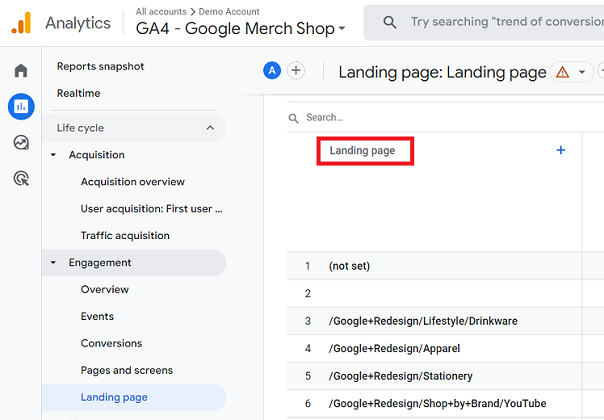
You should not use the ‘Landing Page’ dimension in your GA4 property for reporting purposes. It is buggy.
The ‘Landing Page’ dimension has been depreciated in the Exploration reports, but it still appears in the standard reports (like the native ‘Landing Page’ report).
There are two major issues with the ‘Landing Page’ dimension:
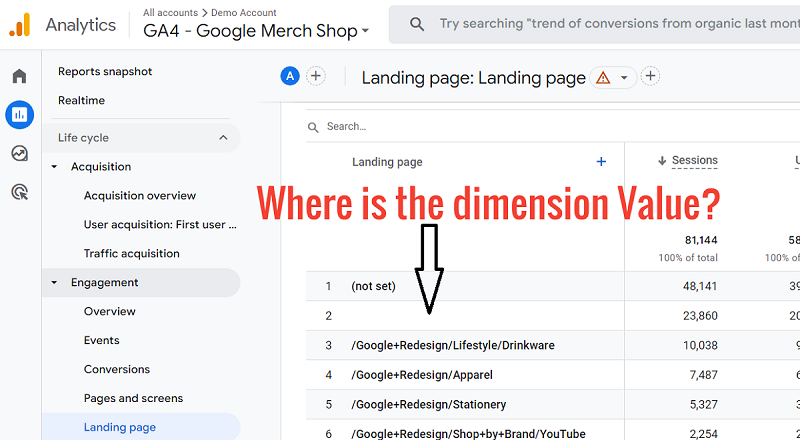
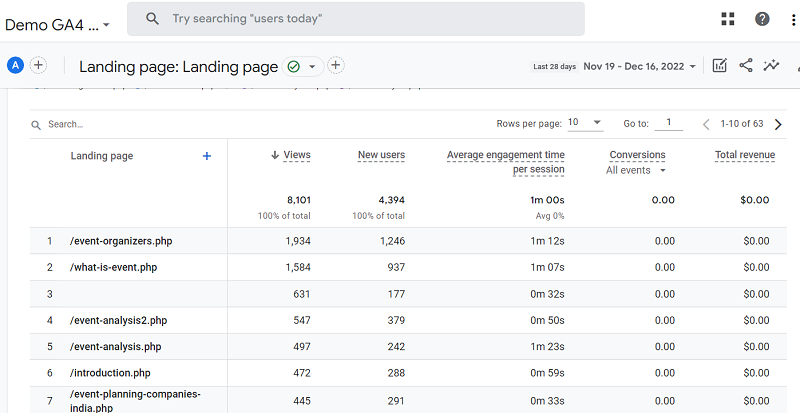
1) It does not report the traffic on the home page (likely due to a bug). Instead of reporting ‘/’ (which denotes the home page for most websites). It reports no value (i.e. blank).
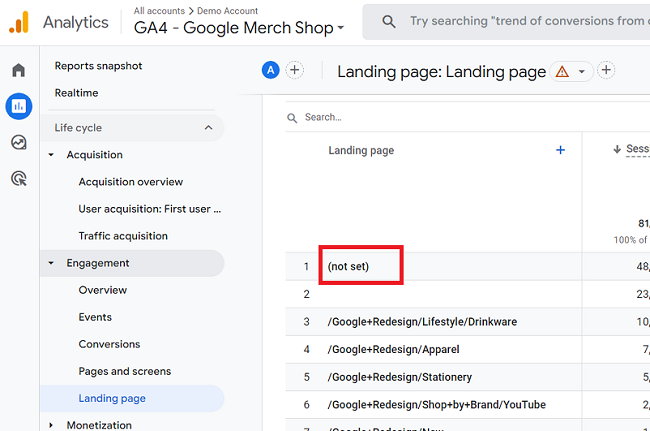
2) (not set) is a placeholder name that GA4 uses when it hasn’t received information for a dimension.
The ‘Landing Page’ dimension often does not receive the information (likely due to a bug), which results in ‘(not set)‘ appearing in the reports.
Use the ‘Landing Page + query string’ dimension instead of the ‘Landing Page’ dimension for your reporting in GA4.
Use the exploration report template to create and use a landing page report in GA4 instead of relying on the native report.
Exploration reports do not suffer from cardinality issues and provide access to the raw event and user-level data.
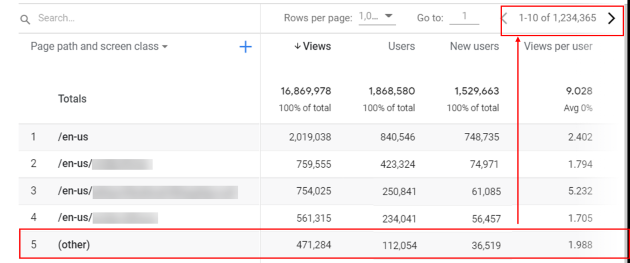
When using GA4 reports, you should avoid cardinality wherever possible. That’s how you can remove the (other) row from appearing in your reports.
Exploration report templates are the next best thing for data analysis after the GA4 BigQuery export data tables. So use them at every opportunity if you don’t use BigQuery.
When you use the exploration report template to create your own landing page report, you can use the ‘Landing Page + query string’ dimension instead of the ‘Landing Page’ dimension for your reporting in GA4:
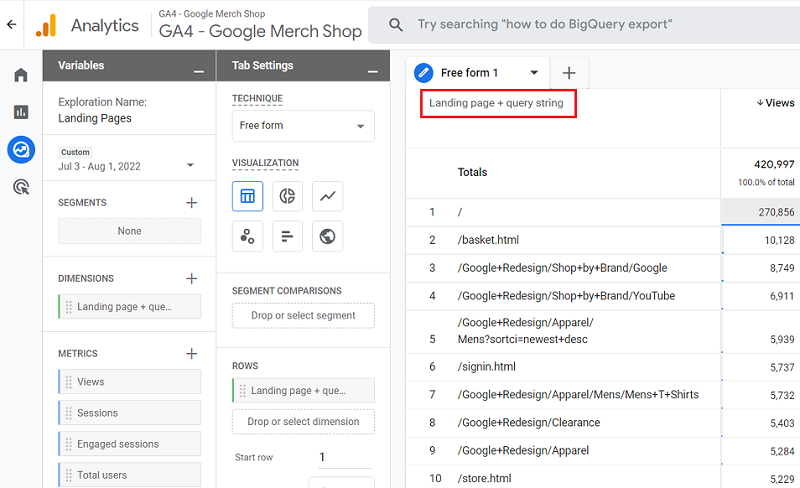
The ‘Landing Page + query string’ dimension does not suffer from the (not set) issues as much as the ‘Landing page’ dimension.
Finally, you can use the dimensions and metrics you want to see in your landing page report when you create it via the exploration report template.
Where to find the native landing page report in GA4?
Follow the steps below:
Step-1: Navigate to your GA4 property.
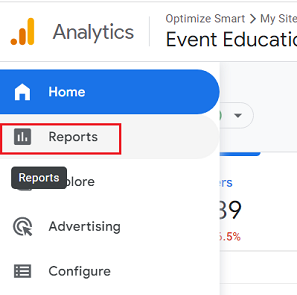
Step-2: Click on the ‘Reports‘ menu:
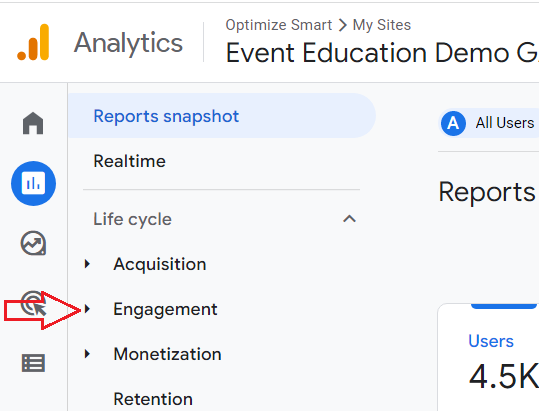
Step-3: Click on the ‘Engagement‘ drop-down menu:
You should now be able to see the ‘Landing page’ report:
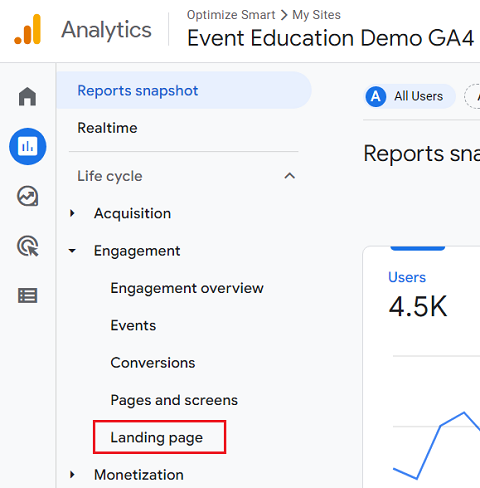
Step-4: Click on the ‘Landing page‘ report. You should now see a screen like the one below:
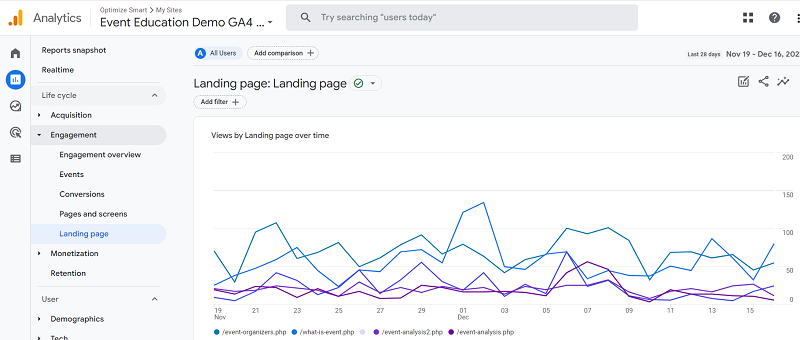
Step-5: Scroll down the ‘Landing page‘ report until you see the data table like the one below:
What if you can’t find the native landing page report in your GA4 property?
Follow the steps below:
Step-1: Navigate to your GA4 property.
Step-2: Click on the ‘Reports‘ menu:
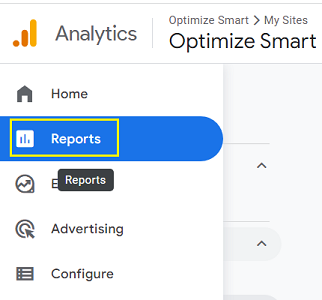
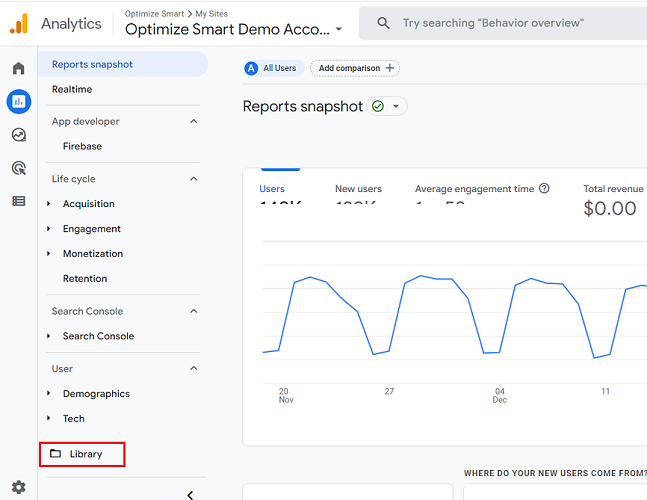
Step-3: Click on ‘Library‘:
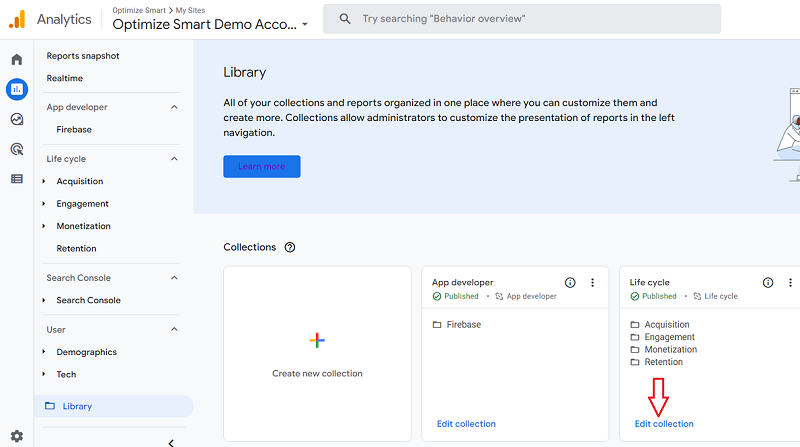
Step-4: Click on the ‘Edit collection‘ link under ‘Life Cycle.‘
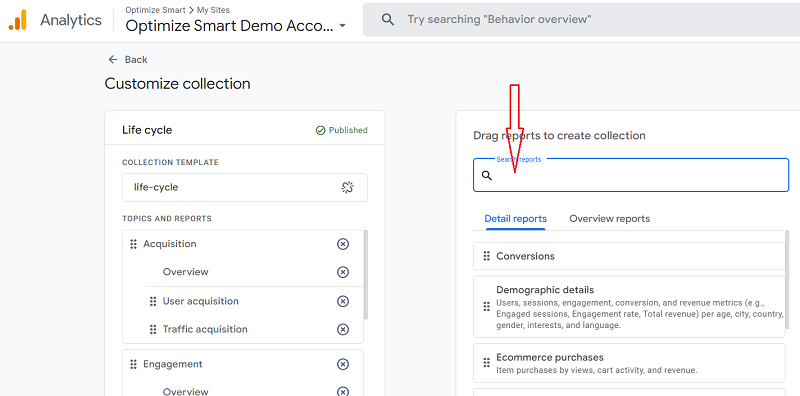
Step-5: Click on the ‘Search Reports‘ text box:
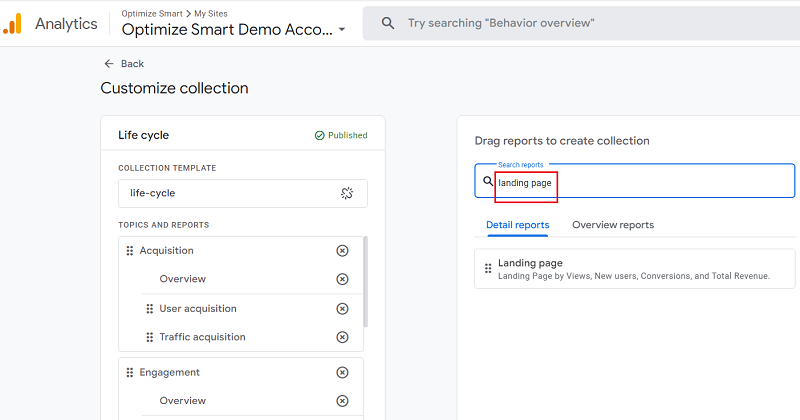
Step-6: Type ‘landing page‘ in the search box:
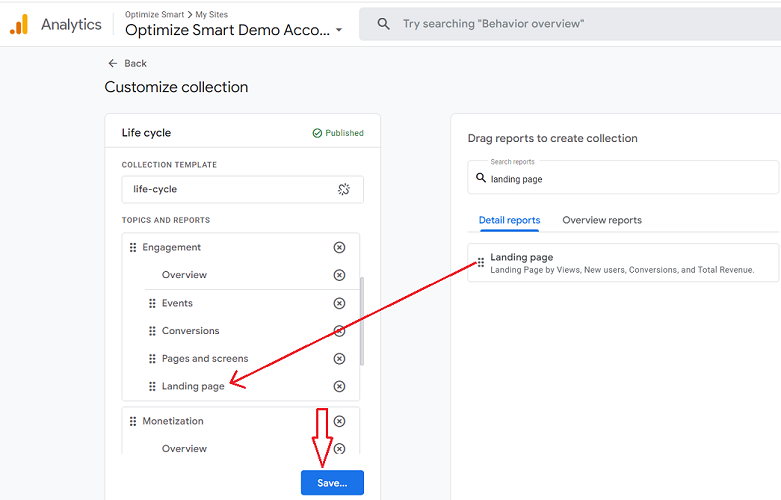
Step-7: Drag and drop the ‘Landing page‘ report just below the ‘Pages and Screen‘ report and then click on the ‘Save‘ button:
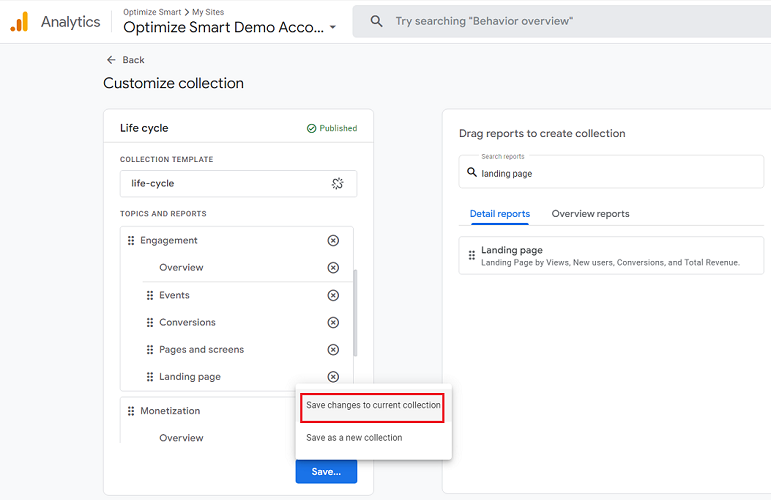
Step-8: Click on ‘Save changes to current selection‘:
Step-9: Click on the ‘Back‘ button on the top left-hand side:
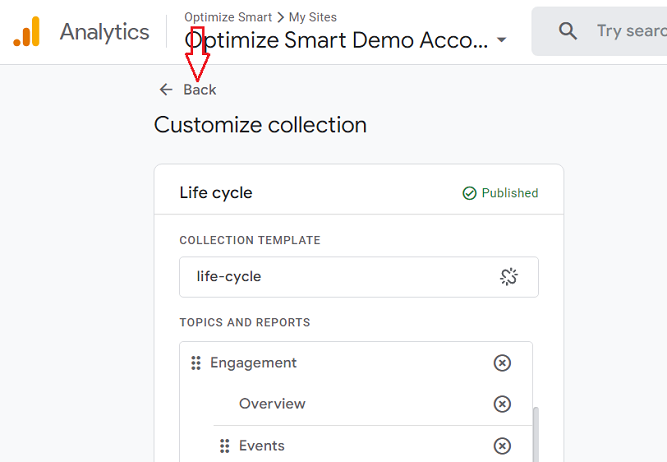
Step-10: Click on your web browser refresh button to refresh your report.
You should now be able to see the ‘Landing Page‘ report listed under the ‘Engagement‘ menu:
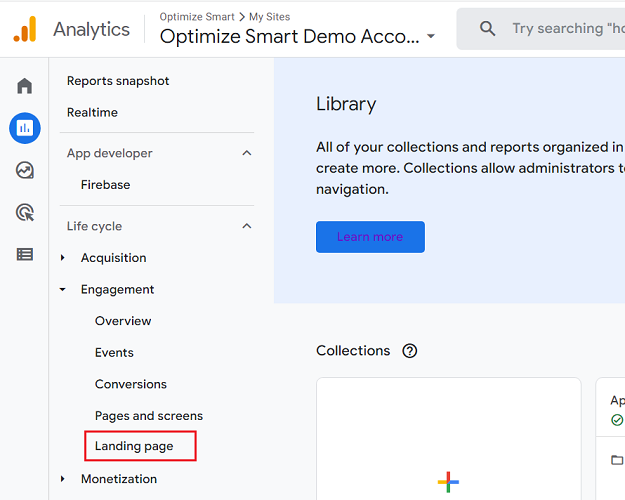
Creating GA4 landing page report via the exploration report template
Follow the steps below to create a landing pages report in GA4 via the exploration report template:
Step-1: Login to your GA4 account and then click on the ‘Explore‘ tab:
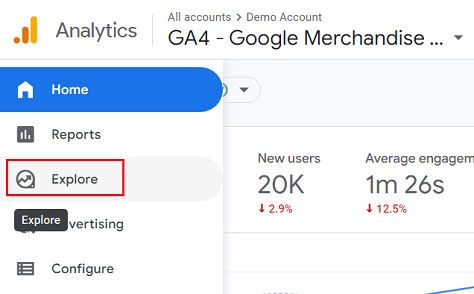
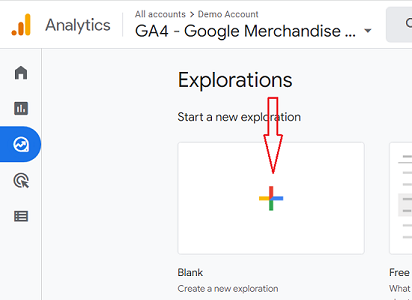
Step-2: Click on the ‘Blank‘ report template:
Step-3: Rename your report to ‘Landing Pages‘:
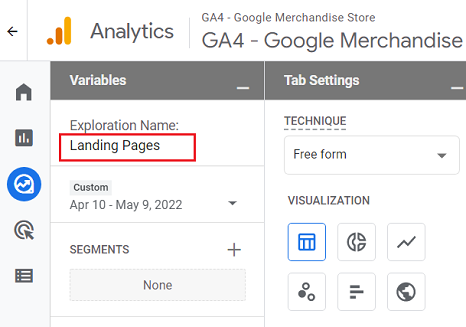
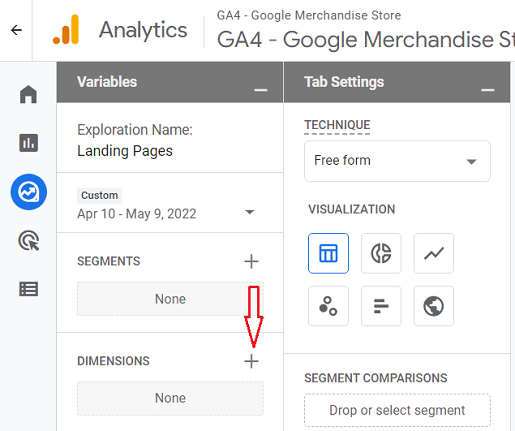
Step-4: Click on the + button next to ‘DIMENSIONS‘:
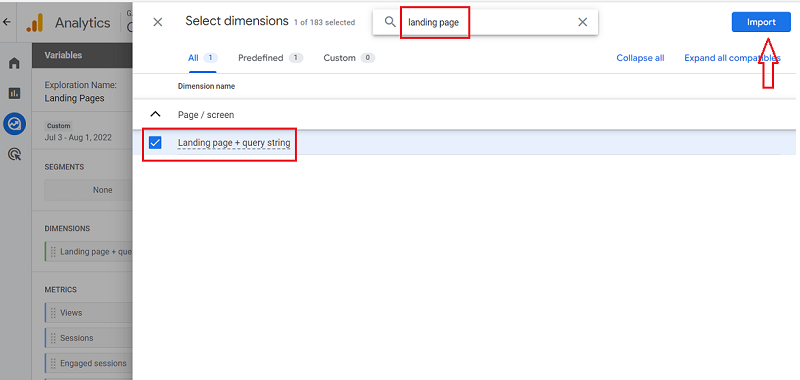
Step-5: Search for the ‘Landing Page’ dimension, click on the checkbox next to it and then click on the ‘Import‘ button:
Step-6: Double click on the ‘Landing Page’ dimension so that it is automatically added to the Rows section:

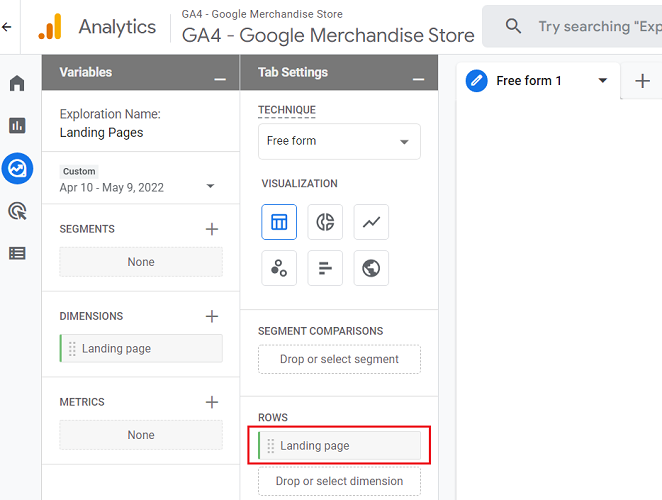
Note: When you double-click on the Landing Page dimension, you won’t see any change to the canvas on the right. But the dimension has been added to the canvas. Only when you start adding metrics to the canvas you would start seeing the dimension(s) added to the canvas.
Step-7: Click on the + button next to METRICS
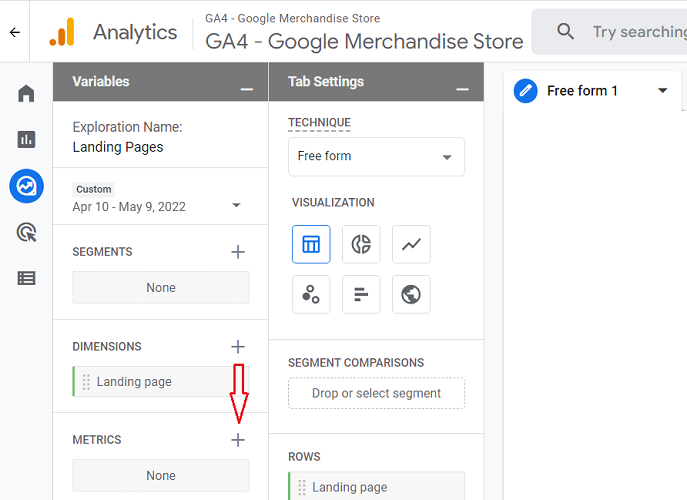
Search and select the following metrics one by one and then click on the ‘Import‘ button:
- Views
- Sessions
- Engaged Sessions
- Total users
- New users
- Returning users
- Engagement rate
- Average Engagement Time per session.
- Conversions
- Total revenue
Once you have selected all the required metrics, you will see the message ’10 of 151 selected‘.
This message means that you have selected 10 out of 151 metrics so far, and when you click on the import button, all these metrics will be imported to your report at once:
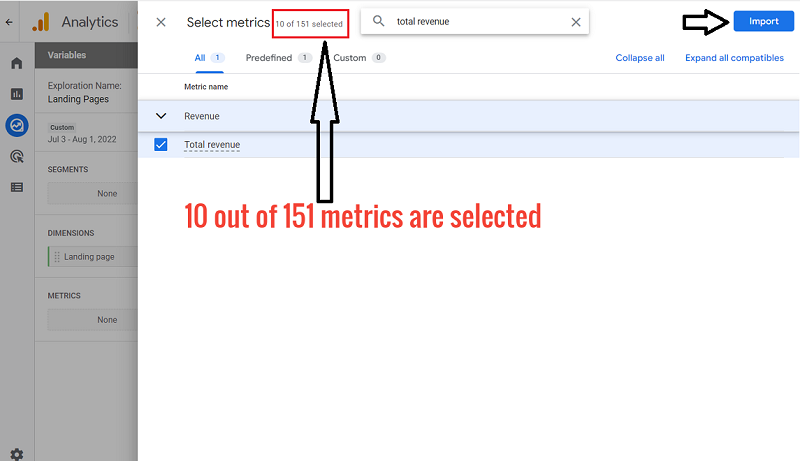
You should now see a screen like the one below:
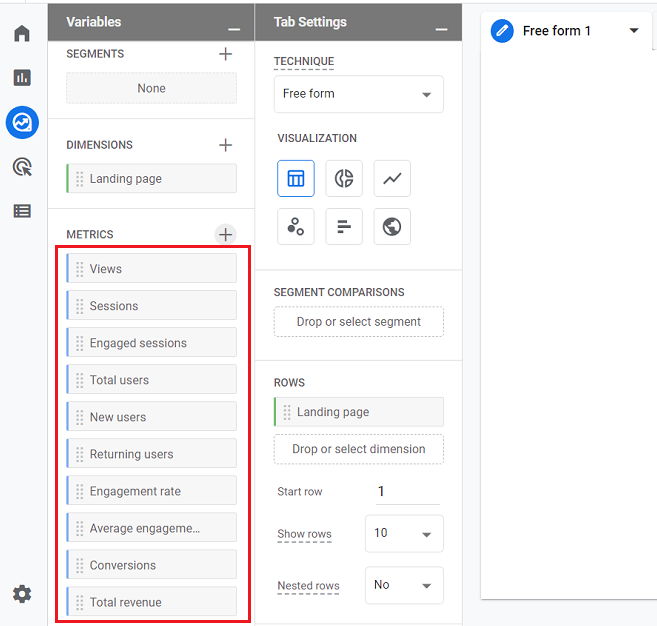
Step-8: Double click on the metrics one by one, starting from the very top, so that they are automatically added to the blank canvas on the right:
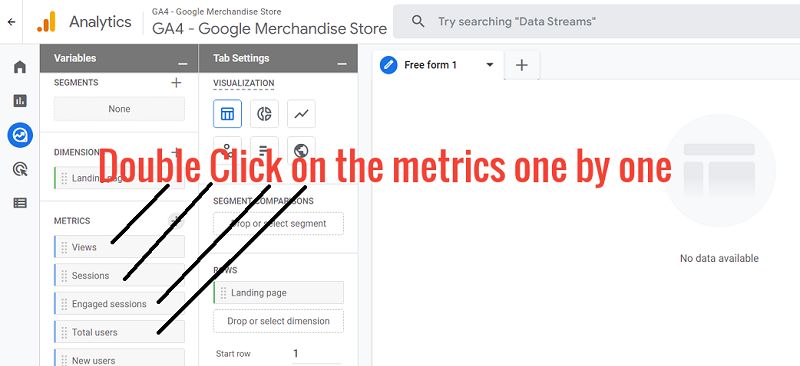
You should now be able to see the landing pages report on your canvas on the right:
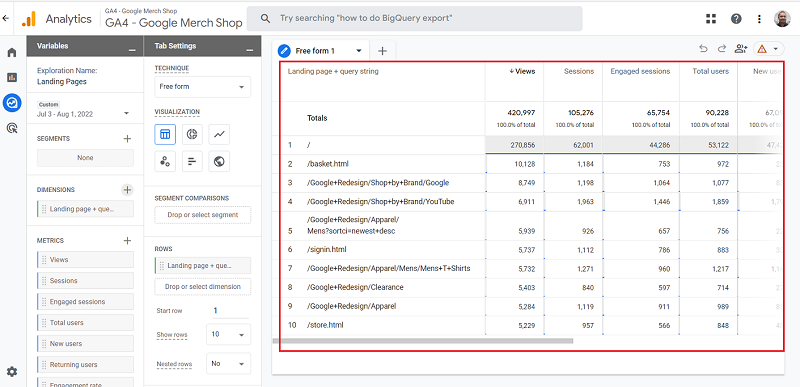
That’s how you can create a landing page report in GA4 via the exploration report template.
Creating GA4 landing pages report by customizing the ‘Pages and Screens’ report
Note: This is not the recommended method to create the GA4 landing pages report, as the standard reports often suffer from tracking issues.
I want to let you know that there is another way too. And you can also learn some new GA4 features (like customizing a report) in this process.
Creating Landing Pages Report via the Pages and Screens report template includes the following major steps:
- Save the ‘Pages and screens’ report in your GA4 property as a new report.
- Customize the new report so that it provides information about landing pages.
- Add the new report to the ‘Life Cycle’ collection template.
Follow the steps below:
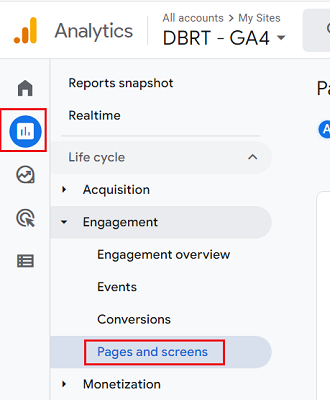
Step-1: Navigate to the ‘Pages and screens’ report in your GA4 property:
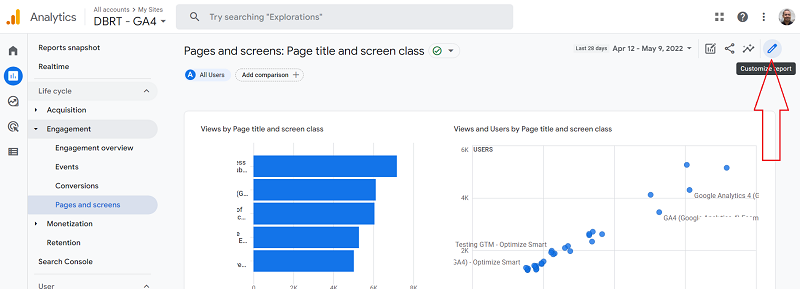
Step-2: Find and click on the pencil icon at the top right-hand side of your screen to customize this report:
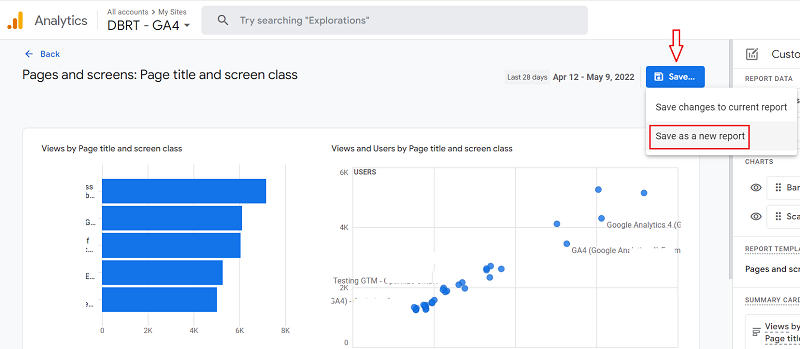
Step-3: Click on the ‘Save…‘ button and then click on ‘Save as a new report‘ from the drop-down menu:
You should now see a screen like the one below:
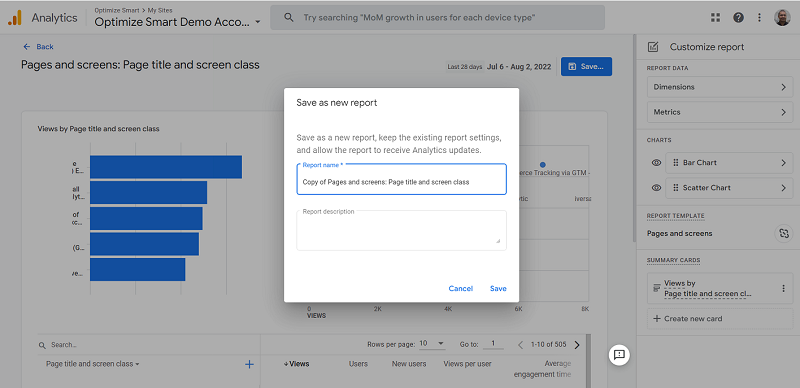
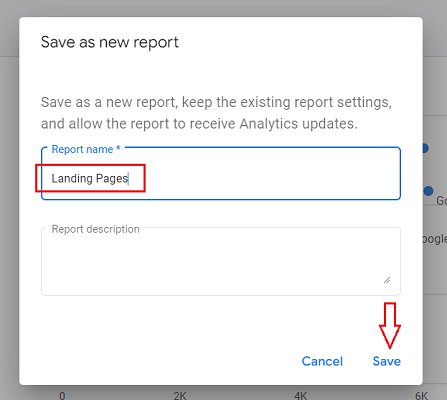
Step-4: Rename your new report to ‘Landing Pages‘ and then click on the ‘Save’ button:
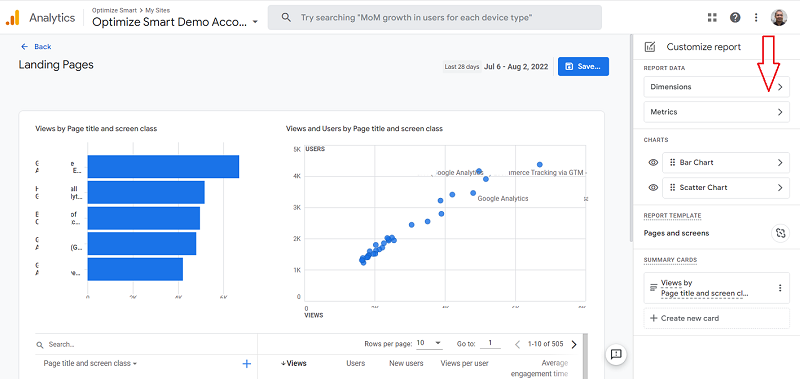
Step-5: Click on the ‘Dimensions’ button:
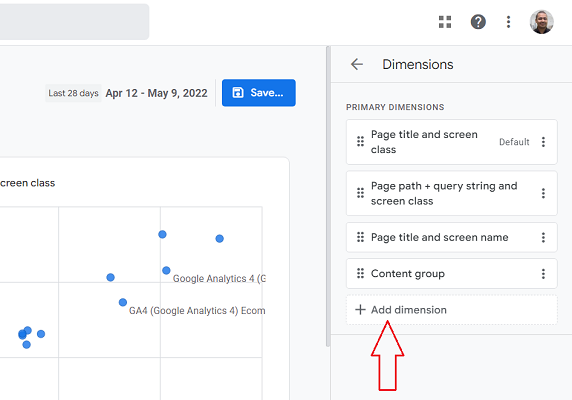
Step-6: Click on the ‘+ Add dimension’ button:
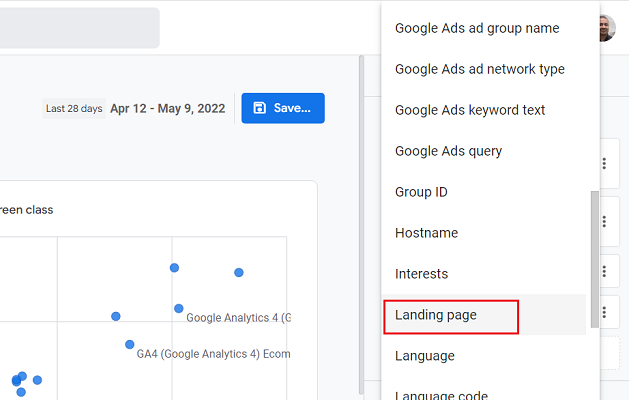
Step-7: Scroll down and then find and click on the ‘Landing Page’ dimension:
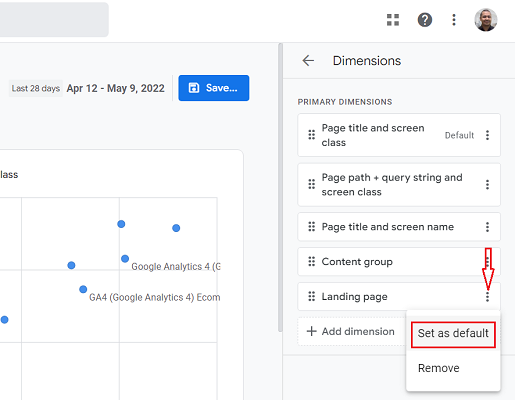
Step-8: Click on the three dots menu next to the ‘Landing Page’ dimension and then click on ‘Set as default‘:
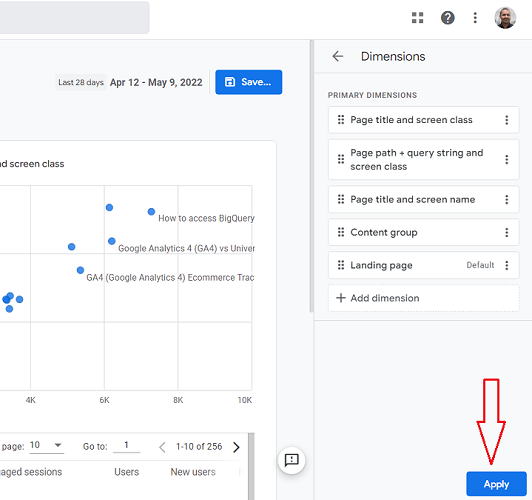
Step-9: Click on the ‘Apply‘ button:
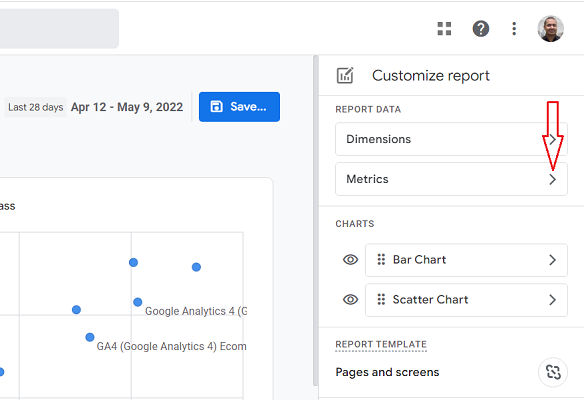
Step-10: Click on the ‘Metrics’ button:
Step-11: Remove the following metrics by clicking on the cross button next to it:
- Views per user
- Unique user scrolls
- Event Count
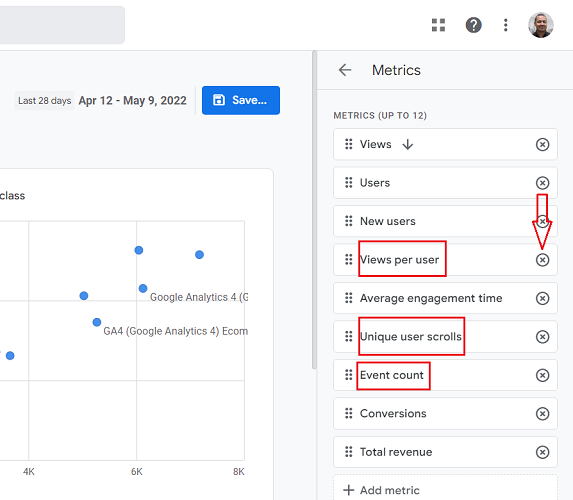
Step-12: Click on the ‘+Add metric‘ button:
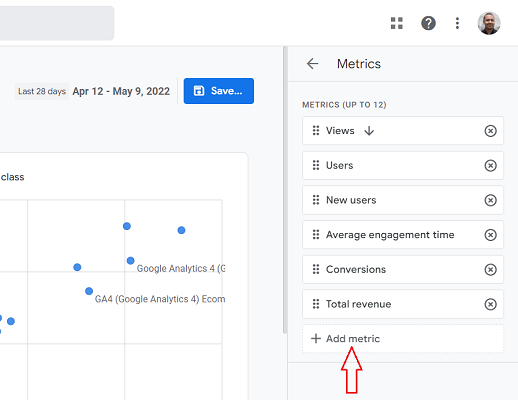
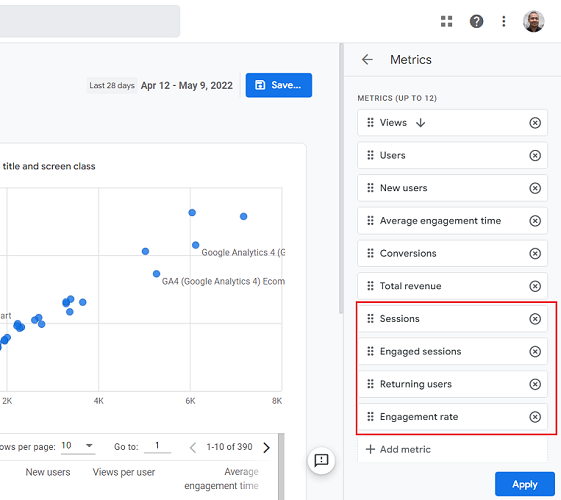
Step-13: Find and add the following metrics one by one:
- Sessions
- Engaged Sessions
- Returning users
- Engagement rate
After adding the required metrics, your screen should look like the one below:
Step-14: Re-arrange the various metrics by dragging and dropping them one by one so that they are listed in the following order:
- Views
- Sessions
- Engaged Sessions
- Users
- New users
- Returning users
- Engagement rate
- Average Engagement Time.
- Conversions
- Total revenue
After re-arranging the required metrics, your screen should look like the one below:
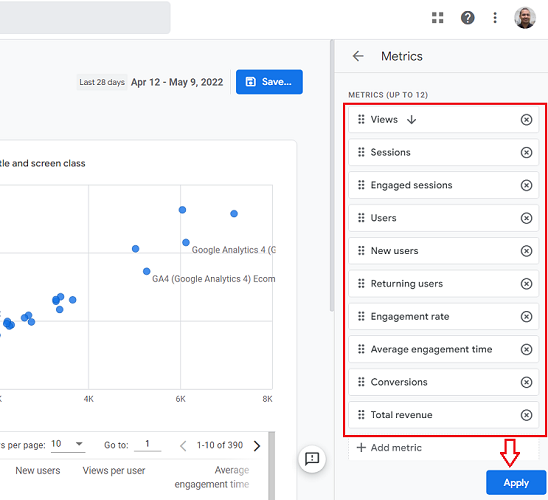
Step-15: Click on the ‘Apply’ button.
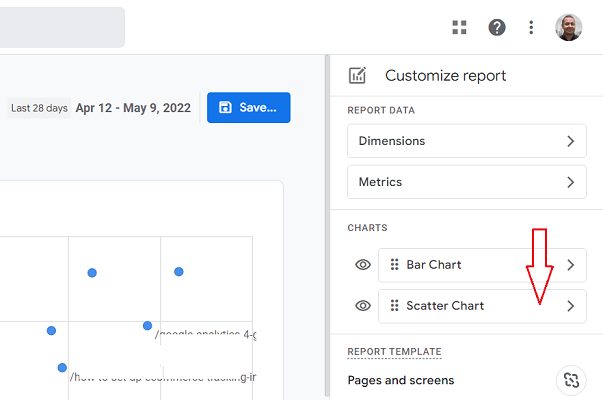
Step-16: Click on the ‘Scatter Chart’ button:
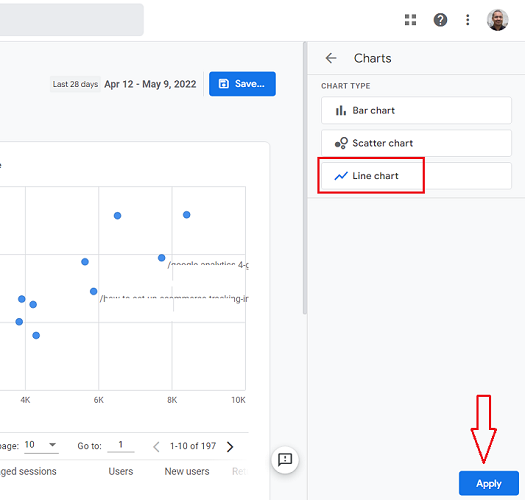
Step-17: Click on the ‘Line Chart‘ and then click on the ‘Apply‘ button:
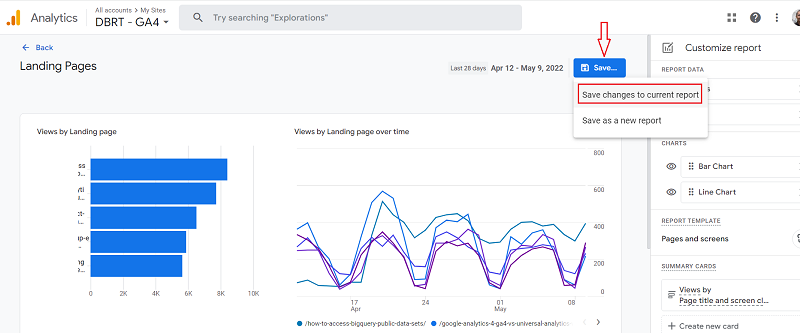
Step-18: Click on the ‘Save…‘ button and then click on the ‘Save Changes to current report‘ from the drop-down menu:
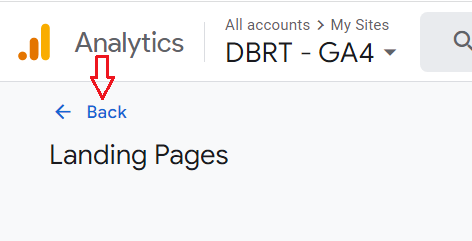
Step-19: Click on the ‘Back ‘button at the top left-hand side of your screen:
To list our new ‘Landing Pages’ report along with the standard GA4 reports, we would need to add the ‘Landing Pages’ report to a collection.
A collection (also known as report collection) is a set of reports in GA4.
There are two categories of collections:
- Predefined collections (like ‘App Developer’, ‘Life Cycle’ and ‘User’)
- User-defined collections
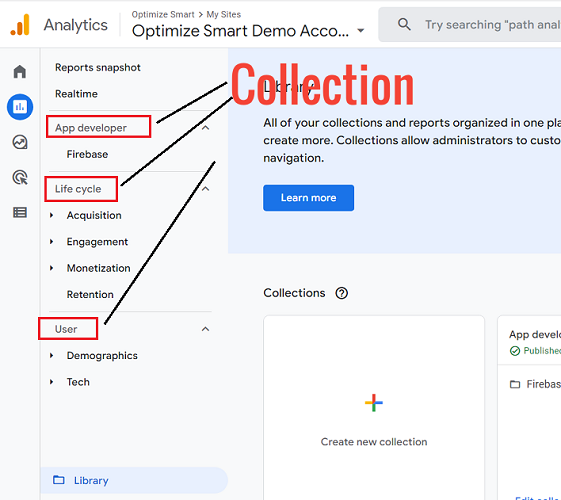
Step-20: Click on the ‘Reports’ tab and refresh your report in your web browser.
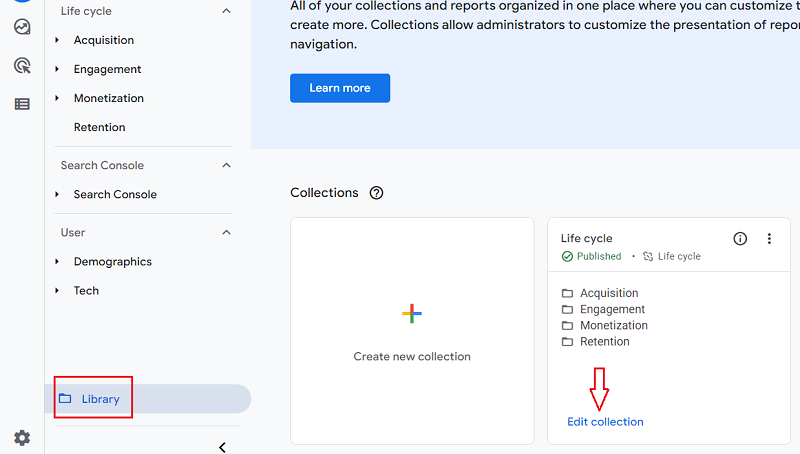
Step-21: Click on the Library tab and then click on the ‘Edit collection‘ link under ‘Life Cycle‘:
Step-22: Search for the Landing Pages report in the search box:
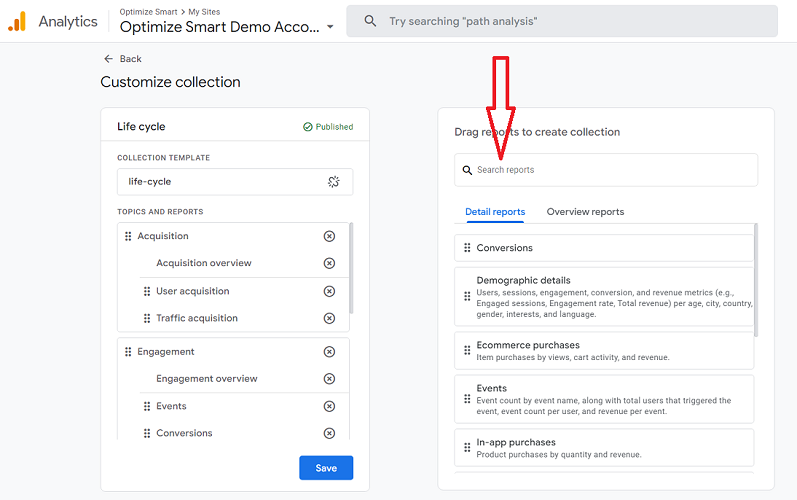
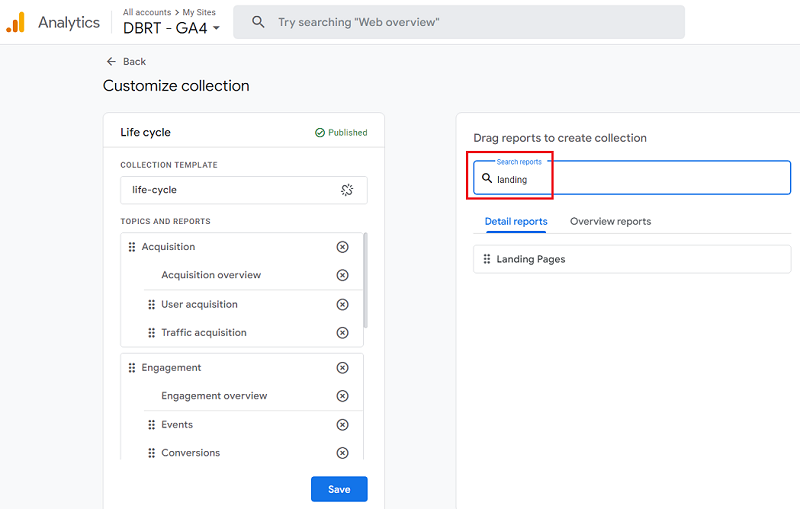
Step-23: Drag and drop the Landing pages report just below the ‘Engagement Overview‘ and then click on the ‘Save’ button:
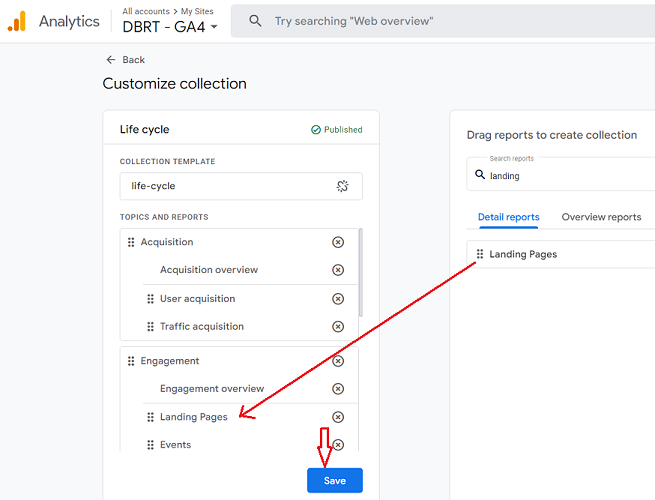
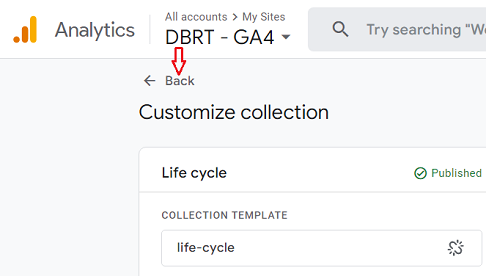
Step-24: Click on the ‘Back‘ button on the top left-hand side:
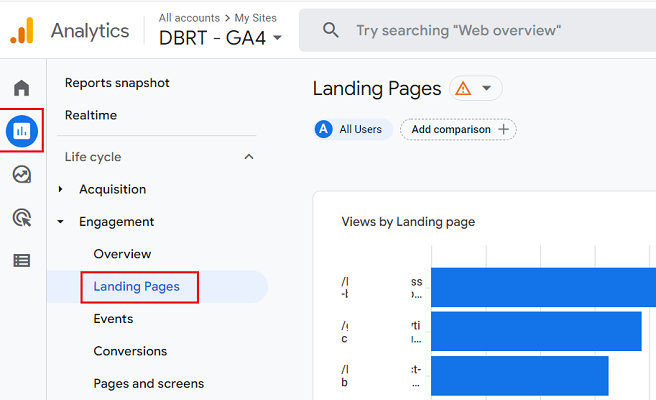
You should now be able to see your new Landing Pages report listed under the ‘Engagement‘ menu:
That’s how you can create ‘Landing Pages’ Report via the ‘Pages and Screens’ report template.

Other Articles on GA4.
- Google Analytics 4 GDPR Compliance Checklist.
- Google Analytics 4 Behavioral and Conversion Modeling.
- GA4 – Missing Deep Links in your App [Fixed].
- How to create custom insights in Google Analytics 4 (GA4).
- Fixing data threshold issue in Google Analytics 4 (GA4).
- (organic) or (not set) as ‘session campaign’ for google / cpc in GA4.
- Session Fragmentation Is Ruining Your GA4 Attribution Data.
- Tracking Outbound Links/Clicks in Google Analytics 4.
- Understanding Data Sampling in Google Analytics 4 (GA4).
- User Explorer Google Analytics 4 Tutorial.
- Google Analytics 4 Explorations Tutorial.
- How to Change Attribution Models in Google Analytics 4.
- Google Analytics Real-time report not working? Here is the fix.
- Google Signals in Google Analytics 4 - See demographics (gender, age) data.
- How to Create Landing Page Report in Google Analytics 4.
- How to segment Google Analytics 4 data by data stream.
- Setup Cross Domain Tracking in Google Analytics 4.
- How to see full page URLs in Google Analytics 4.
- Roll up Property in Google Analytics 4 – Tutorial.
- The Best Tag Auditing Tools for Google Analytics 4.