

What is Service Worker?
A Service Worker is a script that can intercept network requests, store data temporarily, and retry sending it later if the internet connection is lost.
Google introduced service workers for GTM Server Side Tagging to improve data collection and reliability.
Before service workers, GTM tags use methods like navigator.sendBeacon() to send tracking data (events) directly to Google Analytics, Ads or other platforms.
The problem? Some data could be lost if the user closes the page too quickly or loses internet connection.
A Service Worker can catch the tracking requests, store them temporarily, and send them later when the internet connection is back. This ensures more complete data collection, reducing the risk of missing events due to bad connectivity or fast exits.
If the user goes offline, the Service Worker can send data once they are back online.
Who exactly uses the Service Worker in GTM Server-Side Tagging?
Google’s Tracking Scripts (gtag.js, GTM, GA, or Ads Scripts) use the Service Worker to enhance data collection and measurement reliability.
Who deploys the Service Worker in GTM Server-Side Tagging?
If Google has implemented a Service Worker as part of its Google Tag (gtag.js) or GTM scripts, then Google itself is deploying and managing it.
If a Service Worker is part of Google’s tracking ecosystem, it is loaded dynamically by Google’s scripts, not something website owners explicitly install.
sGTM itself does not deploy or require a Service Worker to function, but it can benefit from one if Google’s tracking scripts implement it.
If a Service Worker is used, it modifies requests before they reach sGTM, ensuring that tracking data is more reliable.
A website owner would only deploy their own Service Worker if they were customising tracking beyond Google’s default implementation.
The presence of a Service Worker does not require any action from the website owner unless they wish to modify default behavior.
The website owner only interacts with the Service Worker indirectly by integrating GTM Server-Side, not by manually setting it up.
The only direct action a website owner might need to take regarding Service Workers in GTM Server-Side Tagging is updating their Content Security Policy (CSP) if it is too restrictive.
If a website has a strict CSP, it might block the registration or execution of the Service Worker. This can prevent the Service Worker from intercepting and handling GTM tracking requests.
Open your browser’s Developer Tools (F12 or right-click, select “Inspect”), and go to the Console tab. Look for any CSP-related error messages that might indicate the Service Worker is being blocked.
The name of the Service Worker script.
The name of the Service Worker script in GTM (or any implementation) is not fixed and depends on how Google has implemented it.
Common filenames include:
- ‘sw.js’,
- ‘gtm-sw.js’,
- ‘gtag-sw.js’,
- ‘google-tag-sw.js’,
- ‘/_/service_worker/xyz/sw.js’ (dynamic naming by Google).
How to check if Service Worker is being used on your website?
You can check if a Service Worker is being used on your website by following the steps below:
Step-1: Open a website that uses GTM Server-Side Tagging in Google Chrome.
Step-2: Right-click anywhere on the page and select “Inspect“.
Step-3: In Chrome DevTools, find and click on the “Application” tab.
Step-4: Under ‘Service Workers’, check if any script is registered by looking at the source file (e.g., sw.js, gtm-sw.js, gtag-sw.js, or another name).
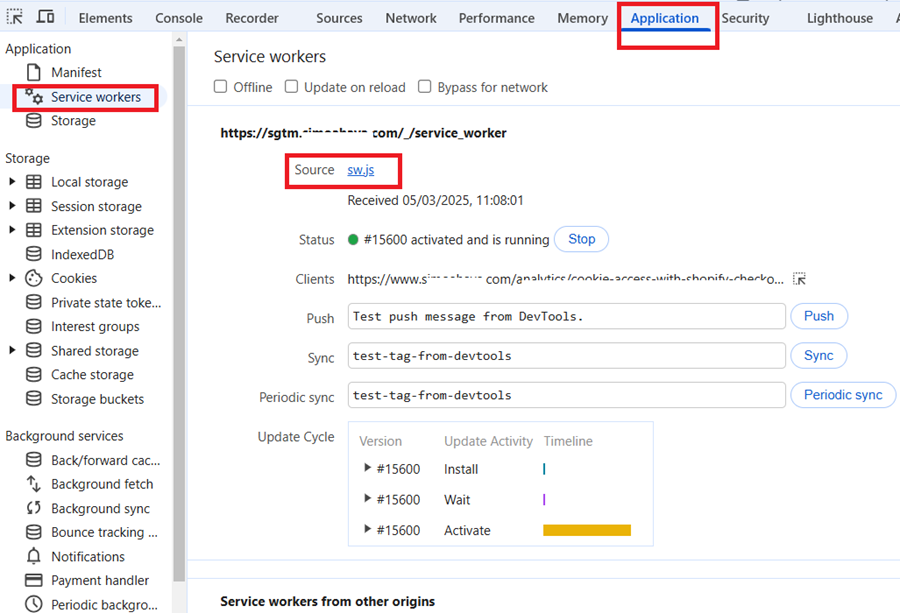
If present, this confirms that your Google Tag is using a Service Worker to handle tracking data. If a Service Worker is registered, then proceed to the next step.
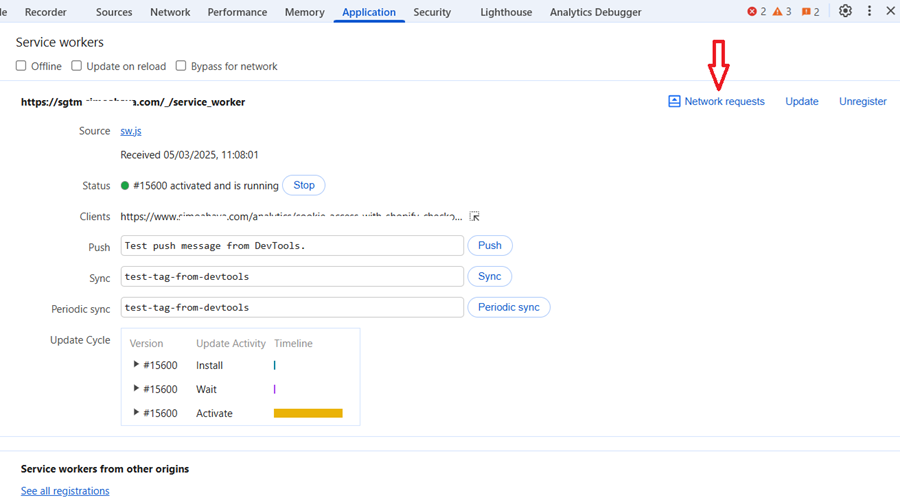
Step 5: Click on ‘Network requests’ button to see all the requests initiated by the Service Worker.
Step-6: Click on ‘Update’ to manually trigger an update of the service worker.
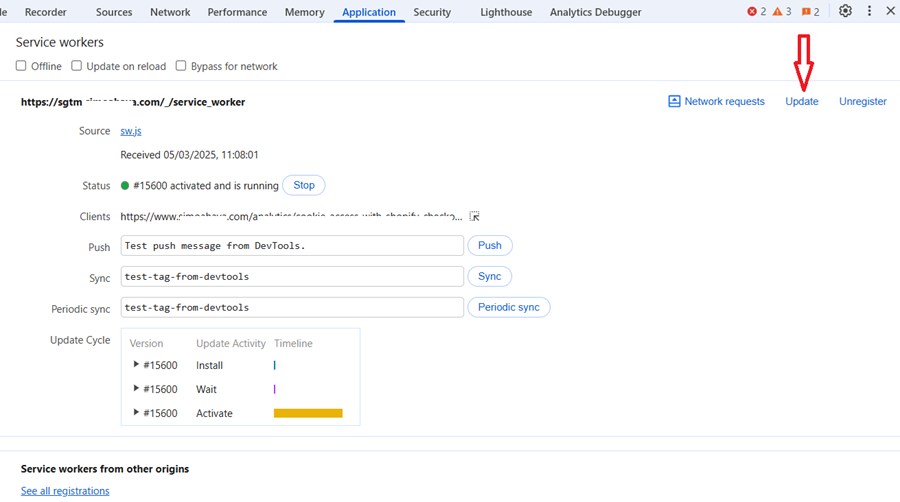
This action forces the browser to check for a new version of the service worker script, bypassing the usual update interval.
Step-7: Click on ‘Unregister’ to manually unregister the service worker.
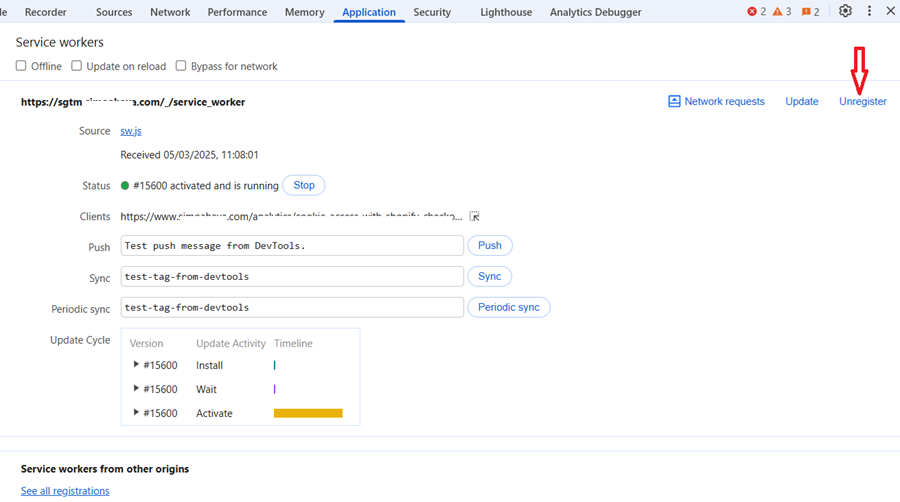
This action will immediately stop the service worker from controlling the page. The service worker is removed from the browser’s registry. Any caches associated with that service worker are deleted.
This feature is particularly useful for developers and testers who want to:
- Reset the service worker state during development.
- Test how the site behaves without the service worker.
- Troubleshoot issues related to service worker caching or offline functionality.
Note: After unregistering, the page will need to be reloaded for the changes to take effect fully. If the service worker is set to register automatically on page load, it may re-register unless you’ve also disabled that functionality in your code.
Step-8: Click on ‘See all registrations’ link to inspect service workers registrations across all origins that are currently active in the browser:
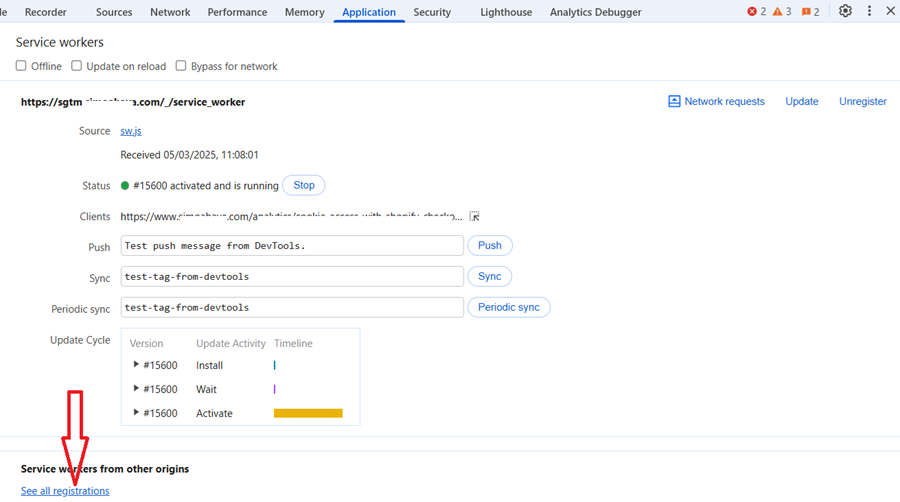
It provides a comprehensive overview of all service worker activity in the browser, which can be crucial for understanding complex web applications or troubleshooting service worker-related issues.
Step-9: Navigate to the ‘Network‘ tab to verify if the service worker is intercepting the tracking request.
Step-10: In the Filter bar, type is:service-worker-initiated. This filter shows requests initiated by a Service Worker.
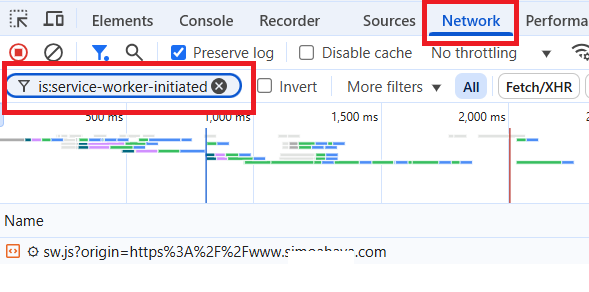
Step-11: Click on a tracking request.
Step-12: Open the ‘Headers’ tab and look at the request URL:
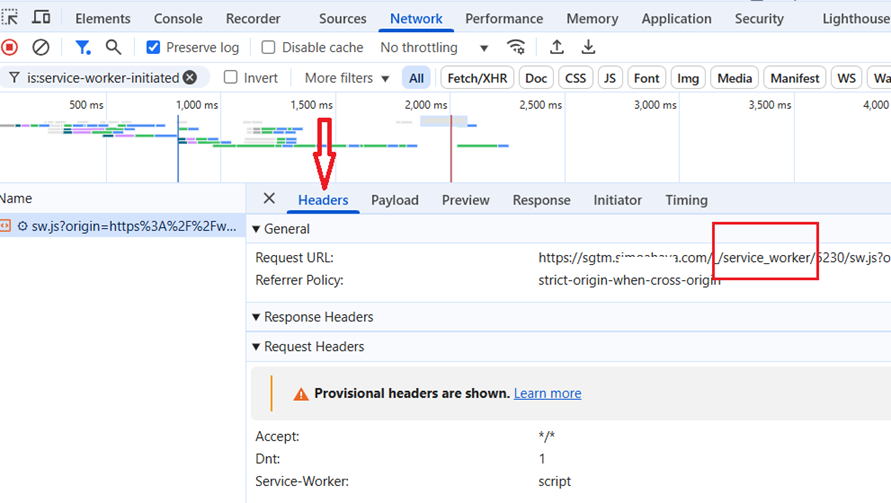
Step-13: Look for ‘service-worker-allowed: /_/service_worker‘ under the response header. If present, it confirms that GTM’s Service Worker is allowed and active.
Step-14 (optional):
- Navigate to your GTM server side tagging domain (e.g., sgtm.example.com).
- Open the Console tab in DevTools and run the following command: navigator.serviceWorker.getRegistrations().then(console.log)
If the command returns the following similar object, a Service Worker is registered and actively controlling this page.
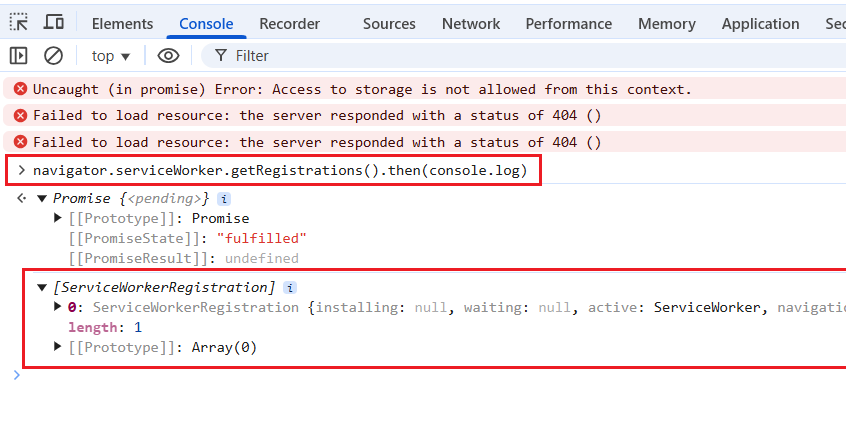
If the command returns an empty array [], it means the Service Worker is registered under a different subdomain (may be ‘www.example.com’).
Note: In GTM Server-Side Tagging, the Service Worker is most likely registered on the server-side tagging domain (e.g., sgtm. example. com), not on the main website (e.g., www.example.com).
Can the service worker cause a loss in data collection?
Yes, if the service worker is not correctly registered or fails to activate, it will not intercept requests as intended.
This could happen if:
- The browser blocks Service Worker registration due to strict security settings.
- The scope of the Service Worker does not cover the tracking events.
- Users disable JavaScript or block Service Workers using browser extensions.
If a user clears their cache, the Service Worker may be removed from the browser, causing it to lose any pending tracking events that were queued for resending.
Note: Google has not provided full details on how it uses Service Workers, so monitoring your network requests for any unexpected behavior is a good practice.
Clarification about the navigator.serviceWorker.getRegistrations() Command.
This command only shows Service Workers registered for the current origin and scope.
If the Service Worker is registered under a different subdomain, this command returns an empty array even if a Service Worker is actually in use.
If the scope of the Service Worker does not cover the current page, the command will not detect it.
A Service Worker can still process tracking requests (e.g., via fetch events) without being “active” in the way getRegistrations() checks for.
Cross-Origin Service Workers Won’t Appear in Console Commands.
Checking the Console logs with navigator.serviceWorker.getRegistrations() is NOT a 100% reliable way to confirm whether a Service Worker is being used for tracking.
Analysis of the Service Worker URL.
https://sgtm.example.com/_/service_worker/5230/sw.js?origin=https%3A%2F%2Fwww.example.com
Service Worker File: sw.js
This is the actual Service Worker script.
Hosted under sgtm.example.com, which suggests Server-Side GTM (sGTM) is using a Service Worker.
Path Contains /_/service_worker/5230/
/_/service_worker/ indicates that this script is being dynamically generated or loaded via GTM’s Service Worker implementation.
The number 5230 likely represents a versioning or unique identifier for the Service Worker instance.
Query Parameter: ?origin=https%3A%2F%2Fwww.example.com
The Service Worker is being registered with an origin restriction, meaning it is likely scoped to https://www.example.com/.
This ensures that the Service Worker only operates within this website’s context.
Chrome DevTools does not always show an initiator for requests made by Service Workers.
If you’re seeing a Service Worker URL in the “Application” tab, but the initiator data is missing for its requests in the Network tab, this means:
The Service Worker intercepted and handled the request, but the browser doesn’t attribute an initiator.
This is normal for requests that Service Workers create on their own (e.g., resending stored events when the user goes back online).

Other Articles on GA4.
- User Explorer Google Analytics 4 Tutorial.
- Google Analytics 4 Explorations Tutorial.
- How to Change Attribution Models in Google Analytics 4.
- Google Analytics Real-time report not working? Here is the fix.
- Google Signals in Google Analytics 4 - See demographics (gender, age) data.
- How to Create Landing Page Report in Google Analytics 4.
- How to segment Google Analytics 4 data by data stream.
- Setup Cross Domain Tracking in Google Analytics 4.
- How to see full page URLs in Google Analytics 4.
- Roll up Property in Google Analytics 4 – Tutorial.
- The Best Tag Auditing Tools for Google Analytics 4.
- How to Exclude URL Query Parameters in Google Analytics 4.
- How to Track Email Campaigns in Google Analytics 4.
- Google Analytics 4 Attribution Modelling Tutorial.
- Understanding Service Worker in GTM Server Side Tagging.
- Cohort Exploration Report in Google Analytics 4 (GA4).
- Google Analytics 4 vs Google Ads conversion tracking.
- Google Analytics 4 Custom Dimensions Tutorial.
- Google Analytics 4 Dimensions Tutorial.
- Event Scoped Custom Dimensions in Google Analytics 4.