

If you have added more than one data stream to your GA4 property, then you can segment the GA4 data by data stream.
This would help you in measuring and comparing the performance of different data streams in one GA4 report.
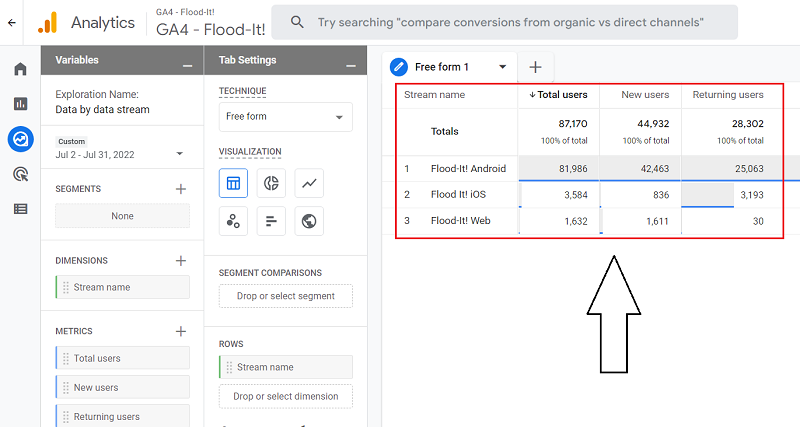
For example, you can determine and compare the total number of users from your web and app data streams:
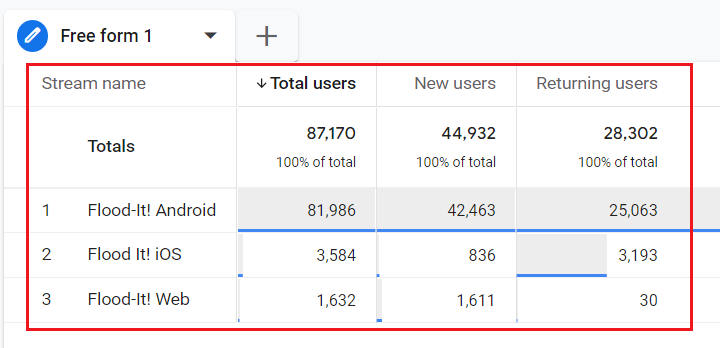
Here, ‘Flood-It! Android‘, ‘Flood It! iOS‘ and ‘Flood-It! Web‘ are data streams.
A data stream is a data source.
When the data source is a website, it is called the web data stream. For example, ‘Flood-It! Web‘ is a web data stream.
When the data source is a mobile app, it is called the app data stream. For example, ‘Flood-It! Android‘, and ‘Flood It! iOS‘ are app data streams.
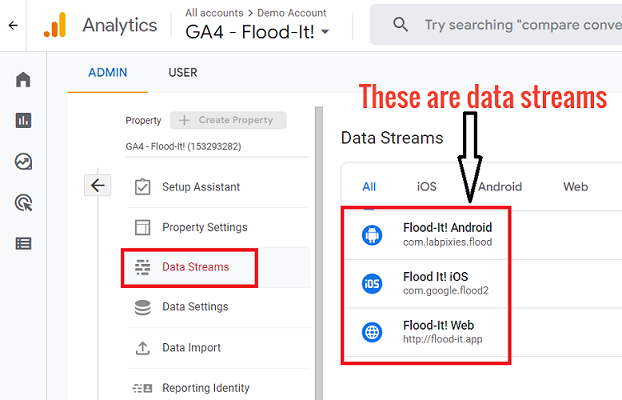
Follow the steps below to segment GA4 data by the data stream.
Step-1: Navigate to the GA4 property to which you have added two or more data streams:
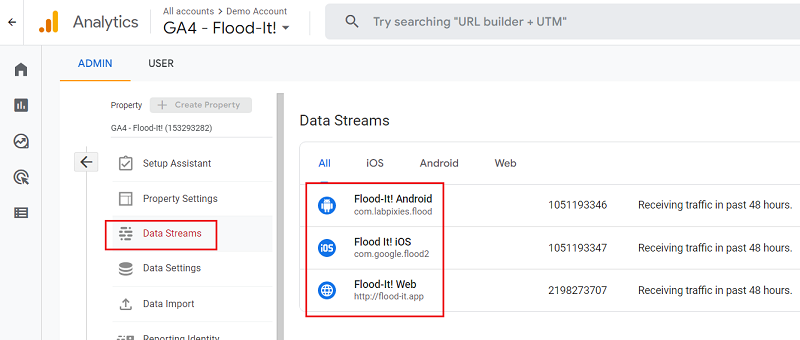
Step-2: Click on the ‘Explore‘ link in your GA4 property:
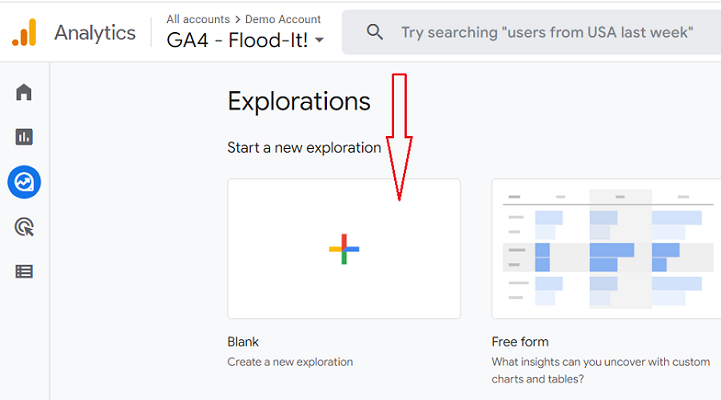
Step-3: Click on the ‘Blank‘ exploration template to create a new exploration report from scratch:
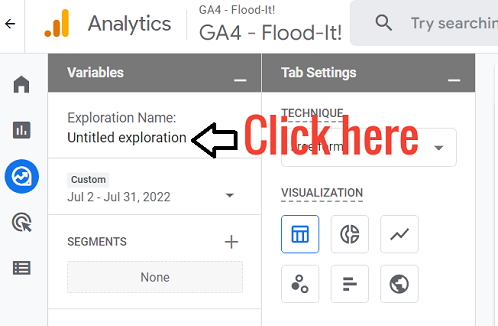
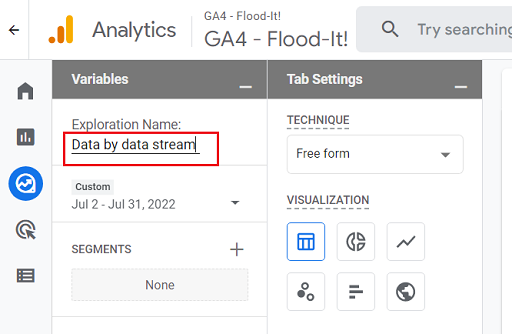
Step-4: Name your report ‘Data by data stream‘:
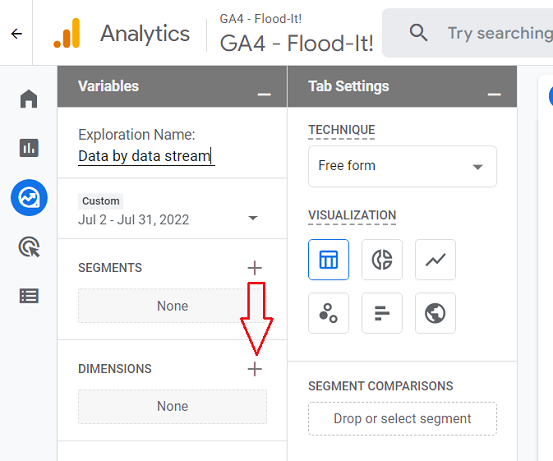
Step-5: Click on the ‘+‘ button next to ‘DIMENSIONS‘ to add new dimensions to the report:
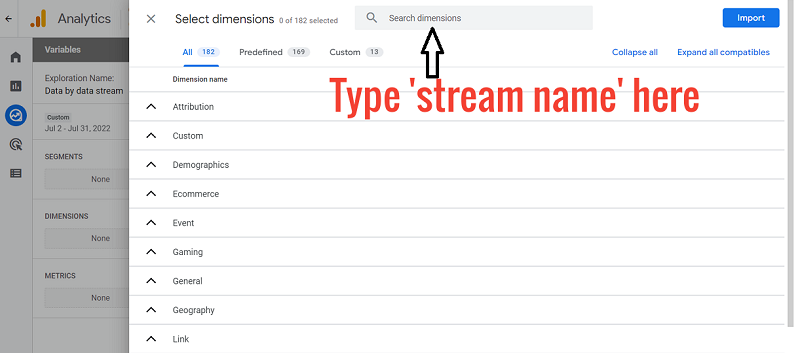
Step-6: Type ‘stream name‘ in the search box
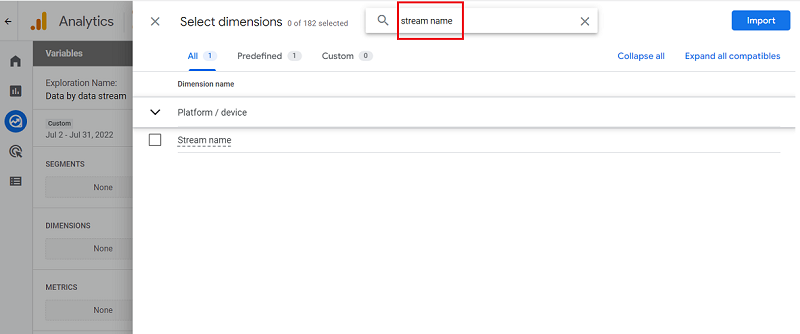
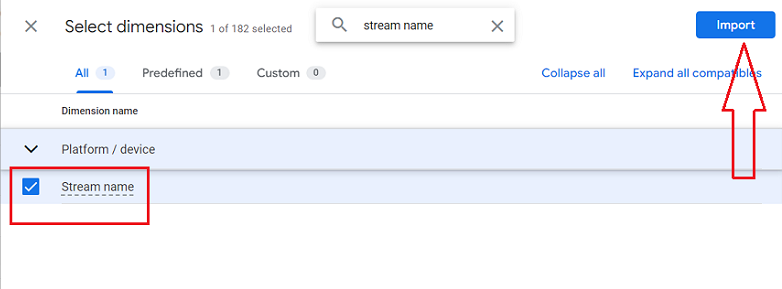
Step-7: Select the ‘Stream name‘ dimension and then click on the ‘Import‘ button:
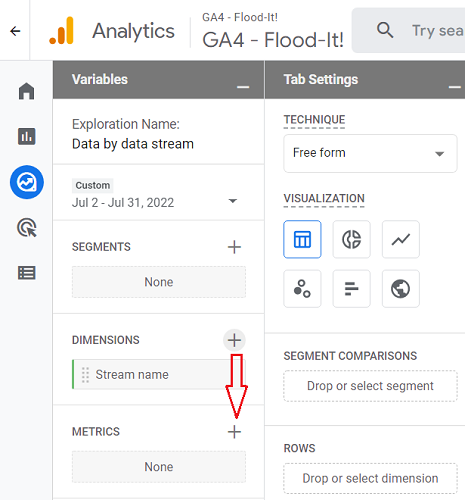
Step-8: Click on the ‘+‘ button next to ‘METRICS‘ to add new metrics to the report:
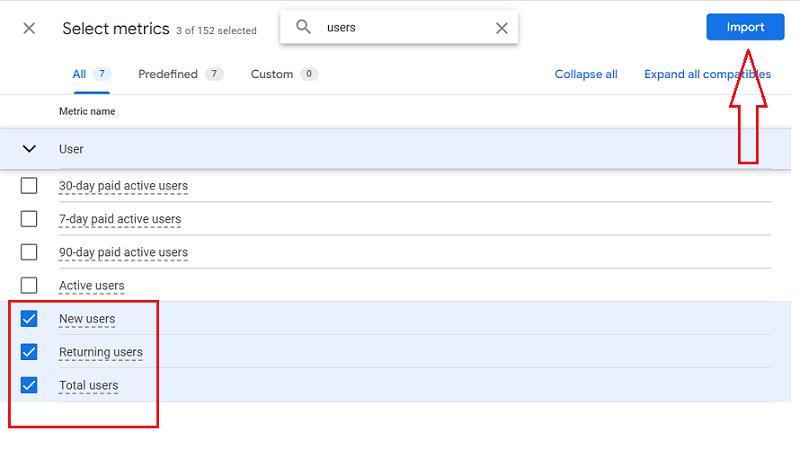
Step-9: Add the metrics you want to add to your report and then click on the ‘Import‘ button.
Let’s add ‘total users‘, ‘new users’ and ‘returning users‘ to our report:
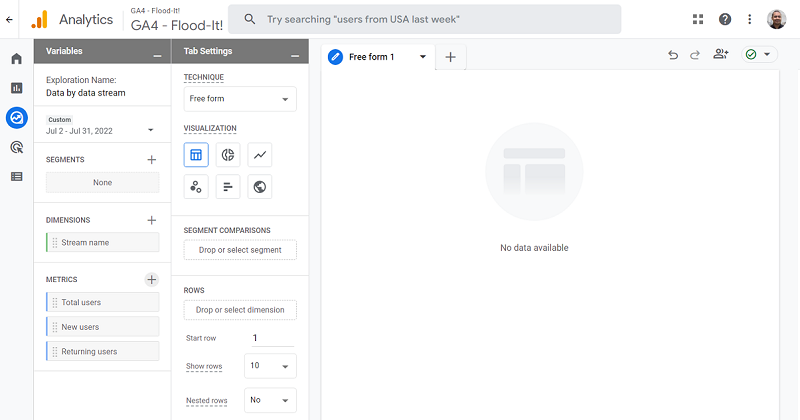
Your screen should now look like the one below:
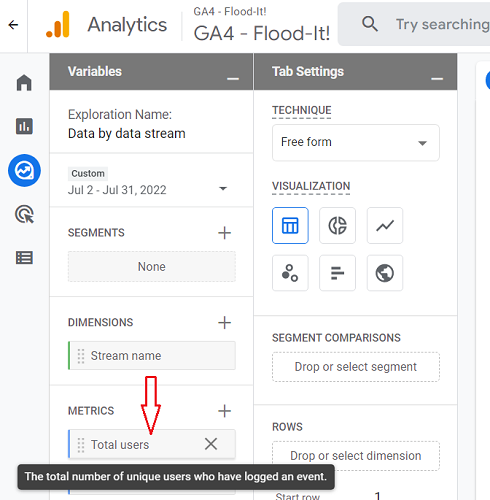
Note: Hover your mouse over a metric name to know more about the metric:
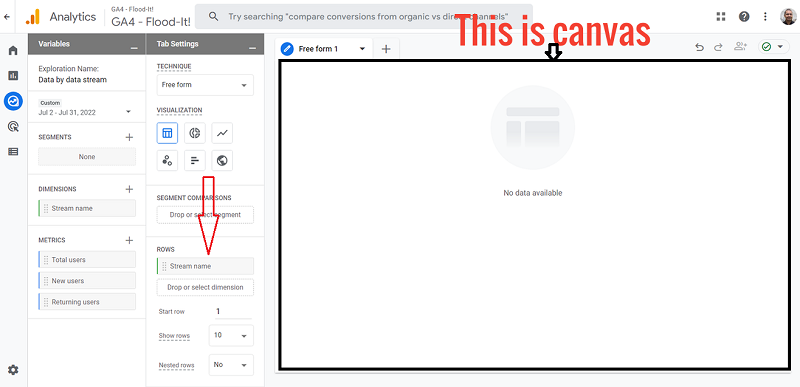
Step-10: Double click on the ‘stream name’ dimension to add it to the canvas on the right:
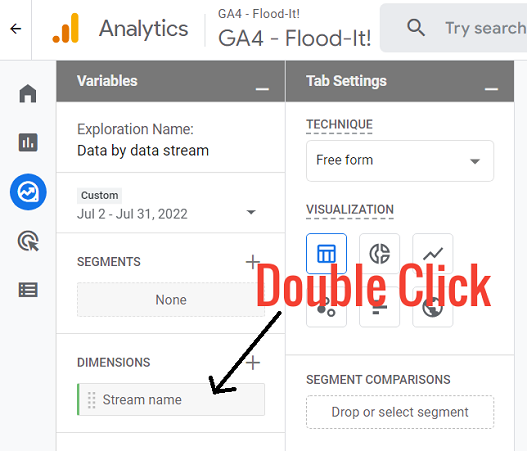
Note: When you double-click on the ‘Stream name’ dimension, you won’t see any change to the canvas on the right, but you will see the dimension added under the ‘ROWS‘ column:
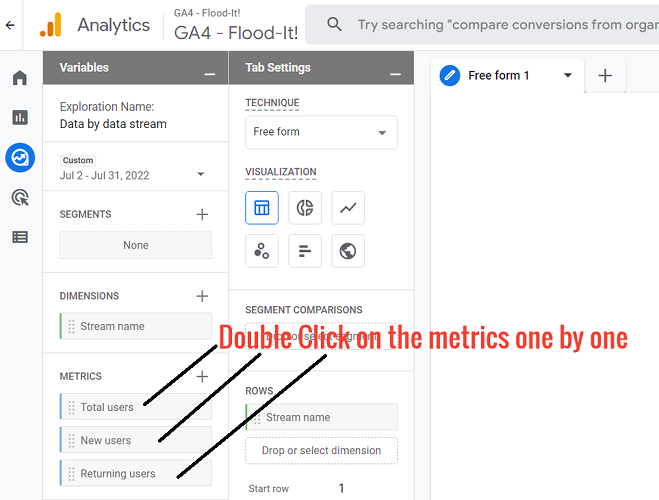
Step-11: Double click on the metrics one by one to add them to the canvas on the right:
Once you have added all the metrics, your canvas should now look like the one below:
That’s how you can segment GA4 data by stream name.

Other Articles on GA4.
- Google Analytics 4 GDPR Compliance Checklist.
- Google Analytics 4 Behavioral and Conversion Modeling.
- GA4 – Missing Deep Links in your App [Fixed].
- How to create custom insights in Google Analytics 4 (GA4).
- Fixing data threshold issue in Google Analytics 4 (GA4).
- (organic) or (not set) as ‘session campaign’ for google / cpc in GA4.
- Session Fragmentation Is Ruining Your GA4 Attribution Data.
- Tracking Outbound Links/Clicks in Google Analytics 4.
- Understanding Data Sampling in Google Analytics 4 (GA4).
- User Explorer Google Analytics 4 Tutorial.
- Google Analytics 4 Explorations Tutorial.
- How to Change Attribution Models in Google Analytics 4.
- Google Analytics Real-time report not working? Here is the fix.
- Google Signals in Google Analytics 4 - See demographics (gender, age) data.
- How to Create Landing Page Report in Google Analytics 4.
- How to segment Google Analytics 4 data by data stream.
- Setup Cross Domain Tracking in Google Analytics 4.
- How to see full page URLs in Google Analytics 4.
- Roll up Property in Google Analytics 4 – Tutorial.
- The Best Tag Auditing Tools for Google Analytics 4.