

What is cross domain tracking in GA4?
In GA4, cross-domain tracking involves tracking website users and their activities across two or more domains.
These domains could be primary domains or subdomains.
Consider the following domain names: www.abc.com and www.xyz.com
Here, ‘abc’ and ‘xyz’ are examples of primary domains.
What is the advantage of cross domain tracking in GA4?
Without cross-domain tracking set up, you won’t be able to understand and track a user’s journey that spans multiple domains.
For example, consider the following scenario:
A user landed on your website, say abc.com, via the search term ‘top men shoes’ on Google.
He then navigated to another website, say xyz.com/abc-cart, to make a purchase, as this website hosts both the shopping cart and the order confirmation page.
Now, without cross-domain tracking set up, Google Analytics will report the same user as two different users (one user visited abc.com, and a different user visited xyz.com/abc-cart.
And the user session that actually spans across the two domains will be counted as two different GA4 sessions instead of a single session.
So, the website abc.com’s GA4 report may tell you that a user visited abc.com via the search term ‘top men shoes‘ on Google but did not make a purchase.
The website xyz.com‘s GA4 report may tell you that a user visited xyz.com/abc-cart from abc.com and then made a purchase.
So, without a cross-domain tracking setup, abc.com (i.e. your own website) would end up getting all the credit for conversion instead of the search term ‘top men shoes‘ and google organic search traffic.
Consider another scenario:
A user landed on your website abc.com via the search term ‘top men shoes’ on Google.
He then navigated to another website xyz.com/abc-cart, because your shopping cart is hosted there.
After completing the purchase, he returned back to your website abc.com, as the order confirmation page is hosted on your website.
In this case, GA4 may attribute sales to xyz.com/abc-cart instead of the organic search term ‘top men shoes‘.
Thus, without a cross-domain tracking setup, you may have a hard time determining the original source of your conversion and/or ecommerce transaction.
Without a cross-domain tracking setup, most of your conversions could end up being attributed to direct traffic or the wrong traffic source.
Does GA4 automatically track primary domains?
By default, GA4 is not able to track website users and their activities across primary domains. That is because GA4 uses first-party cookies that can be read by only the domain that issued it.
You would need to set up cross-domain tracking manually.
Does GA4 automatically track subdomains?
By default, GA4 automatically tracks traffic from all subdomains, provided all of your subdomains share the same root domain (like ‘optimizesmart.com’); they all use the same GA4 property and the same web data stream, which means they must use the same GA4 measurement ID.
For example:
Root Domain: optimizesmart.com
Subdomains:
- learn.optimizesmart.com
- training.optimizesmart.com
If you install the GA4 tracking code (aka Google Tag) on optimizesmart.com and ensure all subdomains inherit that code (i.e. share the same Measurement ID), GA4 will seamlessly track user activity across these subdomains.
Imagine this scenario:
#1 A user visits the main website, optimizesmart.com, and browses a couple of articles. (GA4 tracks this visit)
#2 The user then clicks on a link to learn more about the Digital Analytics Implementation Program, which takes them to training.optimizesmart.com. (Since it’s a subdomain, GA4 recognises it as part of the same website and continues the session.)
#3 On the ‘training’ subdomain, the user reads detailed information and decides to enrol into the program. (This activity is also recorded within the same session.)
You get a complete picture of how users interact across all your subdomains, which helps you understand their overall behaviour and interests.
In essence, GA4 treats all subdomains sharing the same root domain (optimizesmart.com in this case) as one website for tracking purposes as long as they use the same Measurement ID.
Why is my subdomain not showing up in Google Analytics?
By default, the data in your GA4 reports include only the request URI and not the domain name. This makes it impossible to view subdomain traffic.
You would need to use the ‘Page Location’ dimension in an exploration report to view subdomain traffic in GA4.
For more details, check out this article: GA4 Subdomain Tracking – How to view subdomains traffic.
Do I need cross domain tracking for subdomains?
If your subdomains do not share the same GA4 Measurement ID, then you will need to manually set up cross-domain tracking for subdomains. Otherwise, it is not required.
How to see subdomain traffic in GA4?
You would need to use the ‘Page Location’ dimension in an exploration report to view subdomain traffic in GA4.
For more details, check out this article: GA4 Subdomain Tracking – How to view subdomains traffic.
When do I need cross-domain tracking in GA4?
You need cross-domain tracking when your Google Analytics 4 session spans across two or more domains, and you want Google Analytics to treat GA4 sessions spanned across different domains as a single session.
Your Google Analytics session can span across two or more domains in the following scenarios:
#1 When your checkout process occurs on a different domain (quite common when you use a third-party shopping cart like Shopify)
#2 When your goal conversions or ecommerce transactions take place on a different domain (quite common in the case of affiliate websites).
When do I not need cross-domain tracking in GA4?
You don’t need to set up cross domain tracking between the primary domain and its subdomains, provided they all share the same measurement ID.
Is setting up cross domain tracking easy?
Cross-domain tracking is highly technical in nature.
Depending upon your website’s front-end and/or back-end configuration, implementing cross-domain tracking can be either a walk in the park or a tough nut to crack.
How to exclude subdomain traffic in GA4?
Carry out the following tasks if you want to exclude subdomain traffic from your GA4 property:
#1 Make sure that your primary domain and subdomain do not use the same measurement ID.
#2 Make sure that you haven’t added the subdomain as an additional data stream in the GA4 property meant for your primary domain.
#3 Use a different Google Tag and GA4 property to track your subdomain traffic.
#4 Do not set up cross-domain tracking between your main domain and the subdomain you want to exclude.
How do I set up cross-domain tracking in GA4?
Let us suppose you have two different websites: www.optimizesmart.com and www.eventeducation.com .
Both of these websites have their own separate GA4 properties.
You want to set up cross-domain tracking between them.
Google recommends using the same GA4 property and the same web data stream for cross-domain tracking.
But you have separate GA4 properties for each domain.
So, you will have to reinstall the GA4 tracking for one of the domains involved in cross-domain tracking so that both domains use the same measurement ID.
However, this is not a practical approach, as many users want to keep separate GA4 properties for each domain and may not want to consolidate them just for cross-domain tracking purposes.
Instead of consolidating two GA4 properties into one and reinstalling the GA4 tracking for one of the domains involved in cross-domain tracking, create a third GA4 property that will be used exclusively for the purpose of cross-domain tracking.
Send GA4 data from both properties into this new GA4 property and then add both domains to the ‘Configure your domains’ section of the new GA4 property.
Benefits of this approach:
#1 Maintains Separate Data – Your original GA4 properties retain their individual data for each domain, allowing for independent analysis.
#2 Centralized Cross-Domain reporting – The new cross-domain property acts as a central hub, collecting data from both domains and providing insights into user journeys across them.
#3 Flexibility – This method does not require consolidating historical data or reinstalling tracking tags, minimizing disruption.
Example of cross-domain tracking setup in GA4.
Let’s set up cross-domain tracking between two different websites: www.optimizesmart.com and www.eventeducation.com which have their own separate GA4 properties.
Follow the steps below:
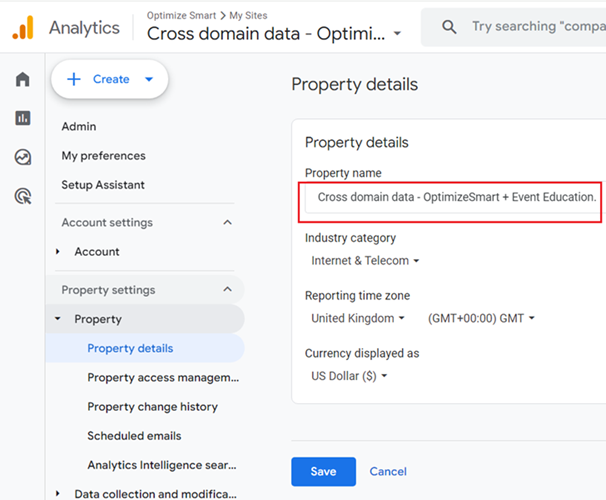
Step-1: Create a brand new GA4 property and name it in such a way that its name reflects collecting cross-domain tracking data.
For example, I named my new GA4 property ‘Cross domain data – OptimizeSmart + Event Education.’:
Step-2: Create a new web data stream in your new GA4 property:
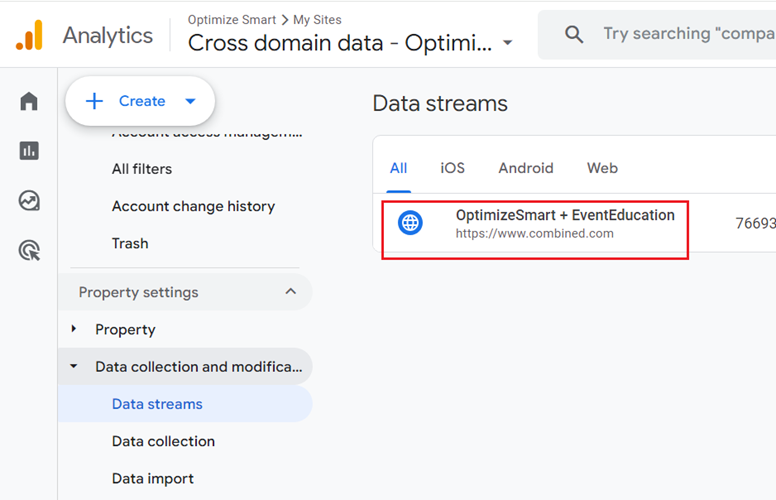
Note: While creating a new web data stream, you can enter any website URL. It does not matter which URL you enter. For example, I entered www.combined.com and I don’t even own this website.
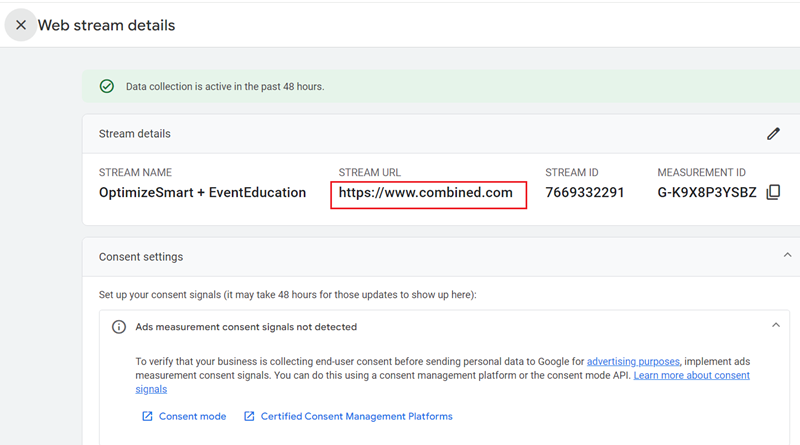
Step-3: Note down the measurement ID of your new web data stream. You will need this ID later.
Step-4: Navigate to the GTM container meant for the optimizesmart.com website.
Step-5: Create a copy of your GA4 configuration tag and rename it to something like ‘GA4 Tag – for cross domain property’
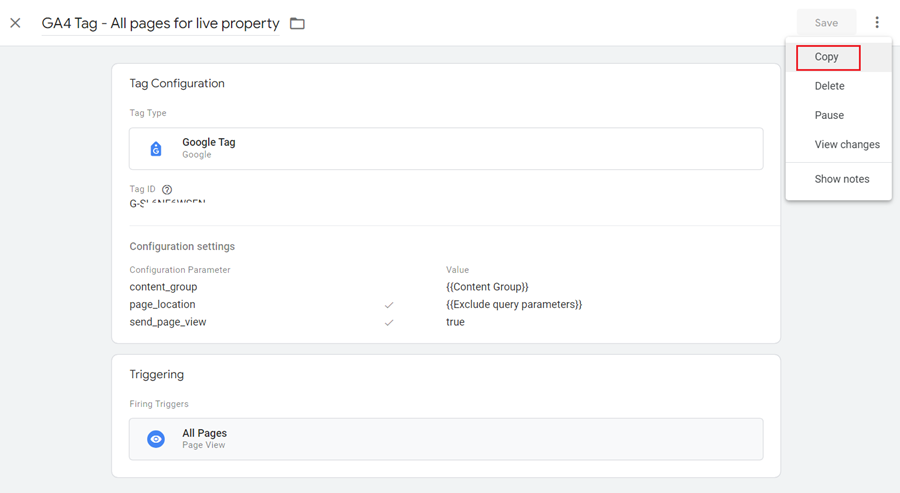
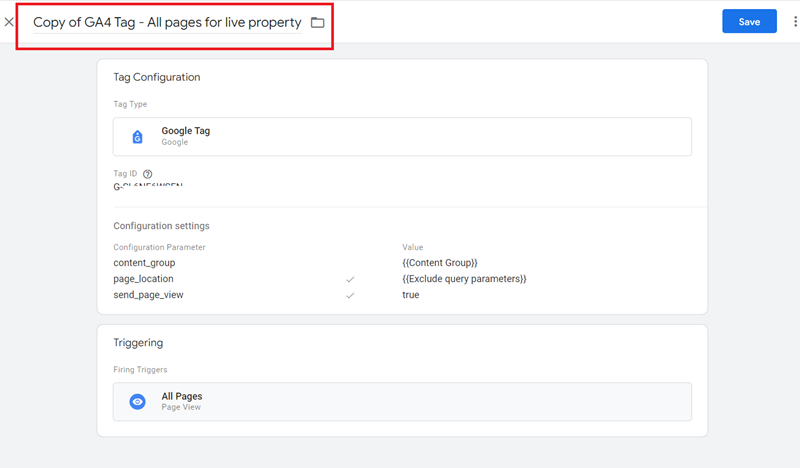
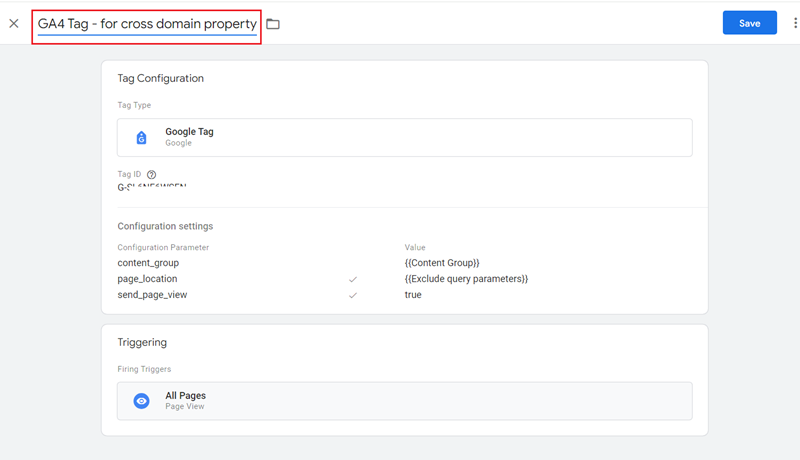
Step-6: Replace the tag ID with the measurement ID meant for the new web data stream you just created, and then click on the ‘Save’ button:
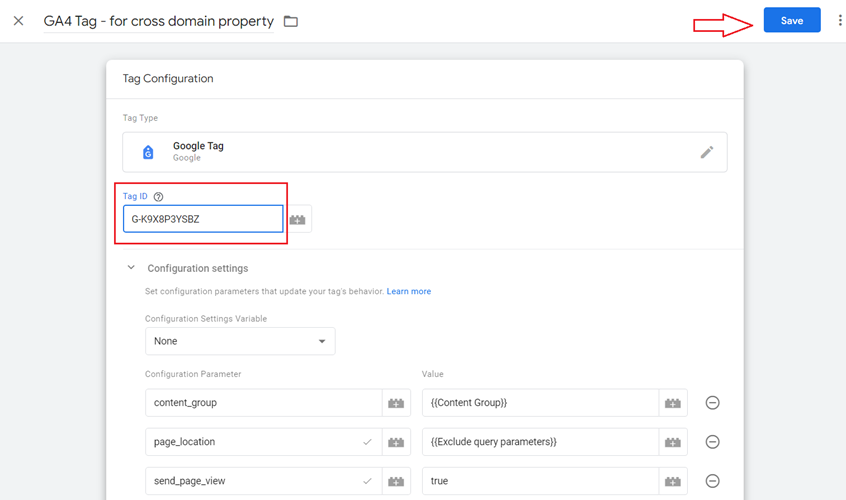
This new GA4 configuration tag (aka Google Tag) sends the GA4 data from the optimizesmart.com website to the new GA4 property.
Step-7: Preview and publish the GTM container.
Step-8: Navigate to the GTM container meant for the eventeducation.com website and repeat steps 5 to 7 to create a new GA4 configuration tag that sends GA4 data from the website to the new GA4 property.
Step-9: Navigate to the real-time report of your new GA4 property to check whether it is receiving data from both websites.
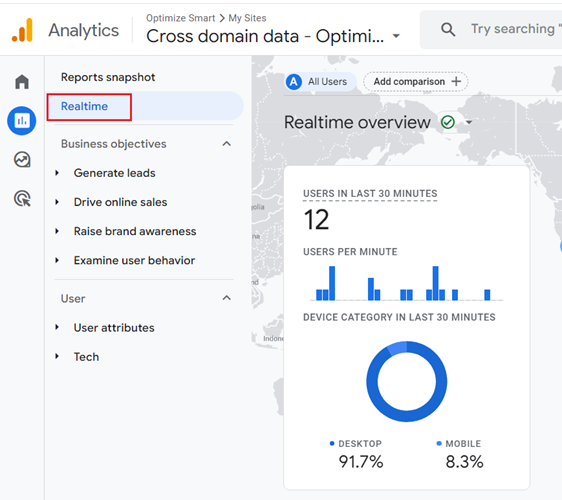
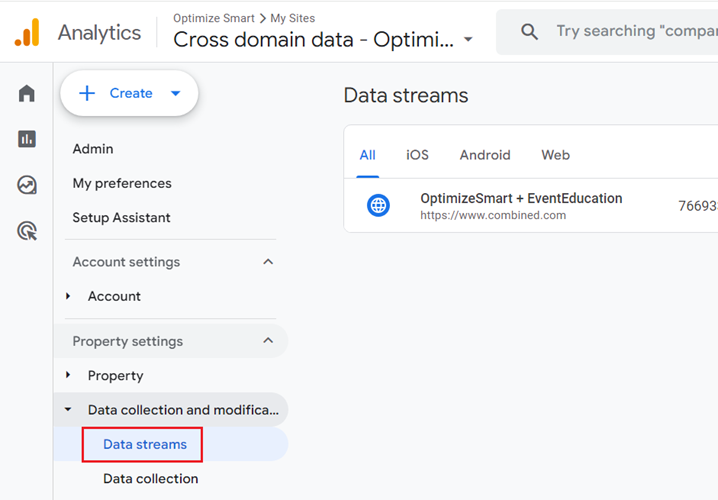
Step-10: Navigate to the Admin section of your new GA4 property and then click on ‘Data Streams’ under ‘Data collection and modification’:
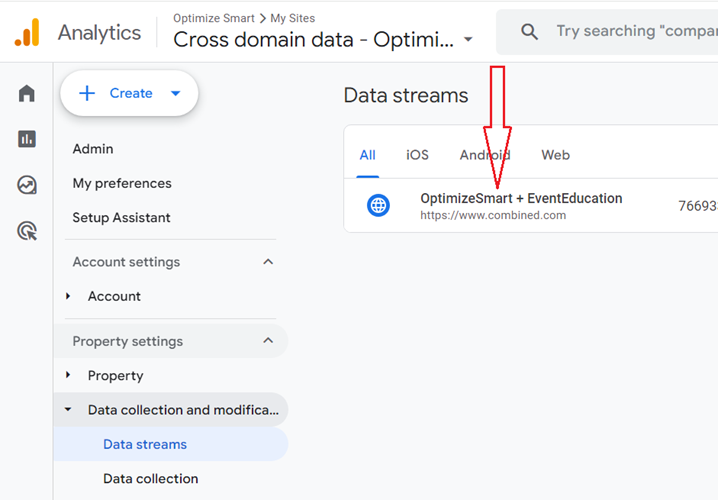
Step-11: Click on the new web data stream you created in one of the previous steps:
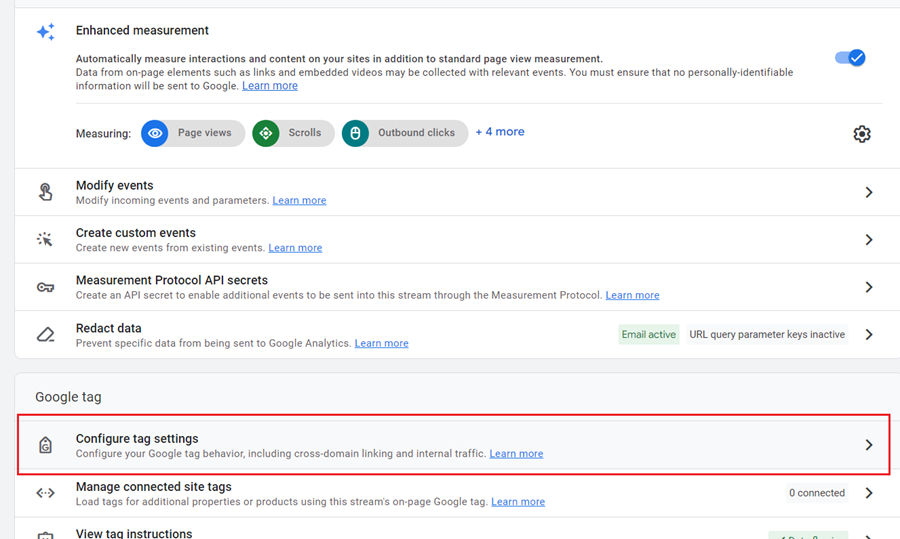
Step-12: Scroll all the way down and then click on ‘Configure tag settings’:
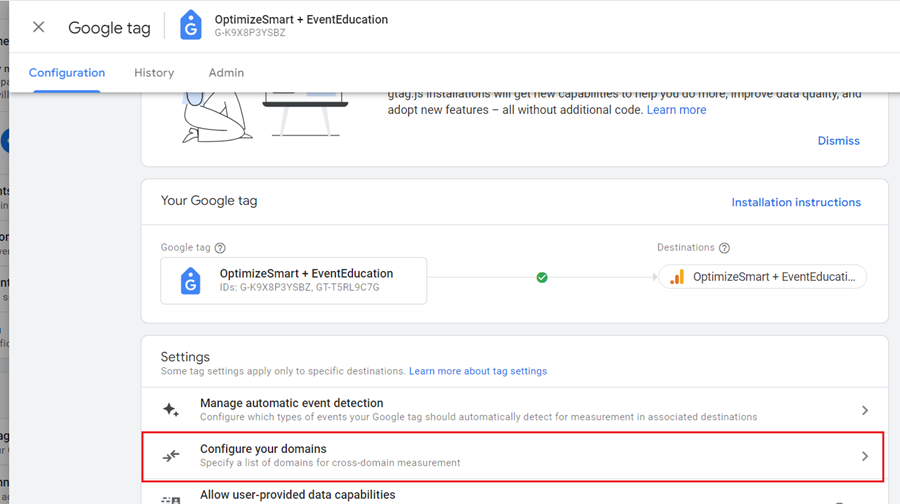
Step-13: Click on ‘Configure your domains’:
Step-14: Add the domains involved in the cross-domain tracking set-up and then click on the ‘Save’ button:
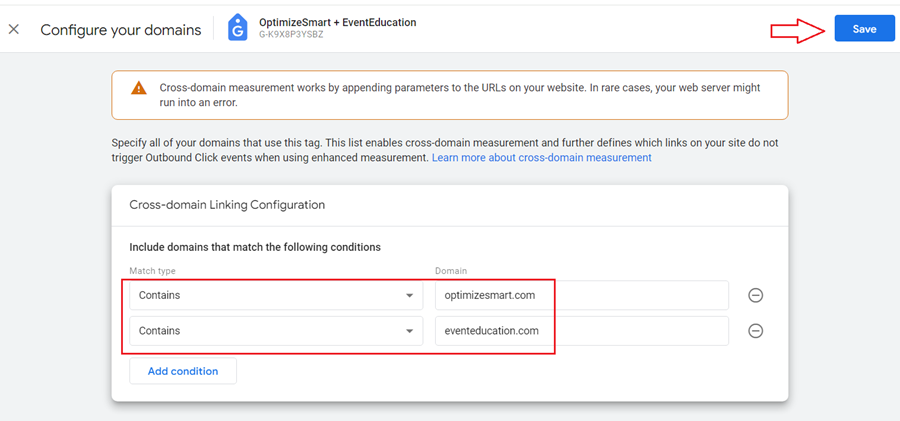
That’s how you can set up cross-domain tracking between two primary domains.
How to test cross domain tracking in GA4?
Once you have successfully set up cross domain tracking, wait for a couple of minutes before you start testing.
You can verify whether the cross-domain tracking is working by finding and clicking on a cross-domain link.
A cross-domain link is a hyperlink that can move traffic from one domain to another.
Once you land on the second domain, examine the URL in your browser’s address bar.
The URL should contain a ‘_gl’ parameter followed by a string of characters.

The presence of the ‘_gl’ parameter in the URL indicates that cross domain tracking is working in GA4.
Are there any best practices for cross-domain tracking in GA4?
Following are some best practices for cross-domain tracking in GA4:
#1 For cross-domain tracking between primary domains and its subdomains, use same GA4 property and and measurement ID across all domains.
#2 Use Google Tag Manager as it simplifies the setup and maintenance of cross-domain tracking, reducing the risk of errors.
#3 Keep detailed documentation of your GA4 cross-domain tracking setup. This documentation should include domains involved, tracking parameters, and any exclusions or filters. This will simplify troubleshooting issues and maintenance of the configuration over time.
#4 Use the same tracking parameters and configurations across all domains. For example, if you use User ID tracking, ensure that the same User ID is used across all domains for a given user. Similarly, Session ID should be maintained across domains.
By maintaining these consistent tracking parameters, you ensure that:
- User data is properly associated and aggregated across different websites.
- Sessions are accurately tracked as users move between domains.
- User journeys can be analyzed comprehensively across all your domains.
- Data from all domains is collected and processed uniformly within your GA4 property.
#5 Always test your cross domain tracking setup to ensure it’s working correctly.
#6 Periodically review your cross-domain tracking setup to ensure it is still functioning correctly and update it as needed, especially if you add or remove domains from your tracking.
#7 Use datalayer for managing data sharing between domains in the context of cross-domain tracking. A data layer allows you to store and pass important information (like user IDs, transaction data, or custom dimensions) consistently across different domains.
#8 Using the ‘List Unwanted referrals’ feature of GA4 for cross-domain tracking purposes is another best practice.
Using ‘List Unwanted referrals’ for cross-domain tracking purposes.
When cross-domain tracking is not configured correctly, it can result in self-referral issues (where your own domain appears as referral traffic).
GA4 can automatically detect and fix self-referral issues as long as the following conditions are met:
#1 The referrer contains your domain name, and the current URL contains the Google tag.
#2 The referrer is a result of cross-domain tracking set up between the domains you own, and the current URL contains the “_gl” parameter.
Note: With cross-domain tracking implemented, when the user navigates to a different domain, analytics cookies are passed from one domain to another via the linker parameter “_gl”.
The automatic self-referral detection feature of GA4 may not be able to fix self-referral issues if some of your website’s pages do not contain the Google tag and a user navigates to such a page.
So, the best practice is to add your domain name or the domains involved in cross-domain tracking to the list unwanted referrals:
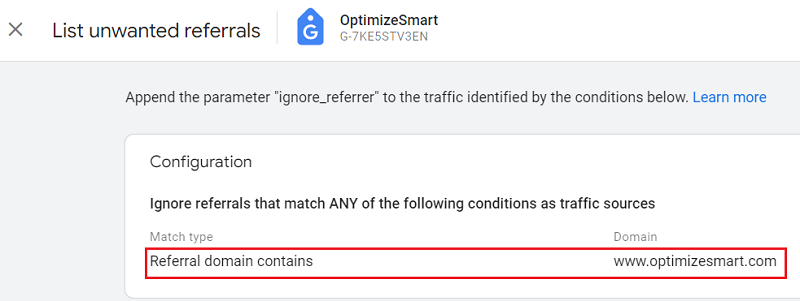
GA4 allows you to set condition(s) that identify unwanted referrals and prevent them from being reported as referral traffic via a feature called the ‘List unwanted referrals’.
For example: let us suppose a user started his journey (GA4 session) on www.123.com website.
He then navigates to www.456.com website from 123 website.
As soon as the user arrives on the 456 website, he will be treated as a new user (as client ID is not shared across domains by default).
His existing GA4 session (with the 123 website) will continue, but a new GA4 session (with the 456 website) will start.
When the user navigates back to the 123 website from the 456 website, his existing GA4 session (with the 456 website) will continue, and a new GA4 session (with the 123 website) may start depending on how much time elapsed when away from the 123 website.
Now, if you do not want the new GA4 session to be triggered for 456 website, when the user navigates from 123 website to 456 website then you need to add the domain 123.com to the list of unwanted referrals of the GA4 property meant for 456 website.
Similarly,
If you do not want the new GA4 session to be triggered for 123 website when the user navigates from 456 website to 123 website then you need to add the domain 456.com to the list of unwanted referrals of the GA4 property meant for 123 website.
How does cross domain tracking works in GA4?
In cross-domain tracking, we share cookie information between two or more domains. This domain can be a primary domain or subdomain.
The cookie information that we pass from one domain to another is the client ID.
This client ID is stored in the Google Analytics cookie _ga.
The client ID behaves according to the cookie’s configurations (cookie domain, cookie path and expiry date).
So before you can understand and implement cross-domain tracking, you need to first understand Google Analytics cookies, client ID, and the concept of domains and subdomains.
In order to understand how cross domain tracking works, you would first need to understand the following terms:
- Google Analytics Cookies
- Client ID.
- Domains and subdomains.
- Cookie domains.
- Cookie Path.
- Cookie expires.
- Cross domain links.
#1 Google Analytics Cookies
In the context of Google Analytics, a cookie is a text file that is used to:
- Identify unique users.
- Identify unique sessions.
- Store information (like traffic source) about users’ GA sessions and campaigns.
- Throttle the request rate.
GA4 primarily uses first-party cookies to track user interactions on a website.
However, GA4 can also set third-party cookies, such as DoubleClick cookies, if a website uses GA4 display advertiser features for retargeting and building audiences.
Google Analytics uses cookies based on the JavaScript library being used. The latest JavaScript library used by Google Analytics is gtag.js.
The gtag.js JavaScript library sets the following cookies:
#1 _ga cookie (unique visitor cookie): This cookie is used to identify unique users within GA4 and expires after 2 years.
#2 _gid cookie (user identification cookie): This cookie is used to differentiate users within a GA4 session and expires after 24 hours.
#3 ga<container-id> cookie (session state cookie): This cookie is used in managing session state within GA4. The <container-id> part is a unique identifier for your Google Tag Manager container (if you’re using it for deployment). This cookie expires after 2 years.
Google Analytics sets up a cookie on your hard disk as soon as you visit a webpage on which a valid Google Analytics tracking code is installed.
#2 Client ID.
When a user visits your website (say website A) for the first time, a unique ID is assigned to him called the ‘client ID’.
Google Analytics identifies a user as unique by combining a unique random number and the first timestamp (i.e., the time of the first visit). This combination is called the client ID.
This client ID is stored in the Google Analytics cookie _ga.
_ga cookie is made up of the following four fields:
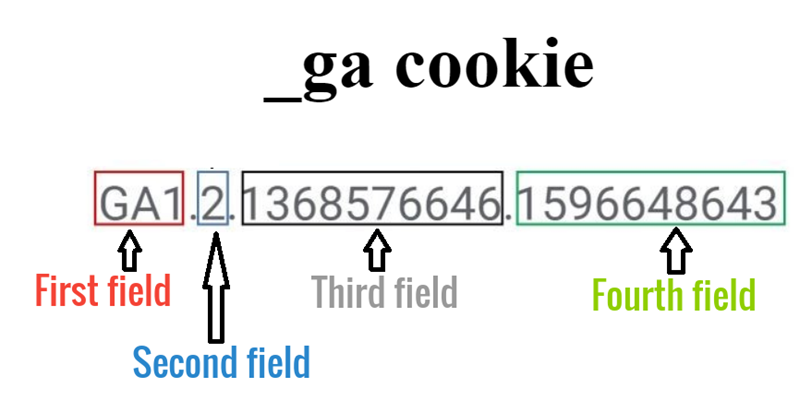
The first field is the version number, for example, GA1.
The second field is the number of components at the domain separated by a dot.
By default, the _ga cookie is set on the top-level domain with the root level (/) path.
So, if you have set a cookie at the top-level domain like optimizesmart.com then the second field would have a value of 2 as there are two components separated by a dot.
One component is ‘optimizesmart’ and the second component is ‘com’.
If you have set up a cookie at the sub-domain level, like training.optimizesmart.com, then the second field would have a value of 3 as there are now three components separated by a dot.
The first component is ‘training’. The second component is ‘optimizesmart’. The third component is ‘com’
The third field is a random unique ID (a randomly generated number). Here, 1368576646 is the random unique ID.
The fourth field is the first timestamp, which is the time when the cookie was first set for the user. Here, 1596648643 is the first timestamp.
The third and fourth fields together make the client ID. So, the client ID would be 1368576646.1596648643
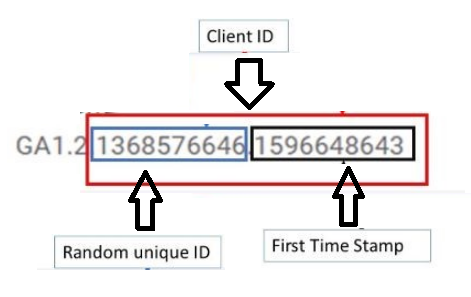
This ‘client ID’ is used to identify the user as new and unique and to combine all of his hits (pageviews, screenviews, events, transactions, etc) together to form a GA4 session.
When the same user later visits your website again, Google Analytics is able to identify the user as a returning user through his client ID.
When the same user visits another website, say website ‘B’ (which also has GA4 installed), the GA4 tag of website ‘B’ sets a completely different ‘Client ID’ for the user, and thus, website B treats the same user as a different user.
Since _ga cookie is a first-party cookie, it can only be read by the website which issued it.
Consequently, _ga cookie set up by website ‘A’ can not (by default) be read/shared by website ‘B’ and vice versa.
Because of this reason, by default, cross-domain tracking between two or more primary domains is not possible.
Also worth noting is that cross-web browser tracking and cross-device tracking are not possible by default.
The _ga cookie can exist only on the device and browser where it has been set.
Since the client ID is stored in a GA cookie, the client ID will also exist only on the device and browser where it has been set. For this reason, GA4 can’t identify unique users across different web browsers and devices..
So, by default, cross-web browser tracking and cross-device tracking are not possible.
Note: Client ID can be used to differentiate one _ga cookie from another. So if two _ga cookies have got the same client ID then they are most likely the same cookie.
#3 Domains and subdomains.
Introduction to the domain name.
A Uniform Resource Locator (URL) is used to uniquely identify a web resource (like a web page) on the internet.
Consider the following URL: https://www.optimizesmart.com/best-excel-charts
Here,
- https:// is the internet protocol.
- www.optimizesmart.com is the hostname (also known as a domain name or domain).
- /best-excel-charts is the request URI.
Thus, a URL is made up of internet protocol, hostname and request URI.
Note: By default, GA4 reports only the request URI in its reports.
A domain name is a string that is used to identify a website on the internet. It is made up of two or more substrings separated by the (dot) symbol ‘.’
For example, the domain name www.optimizesmart.com is made up of the following three sub-strings:
- www
- optimizesmart
- com
Similarly, the domain name learn.optimizesmart.com is made up of the following three sub-strings:
- learn
- optimizesmart
- com
Introduction to domain levels
A domain name is made up of at least two levels: a top-level domain and a primary domain.
For example, the domain name optimizesmart.com is made up of the following two domain levels:
- com (top-level domain)
- optimizesmart (primary domain)
The domain name www.optimizesmart.com is made up of the following three domain levels:
- com (top-level domain)
- optimizesmart (primary domain)
- www (sub-domain)
Similarly, the domain name learn.optimizesmart.com is made up of the following three domain levels:
- com (top-level domain)
- optimizesmart (primary domain)
- learn (sub-domain)
The domain name js.learn.optimizesmart.com is made up of the following four domain levels:
- com (top-level domain)
- optimizesmart (primary domain)
- learn (sub-domain)
- js (sub-sub-domain)
Technically, there is no limit to the number of domain levels you can use. However, I have not seen more than four domain levels in a URL.
The Top Level Domain (TLD)
The highest-level domain is called the top-level domain (or TLD).
For example, in the domain name www.optimizesmart.com, the ‘.com’ part is the TLD.
The top-level domain can be generic, location-specific or business/industry-specific.
Examples of generic TLDs: .com, .net, .edu, .info etc.
Examples of location-specific TLDs: .uk, .fr, .de, .in etc.
Examples of business/industry-specific TLDs: .travel, .tv, .restaurant etc.
Primary Domain (or second-level domain)
The second-highest level domain is called the primary domain.
For example, in the domain name www.optimizesmart.com, ‘optimizesmart’ is the primary domain (without the www prefix).
Similarly, in the domain name www.google.com, ‘google’ is the primary domain.
Subdomain
The third-highest level domain is called the subdomain.
For example, in the domain name www.optimizesmart.com, ‘www’ is the subdomain of the primary domain.
Similarly, in the domain name learn.optimizesmart.com, ‘learn’ is the subdomain of the primary domain.
Sub Subdomain
The fourth highest level domain is called the sub subdomain.
For example, in the domain name js.learn.optimizesmart.com, ‘js’ is the sub subdomain of the primary domain.
#4 Cookie domains.
Introduction to cookie domains
In the context of Google Analytics, a cookie domain is the domain at which the Google Analytics cookie _ga is set up.
You can set up _ga cookie at a domain by simply embedding the Google Analytics tracking code on the domain.
Setting up Cookie domain
By default, the Google Analytics cookie ‘_ga’ is set up at the second-highest level domain of a web page’s current hostname.
The default Google Analytics tracking code (i.e. the code without any modification done to it for the gtag.js library) looks like the one below:
If you place the aforementioned Google Analytics Tracking code on a web page whose URL is say: http://music.abc.com/jazz
Then Google Analytics will set up ‘_ga’ cookie at ‘.abc.com’
In the URL: http://music.abc.com/jazz
#1 The current hostname is: ‘music.abc.com’
#2 The request URI is: /jazz
#3 Top-level domain (or TLD) is: ‘.com’.
Note: Google Analytics can not set up a cookie at the TLD level.
#4 The second-highest-level domain (also called the primary domain) is ‘.abc.com’ (without the ‘www’ prefix). Google Analytics sets up cookies at this level by default.
#5 The third highest level domain (also called sub domain) is: ‘music.abc.com’
Similarly,
If you place the aforementioned Google Analytics Tracking code on a web page whose URL says: http://asian.music.abc.com/
Then the second-highest level domain of the current hostname (asian.music.abc.com) will still be ‘.abc.com’
Since, by default, Google Analytics setup the cookie at the second-highest level domain of the current hostname, the _ga cookie will be set at ‘.abc.com’
Now, if you place the aforementioned Google Analytics Tracking code on a web page whose URL is http://www.abc.com/
Then also, Google Analytics will set up ‘_ga’ cookie at ‘.abc.com’ as the second-highest level domain of the current hostname (www.abc.com) is ‘abc.com’
The advantage of setting up the _ga cookie at the second-highest level domain (aka primary domain) is that the client ID will always be shared among the primary domain and its subdomains, whether a user navigates from the primary domain to one of its subdomains or vice versa, provided both primary domain and its subdomains, use the same Google Analytics Tracking Code (in other words, use the same GA4 Measurement ID).
So, by default, you don’t need to set up cross-domain tracking between primary domains and their subdomains, as cookie information is automatically shared between them.
Note: If you are running ‘gtag.js’ on a locally hosted server, the ‘gtag.js’ will automatically set the cookie domain to “none”.
The cookie domain needs to be the ancestor of the destination domain(s).
The cookie domain is the domain at which a Google Analytics cookie is set up.
The destination domain(s) is the domain to which you want to pass the client ID.
If you wish to set up cross-domain tracking in Google Analytics, then always make sure that the cookie domain is the ancestor of the destination domain(s).
A primary domain is always the ancestor of its subdomain(s).
So, if you wish to set up cross-domain tracking between a primary domain like abc.com and its subdomain like music.abc.com, then set up a _ga cookie at the ‘.abc.com’ domain, as it is the ancestor of the ‘music.abc.com’ subdomain.
If you wish to set up cross-domain tracking between music.abc.com and asian.music.abc.com then set up _ga cookie either at the ‘music.abc.com’ domain or ‘.abc.com’ domain as both are the ancestor of ‘asian.music.abc.com’ subdomain.
Similarly,
If you wish to set up cross-domain tracking between two subdomains like music.abc.com and games.abc.com, then set up _ga cookie at the primary domain ‘.abc.com’ as it is the ancestor of both ‘music.abc.com’ and ‘games.abc.com’ subdomains.
#5 Cookie Path.
The cookie path is the path at which the cookie is set up.
By default, the _ga cookie is set on the second-highest level domain with the root-level (/) path.
Because of this, the cookie set up at the primary domain level can be shared with all of its web pages and subdirectories.
But if, for some reason, you want the _ga cookie set up at the primary domain level to be shared only with a particular subdirectory, then you can do that by using the ‘cookiePath’ configuration parameter.
gtag(‘config’, measurementId, {
// Limit _ga cookie to the ‘/blog’ subdirectory
cookiePath: ‘/blog’
});
Within the gtag(‘config’) call, we’ve added the cookiePath: ‘/blog’ configuration parameter.
This parameter tells GA4 to set the _ga cookie with a path restricted to the /blog subdirectory and all its subpages (e.g., /blog/article1, /blog/category/marketing).
#6 Cookie expires.
Cookie Expires is the time in seconds, after which the _ga cookie will expire. By default, _ga cookie expires after 2 years from the date it was last refreshed.
Every time a new hit is sent to Google Analytics, the _ga cookie is refreshed.
You can set your own cookie expiration time by using the cookieExpires field:
gtag(‘config’, measurementId, {
// Set custom cookie expiration (7 days in seconds)
cookieExpires: 604800
});
Within the gtag(‘config’) call, we’ve added the cookieExpires: 604800 configuration parameter.
This parameter sets the expiration time for the _ga cookie to 7 days.
We achieve this by converting 7 days to seconds (7 days * 24 hours/day * 60 minutes/hour * 60 seconds/minute).
The cookie expires plays an important role in cross-domain tracking.
For example, if the _ga cookie expires after two minutes, Google Analytics can treat the same user as a new user even before he navigates to a different domain.
#7 Cross-domain links.
A cross-domain link is a hyperlink that can move traffic from one domain to another.
In cross-domain tracking, a user’s client ID is passed from one domain to another via cross-domain links and/or via form submission.
For example,
If you have set up cross-domain tracking between abc.com and xyz.com then all the links on abc.com that go to xyz.com and all the links on xyz.com that go to abc.com, are called cross-domain links.
Cross-domain traffic is the traffic that moves back and forth between different domains via cross-domain links.
The cookie information (Client ID) is attached to the query string of the cross-domain links which you can see in the browser window:

Google Analytics tag is designed to look for client ID in the query string and use it if it exists.
So, if a user has got the same client ID across two or more domains, then Google Analytics can identify the user across multiple domains.

Other Articles on GA4.
- Google Analytics 4 GDPR Compliance Checklist.
- Google Analytics 4 Behavioral and Conversion Modeling.
- GA4 – Missing Deep Links in your App [Fixed].
- How to create custom insights in Google Analytics 4 (GA4).
- Fixing data threshold issue in Google Analytics 4 (GA4).
- (organic) or (not set) as ‘session campaign’ for google / cpc in GA4.
- Session Fragmentation Is Ruining Your GA4 Attribution Data.
- Tracking Outbound Links/Clicks in Google Analytics 4.
- Understanding Data Sampling in Google Analytics 4 (GA4).
- User Explorer Google Analytics 4 Tutorial.
- Google Analytics 4 Explorations Tutorial.
- How to Change Attribution Models in Google Analytics 4.
- Google Analytics Real-time report not working? Here is the fix.
- Google Signals in Google Analytics 4 - See demographics (gender, age) data.
- How to Create Landing Page Report in Google Analytics 4.
- How to segment Google Analytics 4 data by data stream.
- Setup Cross Domain Tracking in Google Analytics 4.
- How to see full page URLs in Google Analytics 4.
- Roll up Property in Google Analytics 4 – Tutorial.
- The Best Tag Auditing Tools for Google Analytics 4.