

In this article, I will talk about understanding data sampling in Google Analytics 4 (GA4). I will also cover hit limits, thresholding and cardinality in Google Analytics 4.
In data analysis, sampling is the process of analyzing a subset of data for analysis and reporting based on the similarity detected in the subset and the larger data set.
For example, if you want to estimate the number of cars parking in a 1000 square meter area where the distribution of car parking was fairly uniform, you could count the number of cars parking in 10 square meters and multiply by 100, or count the cars parking in a 5 square meter and multiply by 200 to get an accurate representation of the entire 1000 square meters.
In Google Analytics 4, a few reports are always unsampled, and a few are sampled based on the conditions. Let’s understand how sampling happens in GA4 in more detail.
Data sampling in Google Analytics 4
In Google Analytics 4, reporting is divided into two categories in the ‘Analysis’ tab; standard reports and advanced reports.
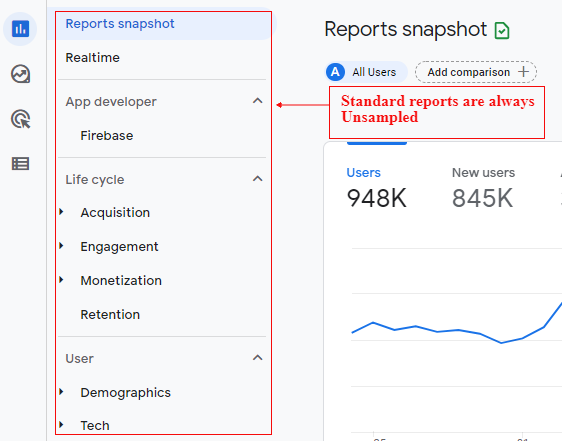
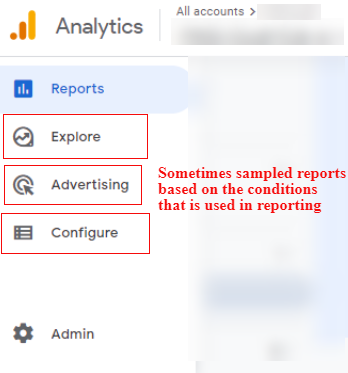
Standard reports are always unsampled in GA4 (based on 100% of data for the selected date range), and advanced reports are sometimes sampled based on the conditions of what data you choose to see.
The below image shows the standard reporting options in GA4, which are unsampled.
The next image shows the advanced reporting options in GA4, which are sometimes sampled.
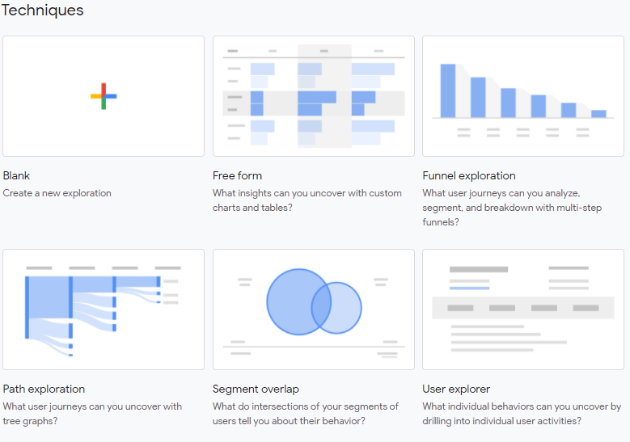
These advanced reports include the following techniques:
Unlike in Universal Analytics, the data may be sampled if you apply a secondary dimension or segment to the standard reports. But in the case of GA4, you can apply comparisons, and secondary dimensions, filter your reports, and everything will continue to be unsampled.
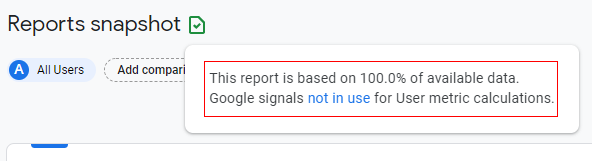
If you are viewing an unsampled GA4 report, then you will see a green reporting icon with a checkmark at the top of the report:
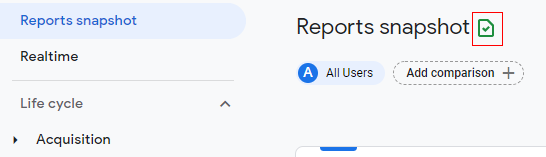
If you hover your mouse over the green reporting icon, you will see the following message “This report is based on 100.0% of available data.”
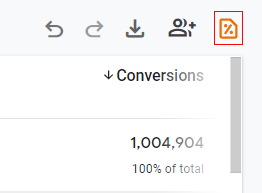
If you are viewing a sampled GA4 report, then you will see a yellow reporting icon with a % symbol at the top of the report:
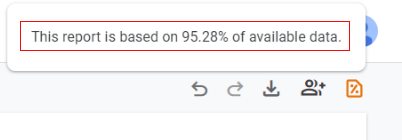
If you hover your mouse over the yellow reporting icon, you will see the following message “This report is based on XX% of available data.” (In our case, XX represents 95.28%).
Sampling differences in Google Analytics 4 Vs Universal Analytics
In Universal Analytics, default reports (standard reports) are not subject to sampling. But if you apply ad-hoc queries to your data (like secondary dimensions or segments), they are subject to the below general sampling thresholds.
- Standard Analytics: 500k sessions at the property level for the date range you are using
- Analytics 360: 100M sessions at the view level for the date range you are using
If you want to know more about sampling in Universal Analytics, you can read it here: Understanding Data Sampling in Google Analytics
In the case of Google Analytics 4, the default reports (standard reports) are always unsampled. You can apply comparisons and custom parameters to your report, and all the reports will continue to be unsampled.
The advanced report in the ‘Analysis’ tab may sometimes be sampled. In general, sampling occurs in advanced reporting when the data exceeds 10 million in counts, and the report you are creating is not a replica (similar) to the standard report.
Hit limits in Google Analytics 4
In the case of Universal Analytics (standard), there is a hit limit of 10 million per month per account. However, Google Analytics 4 is a free tool and has no hit limits. I have searched a lot about this, but it is not mentioned anywhere in the documentation. This makes it a more premium analytics tool at no cost.
Thresholding in Google Analytics 4
In Google Analytics 4, thresholds are applied to prevent anyone viewing a report from inferring the demographics or interests of individual users to the website.
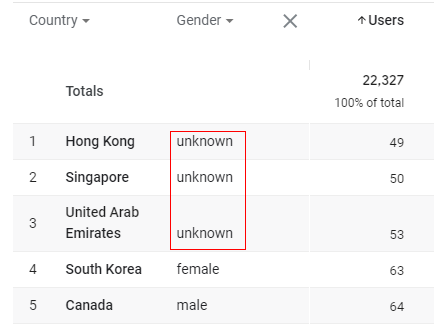
When a report contains age, gender, or interest categories (e.g. as a primary or secondary dimension, a data comparison, or a segment), a threshold may be applied, and some data may be kept hidden (unknown) from the report.
Google defines these thresholds, and you cannot adjust them. However, if a threshold has been applied to a report, you will see unknown values in the report. These values are replaced by “unknown” to keep user identity and basic information hidden.
Cardinality in Google Analytics 4
Each report in Google Analytics 4 has dimensions assigned to it, and each dimension has several values that can be assigned to it. For example, the gender dimension has three potential values (male, female or other), so that dimension’s cardinality is three.
The total number of unique values for a dimension is known as its cardinality.
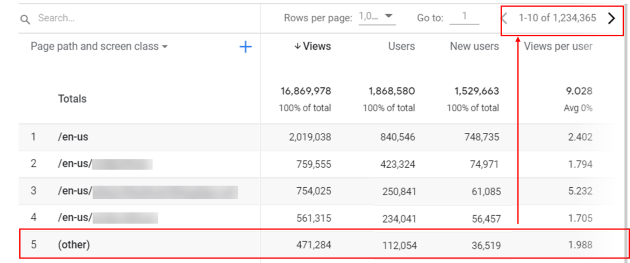
Dimensions with a large number of possible values are known as high-cardinality dimensions. For example, the page dimension has different values for every URL on your website.
If a report contains high-cardinality dimensions, it may get affected by Google Analytics system limits (Google-defined), resulting in the creation of rolled-up (other) entries in the report.
Cardinality may occur in standard reports as well as advanced reports in the ‘Analysis’ tab.
There is no such definition available from Google on when cardinality appears (limit), but in general, this may occur if you have more than 25,000 to 30,000 unique values for a dimension in the selected date range.
Summary
GA4 will always show you unsampled reports for standard reports, and only in the case of advanced reporting options in the ‘Analysis’ tab (cohort analysis, exploration, segment overlap, funnel analysis, path analysis, and user explorer) might they be sampled.

Other Articles on GA4.
- How to overcome GA4 BigQuery Export limit.
- ChatGPT Workflow That Simplifies GA4 Data Analysis.
- Understanding Google Analytics 4 Sessions.
- Total vs Active, New, Returning users in Google Analytics 4.
- BigQuery Cost Optimization Best Practices.
- Google Analytics 4 Data Import Tutorial.
- Tracking ad impressions and ad clicks in Google Analytics 4.
- Testing Google Analytics 4 via Test Property.
- Google Analytics 4 GDPR Compliance Checklist.
- Google Analytics 4 Behavioral and Conversion Modeling.
- GA4 – Missing Deep Links in your App [Fixed].
- How to create custom insights in Google Analytics 4 (GA4).
- Fixing data threshold issue in Google Analytics 4 (GA4).
- (organic) or (not set) as ‘session campaign’ for google / cpc in GA4.
- Session Fragmentation Is Ruining Your GA4 Attribution Data.
- Tracking Outbound Links/Clicks in Google Analytics 4.
- Understanding Data Sampling in Google Analytics 4 (GA4).
- User Explorer Google Analytics 4 Tutorial.
- Google Analytics 4 Explorations Tutorial.
- How to Change Attribution Models in Google Analytics 4.