

In this article, I will show you how to track outbound links (also known as outbound clicks or external links) in your GA4 property.
What is GA4 outbound link tracking?
Through the GA4 outbound links tracking feature, you can track clicks on external links in your GA4 property without any additional code or tagging.
External links (also known as ‘Outbound links‘) are links to other websites from your website.
An external link is a URL that, when clicked, takes a user from one web page to another web page, and both the source and destination web pages are hosted on different websites/domains.
For example, a link to your LinkedIn profile from your ‘About Us’ page is an external link.
Note: Outbound link tracking is also known as exit tracking.
How does GA4 outbound link tracking work?
Once you have enabled Enhanced Measurement Tracking in your GA4 property, whenever a user clicks on an external link on your website, GA4 fires an event called ‘click‘.
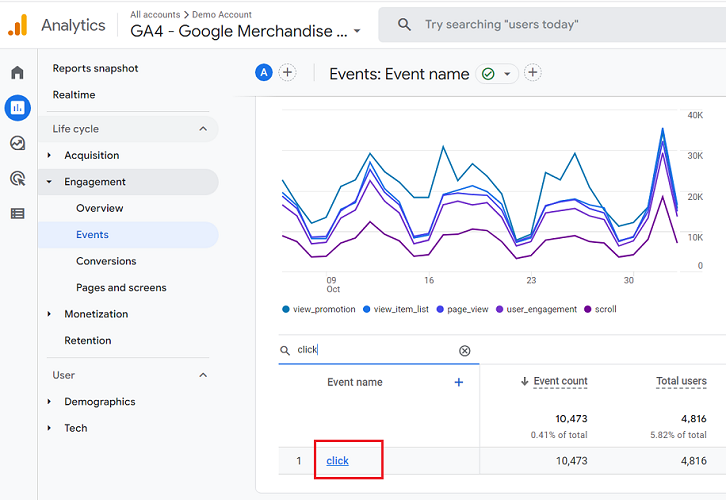
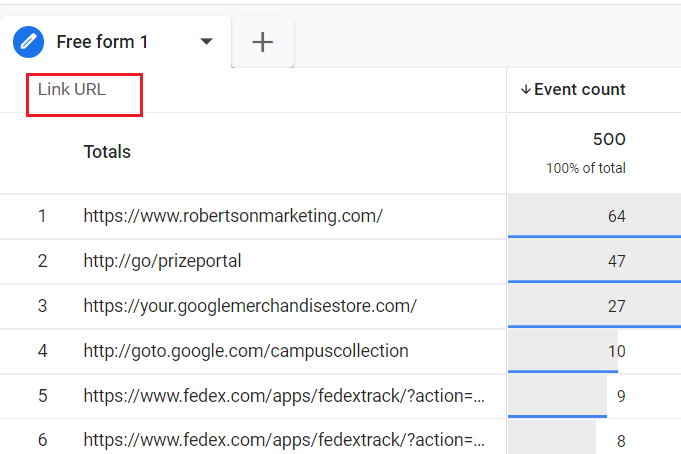
This event is captured along with the ‘link url‘.
The ‘Link URL’ is a GA4 dimension that reports the external link clicked by a user.
Note: The external Links configured for cross-domain tracking will not trigger outbound click events.
Why track outbound links in Google Analytics 4?
If you are an affiliate, you would like to know how much traffic you are sending out to other websites.
You would like to know which external links your website users click.
If your website links out to your social media profiles, you would like to know which social media profiles are visited by your website users:
Let us suppose you own two websites linking out to each other. You would like to know how many users navigated between the two websites.
You can get answers to all these questions by implementing outbound link tracking.
What is required in order to set up outbound link tracking?
Your website or landing pages need to have one or more external links for the outbound link tracking to work.
How to set up outbound link tracking in Google Analytics 4?
GA4 (Google Analytics 4) automatically tracks outbound links once the enhanced measurement tracking is enabled. However, finding the outbound links data is a bit tricky.
How to set up outbound link tracking in Google Analytics 4?
Follow the steps below:
Step-1: Navigate to your GA4 Property.
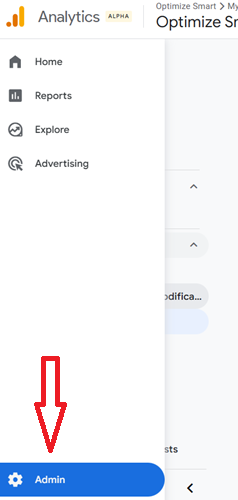
Step-2: Click on the ‘Admin’ link in the left-hand side reporting menu:
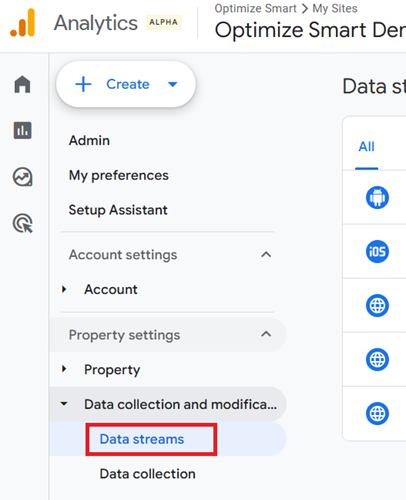
Step-3: Click on ‘Data Streams’ under the ‘Data Collection and Modification’:
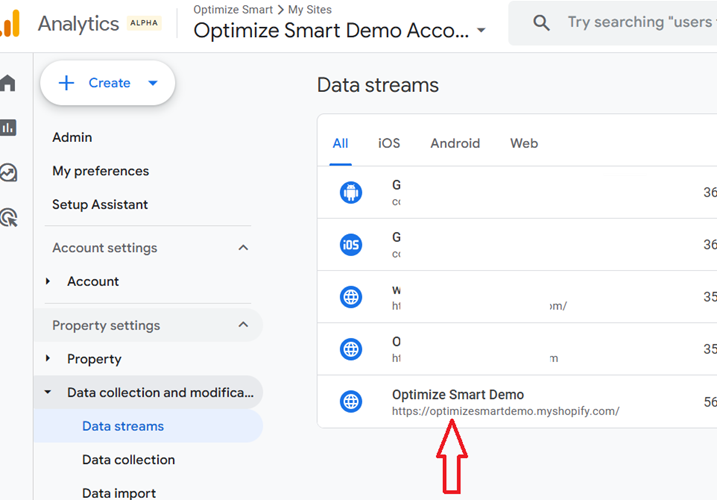
Step-4: Click on the web data stream for which you want to set up outbound link tracking in GA4:
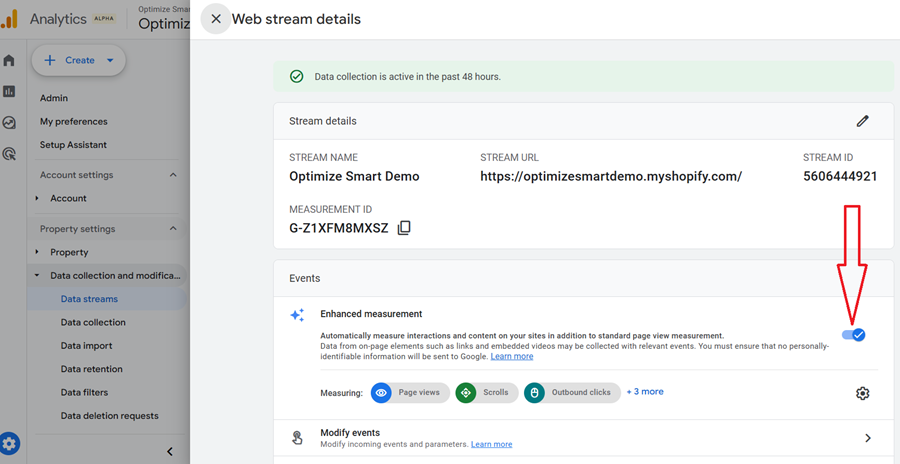
Step-5: Make sure that the ‘Enhanced Measurement’ setting is enabled:
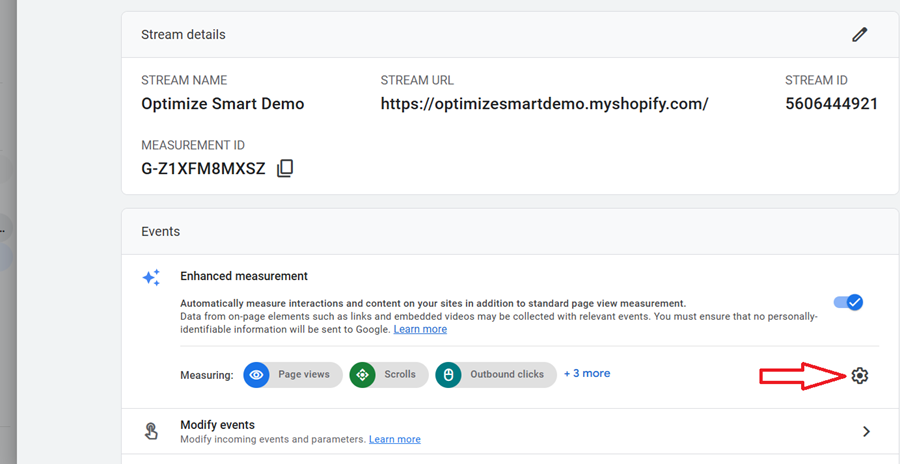
Step-6: Click on the gear button under ‘Enhanced measurement’ to access the settings menu:
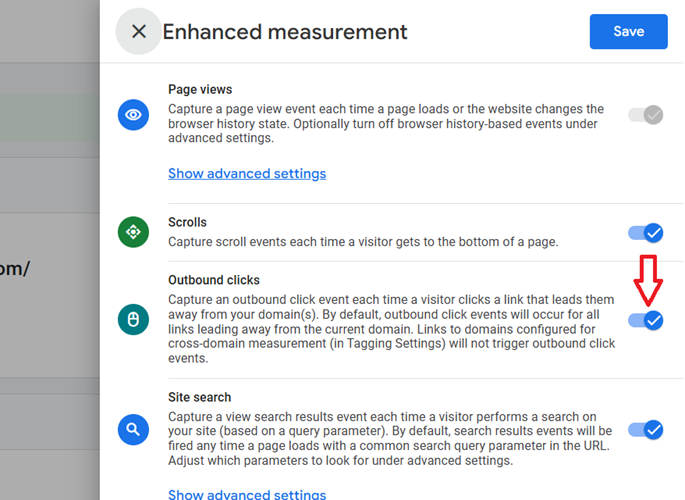
Step-7: Click on the toggle button next to ‘Outbound Clicks‘ and then click on the ‘Save‘ button:
How to see outbound link data in GA4?
There are two ways you can see the data related to outbound clicks in GA4:
- Through the ‘Events’report
- By creating an exploration report.
How to find outbound clicks data in GA4 through the ‘Events’ report?
Follow the steps below:
Step-1: Once you have enabled the outbound clicks tracking in your GA4 property, wait for at least 24 hrs to gather outbound clicks data in your reports.
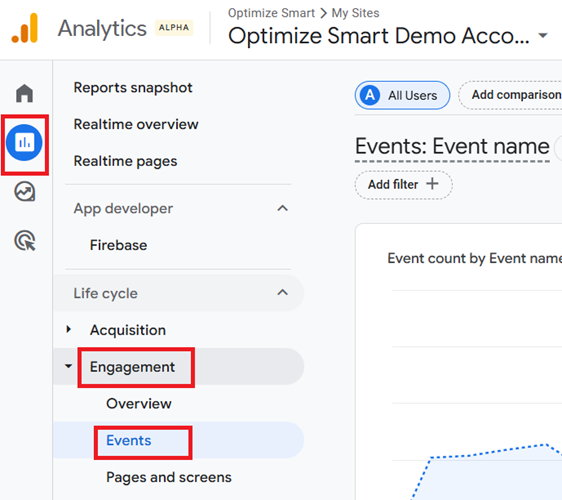
Step-2: Navigate to Reports > Engagement > Events
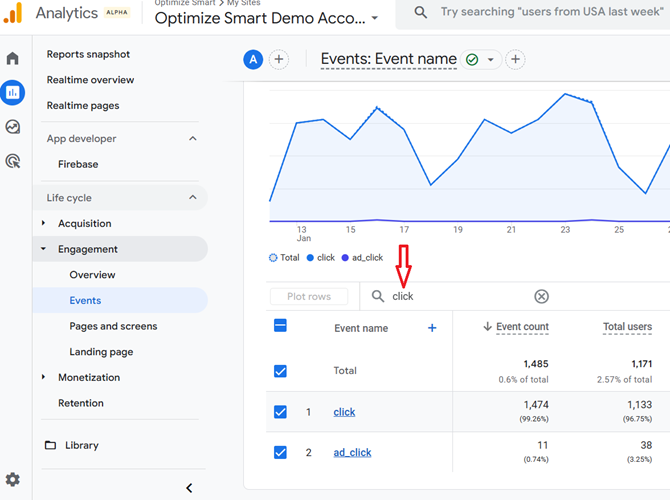
Step-3: Type ‘click‘ in the search box and then press the enter key:
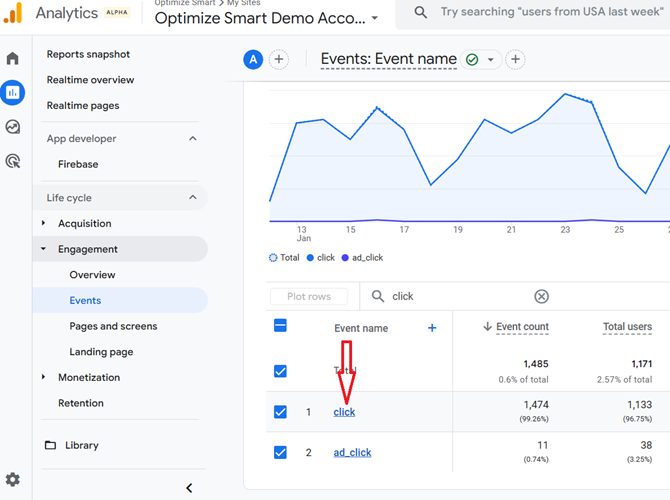
Step-4: Click on the event name ‘click’:
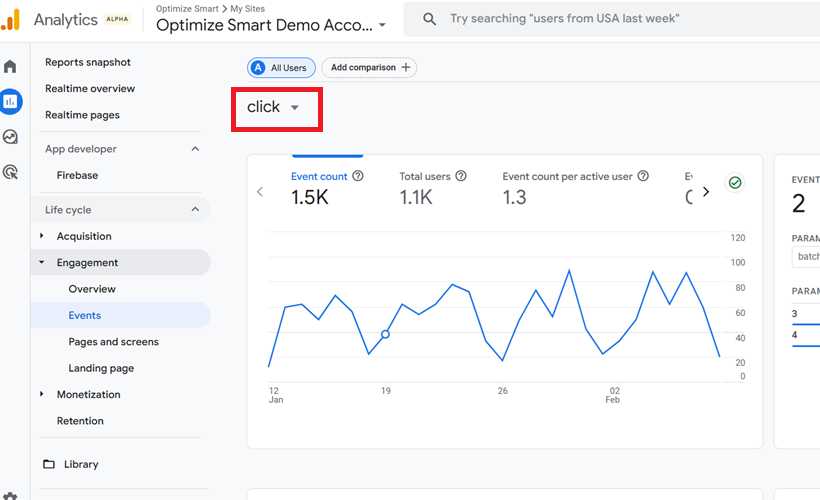
You should now see the detailed report for the event ‘click’:
How to find outbound clicks data in GA4 by creating an exploration report
Follow the steps below:
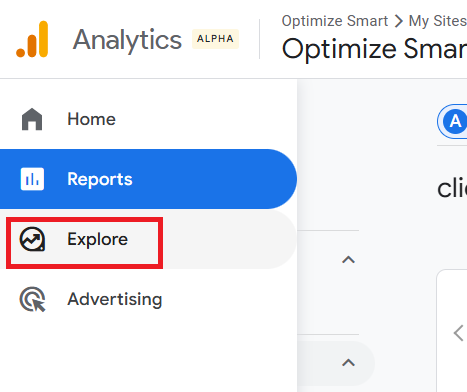
Step-1: Click on the ‘Explore’ link from the left-hand side navigation bar in your GA4 property:
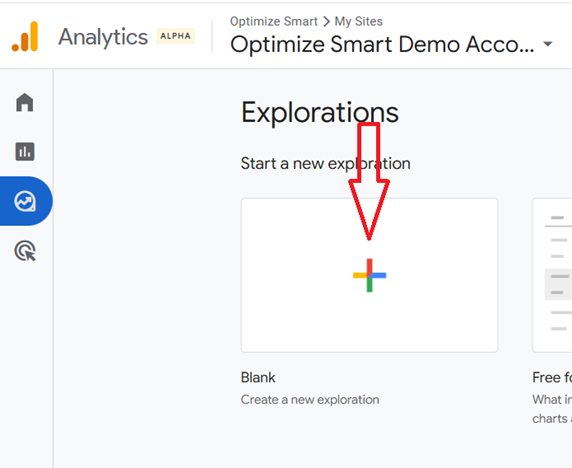
Step-2: Click on the ‘Blank’ exploration report template:
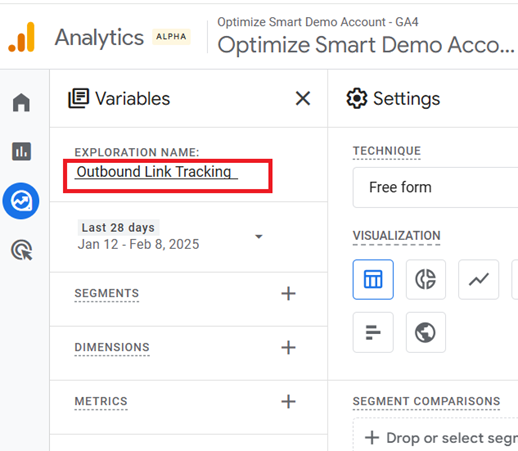
Step-3: Name your report ‘Outbound Link Tracking’:
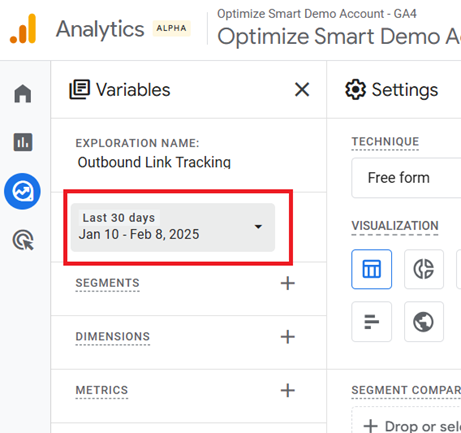
Step-4: Set the date range to the last 30 days:
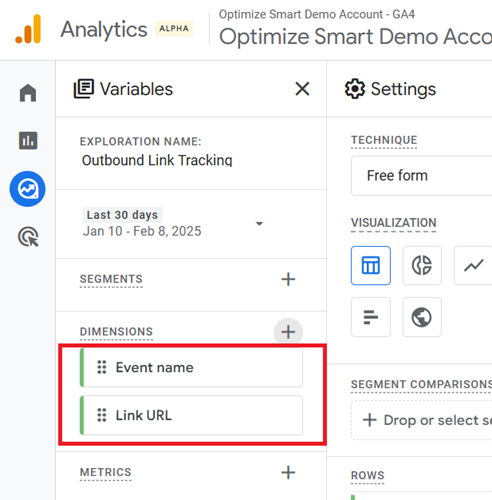
Step-5: Import the ‘Event Name’ and ‘Link URL’ dimensions to the report:
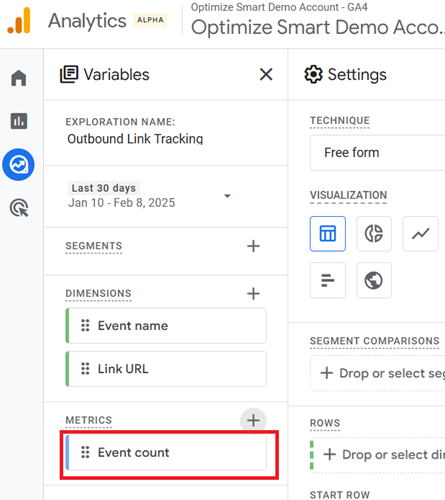
Step-6: Import the ‘Event count’ metric to the report.
Step-7: Double-click on the dimension ‘Link URL’ so that it is automatically added to the ‘ROWS’ section:
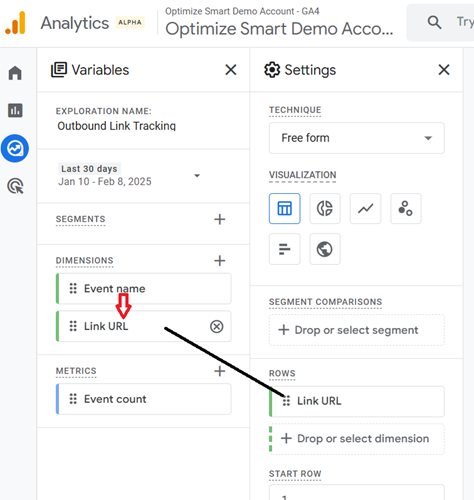
Note: When you double-click the dimensions, you won’t see any change to the canvas on the right. But the dimension has been added to the canvas. When you start adding metrics to the canvas, you will see the dimension(s) added to the canvas.
Step-8: Double-click on the ‘Event Count’ metric so that it is automatically added to the blank canvas on the right:
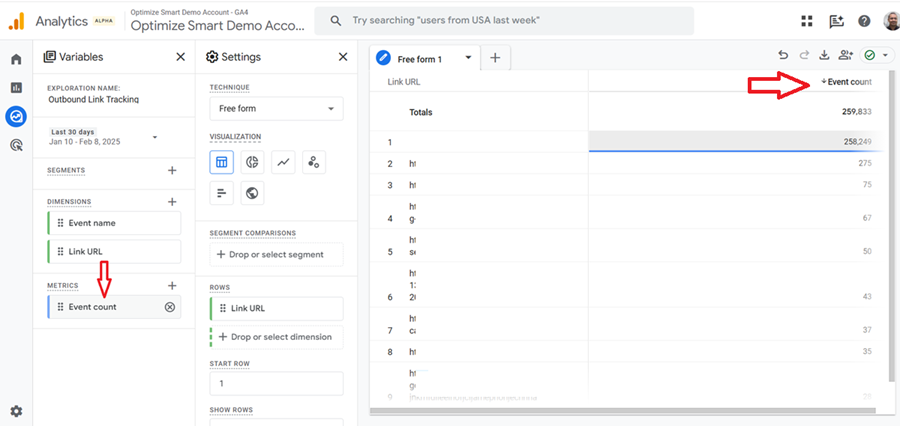
Step-9: Scroll all the way down under the ‘Settings’ column until you see the section called ‘FILTERS’:
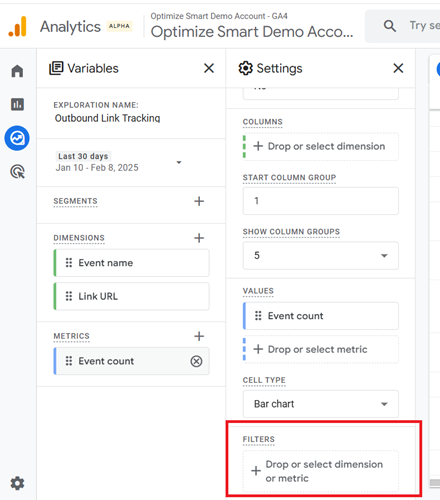
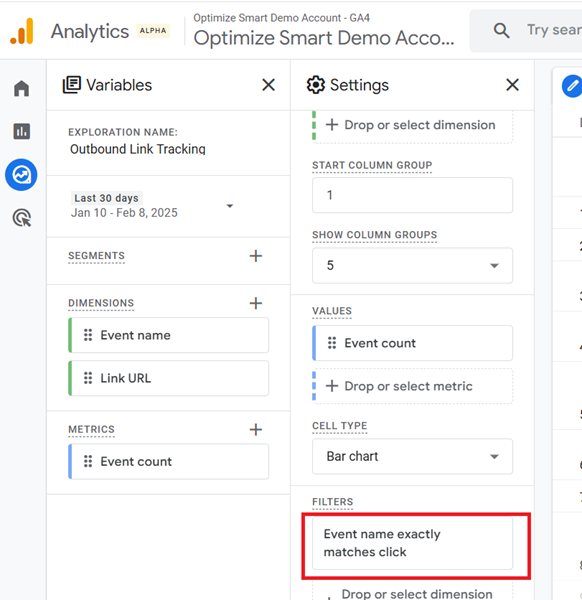
Step-10: Add the following filter: Event Name exactly matches click:
You should now see a report like the one below:
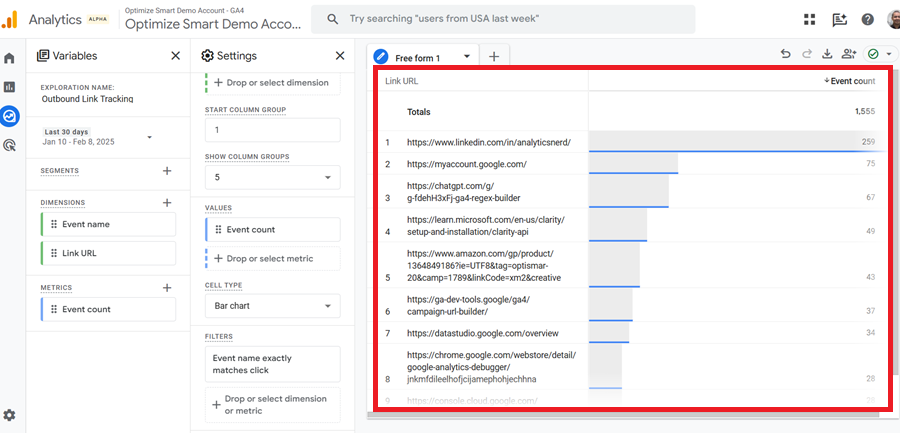
That’s how you can see the outbound clicks data via the exploration report.

Other Articles on GA4.
- How to overcome GA4 BigQuery Export limit.
- ChatGPT Workflow That Simplifies GA4 Data Analysis.
- Understanding Google Analytics 4 Sessions.
- Total vs Active, New, Returning users in Google Analytics 4.
- BigQuery Cost Optimization Best Practices.
- Google Analytics 4 Data Import Tutorial.
- Tracking ad impressions and ad clicks in Google Analytics 4.
- Testing Google Analytics 4 via Test Property.
- Google Analytics 4 GDPR Compliance Checklist.
- Google Analytics 4 Behavioral and Conversion Modeling.
- GA4 – Missing Deep Links in your App [Fixed].
- How to create custom insights in Google Analytics 4 (GA4).
- Fixing data threshold issue in Google Analytics 4 (GA4).
- (organic) or (not set) as ‘session campaign’ for google / cpc in GA4.
- Session Fragmentation Is Ruining Your GA4 Attribution Data.
- Tracking Outbound Links/Clicks in Google Analytics 4.
- Understanding Data Sampling in Google Analytics 4 (GA4).
- User Explorer Google Analytics 4 Tutorial.
- Google Analytics 4 Explorations Tutorial.
- How to Change Attribution Models in Google Analytics 4.