

User lifetime report in Google Analytics 4 overview.
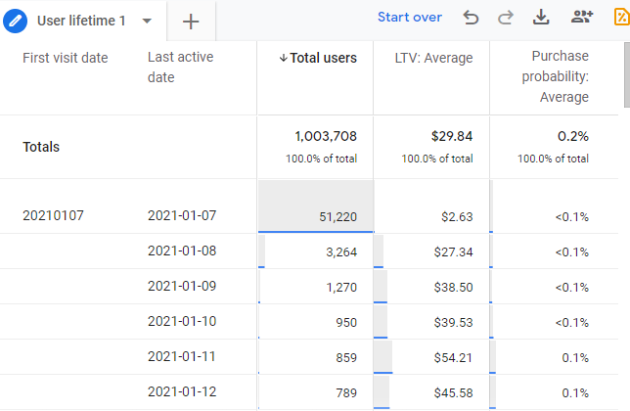
The user lifetime report in Google Analytics 4 allows you to show how the website users have been behaving since they first visited your website.
Through the user lifetime report, you can get answers to questions like:
- When did a user last purchase from your website/app?
- When did a user last engage with your website/app?
- How can we find users with higher purchases and lower churn probability?
- Which traffic source and/or medium resulted in users with the highest lifetime value?
- Which campaigns performed the best in terms of lifetime value?
A sample user lifetime report looks like below:
Creating a user lifetime report
Follow the steps below to create a user lifetime report in Google Analytics 4 (GA4).
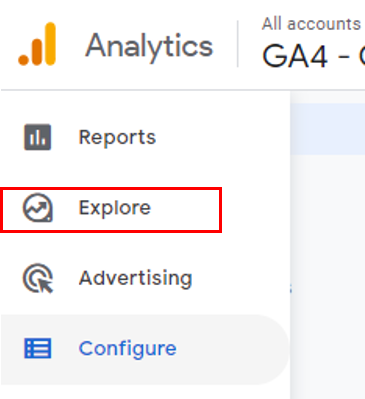
Step-1: Navigate to your Google Analytics 4 property and click on the ‘Explore’ link on the left-hand side.
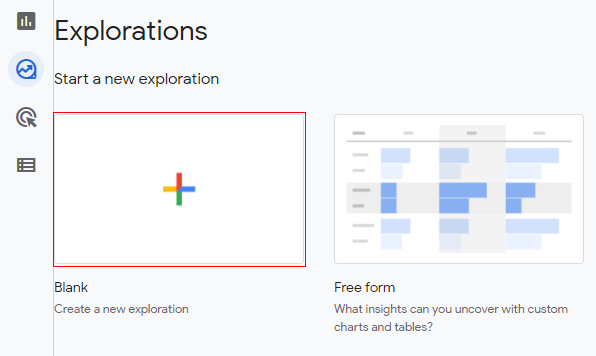
Step-2: Click on the ‘Blank’ template under ‘Explorations’.
Step-3: A new console will open like below.
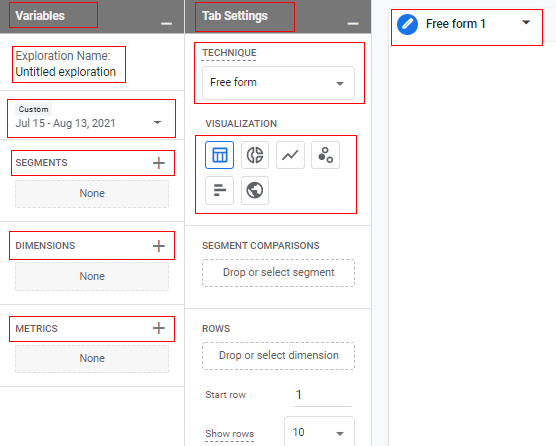
The screen is divided into three columns called ‘Variable’, ‘Tab Settings’ and ‘Free form 1’.
Variable column:
In the context of analysis, segments, dimensions and metrics are called variables. You can also change the date range and report name under the ‘Variable’ column.
Tab settings column:
The ‘Tab Settings’ column is to configure the report technique like exploration, cohort analysis, path analysis, etc. You can also select the visualization type here like table, pie chart, bar chart, etc.
Free form column:
The ‘Free form’ tab is where the data is shown to the user. Whatever configuration that we do in the ‘Variables’ tab and in ‘Tab Settings’, will be reflected in the ‘Free form’ tab. Once we switch the reporting technique to segment overlap, this exploration tab will change to segment overlap view.
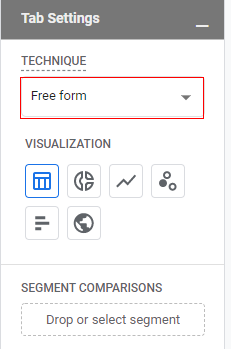
Step-4: Just click on the drop-down under ‘Technique’ at the top of the ‘Tab Settings’ column.
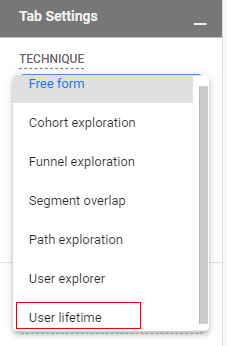
Step-6: A pop-up will appear, as below. Select ‘User lifetime’.
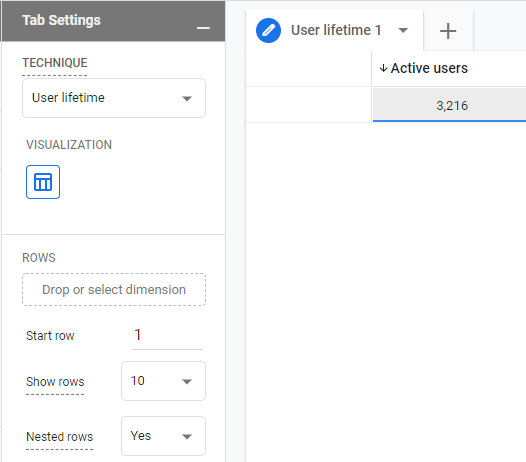
You will get a screen like below.
Step-7: Now before we add a few metrics and dimensions to the report, let’s understand which dimensions and metrics are allowed in this report.
Allowed dimensions
- First Purchase Date
- First Visit Date
- Last Active Date
- Last Audience Name: Audience to which users currently belong
- Last Platform: The last platform from which users visited your website
- User Campaign
- Cross Channel Last click
- Cross Channel Last engagement
- Google Ads preferred the last click
- Google Ads preferred last engagement
- User Medium
- Cross Channel Last click
- Cross Channel Last engagement
- Google Ads preferred the last click
- Google Ads preferred last engagement
- User Source
- Cross Channel Last click
- Cross Channel Last engagement
- Google Ads preferred the last click
- Google Ads preferred last engagement
Allowed metrics
- Lifetime Metrics (LTV)
- 10th percentile
- 50th percentile
- 80th percentile
- 90th percentile
- Average
- Total
- Lifetime Engagement duration
- 10th percentile
- 50th percentile
- 80th percentile
- 90th percentile
- Average
- Total
- Lifetime Transactions
- 10th percentile
- 50th percentile
- 80th percentile
- 90th percentile
- Average
- Total
- Lifetime Ad revenue
- 10th percentile
- 50th percentile
- 80th percentile
- 90th percentile
- Average
- Total
- Lifetime Ad revenue
- 10th percentile
- 50th percentile
- 80th percentile
- 90th percentile
- Average
- Total
- Lifetime engage sessions
- 10th percentile
- 50th percentile
- 80th percentile
- 90th percentile
- Average
- Total
- Active Users
- Total Users
- Predictive Metrics
- 10th percentile
- 50th percentile
- 80th percentile
- 90th percentile
- Average
- Predictive Revenue
- 10th percentile
- 50th percentile
- 80th percentile
- 90th percentile
- Average
- Purchase probability
- 10th percentile
- 50th percentile
- 80th percentile
- 90th percentile
- Average
Now let’s add a few dimensions to the report.
As an example, I am adding ‘first visit date’ and ‘last active date’.
To do so you have two options:
- Insert dimension as row
- Insert dimension as column
It is an individual choice as to how the dimensions look in your report. You can add them in rows or columns based on your requirements.
To add dimension, click on the ‘Drop or select dimension’ under the ‘Rows’ section or ‘Columns’ section.
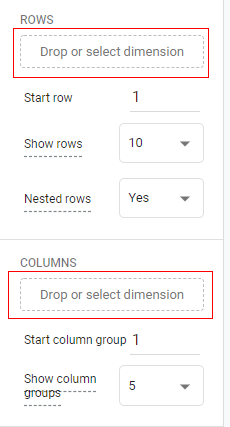
It will open a pop-up like below where you can select the dimension.
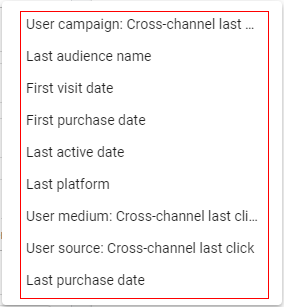
OR
You can also drag a dimension and drop it over ‘Rows’ or ‘Columns’.
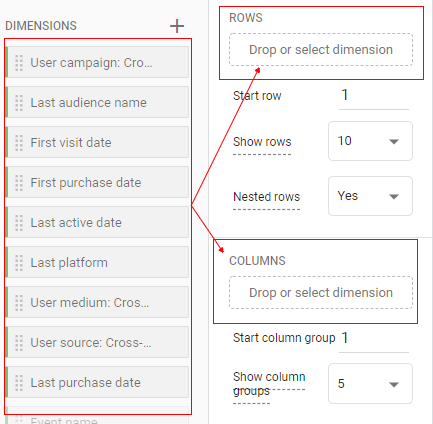
I have added the ‘first visit date’ dimension as a column and the ‘last active date’ dimension as a row.
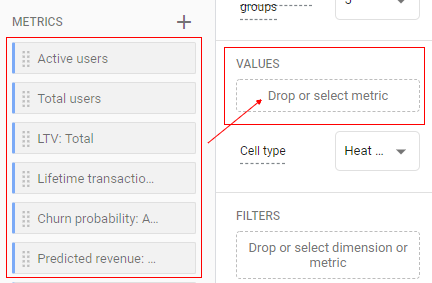
Step-8: Now let’s add a few metrics to the report. As an example I am adding ‘total users’ and ‘LTV’.
To do so click on the ‘Drop or select dimension’ under ‘Values’.
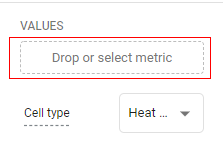
It will open a pop-up like below where you can select the metric you want.
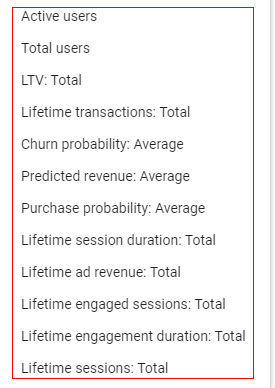
OR
You can also drag a metric and drop it over ‘Values’.
Once you have added it, you will see your report just like the below image.
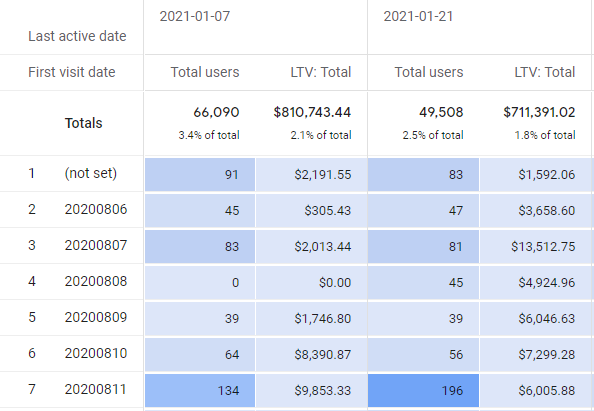
Congratulations! You have successfully created a user lifetime report in Google Analytics 4.
Now lets understand how this report works.
In the below image, I have highlighted a few areas with numbers to show you how it is working.
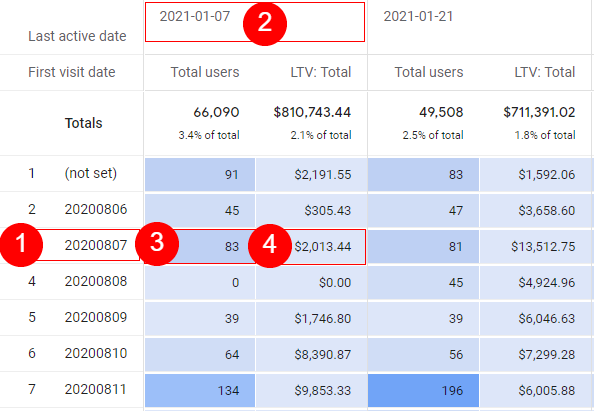
No 1: This is the dimension ‘first date visit’ which we added to the report as a column and represents the first time a user visited the website.
No 2: This is the dimension ‘last active date’ which we added to the report as a column and represents the last time the same users (user with a first visit date) were active on the website.
No 3: The number ’83’ (in this case a metric which we added in the values section) represents the total number of users who visited the website for the first time on 2020-08-07 and were last time active on the website on 2021-01-07.
No 4: The $2,013.44 (in this case it’s a metric that we added in the values section) represents the LTV total (user lifetime value) from the first visit to the last active date.
Let’s understand more about how user lifetime data is calculated.
User lifetime data
As per Google, user lifetime data is available for users who have been active on your site or app after 15th August 2020. For these users, when they first accessed your site or app, the scope of data in the user lifetime technique contains all of their data.
For example, let’s suppose a user who visited your website for the first time in November 2019 and the same user last time visited your website on 14th August 2020. In this case, there will be no user lifetime data available in the report.
Now let’s suppose the same user visited your website last time on 15th August 2020 (instead of 14th August 2020) then you will have all data associated with user lifetime value in the reports.
For users of your website, the user lifetime report shows aggregated data from the time the user visited your website for the first time.
You can get the following information using the user lifetime report in GA4
Initial interactions:
- Time of the first visit to the website
- First purchase on the website
- User acquired campaign details (for the first time)
Most recent interactions:
- Time of the last visit to the website
- Last purchase on the website
- User acquired campaign details (last campaign where the user was part of the audience and visited the website by clicking on campaign link)
Lifetime interactions:
- User lifetime revenue (LTV)
- User lifetime engagement details
Predictive metrics: Data generated through machine learning to predict user behavior via predictive audience available in GA4:
- Future purchase probability of user
- Future churn probability of user
Date ranges in user lifetime analysis
The date range selected by you in the report represents the users who were active during the selected period. But when it comes to user lifetime it displays the information beyond the date range (which is entire user lifetime information even before the start date specified in the report).
User lifetime analysis and reporting identity
The user ID feature allows Google Analytics 4 properties two ways to identify and report on your users across platforms and devices.
The reporting identity methods used by GA4 are as follows:
By user ID, then the device
This method involves the User ID feature (if you have set it up and collecting) to identify the user’s lifetime value.
User ID is unique to each user and is assigned when the user is signed in while browsing the website. If the user ID is not available or the user is not signed in, then GA4 uses device ID to identify a user.
Let’s understand this with an example. Suppose, over the last six months, a user arrives on the website multiple times. Sometimes he is signed into the website and sometimes he isn’t signed in. In the user lifetime report, GA4 will only use the signed-in portion of the user lifetime data, providing you with a more accurate representation of your user data. In this case, the user count will not be duplicated and all the metrics like LTV will be more accurate.
By device only
In this method, GA4 uses only the device ID to identify a user and ignores any user IDs if they were collected. The device is the basic requirement to calculate the user lifetime value.
General settings
Segments:
In the user lifetime report, there is no functionality to apply segments in order to secure user identity. Hence like other reports in the ‘Advance analysis’ tab you don’t see any option to apply segments.
Filters:
You can apply filters to the user lifetime report based on any of the available dimensions and metrics as mentioned above.
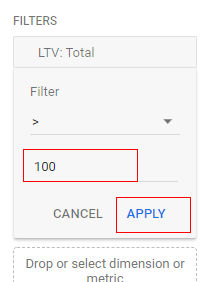
To apply a filter click on ‘Filters’ in ‘Tab Settings’.
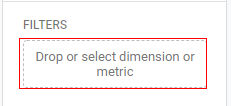
A small pop-up will open. You can choose any dimension or metric available (let’s say I select metric as user lifetime value more than $50)
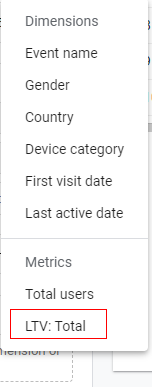
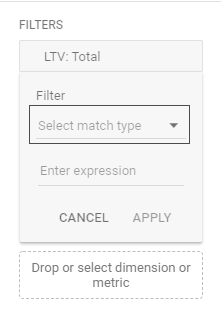
Click on the drop-down ‘Select match Type’ and select your condition from the list (lI am selecting greater than ‘ >’ ).
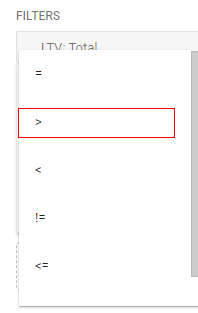
Now click on ‘Enter expression’.
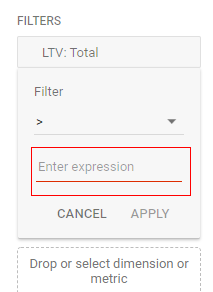
Enter value (I am selecting 100) and click on ‘Apply’.
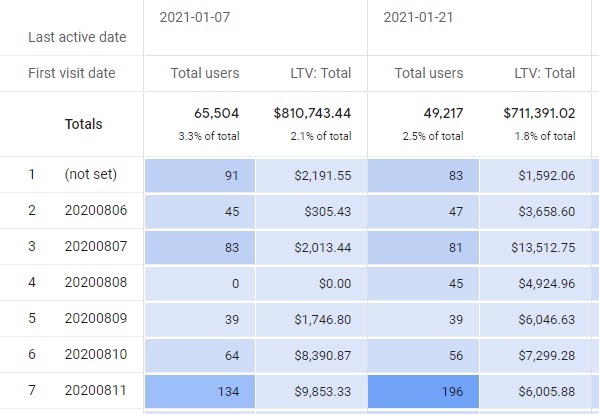
When you are done you can see the report reflecting with the applied filter.
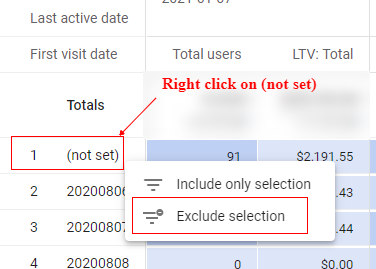
Another way to apply the filter is by right-clicking on the dimension value or metric value.
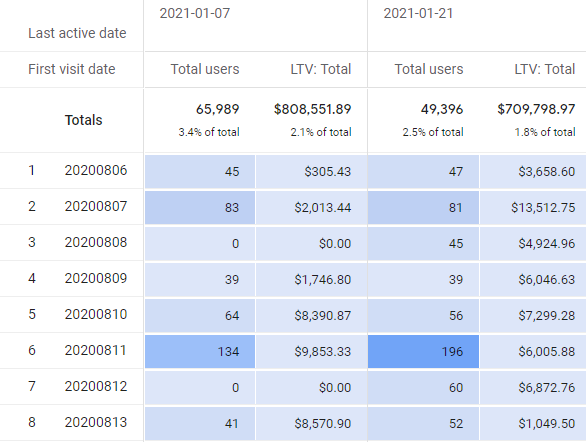
For example, if you don’t want to see (not set) values in the report you can just right-click on it, then you will see a pop-up like below. Select ‘Exclude selection’.
Your report will be refreshed after applying the selected filter, like below.
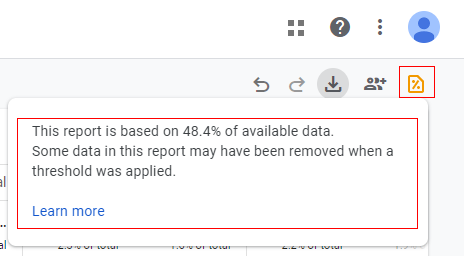
Note: User lifetime reports are always sampled as they contain a subset of user data for users who are eligible for a particular metric or dimension selected in the report.
You can see this at the top right corner of the report if you hover your mouse over the yellow % file icon.
Sharing and downloading reports
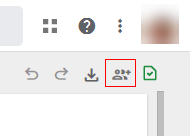
You can share the report template with other colleges as well. Just click on the ‘Share’ icon available in the upper-right corner of the ‘Reporting’ tab.
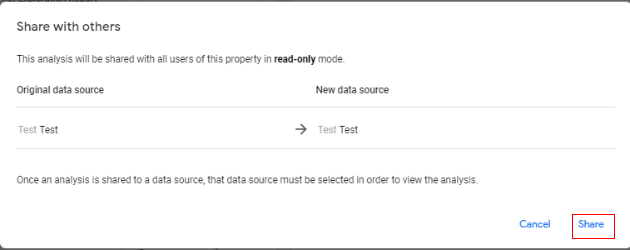
It will open an overlay with details as below. Click on ‘Share’.
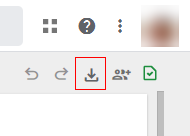
You also get an option to download the report. Click on the ‘Download’ button.
A small pop-up will come like below where you can specify the report format type.
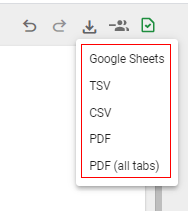
Available options are:
- Google Sheets
- TSV (tab-separated values)
- CSV (comma separated values)
- PDF (all tabs) – this will download all the tabs in the reporting panel in PDF format, if you have multiple tabs.
That is how you can use the user lifetime report in Google Analytics 4 (GA4).

Other Articles on GA4.
- Google Tag Manager Tutorial.
- GA4 Attribution Models Explained: How to Choose the Right One.
- Looker Studio (Google Data Studio) Tutorial.
- Google Tag Manager Data Layer Tutorial with Examples.
- Set up enhanced conversions for Web using ‘Code’ in Google Tag Manager.
- How to create Google Ads report in Google Analytics 4.
- Google Tag Manager Audit Checklist.
- Tracking Site Search in Google Analytics 4.
- How to see Organic Search Keywords in Google Analytics 4.
- How to use User Lifetime report in Google Analytics 4 (GA4).
- Web Analytics Career Path – How to Become a Web Analyst.
- GA4 Form Interactions Tracking – Enhanced measurement.
- How to track form submissions in Google Analytics 4.
- How to send data from Google Search Console to BigQuery.
- How to fix duplicate events in Google Analytics 4 (GA4).
- How to use two Google Analytics codes on one page.
- How to import GA4 Conversions into Google Ads.
- What are predictive metrics in Google Analytics 4 (GA4).
- Google Tag Manager Event Tracking Tutorial.
- How to use Google Analytics 4 with iframe.