

Introduction to Google Analytics 4 data import
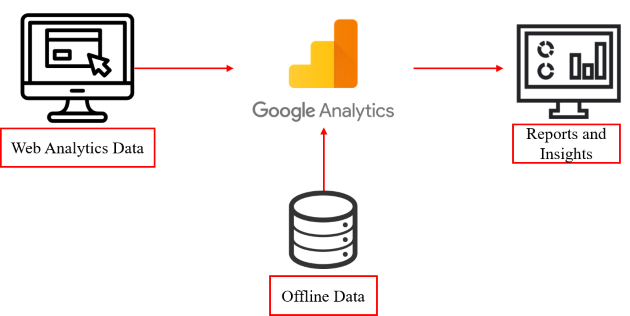
Data import is the functionality provided in Google Analytics 4 which allows you to upload data from external sources (another point of sale, offline data, CRM data, etc.) You can then combine the external data with online analytics data to draw precise insights.
As you can see from the image below, the online activities and performance data (web analytics data) flows directly to Google Analytics, and the offline data is pushed to Google Analytics by data import.
You can upload data from external sources and combine it with data you collect via Google Analytics to bring valuable insights.
Why data import?
Let’s suppose you run a business that is connected to different systems which work together. You may have your separate CRM data, separate Google Analytics data, and separate ecommerce data.
If you want to see the comprehensive performance you need a tool that will connect and combine data from all the systems. This is where the concept of data import comes.
Data import lets you join data collected by your offline systems with the analytics data collected online. This gives you the following benefits.
- Gives you the overall performance of your business in a unified view which includes dimensions and metrics from all the systems.
- Get custom attributes related to users from all systems in Google Analytics.
- If you run a business that generates leads online but sales happen in a shop (offline), you can track conversions in Google Analytics by uploading the transaction data from the offline system.
- If you are a web publisher, your content management system will have data dimensions such as author and article category. Using data import you could join hits collected by Google Analytics with data dimensions exported from your CMS and CRM systems to analyze the relative contributions of authors to your site.
How data import works
You can upload a CSV file that contains external data from offline systems like a CRM or CMS to related GA4 properties. You also get an option to create and upload manual files from a text editor or spreadsheet.
Data import functionality joins your offline data with the event data in Google Analytics 4. Once the data imports are complete you will get a holistic view of users’ online activities and offline activities.
Before you import data to GA4 you need to understand how to join data with analytics events. There are two ways to do this:
Collection\processing time
The imported data is joined with Google Analytics data as if they are collected at the same time that the event is triggered on the website.
For example, you can import product metadata, such as brand, category, and/or variant, this upload finds and replaces values at query time so that you always see the latest imported data in reports. This data can be deleted without impacting underlying event data.
One thing to note down here is that you cannot import data for historical analytics data as it gets joined while collecting data from the website in real-time. Also this data is not available while creating custom audiences or segments in GA4.
Reporting query time
Your imported data is joined with analytics data when you open any report in the GA4 interface.
Joining of data takes place when the report is processing and is temporary. If you delete your import file, no further join will take place and the uploaded data will not be accessible in Google Analytics 4.
Available data types for import
The following data types are available to upload using data import:
Product data: You can import product data such as product brand, product category, product variant, product size, etc. When you upload product data to a GA4 property it will replace the product attribute values with the offline file attributes.
For example let’s suppose you have implemented enhanced ecommerce on the website, and when a user performs any action like add to cart or checkout the product data is also sent to GA4, but if any missing fields or undefined product values are being sent to GA, OR if you want to change any of the product attributes, you can do it using data import.
User data by user ID: You can import user-related attributes using data import.
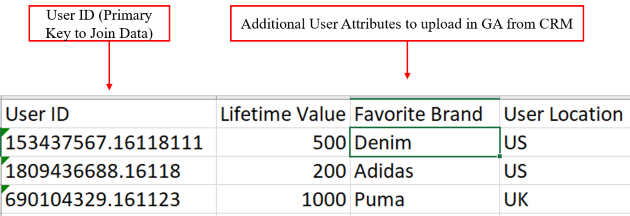
Google Analytics 4 by default captures user ID using the cookie method. Let’s suppose you would like to add additional attributes to user ID, like lifetime value, favorite brand, user types such as premium user or beginner. You can do this using data import. Note that the user ID in the offline file should be matched with the user ID in GA4 web analytics GA ID.
If you want to remove the data imports then you will require to delete the user as well for GA4 property. All data relating to the user will be deleted (online and offline)
User data by client ID: If you have set up a Client ID feature (other than Google) to uniquely identify users, you can also import additional user attributes using data import. It’s a similar process to upload user data by user ID.
If you want to remove the data imports then you will be required to delete the user as well for the GA4 property. All data relating to the user will be deleted (online and offline)
Data limits
Google Analytics 4 has some data limits, as below:
- Total storage is 10 GB (Gigabytes of data) for all data sources. This means you can upload up to 10 GB of data for all offline systems taken together.
- Data source size: Each data source size is limited to 1 GB. For example if you are uploading user data (including multiple files) its total size is limited to 1 GB
- Daily upload limit: You can upload 24 times in a day and its limit is 10 GB
How to import data in GA4
Let’s see now how to import data in GA4. Follow the below steps to understand more.
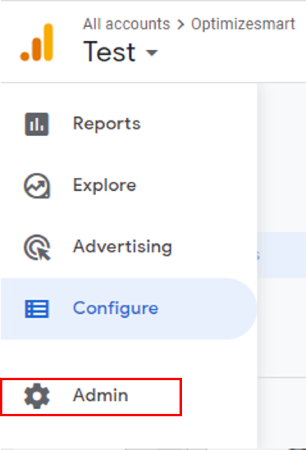
Step-1: Navigate to your Google Analytics 4 property and click on ‘Admin’ in the left-hand menu.
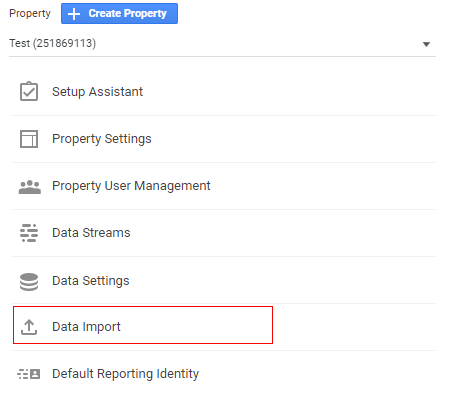
Step-2: Under the ‘Property’ column, Click on ‘Data Import’.
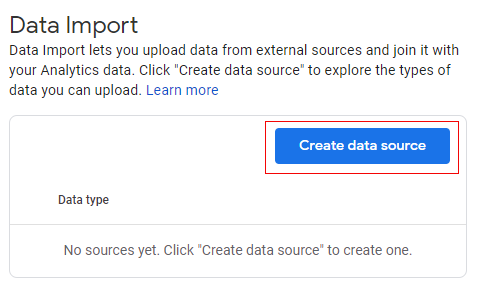
Step-3: You will get a screen like below. Now click on ‘Create Data Source’.
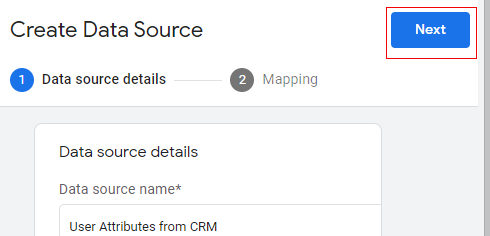
Step-4: You will get a screen like below. We need to provide a data source name here. As an example, I am going to add user attributes, so let’s name it ‘User Attributes from CRM’.
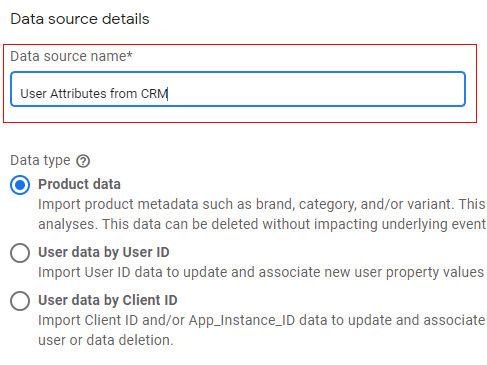
Step-5: Now select the data type. Here we are going to select ‘User data by User ID’.
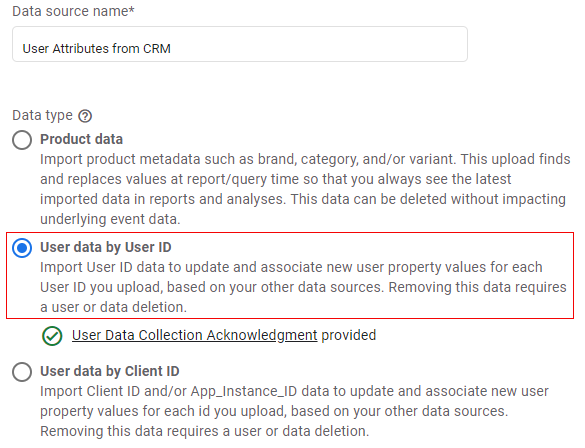
Step-6: Now click on ‘Upload CSV’.
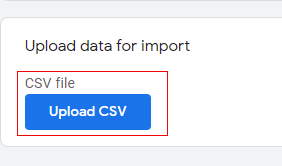
It will open a window like below where you can select your CSV file from your CRM or any other tool from which you want to add data. Select your file and click on ‘Open’.
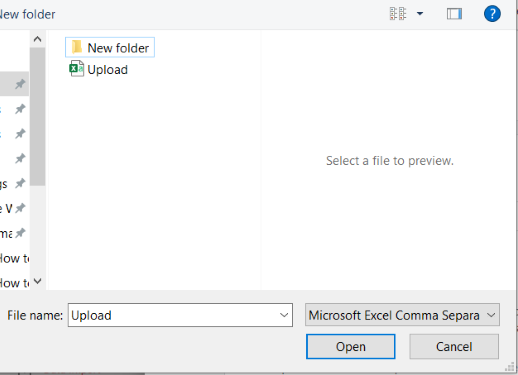
Now, before you select a file and upload it, let me tell you something about what your file should look like.
The image below shows the file I am going to upload as an example. It contains a user ID (the GA4 user ID should match with your CRM file user ID) and the user attributes which we need to upload to GA 4.
Step-7: Now click on ‘Next’.
Step-8: You will get a screen like below. Let me explain to you what these are.
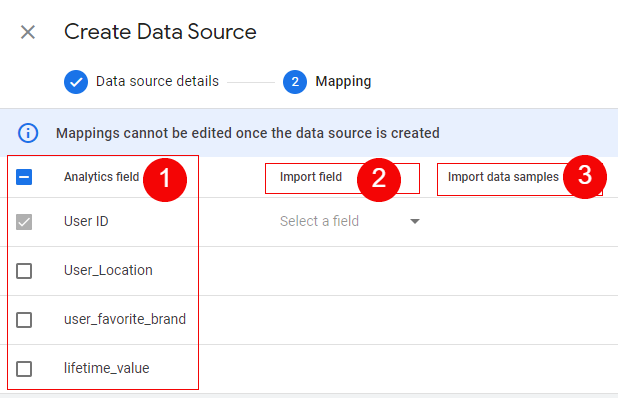
Box 1: These are the web analytics fields (dimensions and metrics). Since as an example, we are uploading user attributes in the data import, these are the custom dimensions related to user scope. User ID, User_Location, user_favorite_brand, and liketime_value are the custom dimensions created in GA4.
Note: You need to create a custom dimension in GA4 for the additional attributes which you are uploading from the offline systems.
Box 2: These are the import fields from the CSV file that we have uploaded and contain information like lifetime value, favorite brand, and location (column headers).
Box 3: Contains the values from the CSV file for the respective header columns. For example if we select lifetime value and import the field in the second column, this third column will have values like 500, 200, 1000.
Step-9: Now click on ‘Select a field’ under ‘Import field’.
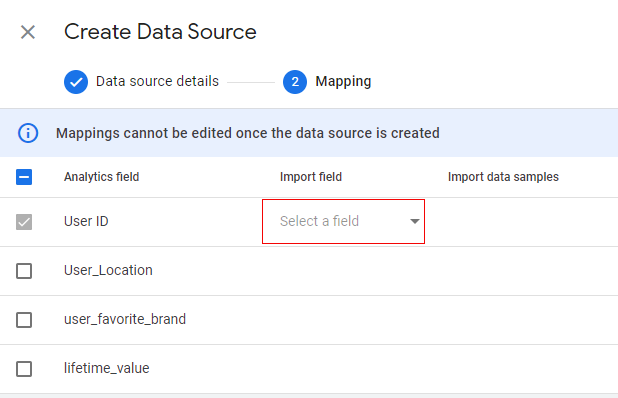
Step-10: Now select User ID.
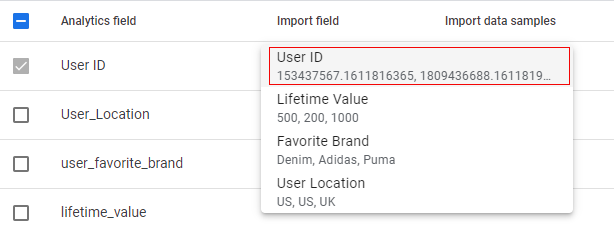
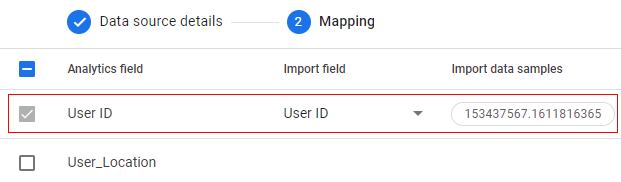
Once you select the user ID field from the CSV, it will look like below and you can see the values are also displayed under ‘Import data samples’.
Step-11: Now let’s repeat the process for the remaining attributes and select the required field from the CSV in the corresponding web analytics field.
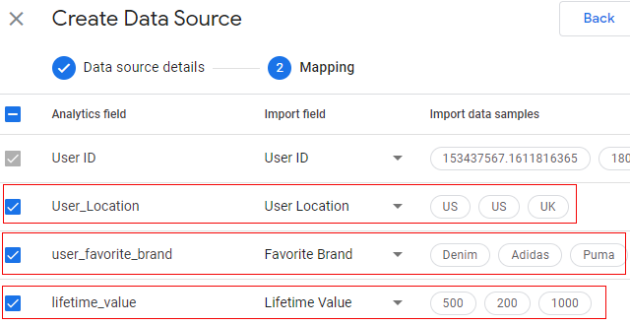
Step-12: Now click on the ‘Import’ button in the upper-right corner.

Congratulations! You have successfully imported data into Google Analytics 4. Once the import is finished you will get a screen like below
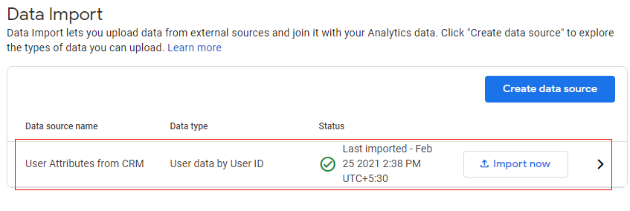
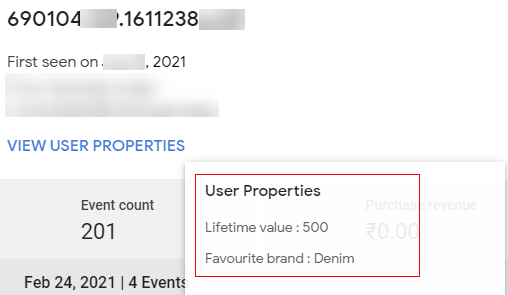
Now it takes time to upload data and process it. Wait for 24hrs for the data to reflect and then you can see the user attributes in the User Explorer report like below.
Uploading data to an existing data source
If you want to upload additional data to an existing data source, you can do it by following the below steps.
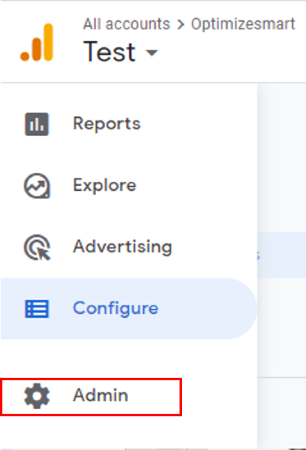
Step-1: Navigate to your Google Analytics 4 property and click on ‘Admin’ in the left-hand menu.
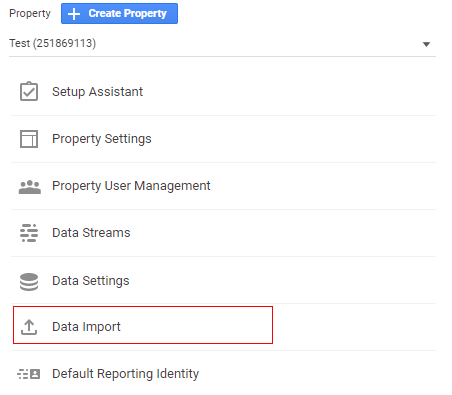
Step-2: Under the ‘Property’ column, click on ‘Data Import’.
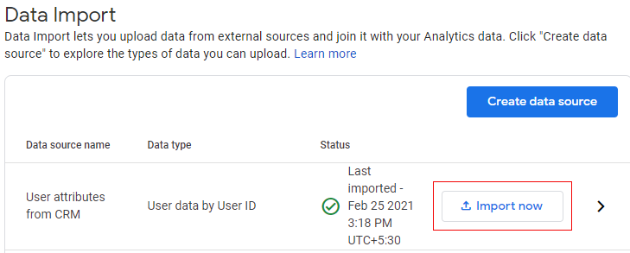
Step-3: You will see the data source that is already created and the ‘Import now’ button. You can click on this button to import data to the existing data source.
Select the file to import and you are done.
Deleting a data source
If you want to delete any data source, follow the below steps.
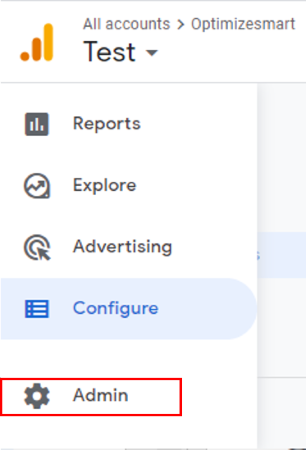
Step-1: Navigate to your Google Analytics 4 property and click on ‘Admin’ in the right-hand menu.
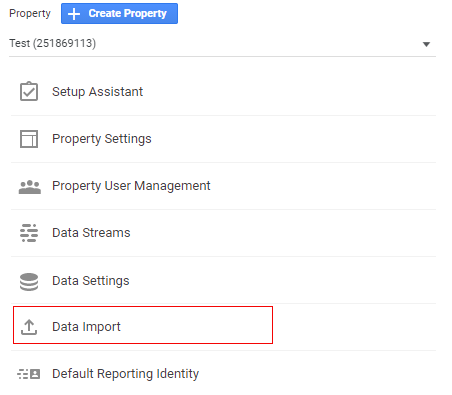
Step-2: Under the ‘Property’ column, Click on ‘Data Import’.
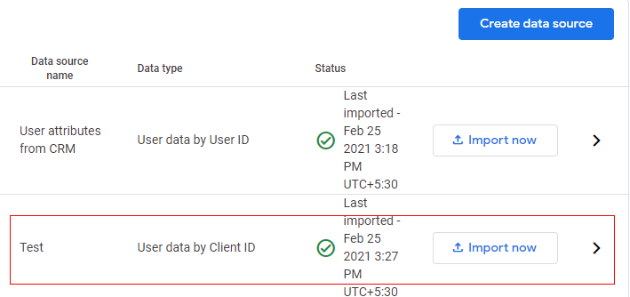
Step-3: You will see the data sources that are already created. Click on the relevant data source.
Step-4: Click on the three vertical dots.
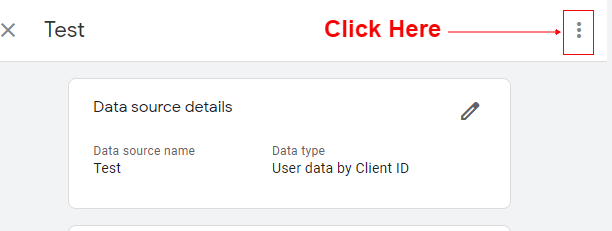
Step-5: Click on ‘Delete’.

Step-6: It will ask you for confirmation. Click on ‘Delete data source’.

Reserved name and prefixes
Google Analytics has its own predefined event names, event-parameter names, user-property names, and prefixes that are reserved.
You cannot use these parameters anywhere in your data offline data set.
If you try to upload data that includes any of the reserved names or prefixes, that data will not be uploaded.
The list of reserved names is as below:
- Reserved event names
- ad_activeview
- ad_activeview
- ad_exposure
- ad_impression
- ad_query
- adunit_exposure
- app_clear_data
- app_install
- app_remove
- app_update
- error
- first_open
- first_visit
- in_app_purchase
- notification_dismiss
- notification_foreground
- notification_open
- notification_receive
- os_update
- screen_view
- session_start
- user_engagement
- Reserved event parameter names
- firebase_conversion
- Reserved user property names
- first_open_after_install
- first_open_time
- first_visit_time
- last_deep_link_referrer
- user_id
- Reserved prefixes (applies to event parameters and user properties)
- ga_
- google_
- firebase_
So that is how data import works in Google Analytics 4.
Google Analytics 4 ‘Non-Google Cost’ Report.
Google has made improvements to GA4 cost data import, which allows you to activate the new ‘Non-Google Cost’ report.
“We’ve made it easier to understand your imported ads cost data in Google Analytics. You can now get insights into your imported cost data even if there was no matching record for the required dimensions. In an effort to reduce friction and increase the usefulness of your imported cost data, we have changed how Google Analytics handles unmatched imported cost data. Google Analytics will now report your cost, impressions and/or clicks on any combination of the imported required dimensions. ” – Google.
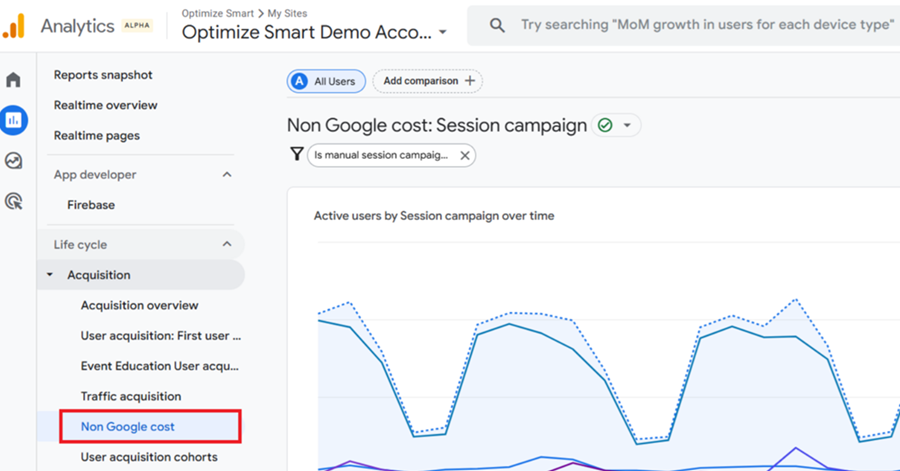
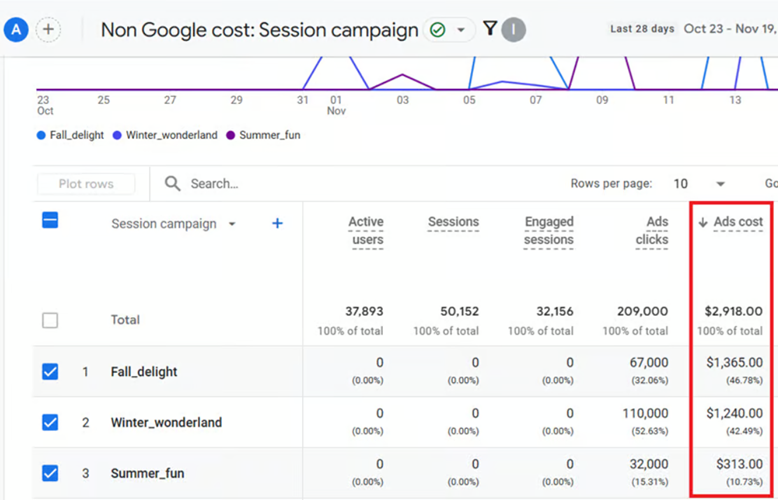
Once you have successfully imported the non-Google cost data to your GA4 property (via the ‘Data Import’ > ‘Cost Data’ feature), a new report called ‘Non-Google Cost’ becomes available under Acquisition.
This report shows the imported cost for non-Google ad campaigns.
Note: When preparing cost data for import, make sure to format dates in Excel according to the ISO 8601 standard. Otherwise, your import will fail.
The correct format for the date field when importing cost data into GA4 is YYYY-MM-DD.
YYYY: Four-digit year
MM: Two-digit month (01-12)
DD: Two-digit day (01-31)
For example, October 28, 2024, would be formatted as 2024-10-28.
You can use the following excel formula: =TEXT(A1,”yyyy-mm-dd”)

Other Articles on GA4.
- Using Funnel Exploration Report in Google Analytics 4.
- Google Advanced Consent Mode and GA4 BigQuery Export.
- Which Conversion Window to use in Google Analytics 4.
- Tracking single page apps in Google Analytics 4.
- Create Content Groups in Google Analytics 4.
- Google Analytics 4 BigQuery Tutorial for Beginners to Advanced.
- Google Analytics 4 Measurement ID and Property ID.
- Prompt Engineering for GA4 BigQuery SQL Generation.
- Google Analytics 4 vs Universal Analytics: The Key Differences.
- How to create a new BigQuery project.
- How to create a new Google Cloud Platform account.
- How to overcome GA4 BigQuery Export limit.
- ChatGPT Workflow That Simplifies GA4 Data Analysis.
- Understanding Google Analytics 4 Sessions.
- Total vs Active, New, Returning users in Google Analytics 4.
- BigQuery Cost Optimization Best Practices.
- Google Analytics 4 Data Import Tutorial.
- Tracking ad impressions and ad clicks in Google Analytics 4.
- Testing Google Analytics 4 via Test Property.
- Google Analytics 4 GDPR Compliance Checklist.