

Tracking Ad Impressions in GA4 (Google Analytics 4)
Follow the steps below to track ad impressions in GA4 for the ads served within your website:
Step-1: Use the Intersection Observer API in JavaScript. It detects when your ad element is visible in the viewport and then pushes the ‘ad_view‘ event to the data layer.
Use the API to detect when an ad element is at least 50% visible in the viewport and then push an ‘ad_view’ event to the data layer:
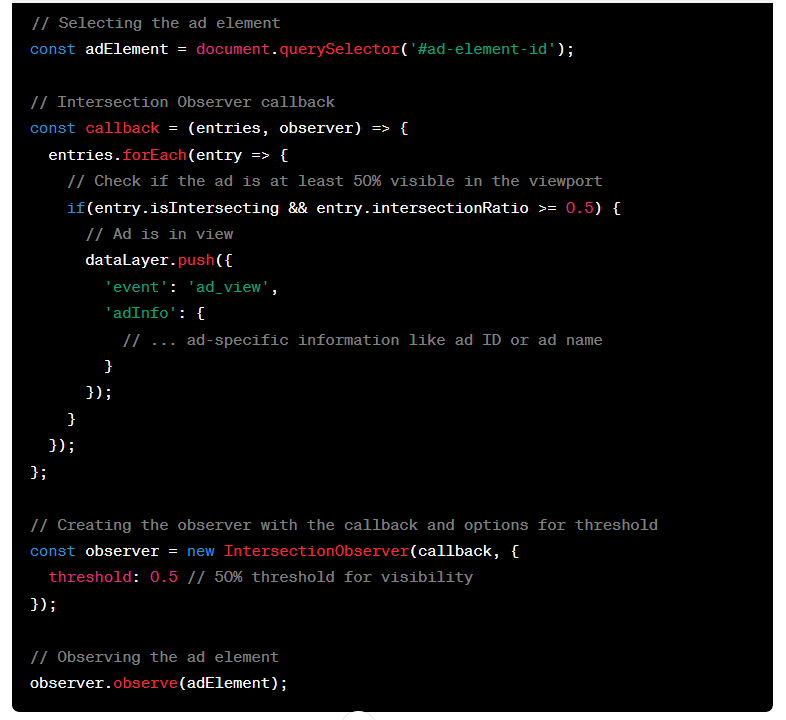
// Selecting the ad element
const adElement = document.querySelector('#ad-element-id');
// Intersection Observer callback
const callback = (entries, observer) => {
entries.forEach(entry => {
// Check if the ad is at least 50% visible in the viewport
if(entry.isIntersecting && entry.intersectionRatio >= 0.5) {
// Ad is in view
dataLayer.push({
'event': 'ad_view',
'adInfo': {
// ... ad-specific information like ad ID or ad name
}
});
}
});
};
// Creating the observer with the callback and options for threshold
const observer = new IntersectionObserver(callback, {
threshold: 0.5 // 50% threshold for visibility
});
// Observing the ad element
observer.observe(adElement);
In this code, #ad-element-id is a placeholder for the actual ID of your ad element. You should replace this with the actual ID used in your HTML.
The threshold option is set to 0.5, meaning the callback will only execute when 50% or more of the ad element is visible in the viewport.
The entry.intersectionRatio provides the percentage of the ad element’s visibility. When it’s greater than or equal to 0.5, the ad is considered half visible, and the ‘ad_view’ event is pushed to the data layer.
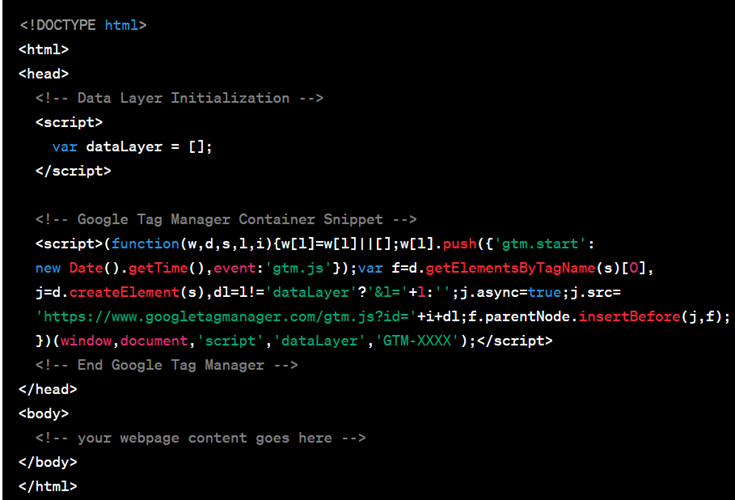
You will also need to have the dataLayer object initialised before this script runs, usually by including var dataLayer = []; in your HTML before any script tag if it’s not already initialized.
To initialise the dataLayer object, you should declare it in your HTML before you load the Google Tag Manager (GTM) container snippet or any other script that might interact with the dataLayer. For example:
Step-2: Capture the ‘ad_view’ event and its associated details (like ad name, ad id etc) from the data layer by setting up Data Layer Variables in GTM.
For example, set up a Data Layer Variable for the ‘event’ key in GTM.
In the “Data Layer Variable Name” field, enter ‘event’.
This is the key in the dataLayer.push() call whose value you want to capture. Give your variable a name at the top, such as “DLV – Event”.
Here’s an example of what the variable configuration might look like:
Variable Type: Data Layer VariableData Layer Variable Name: eventDefault Value: (optional)Variable Name: DLV – Ad View Event
Repeat this process for each piece of information you want to capture from the ‘ad_view’ event.
So create a new data layer variable for ‘adName’ key. Similarly, create a new data layer variable for ‘adID’ key.
Step-3: Set up a GA4 event tag that fires the ‘ad_impression‘ event. Pass additional details like ‘ad ID‘ or ‘ad name‘ as event parameters. Fire this tag on the ‘ad_view’ event.
When setting up your GA4 Event Tag for the ‘ad_view’ event, you can now add the Data Layer Variables you created earlier as event parameters to the tag.
For example, you might add a parameter where the “Parameter Name” is ‘adID’ and the “Value” is the ‘DLV – adID’ variable you created.
Step-4: Use GTM’s Preview mode to verify that the ‘ad_view’ event fires when at least 50% of the ad comes into view. Verify that the Data Layer Variables capture the correct values from the data layer when the ‘ad_view’ event is pushed.
Step-5: Once you confirm that everything is working as expected, publish your changes.
Step-6: After 24 hrs have elapsed, navigate to the ‘Events’ report in your GA4 admin to check whether ‘ad_impressions’ events are being logged along with the appropriate parameters.
Tracking Ad Clicks in GA4 (Google Analytics 4):
Follow the steps below to track ad clicks in GA4 for the ads served within your website:
Step-1: Add a click event listener to each ad element in your JavaScript code. When the user clicks an ad, this listener should push an ‘ad_click’ event to the data layer along with details like ad name and ad id.
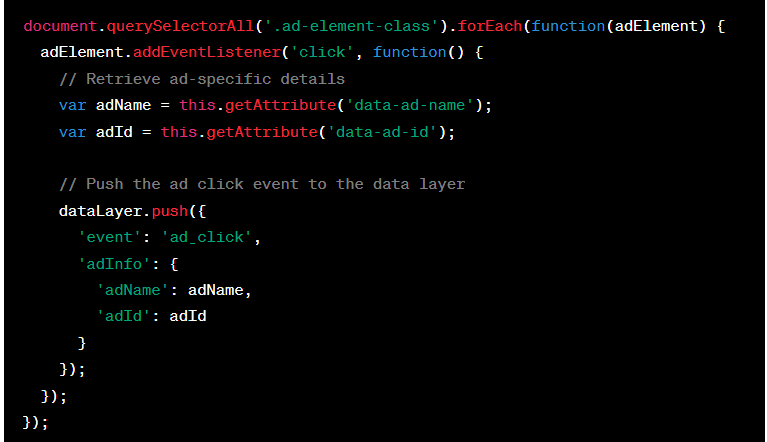
document.querySelectorAll('.ad-element-class').forEach(function(adElement) {
adElement.addEventListener('click', function() {
// Retrieve ad-specific details
var adName = this.getAttribute('data-ad-name');
var adId = this.getAttribute('data-ad-id');
// Push the ad click event to the data layer
dataLayer.push({
'event': 'ad_click',
'adInfo': {
'adName': adName,
'adId': adId
}
});
});
});
Step-2: In GTM, create Data Layer Variables to capture the ‘ad_click’ event and its associated details such as ‘adName’ and ‘adId’.
Step-3: Configure a new GA4 event tag in GTM to fire on the ‘ad_click’ event. This tag should be set to send the ‘ad_click’ event to GA4 along with the associated event parameters (e.g., ad name, ad id).
Step-4: Use GTM preview mode to test that the ‘ad_click’ event fires correctly when an ad is clicked and that the GA4 event tag is triggered with the correct parameters. Verify that the Data Layer Variables capture the correct values from the data layer when the ‘ad_click’ event is pushed.
Step-5: Once you confirm that everything is working as expected, publish your changes.
Step-6: After 24 hrs have elapsed, navigate to the ‘Events’ report in your GA4 admin to check whether ‘ad_click’ events are being logged along with the appropriate parameters.
That’s how you can track ad impressions and ad clicks in GA4 for the ads served within your website.

Other Articles on GA4.
- Using Funnel Exploration Report in Google Analytics 4.
- Google Advanced Consent Mode and GA4 BigQuery Export.
- Which Conversion Window to use in Google Analytics 4.
- Tracking single page apps in Google Analytics 4.
- Create Content Groups in Google Analytics 4.
- Google Analytics 4 BigQuery Tutorial for Beginners to Advanced.
- Google Analytics 4 Measurement ID and Property ID.
- Prompt Engineering for GA4 BigQuery SQL Generation.
- Google Analytics 4 vs Universal Analytics: The Key Differences.
- How to create a new BigQuery project.
- How to create a new Google Cloud Platform account.
- How to overcome GA4 BigQuery Export limit.
- ChatGPT Workflow That Simplifies GA4 Data Analysis.
- Understanding Google Analytics 4 Sessions.
- Total vs Active, New, Returning users in Google Analytics 4.
- BigQuery Cost Optimization Best Practices.
- Google Analytics 4 Data Import Tutorial.
- Tracking ad impressions and ad clicks in Google Analytics 4.
- Testing Google Analytics 4 via Test Property.
- Google Analytics 4 GDPR Compliance Checklist.