

What is a GA4 test property?
A GA4 test property is like a typical GA4 property but is used only for testing purposes. It should be a copy of your main GA4 property.
Why do you need a GA4 test property?
A Google Analytics 4 property comes with only one reporting view (unless you are using the GA4 Subproperty feature of GA4 360).
So whenever you change one of the settings of your GA4 property, you permanently change the way the data is collected, processed and reported in your reporting view.
The following are the various methods through which you can change the settings of your GA4 property:
- Changing the reporting timezone or currency of your GA4 property.
- Adding, Editing or removing a data stream.
- Enabling/disabling the enhanced measurement events.
- Changing the settings of the enhanced measurement events.
- Managing connected site tags.
- Creating an API secret to enable additional events to be sent through Measurement Protocol.
- Modifying incoming events and parameters.
- Creating new events from existing events (custom events).
- Configuring your domain for cross-domain measurement.
- Excluding internal traffic from being tracked.
- Adding or removing domains whose traffic should NOT be considered to be referrals (unwanted referrals).
- Adjusting session timeout.
- Adjusting timer for engaged sessions.
- Enabling/disabling the collection of universal analytics events.
- Enabling/disabling Google Signals Data Collection.
- Changing user and event data retention settings.
- Enabling/disabling ‘Reset user data on new activity’.
- Adding, removing or editing data filters.
- Uploading data from external data sources.
- Changing reporting identity.
- Changing attribution settings (like reporting attribution model and lookback window).
- Deleting data from the GA4 property through data deletion requests.
- Linking GA4 property with other Google products (like Google Adsense, Google Ads, BigQuery, Google Search Console).
- Marking/un-marking an event as a conversion.
- Creating new events.
- Creating a new conversion event.
- Changing the network settings of a conversion event.
- Creating new audiences.
- Creating, editing or archiving custom dimensions.
- Creating, editing or archiving custom metrics.
- Implementing Consent Mode V2.
- Enabling User-provided data collection.
Every change you make to your GA4 property setting(s) has the potential to permanently inflate/skew your current analytics data.
A typical website updates all the time. Likewise, we launch and pause marketing campaigns all the time.
All of these changes force us to change the settings of our GA4 property from time to time. But whenever we change GA4 property settings, we risk inflating/skewing our analytics data.
Let us suppose you applied a new data filter to your GA4 property in order to exclude internal traffic from GA4 reports.
Now, if this data filter is not set up correctly, you will have to make changes to it.
But while you are making changes to your data filter, you are also unknowingly skewing your analytics data in the background.
So you need to create a separate GA4 property just for testing purposes. We can call this property a GA4 test property.
Pro tip >> Whenever Google releases a new GA4 feature or GTM setting, enable/deploy it in the GA4 test property and monitor its impact on website traffic for at least a week before enabling it for the main/production property.
The most recent incident occurred when users implemented consent mode v2 directly on the live GA4 property and reported a sharp decline in traffic.
Before that, users enabled ‘User-provided data collection’ (still in Beta) on a live GA4 property.
You never ever enable BETA features directly on the production property. That’s a big NO.
Testing new features in a controlled environment minimises the potential for unintended consequences impacting your main property data.
This can help avoid disruptions to your website traffic reporting and analysis.
By monitoring the test property, you can quickly identify potential problems with the new feature, such as bugs, unexpected behaviour, or data quality issues.
This allows you to address them before they affect your main property.
Record any observations, insights, or issues encountered during the testing phase. Remember that some features might take time to show their full impact. Extend the testing period if necessary.
Also, keep an eye on social media posts which talk about the impact of the new features/settings on website traffic.
Learn from other users’ mistakes and avoid those mistakes.
How to create a test property in Google Analytics 4
The fastest method of setting up a GA4 test property is to add it as another destination to the existing Google Tag for the main property.
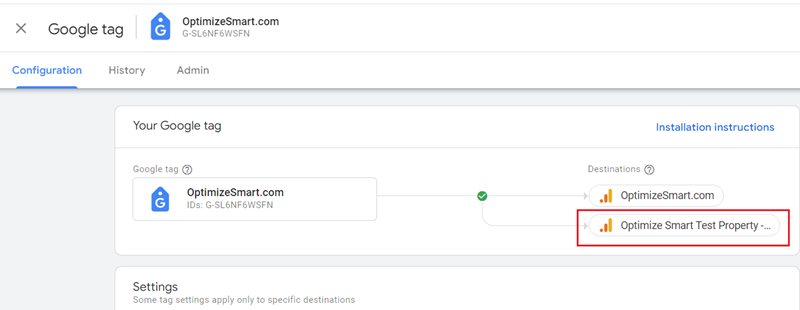
Google tag is designed to extend the reach and functionality of your existing Google tag configuration to another Google product account, such as a different GA4 property or a Google Ads account.
But I rarely see this benefit being implemented in real life. Most users set up a new Google tag instead of taking advantage of the current tag configuration.
The following is the 10,000-foot view of setting up a GA4 test property:
- Create a new GA4 property and name it a test property.
- Add a new web data stream to the test property.
- Add another destination to the existing Google Tag meant for the main property.
- Configure the property settings of your GA4 test property similar to your main property.
Follow the steps below to create a new GA4 test property:
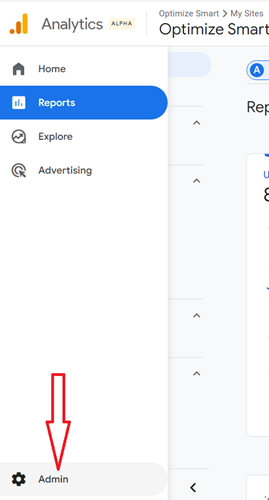
Step-1: Navigate to your existing GA4 property and then click on the ‘Admin‘ button:
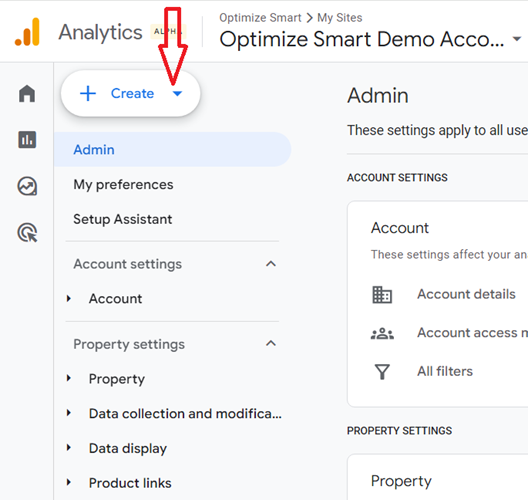
Step-2: Click on the ‘Create‘ drop-down menu:
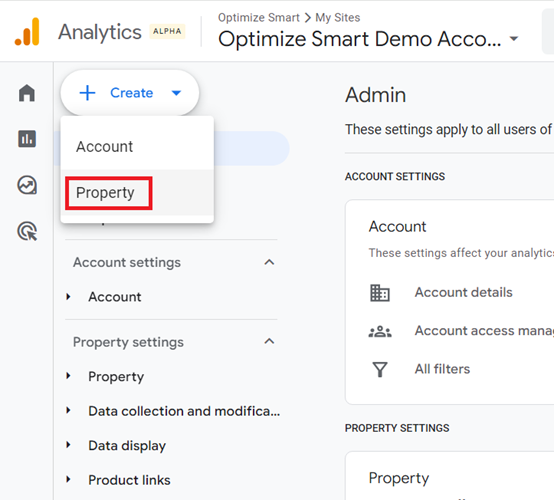
Step-3: Click on the ‘Property‘:
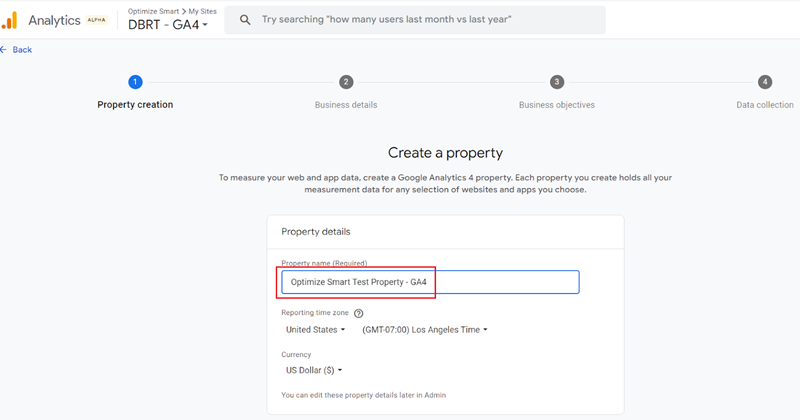
Step-4: Give your new property a name (use the words ‘GA4 test property‘ somewhere):
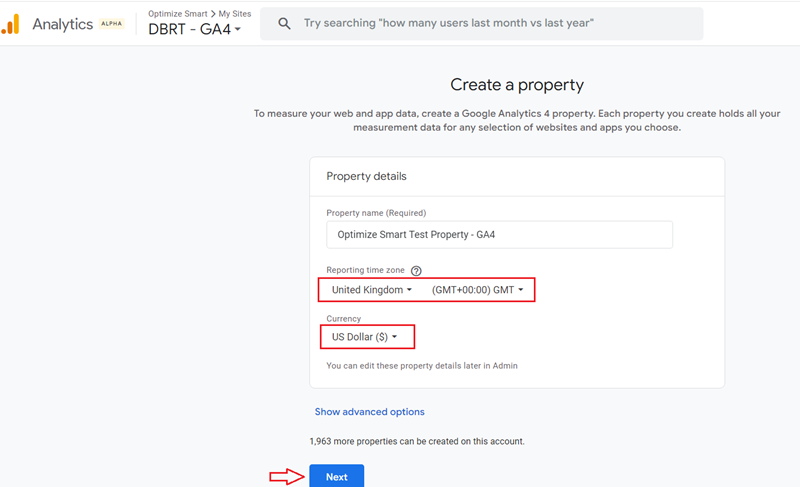
Step-5: Select your reporting timezone and currency and then click on the ‘Next’ button:
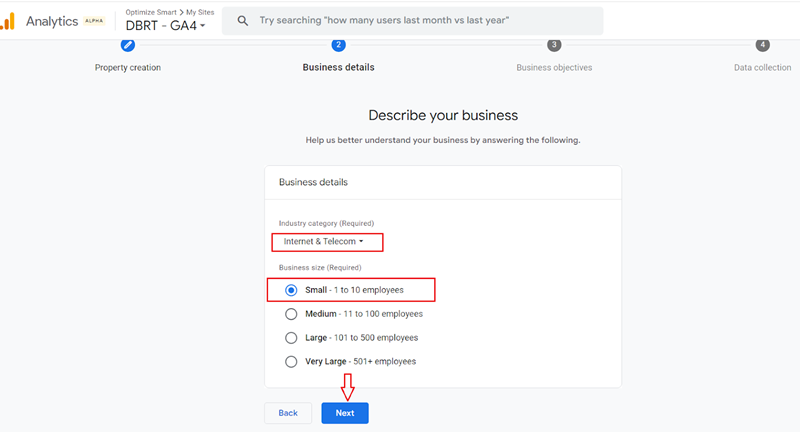
Step-6: Select your industry category and business size and then click on the ‘Next‘ button.
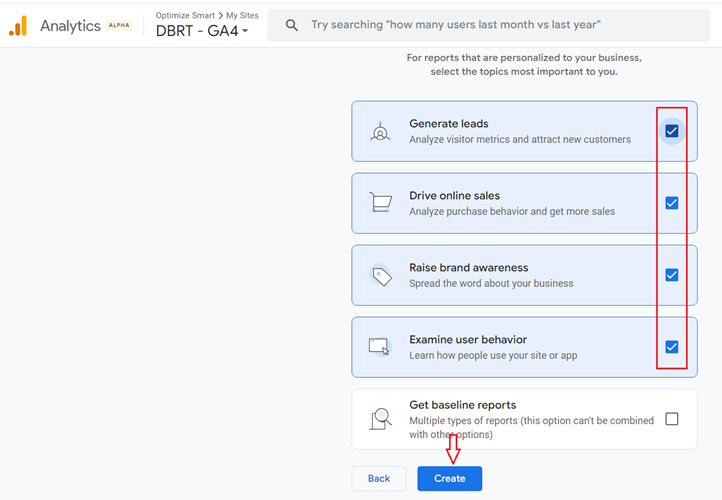
Step-7: Choose your business objectives and then click on the ‘Create’ button to create a new GA4 property:
You should now see a screen like the one below:
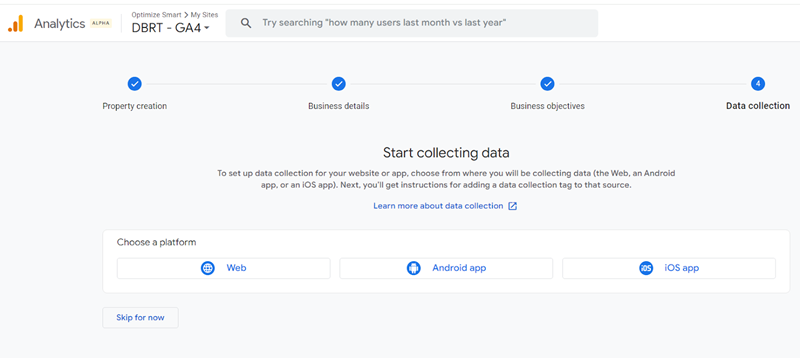
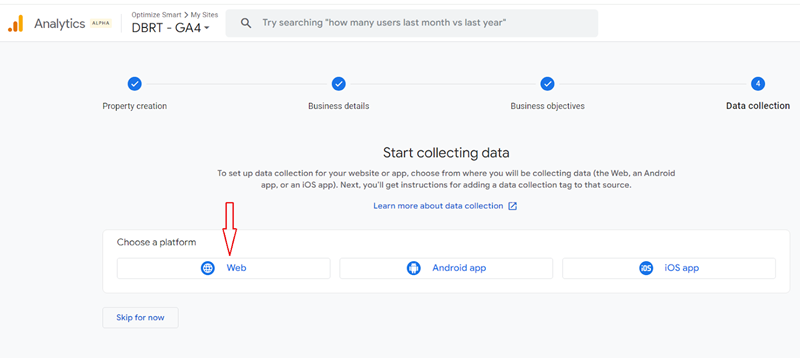
Step-8: Click on the ‘Web’ button to create a new web data stream:
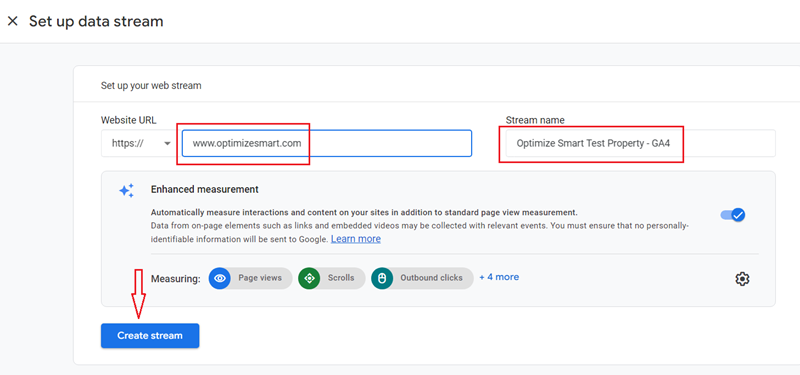
Step-9: Enter your website URL and webstream name and then click on the ‘Create Stream’ button:
You should now see a screen like the one below:
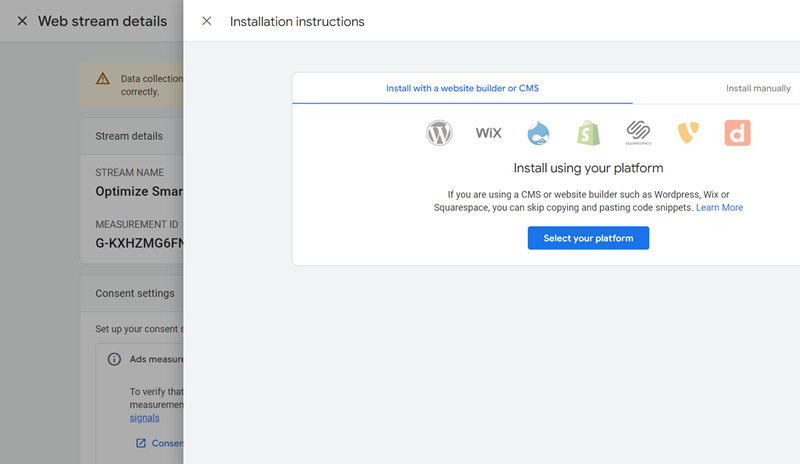
We won’t be setting up another Google tag for our GA4 test property. Instead, we will use the Google tag meant for our main property.
Step-10: Navigate to the Admin section of your main GA4 property.
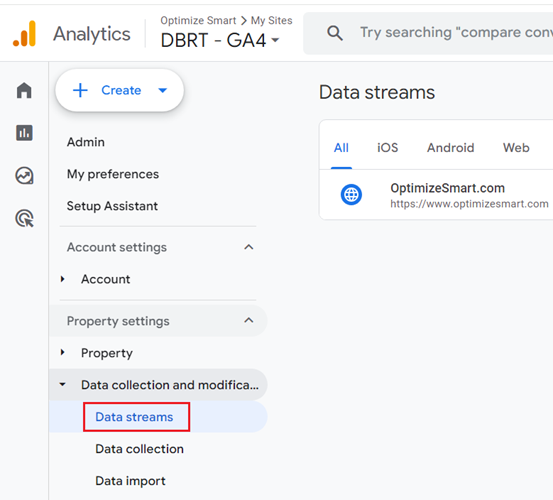
Step-11: Click on ‘data streams‘ under ‘Data collection and modification‘.
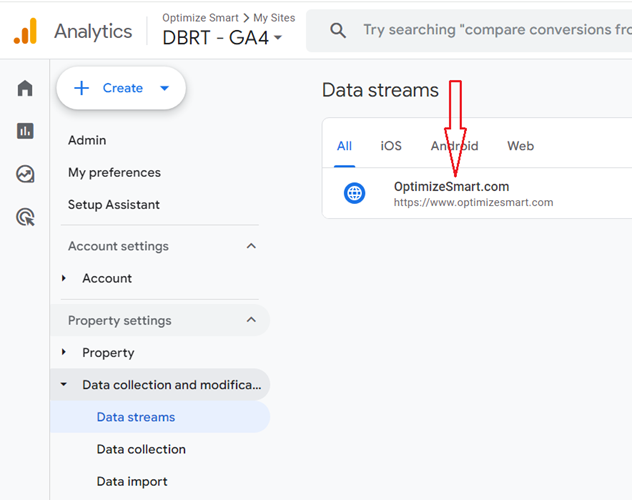
Step-12: Click on your web data stream.
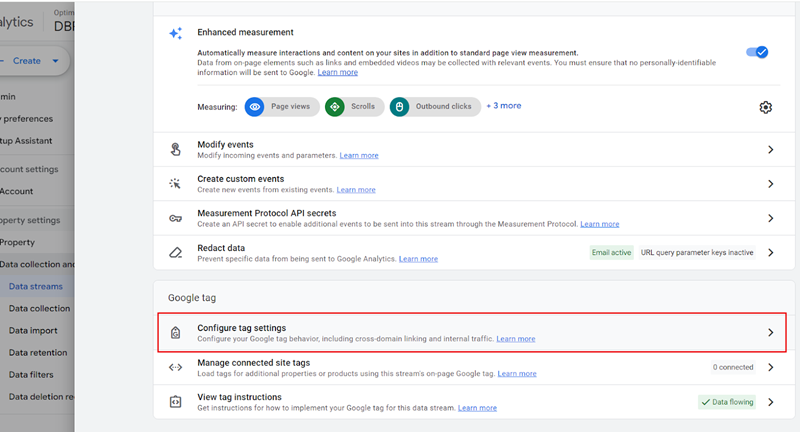
Step-13: Scroll down and click on ‘Configure tag settings‘ under ‘Google tag‘.
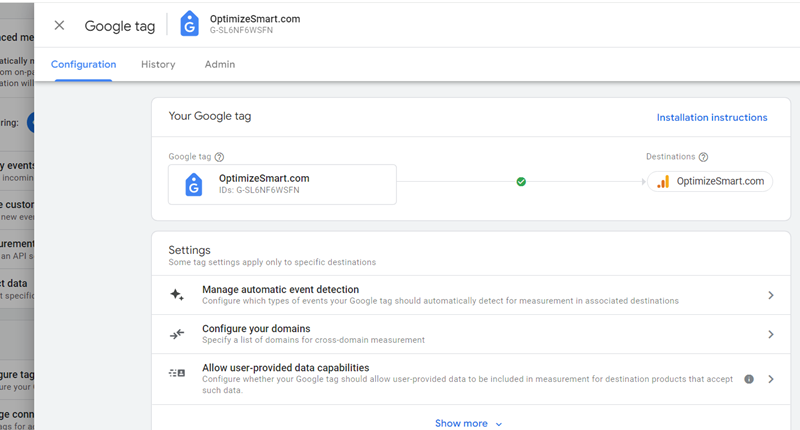
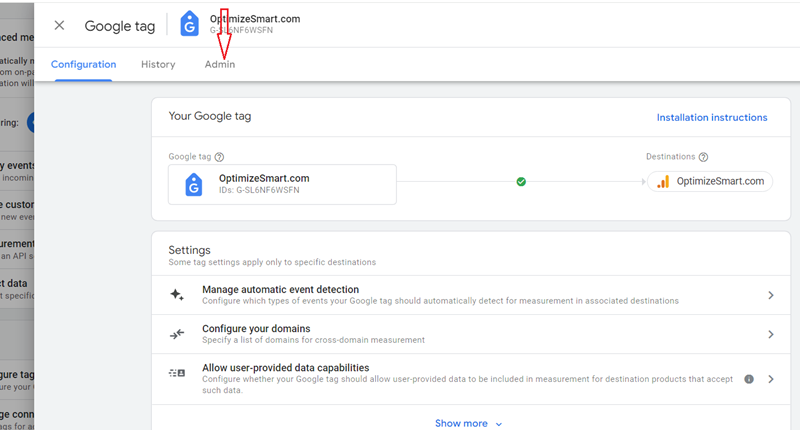
You will now see the Google tag screen.
Step-14: Click on the ‘Admin‘ tab.
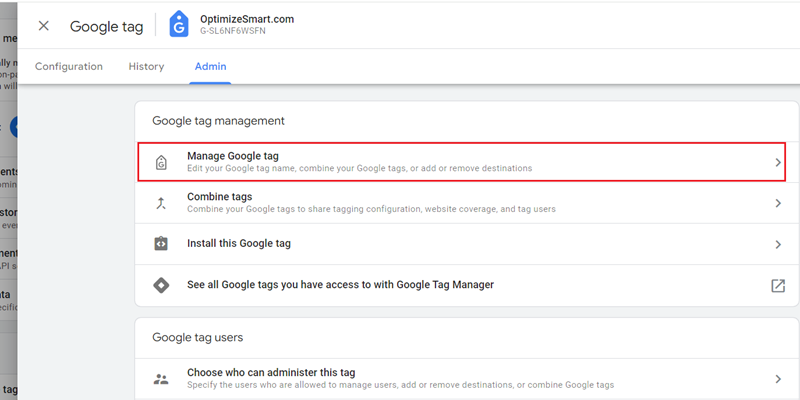
Step-15: Click on ‘Manage Google Tag‘ under ‘Google tag management‘.
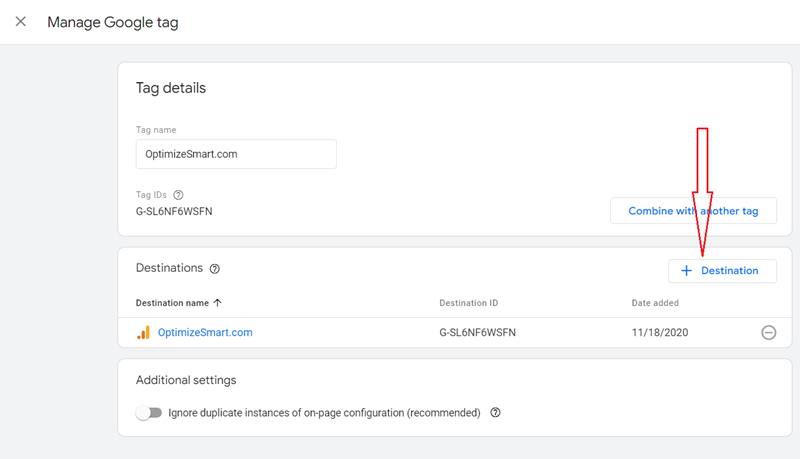
Step-16: Click on the button ‘+ Destination‘ to add a new destination to your Google tag.
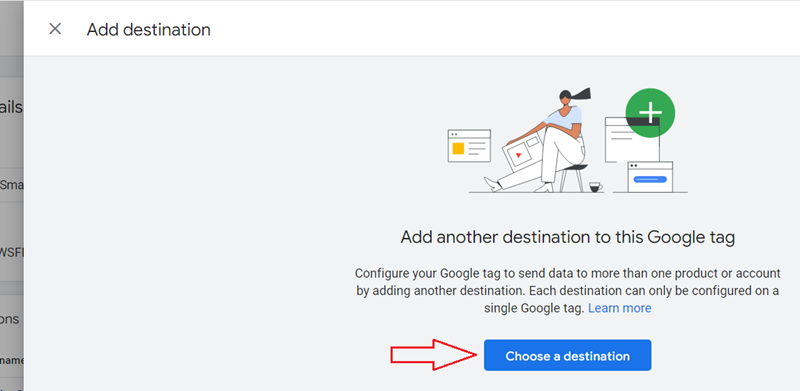
Step-17: Click on the ‘Choose a destination‘ button.
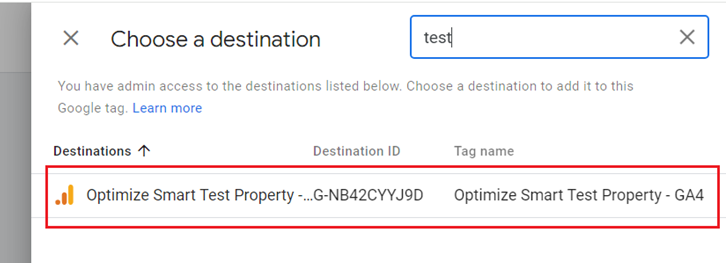
Step-18: Choose a destination to add to your Google tag. Your chosen destination should be the Google tag associated with your test property.
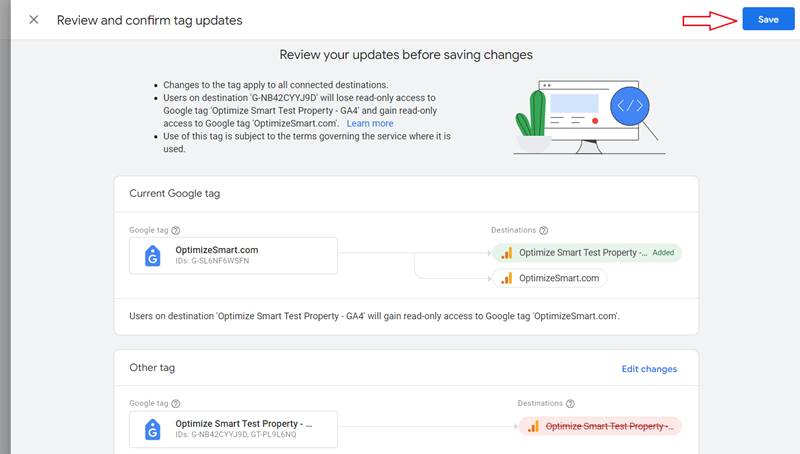
Step-19: Review and confirm tag updates and then click on the ‘Save‘ button.
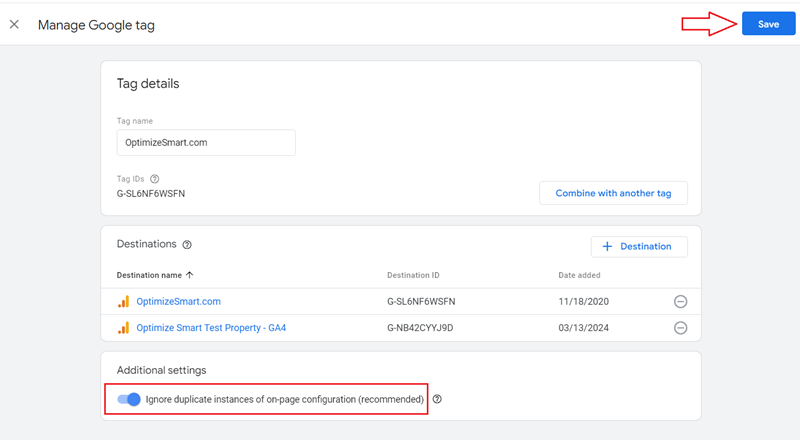
Step-20: Switch on the toggle button ‘Ignore duplicate instances of on-page configuration (recommended) and then click on the ‘Save’ button:
Step-21: Click on the ‘Configuration‘ tab. You should now see a screen like the one below.
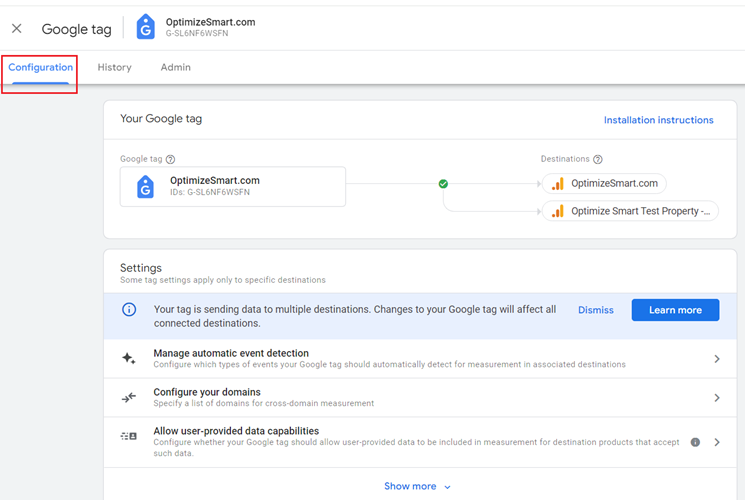
Now, the Google tag meant for your main website has also started sending the same data to your test property.
Your single Google tag is now set up to send collected data (like page views, events, or conversions) to more than one GA4 property.
Because the tag’s configuration is shared across all connected destinations, any changes you make to the tag’s settings, triggers, or variables will automatically apply to all the connected destinations.
So, you no longer have to manually ensure that the configurations are duplicated correctly across live and test GA4 properties.
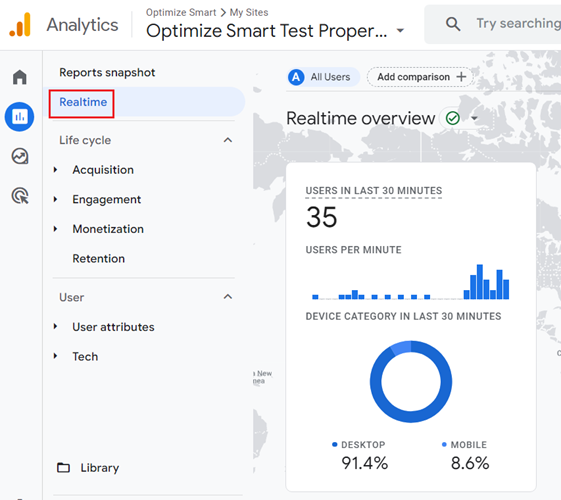
Step-22: Navigate to the ‘Real time’ report of your GA4 test property. You should start seeing data in the new property.
Step 23: Copy all the configuration settings from your GA4 live property to your GA4 test property.
So, if you have enabled Google Signals for the live GA4 property, then enable Google Signals for your GA4 test property.
Similarly, if you are sending e-commerce data to your live GA4 property, you should also send e-commerce data to your GA4 test property.
Make your GA4 test property a carbon copy of your GA4 live property in terms of setup.
Step-24: Going forward, use your GA4 test property for testing any new configuration setting before you use it in your GA4 live property.

Other Articles on GA4.
- Using Funnel Exploration Report in Google Analytics 4.
- Google Advanced Consent Mode and GA4 BigQuery Export.
- Which Conversion Window to use in Google Analytics 4.
- Tracking single page apps in Google Analytics 4.
- Create Content Groups in Google Analytics 4.
- Google Analytics 4 BigQuery Tutorial for Beginners to Advanced.
- Google Analytics 4 Measurement ID and Property ID.
- Prompt Engineering for GA4 BigQuery SQL Generation.
- Google Analytics 4 vs Universal Analytics: The Key Differences.
- How to create a new BigQuery project.
- How to create a new Google Cloud Platform account.
- How to overcome GA4 BigQuery Export limit.
- ChatGPT Workflow That Simplifies GA4 Data Analysis.
- Understanding Google Analytics 4 Sessions.
- Total vs Active, New, Returning users in Google Analytics 4.
- BigQuery Cost Optimization Best Practices.
- Google Analytics 4 Data Import Tutorial.
- Tracking ad impressions and ad clicks in Google Analytics 4.
- Testing Google Analytics 4 via Test Property.
- Google Analytics 4 GDPR Compliance Checklist.