

The following are the three simple steps to check whether Safari is limiting even your first-party server-set cookies to 7 days, thus defeating one of the main purposes of setting up server-side tagging (extending cookie lifespan beyond 7 days).
Apple’s Intelligent Tracking Prevention (ITP) can also limit the lifespan of server-set first-party cookies to a maximum of 7 days unless both of the following conditions are met:
#1 Cookies must be set via the ‘Set-Cookie’ HTTP header for both the main website (https://www.example.com/ ) and SGTM domain (https://sgtm.example. com/).
#2 The first two octets of the IPs of the website server and of the cookie-setting server (SGTM) match.
Both conditions must be met for Safari not to cap first-party server-set cookies at 7 days.
#1 Verify if cookies are set via the Set-Cookie HTTP header for the main website and SGTM domain.
If cookies are set via JavaScript (document.cookie) instead of the Set-Cookie HTTP header, Safari will cap them at 7 days, even if IPs match.
Step-1: Open the Developer console in Chrome and navigate to the ‘Network’ tab.
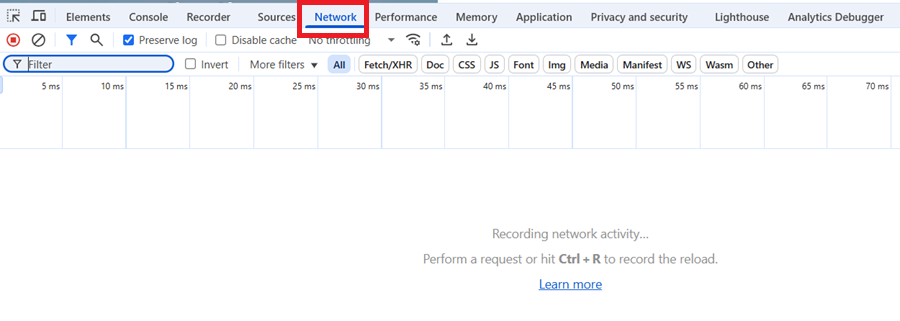
Step-2: Reload the page while the “Network” tab is open.
Step-3: Find and click on the request URL for the main website.
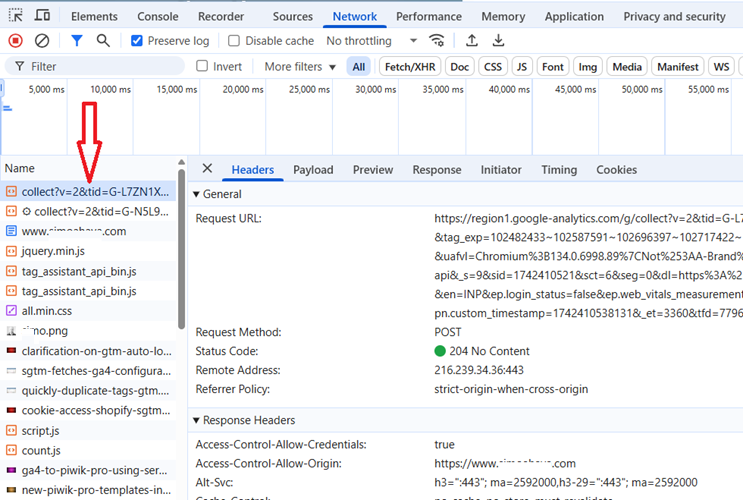
Step-4: Check the response header and look for the ‘Set-Cookie’ header.
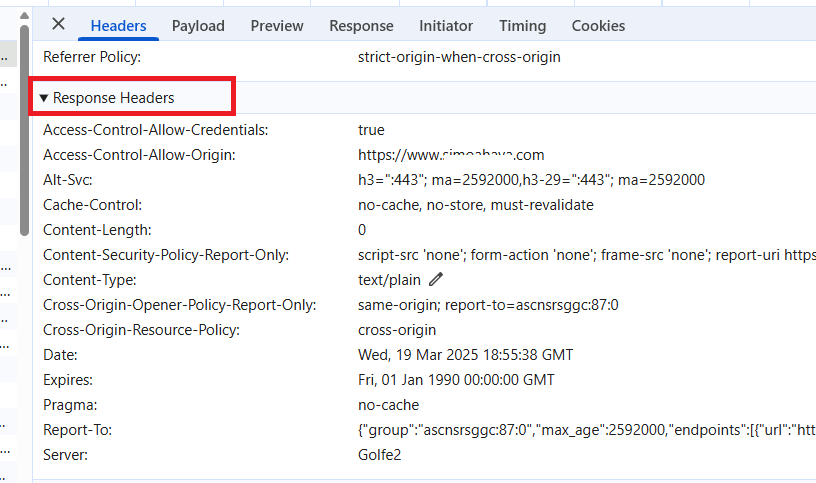
If ‘Set-Cookie’ is missing, cookies are likely set via JavaScript, meaning Safari limits them to 7 days.
Step-5: Find and click on the request URL for the SGTM domain.
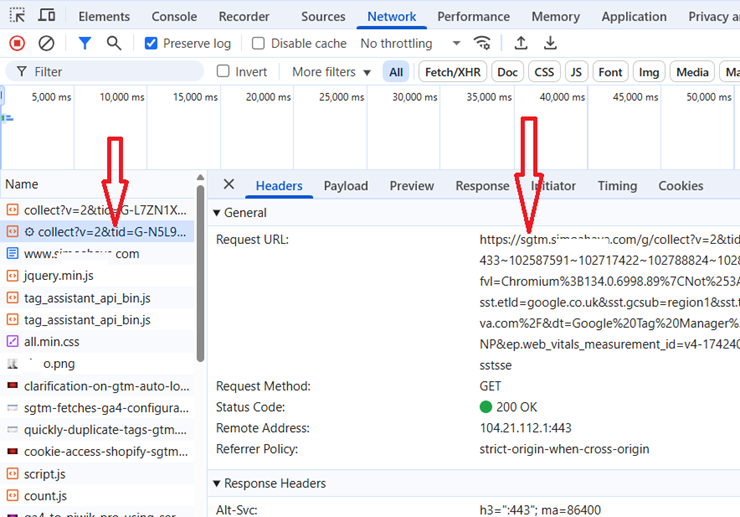
Step-6: If you see the ‘Set-Cookie’ header in the Response Header, it means this server is setting at least one server-side cookie.
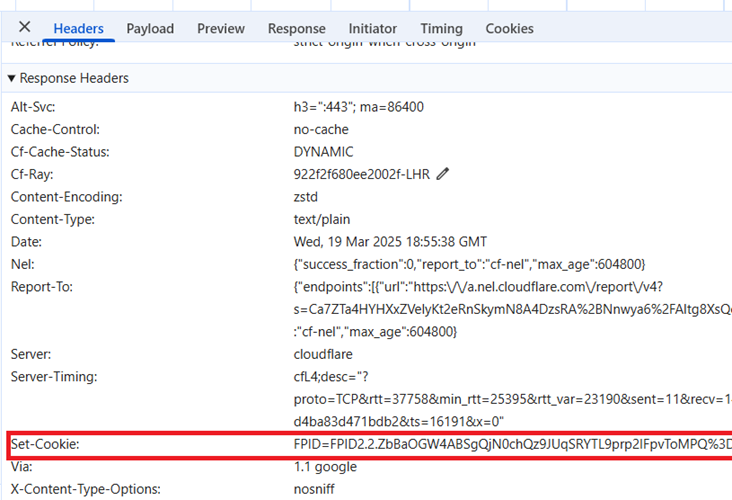
#2 Verify if the first two octets of the IPs of the website server and of the cookie-setting server (e.g., sGTM) match.
If the first two octets of the IP addresses do not match, Safari will treat the cookie as if it were set by a third party and enforce the 7-day expiration limit.
Visit a DNS lookup website (like ‘MXToolbox’) and enter the main website and then the SGTM domain to retrieve their IP addresses.
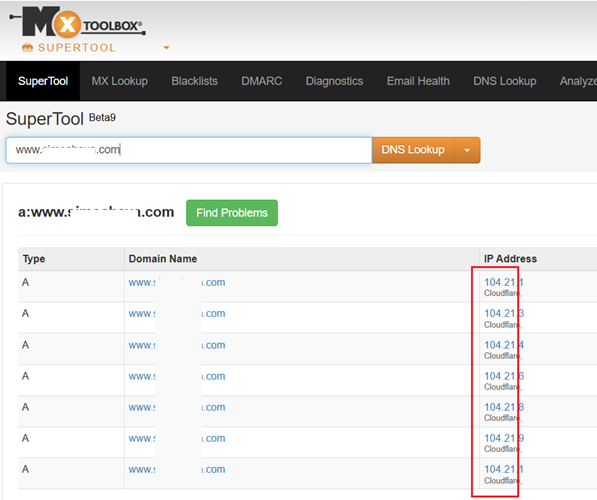
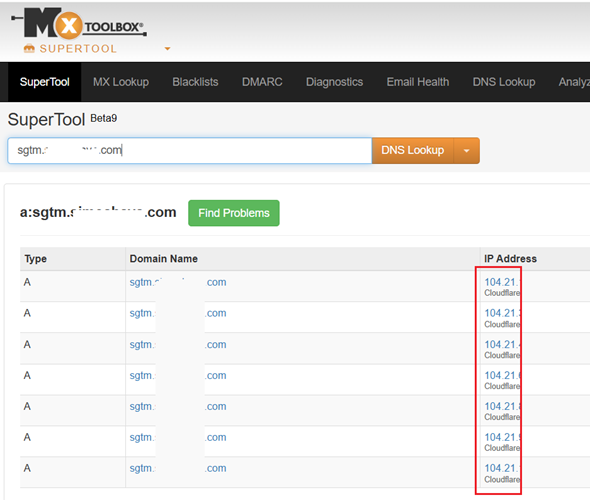
Compare the first two octets of the IPs (i.e. the first two numbers separated by dots).
For example, in the IP address 192.168.1.1, the first two octets are 192.168.
If the first two octets match for both IP addresses, they are considered to be in the same IP range.
For example, If the main website resolves to 192.168.1.10 and the SGTM domain resolves to 192.168.2.20, the first two octets (192.168) match, indicating they are in the same IP range.
Conversely, if the main website resolves to 10.0.1.10 and the SGTM domain resolves to 192.168.1.20, the first two octets (10.0 vs. 192.168) do not match, indicating they are in different IP ranges.
If both main website and SGTM domain resolve to the same IP or IP range, they may be using a load balancer or they are proxied through the same CDN (like Cloudflare).
Note(1): Third-party server-side tagging solutions are unlikely to bypass Safari’s 7-day cookie cap precisely because of the IP mismatch.
Note(2): If a website fully proxies both its main domain and subdomains through Cloudflare, then a separate load balancer is unnecessary to match IPs for Apple’s ITP.
#3 To be completely sure whether Safari is not capping your first-party server-set cookies to 7 days:
- Open Safari in Private Mode.
- Visit SGTM domain and check for FPID in Developer Tools > Storage > Cookies.
- Return after 8 days and check if the cookie still exists.If the cookie still exists, it has bypassed the 7-day cap. If the cookie is missing, Safari has enforced the expiration limit.
Do websites using Cloudflare need a load balancer to match IPs?
No, they do not.
If a website fully proxies both its main domain (www.example.com) and subdomains (e.g., sgtm.example.com) through Cloudflare, then a separate load balancer is unnecessary to match IPs for Apple’s ITP.
When Cloudflare proxies a domain (via the orange cloud setting in Cloudflare DNS), it masks the actual origin server.
As a result, all requests appear to originate from Cloudflare’s network, meaning Safari sees the same IP range for both the website and sGTM.
Even though Cloudflare itself offers a Load Balancer service, it’s not needed just for the purpose of matching IPs across subdomains.
Cloudflare already distributes traffic efficiently across its network, ensuring that subdomains resolve within the same IP range.
Safari does not check the true backend server (Google Cloud, AWS, etc.).
It only checks the Cloudflare-provided IPs, which will be the same for all proxied domains.
Who still needs a load balancer for IP Matching?
You only need a load balancer if:
#1 Some domains are not proxied through Cloudflare.
Example: www.example.com is behind Cloudflare, but sgtm.example.com is directly served from Google Cloud (without Cloudflare).
In this case, Safari will detect an IP mismatch, and cookies will be capped at 7 days.
#2 You use multiple cloud providers (without Cloudflare)
Example:www.example.com is hosted on AWS.sgtm.example.com is hosted on Google Cloud.
Without Cloudflare, Safari will see different IP ranges, enforcing the 7-day cookie expiration rule.

Other Articles on GA4.
- How to export GA4 data to Google Sheets for free.
- Top Google Analytics 4 Tools, add-ons and resources.
- Google Analytics 4 Audiences Tutorial.
- Understanding Automated Insights in Google Analytics 4 (GA4).
- How to build Comparisons in Google Analytics 4 (GA4).
- How to create a remarketing audience in Google Analytics 4 (GA4).
- Advanced Google Analytics Tracking – HTML DOM – Tutorial.
- Google Analytics 4 Migration Checklist - Upgrade to GA4.
- How to Install Google Analytics 4 on Shopify.
- How to link Google Analytics 4 with AdSense.
- Google Analytics 4 Subproperties Tutorial.
- How to connect Google Analytics 4 with Google Data Studio.
- Advertising Snapshot in Google Analytics 4 (GA4).
- Manage automatic event detection in Google Analytics 4.
- How to use Google Analytics 4 Event Builder.
- Is Safari Undermining Your GTM Server-Side Tagging?
- Guide to Google First Party Mode.
- You Can’t Really Trust Google Analytics 4 Engagement Metrics.
- Google Analytics 4 Metrics Tutorial.
- Google Analytics 4 Custom Metrics Tutorial.