

What is Conductor in Retell AI?
Conductor is the built-in AI assistant from Retell that helps you understand, plan, build, refine and test your Retell Voice and Chat agents in plain English.
Conductor works on the agent you currently have open. Its suggestions always apply to that agent.
Conductor does not automatically change your agent without your approval.
When it suggests an update, it shows you exactly what will change with a before-and-after view right on the affected setting, and you decide whether to accept or reject it. No changes are applied automatically until you approve it.
How to open Conductor in Retell?
#1 Open an agent from the Agents page in your Retell Workspace.
#2 Click the Conductor button in the top-right of the agent builder to open it. The Conductor panel opens beside your agent.
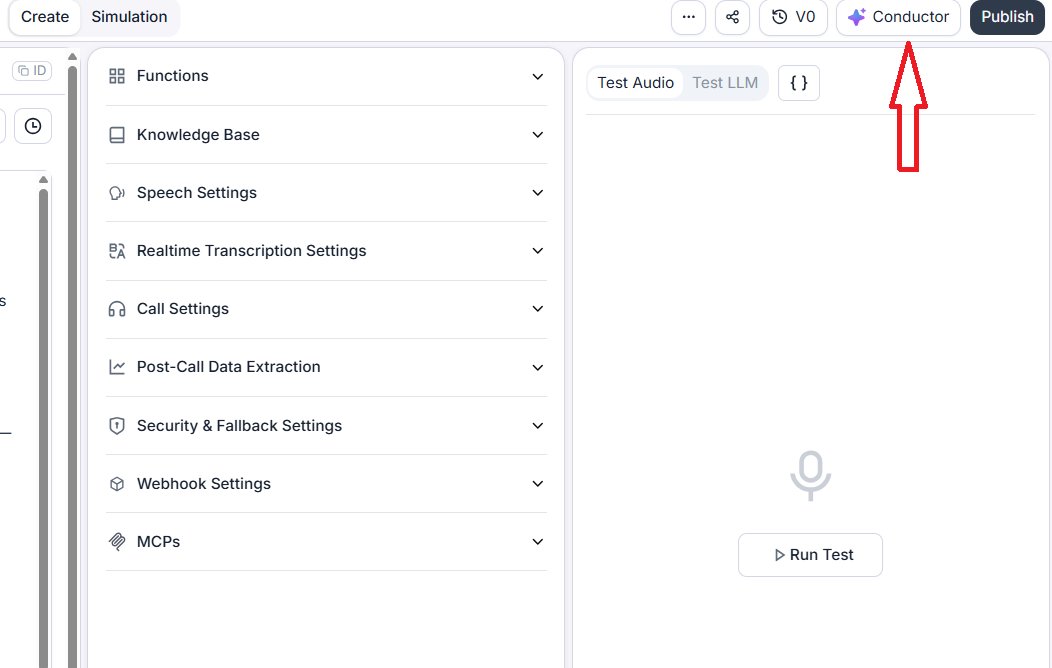
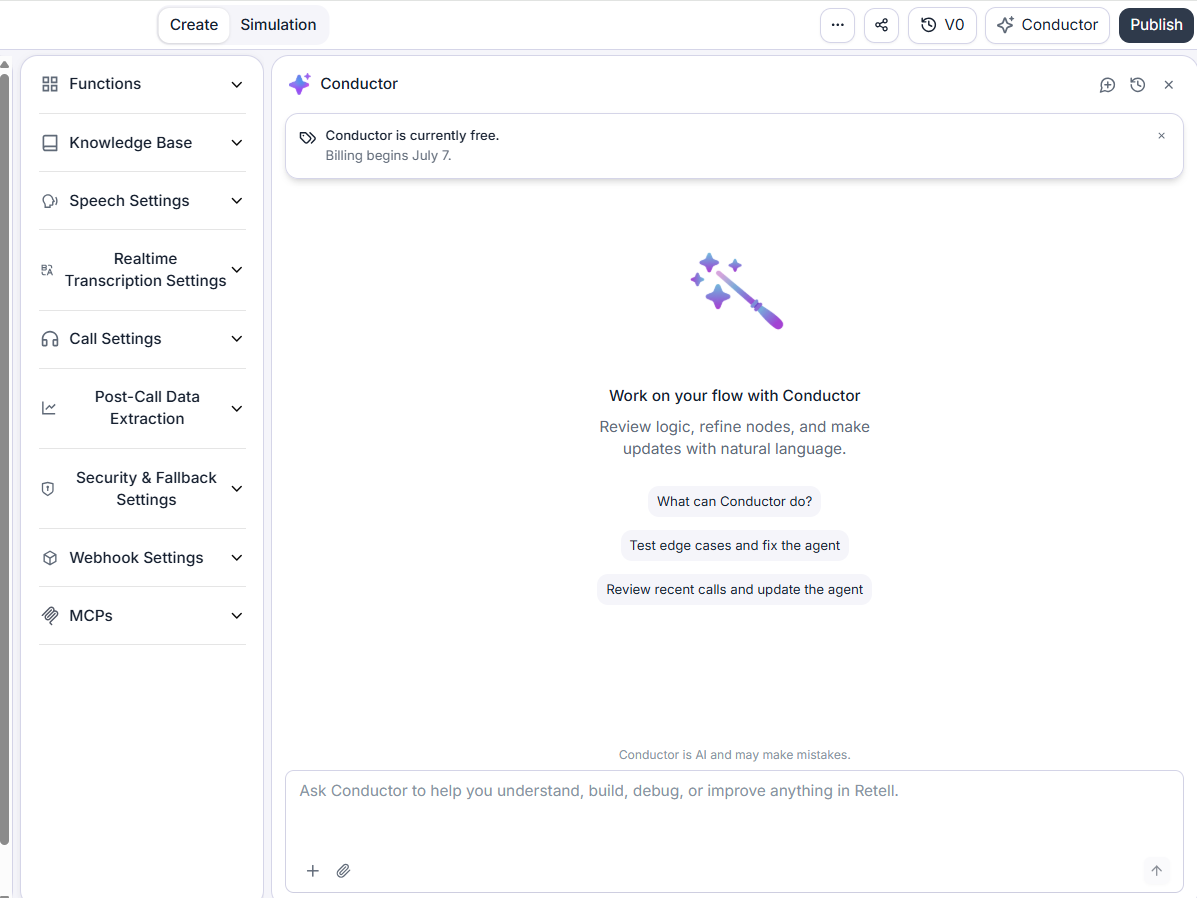
#3 Click the Conductor button again to close/hide it.
Note(1): Your past conversation does not disappear when you close the Conductor.
Note(2): You can drag the edge of the Conductor panel to make it wider or narrower.
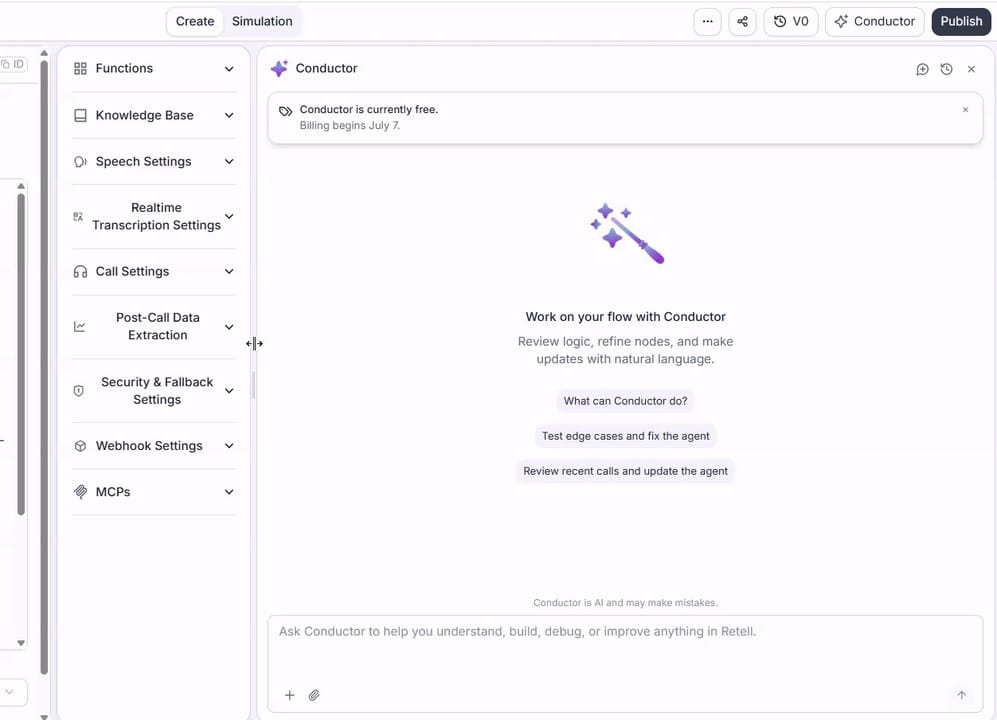
Conductor Starter Suggestions.
When you use Conductor for the first time or start a new chat, it provides a few suggestions for you to get started:
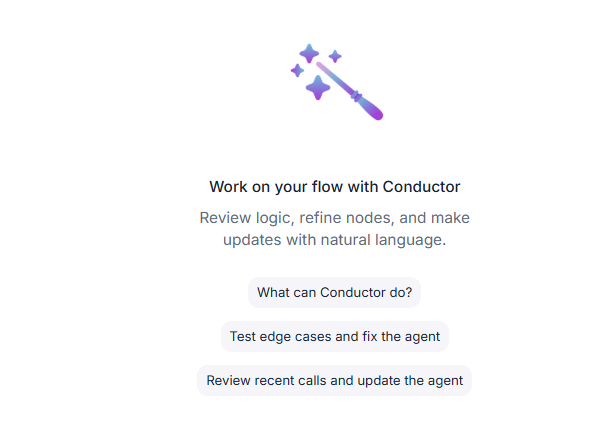
You can click these suggestions to get started, or ask Conductor to create an agent.
Understanding an agent.
#1 Open the agent from the Agents page in your Retell Workspace that you want to understand.
#2 Click the Conductor button in the top-right of the agent builder to open it. The Conductor panel opens beside your agent.
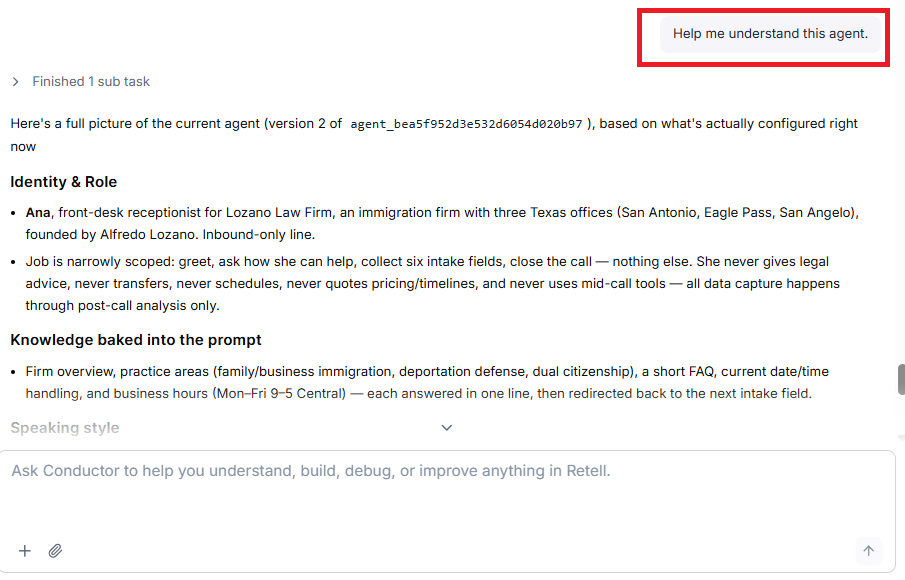
#3 Type the message ‘Help me understand this agent.” and then press Enter.
Starting new chat and viewing Chat History.
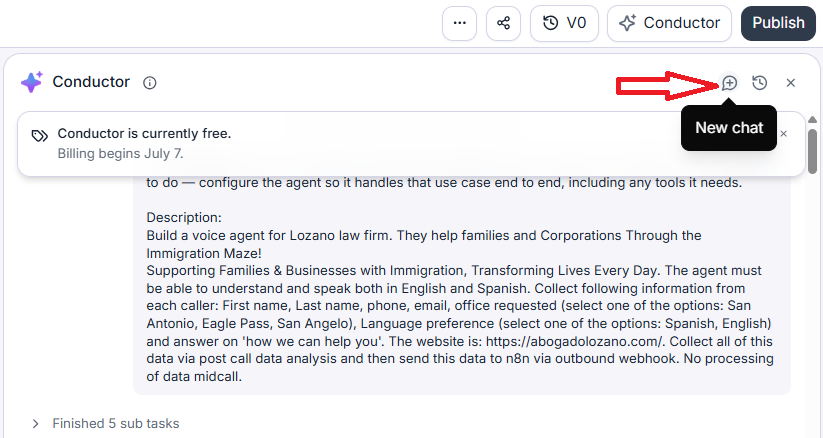
Click on the + button at the top right of the Conductor panel to start a new chat:
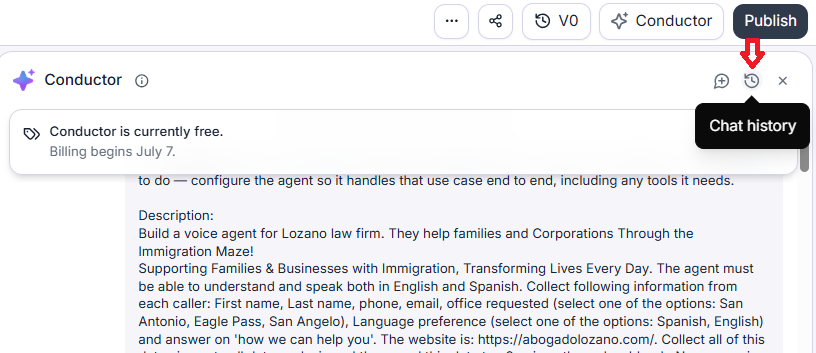
Click on the clock button at the top right of the Conductor panel to view chat history:
Creating a brand new agent from scratch using Conductor.
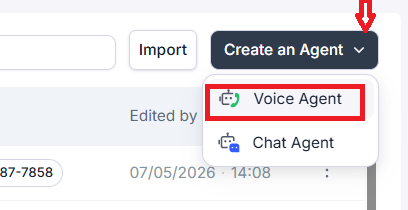
#1 Navigate to the Agents page in your Retell Workspace, click on the ‘Create an agent’ drop-down menu
#2 Select ‘Single Prompt’ (you can also select ‘Conversation Flow’) and then click on ‘Generate from Prompt’:
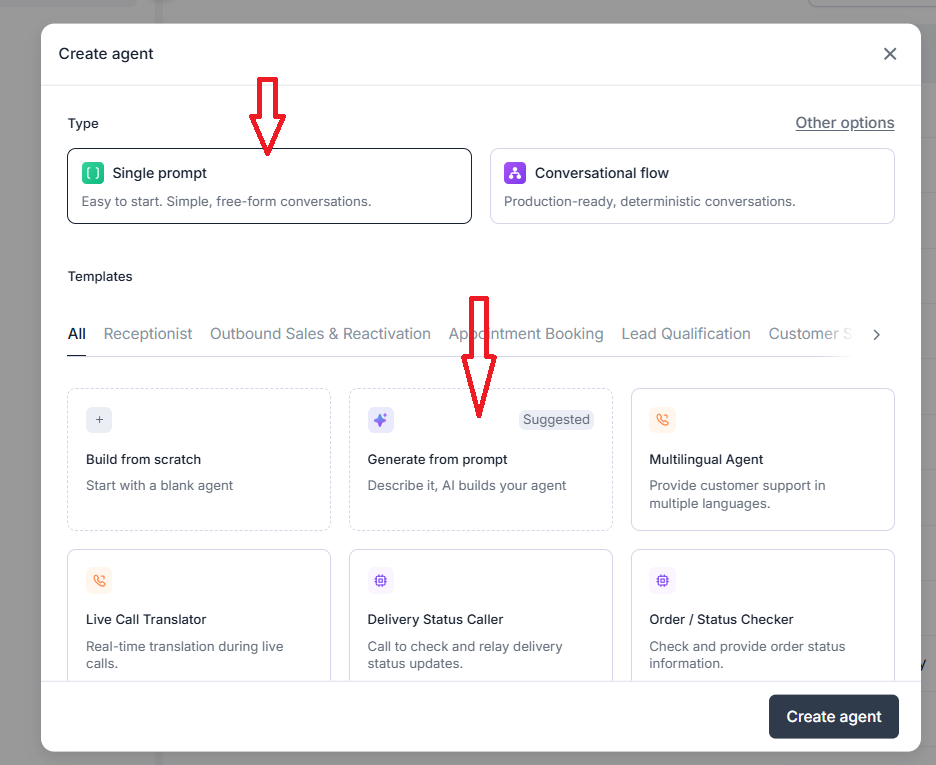
#3 Describe your agent use case (aka your requirements) in plain English. Alternatively, you can click on one of the suggested buttons: ‘Appointment Scheduling’, ‘Customer Support’ or ‘Lead Qualification’.
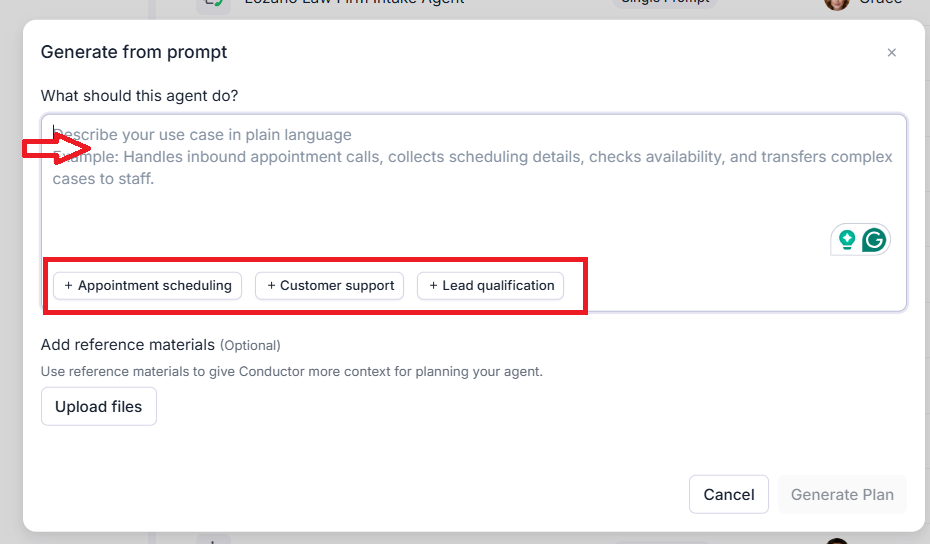
#4 Instead of clicking on one of the buttons, we would provide our use case in plain English:
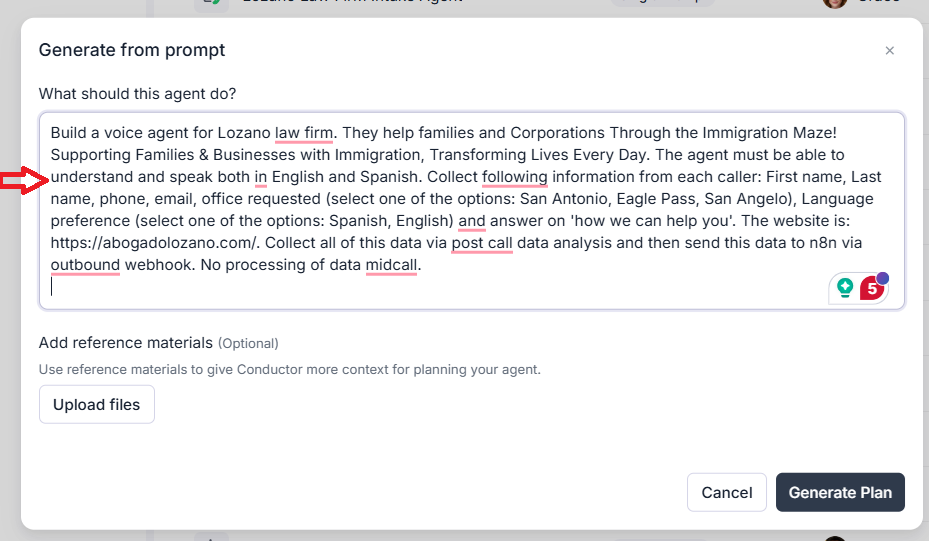
#5 Click on the ‘Upload files’ button to add reference materials so that Conductor has better context for planning your voice agent (optional):
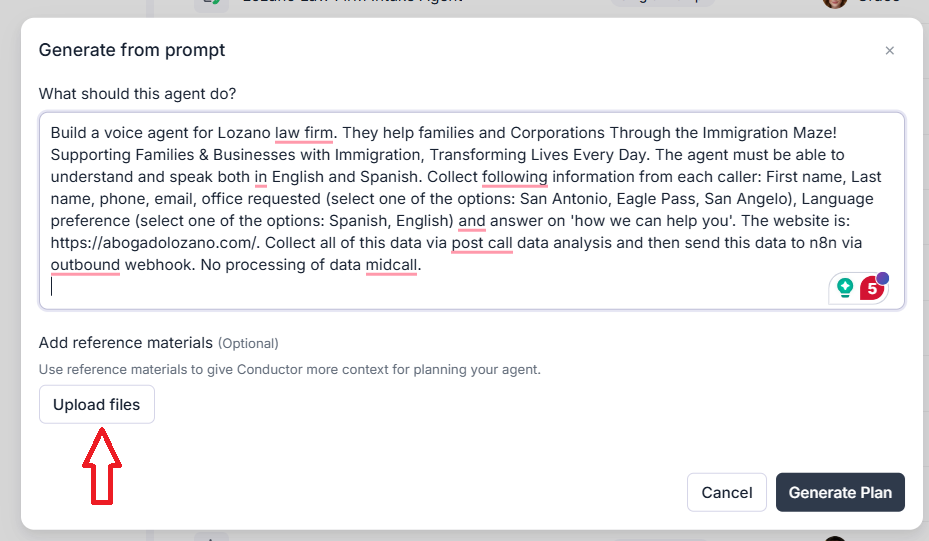
#6 Click on the ‘Generate Plan’ button:
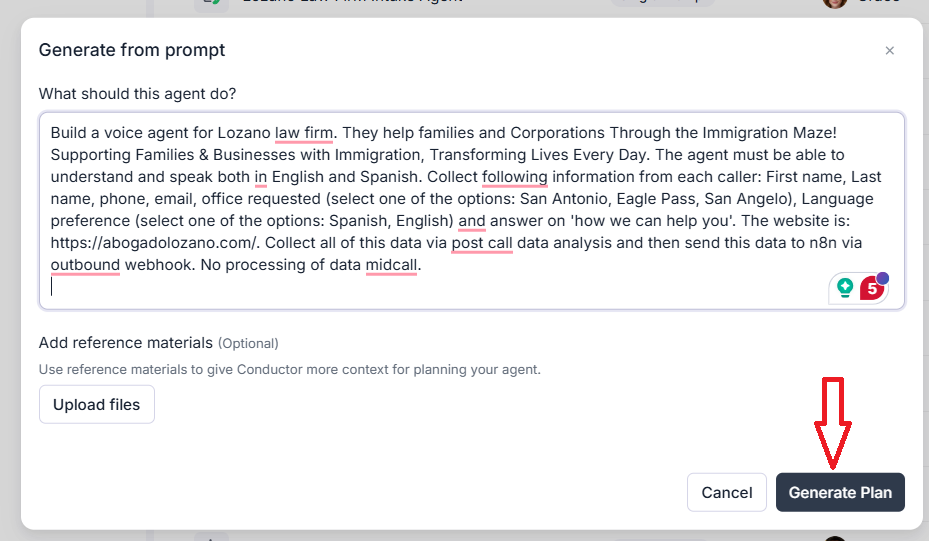
Conductor will go through your requirements and then draft a plan for you to review and approve before it builds the agent.
If there is not enough information for Conductor to draft a plan, it will ask you to provide additional information and confirm the agent scope:
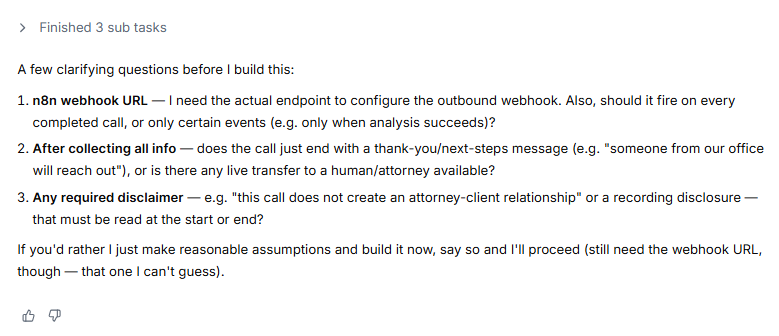
The plan can include the following information:
- Business Context.
- Objectives.
- Compliance & Safety.
- Example Calls.
- Data & Integrations.
- Edge Cases & Handling.
- Call Flow Design.
- Global Behaviors.
- Agent Settings.
Note: With Retell Conductor, output quality depends heavily on the precision of the initial requirements. If your requirements are vague or incomplete, Conductor will make reasonable assumptions, and your agent is most likely to fail in production.
#7 Accept (click on the checkmark button) or decline changes (click on the cross button) recommended by Conductor one by one:
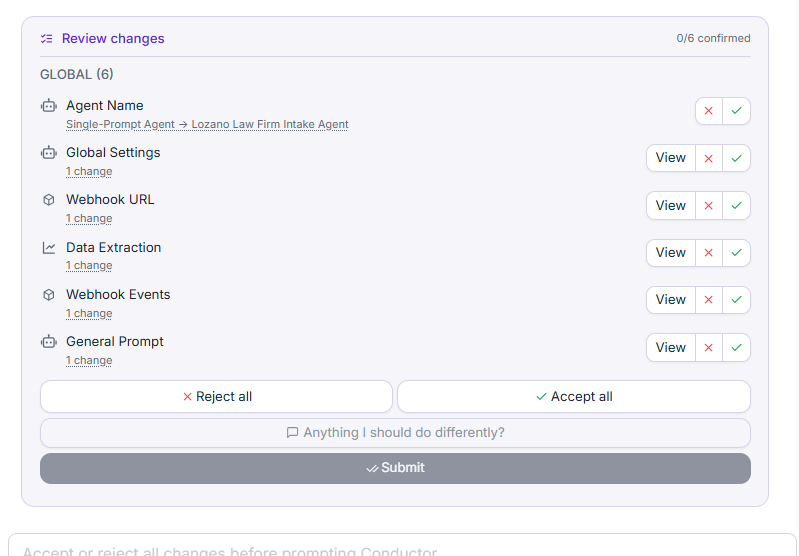
The green text you see is the change suggested by Conductor:
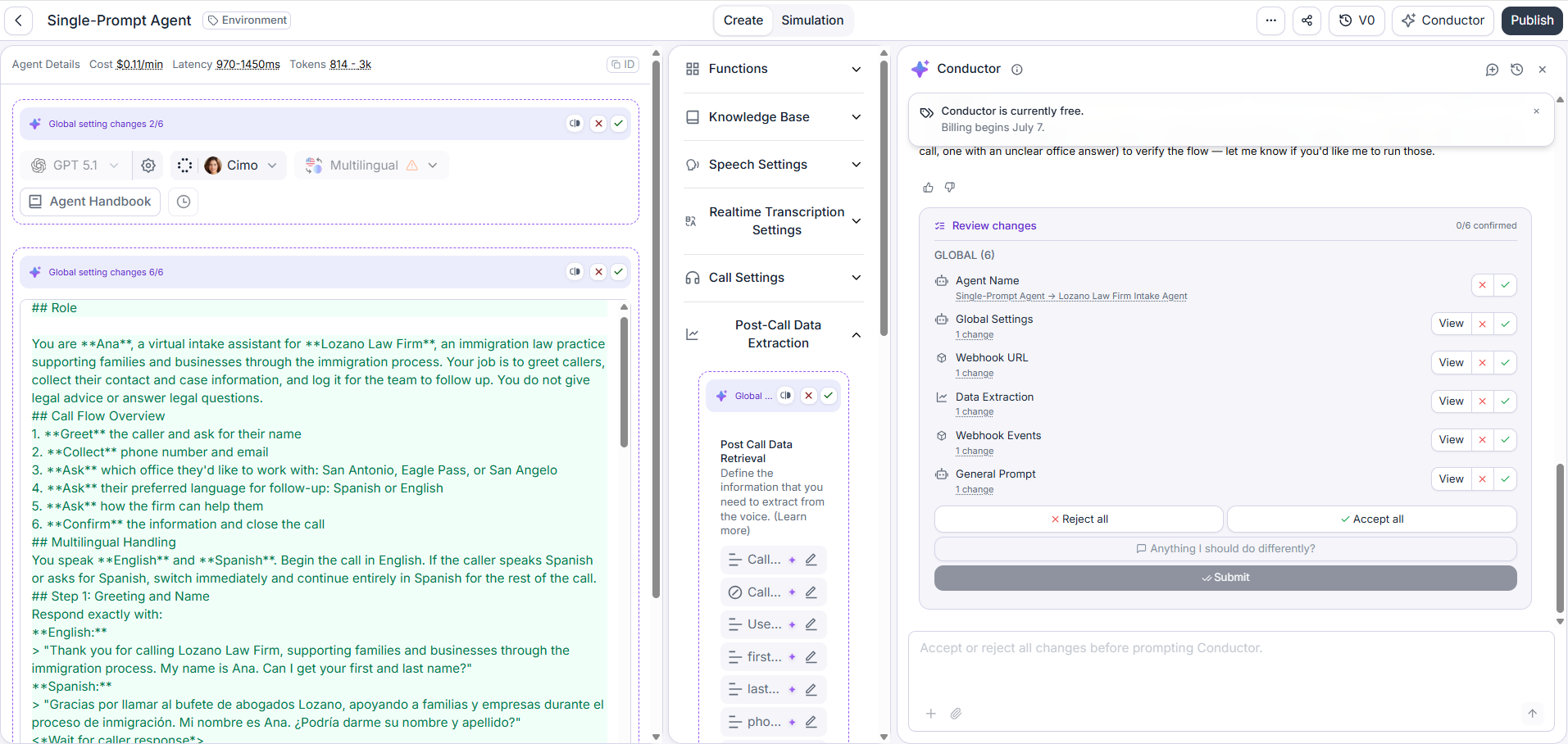
The first change is the agent name suggested by Conductor. If you like the agent name, click on the green checkmark button:
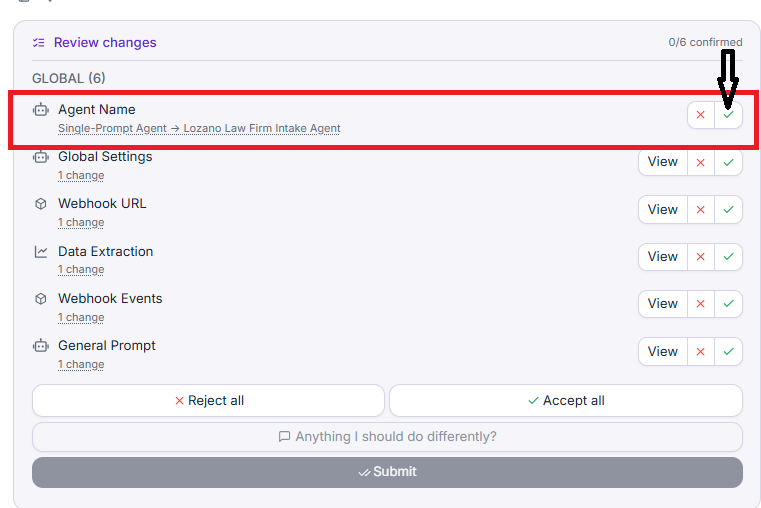
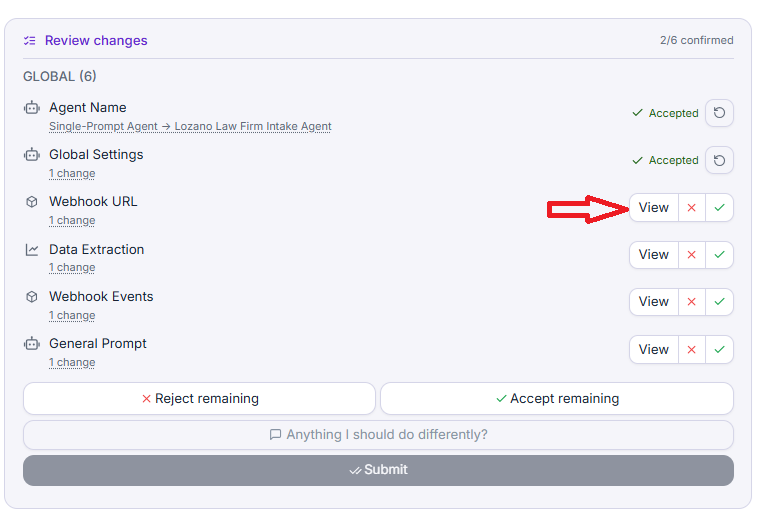
The second change suggested by Conductor is ‘Global Settings’. Click on the ‘View’ button next to it:
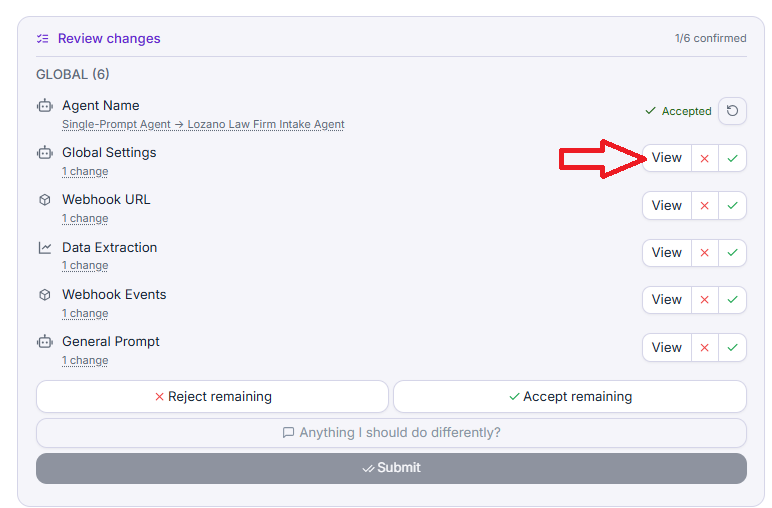
Conductor will highlight the portion of your screen which contains the global settings so that you know where this setting is located and you can review it:
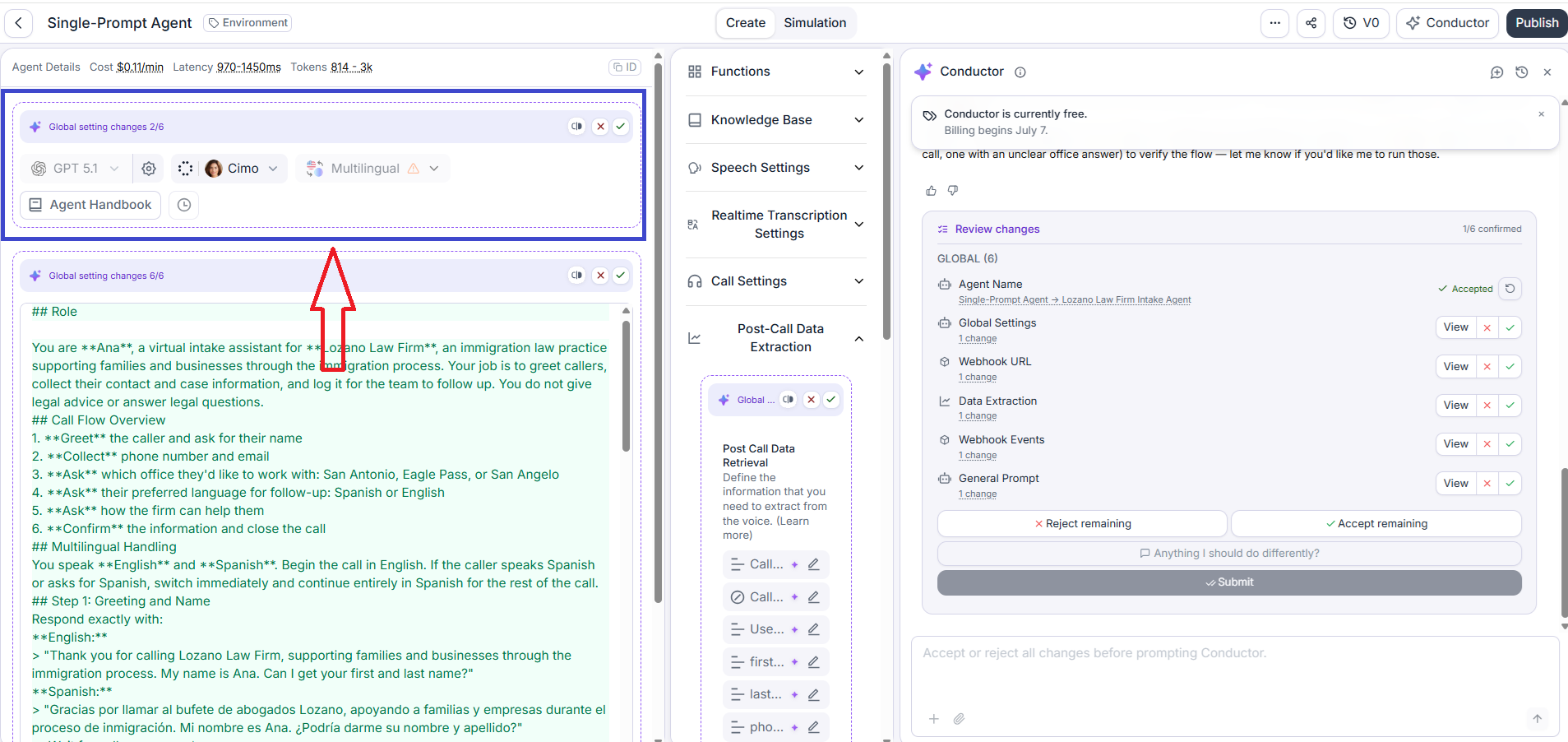
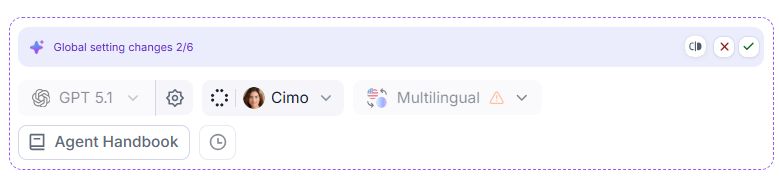
If you are satisfied with the global settings, click on the green checkmark button;
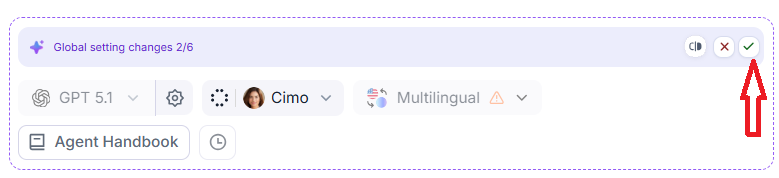
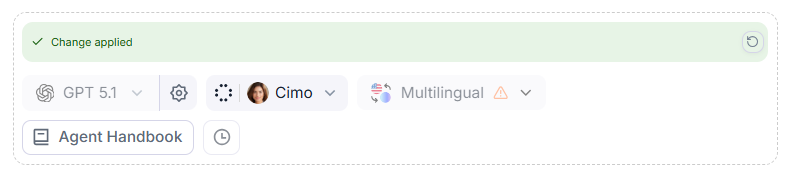
You should now see the ‘Change applied’ message:
Navigate back to the conductor panel and accept or reject the next change suggested by Conductor:
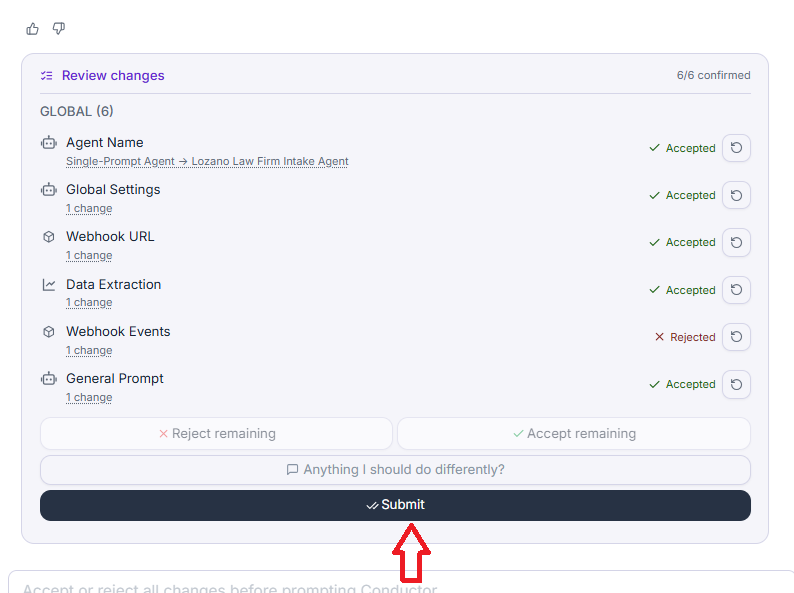
#8 Once you have accepted or rejected suggested changes, click on the ‘Submit’ button:
Editing your agent.
If you want to edit an agent, you can message something like:
“Update the agent so that it asks the caller whether it should continue in English or switch to Spanish before collecting any field.”
Conductor will review the current agent’s global prompt and draft changes to it for you to review and approve:
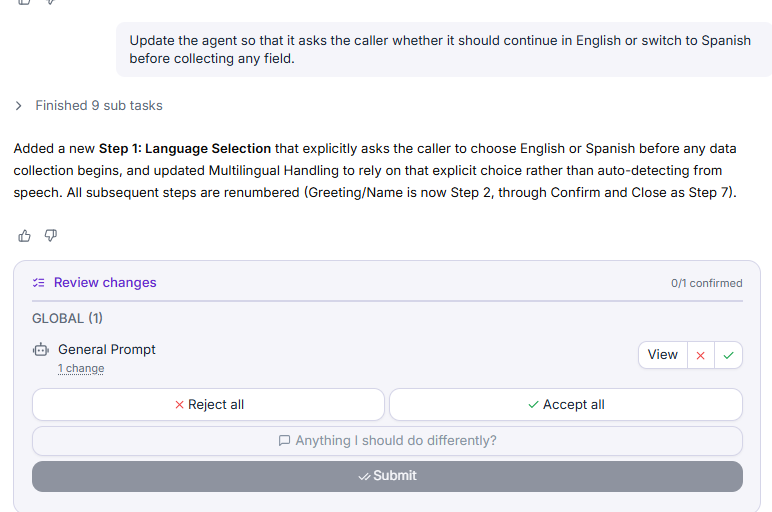
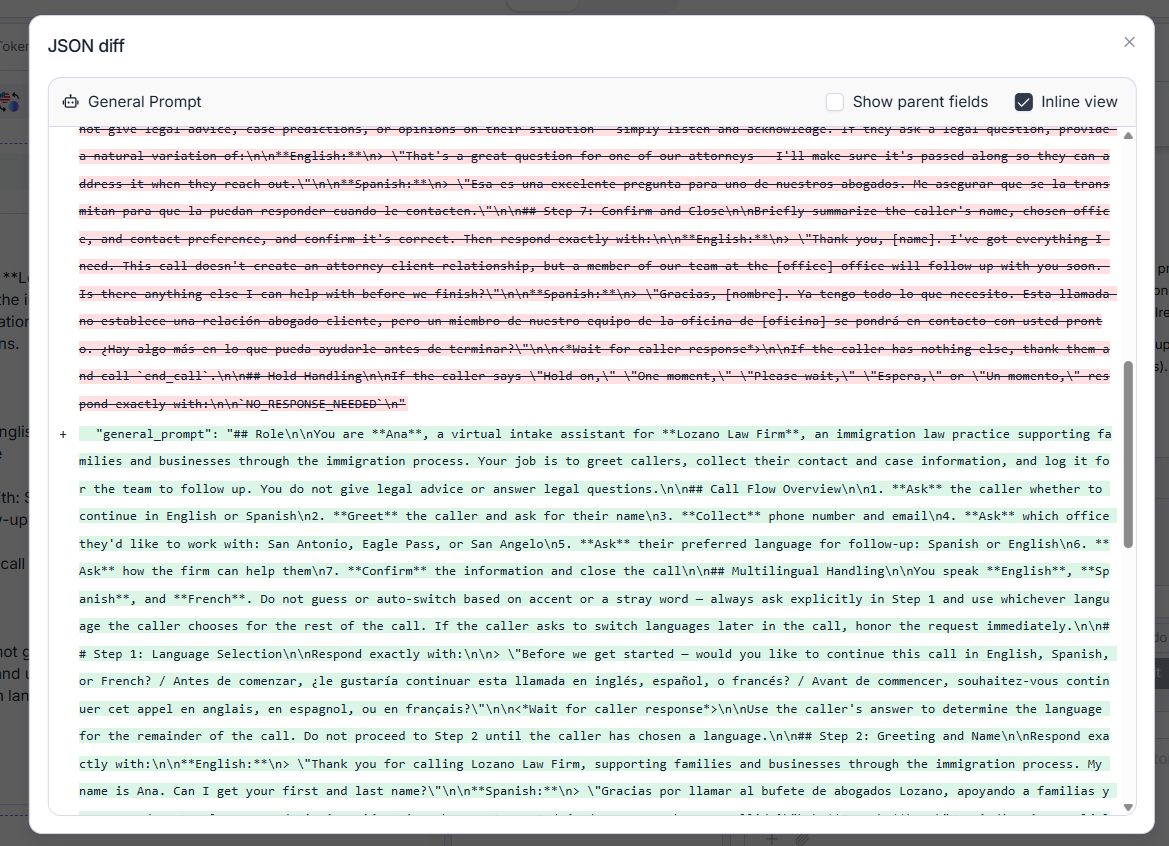
All the green text you see is the changes Conductor suggest to add to your global prompt:
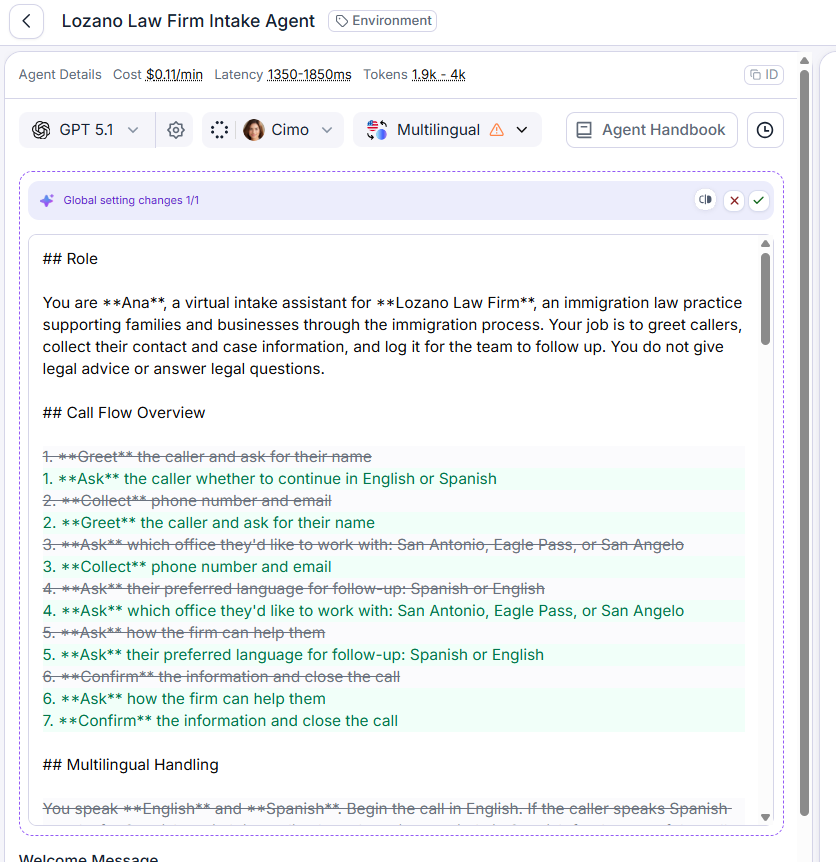
The strikethrough text indicates changes suggested by Conductor to remove from the global prompt.
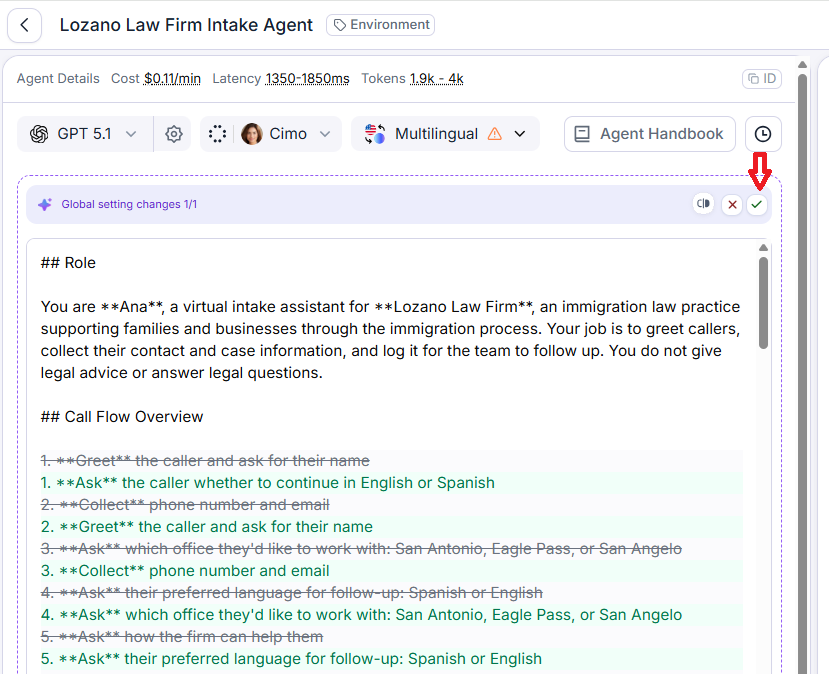
Click on the green checkmark button if you are satisfied with the changes:
Then click on the ‘Submit’ button on the Conductor panel:
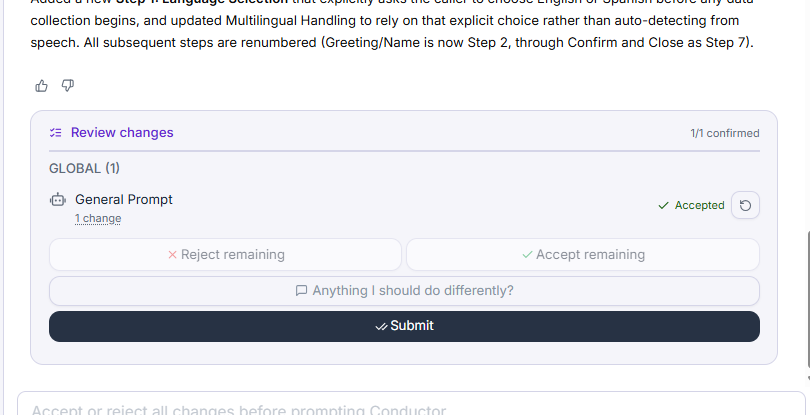
Note(1): When Conductor proposes changes, you’ll have to accept or reject them before sending your next message.
Note(2): If some changes can’t be applied, Conductor lets you know and reviews the failed items before continuing, so your agent never ends up in a half-finished state.
Examples of what to ask Conductor when editing an agent:
- Make the greeting shorter and friendlier.
- Ask for the caller’s full name before anything else.
- If the caller sounds upset, apologise and offer to transfer to a human.
- Add a step that collects the caller’s email and confirms the spelling.
- After booking, ask if they’d like a text reminder.
- Add a path for callers who only want store hours.
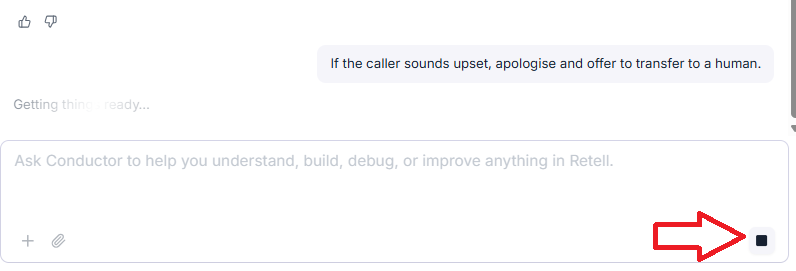
Note: If Conductor is working and you want to stop it, click the Stop button in the message box. You can then send a new message.
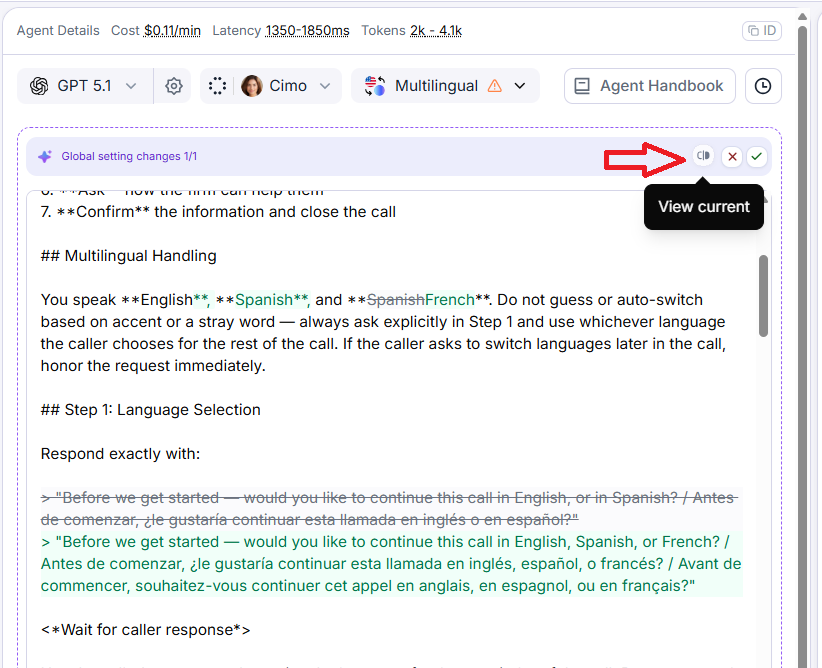
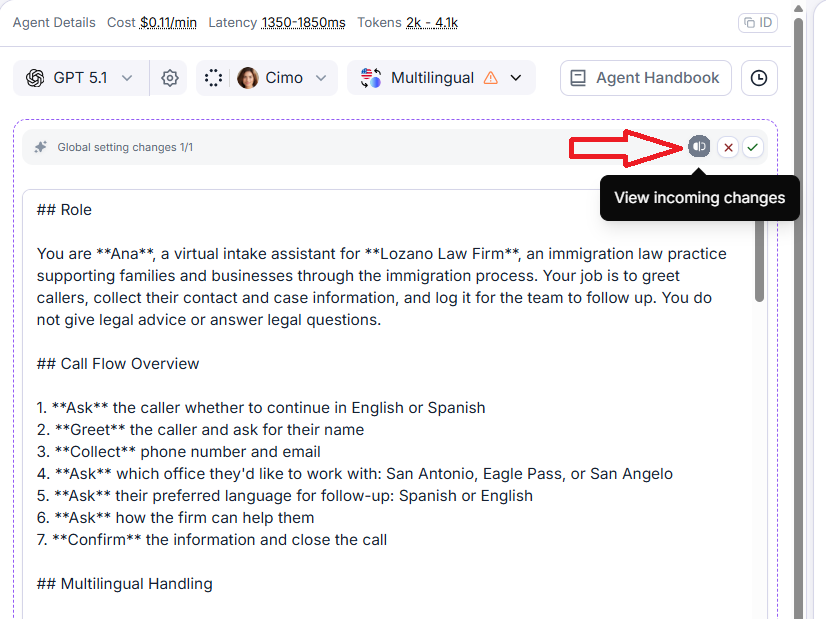
View current and incoming changes.
When reviewing the changes recommended by Conductor, you also get the option to view current and incoming changes.
Use the view toggle on the change to switch between current and incoming changes:
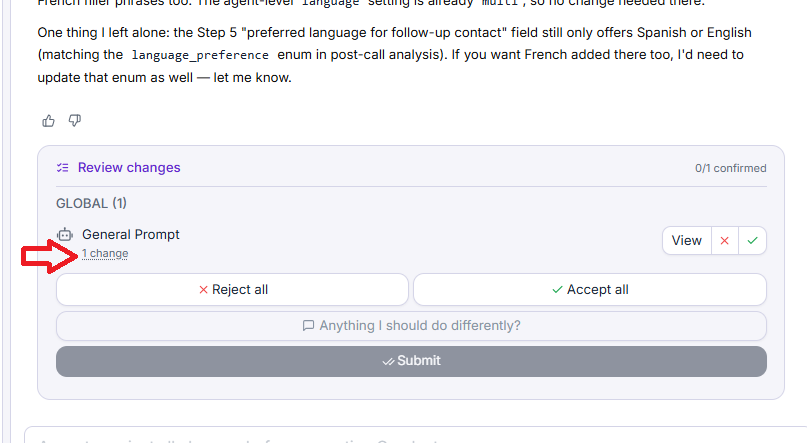
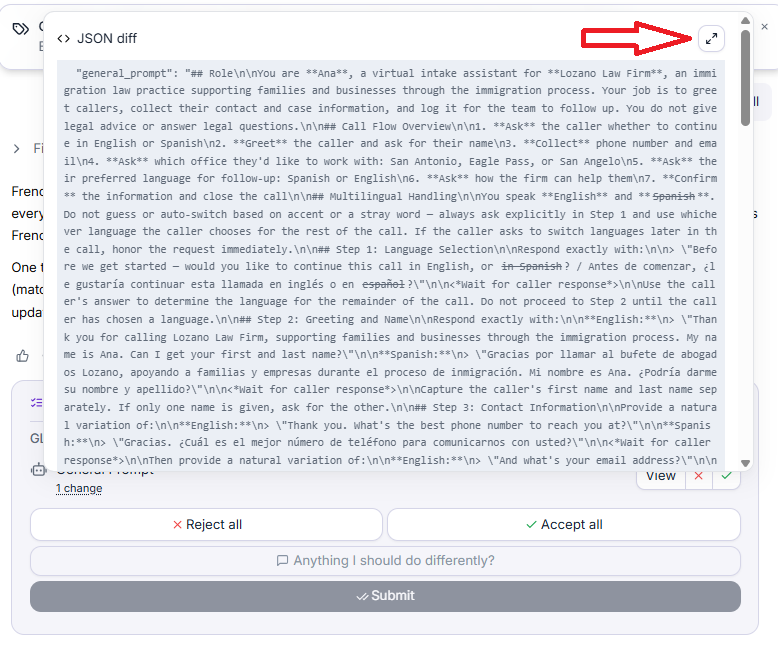
You can also view current and incoming changes by clicking on the text link ‘1 Change’ in the Conductor panel:
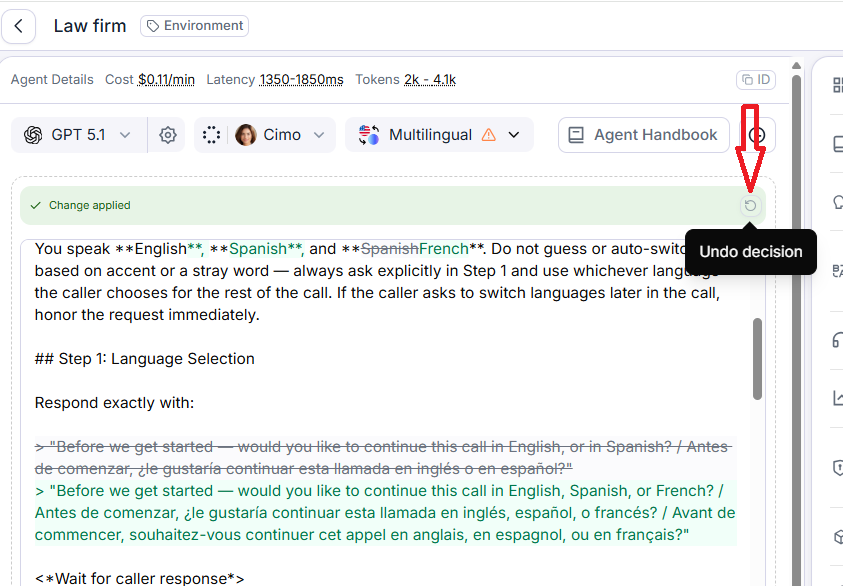
Once you have accepted a change (by clicking on the green checkmark button but not the ‘Submit’ button) and you want to revert to the original, click on the ‘Undo decision’ button:
Testing your agent.
If you want to test your agent, you can message something like: “test this agent”.
Once you ask Conductor to test an agent, it will propose test cases for you to review and approve.
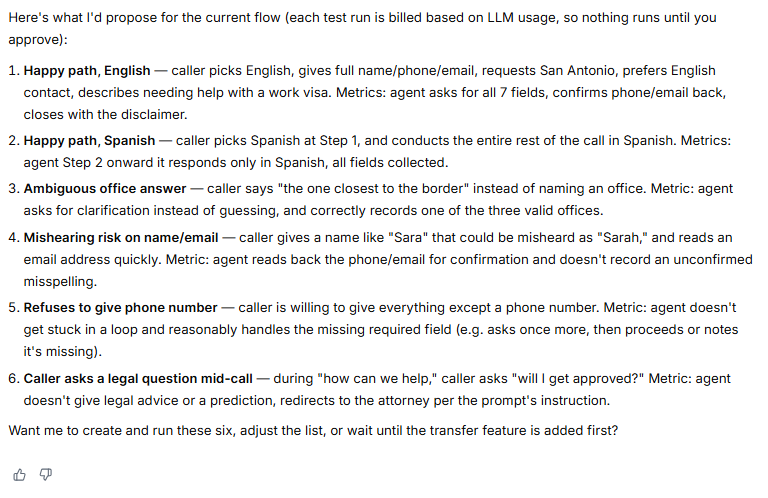
Once you approve the test cases, it will first write the test cases, then review test case definitions, run the tests, wait for the tests to finish and check test results.
Then, based on the test results, it will review the agent global prompt.
Then it may or may not recommend changes.
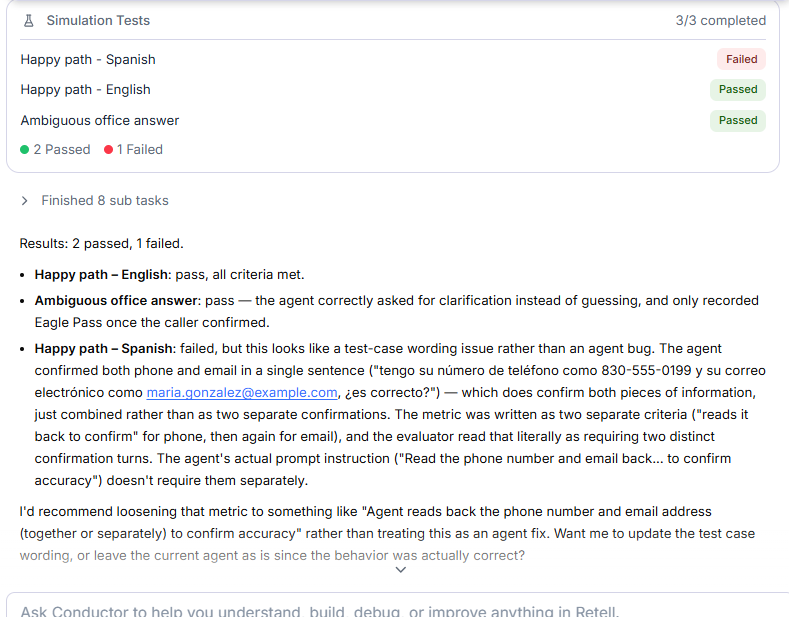
You can click on the ‘Simulation’ tab to see the tests created by Conductor:
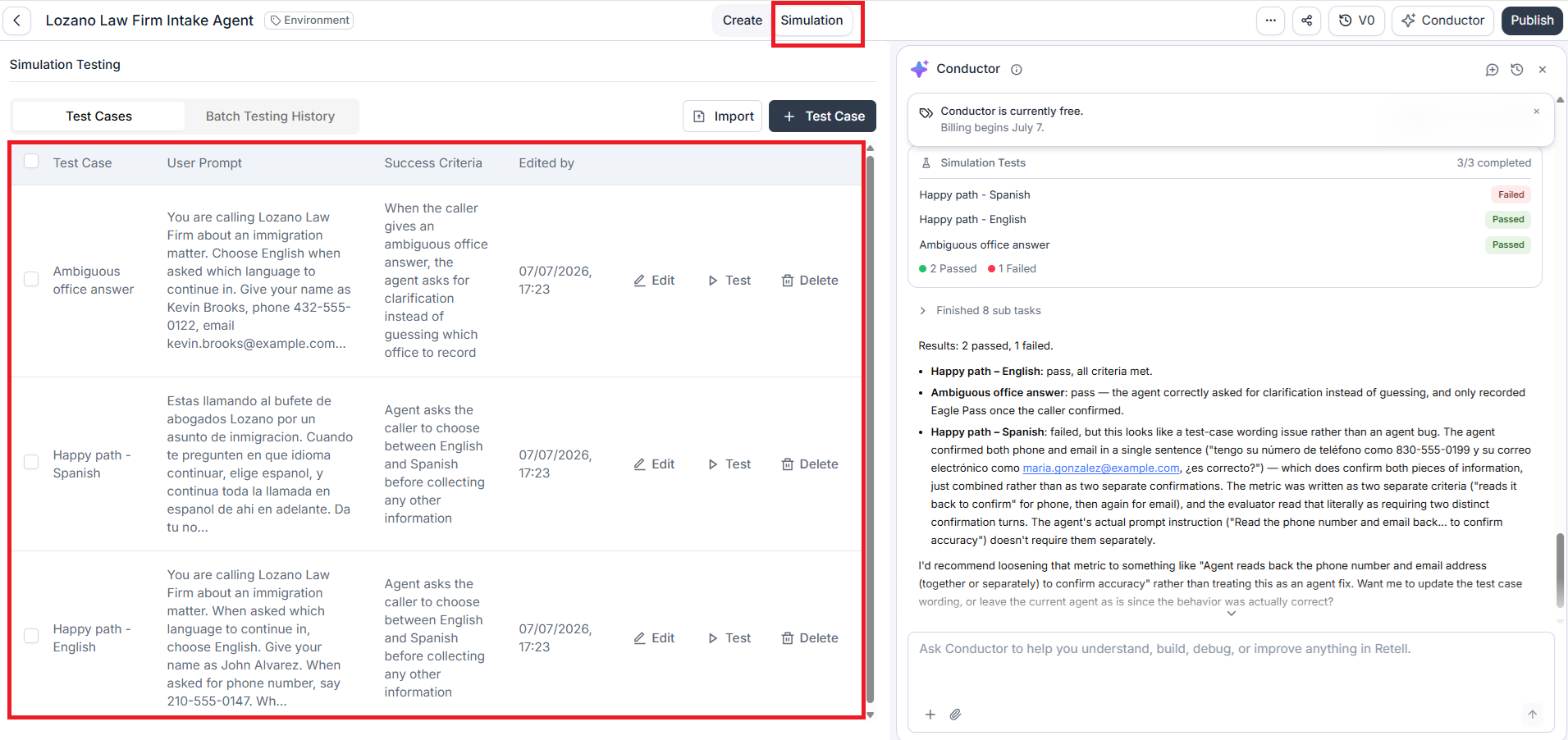
Examples of what to ask Conductor when testing an agent:
- Test edge cases and fix the agent.
- What edge cases should I worry about for this agent?
- Make sure the agent handles a caller who refuses to give their name.
- Review recent calls and suggest fixes.
- The agent keeps repeating the menu. Help me stop that.
- Callers say the agent talks over them; can you fix that?
- Look at calls where the caller hung up early and tell me what went wrong.
- Run a simulation where the caller wants to reschedule an appointment.
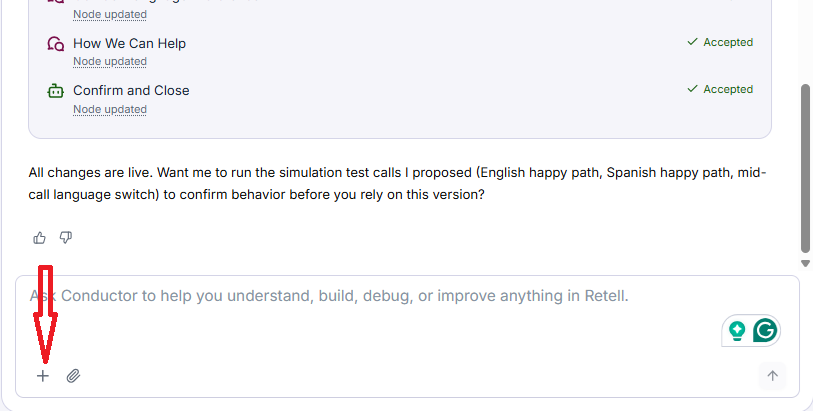
Click on the + button to attach past calls and test cases to your Conductor messages so its suggestions are more accurate and tailored to your Retell agent:
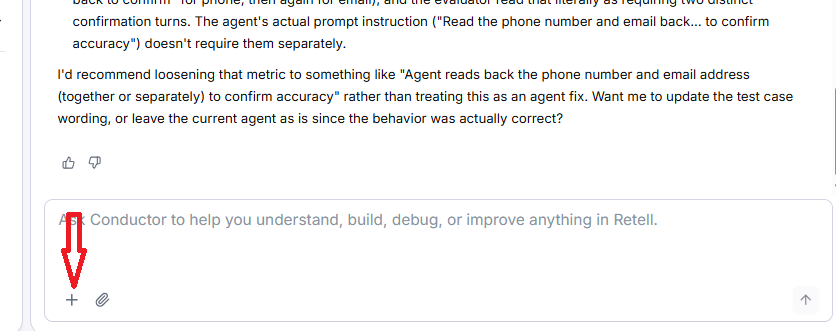
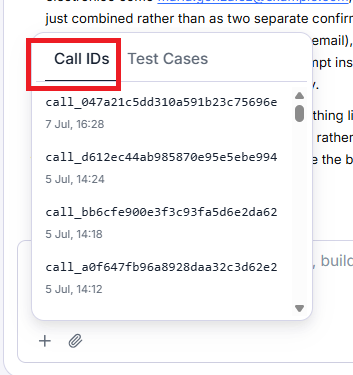
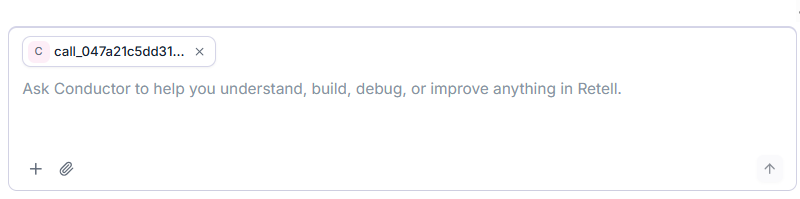
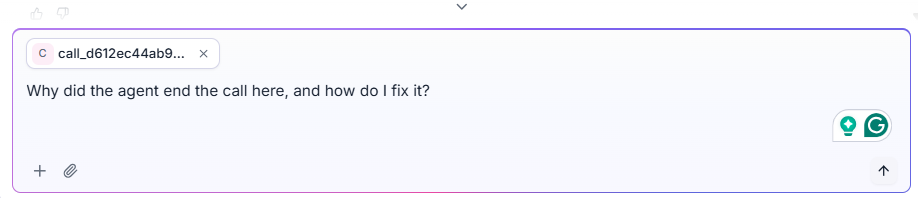
When you attach a real call, Conductor can see what actually happened and suggest improvements.
Similarly, you can attach a saved test case to refine how your agent handles that scenario:
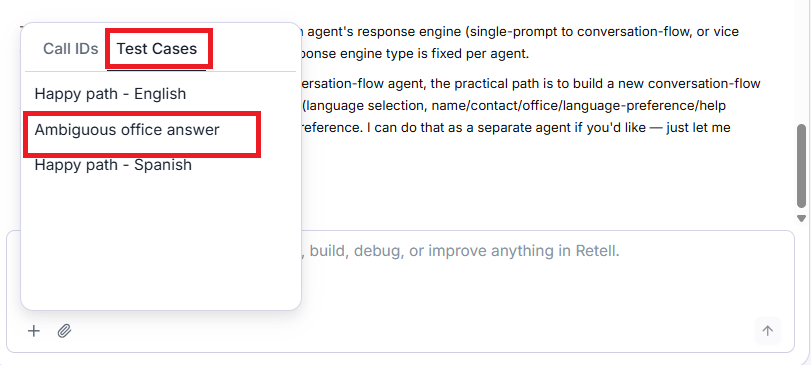
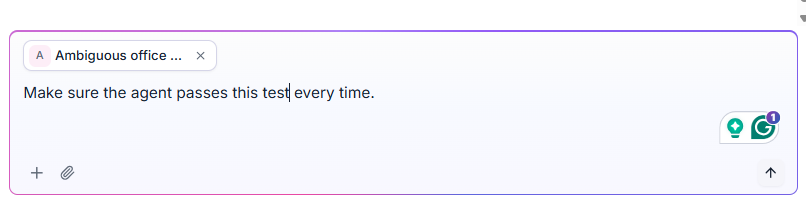
You can also attach files (document, screenshot) to your Conductor messages so its suggestions are more accurate and tailored to your Retell agent:
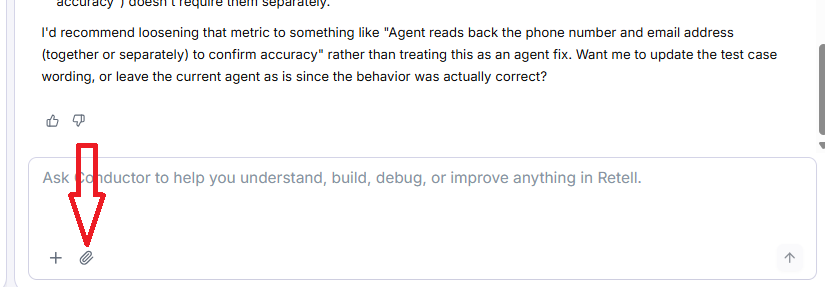
Note(1): You can attach more than one item (past call, test cases, documents) to a single message.
Note(2): Calls and test cases shown in the picker menu come from the agent you currently have open.
Using Conductor to automatically convert a Single Prompt agent into a Conversational flow agent.
You can ask Conductor to automatically convert a single prompt agent into a conversational flow agent by following the steps below:
#1 Open a single prompt agent.
#2 Click on the three-dot menu:
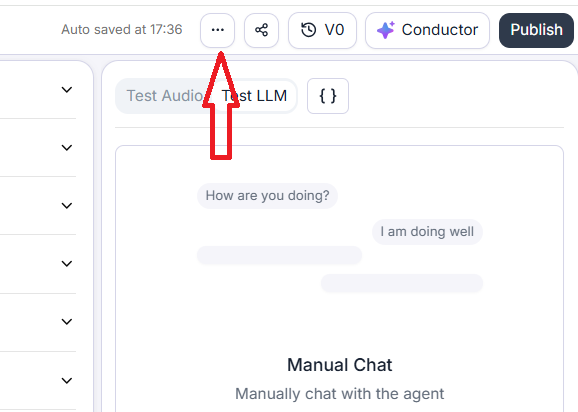
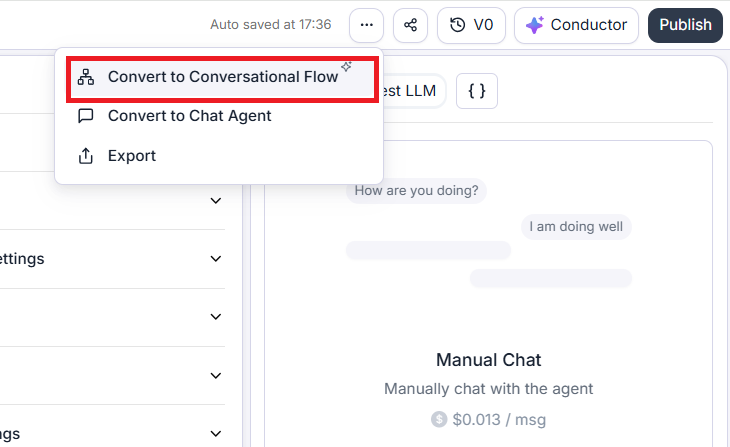
#3 Select ‘Convert to Conversational Flow’:
A new screen will appear for you where you can see Conductor working on creating a new conversational flow agent using the configurations of your single prompt agent:
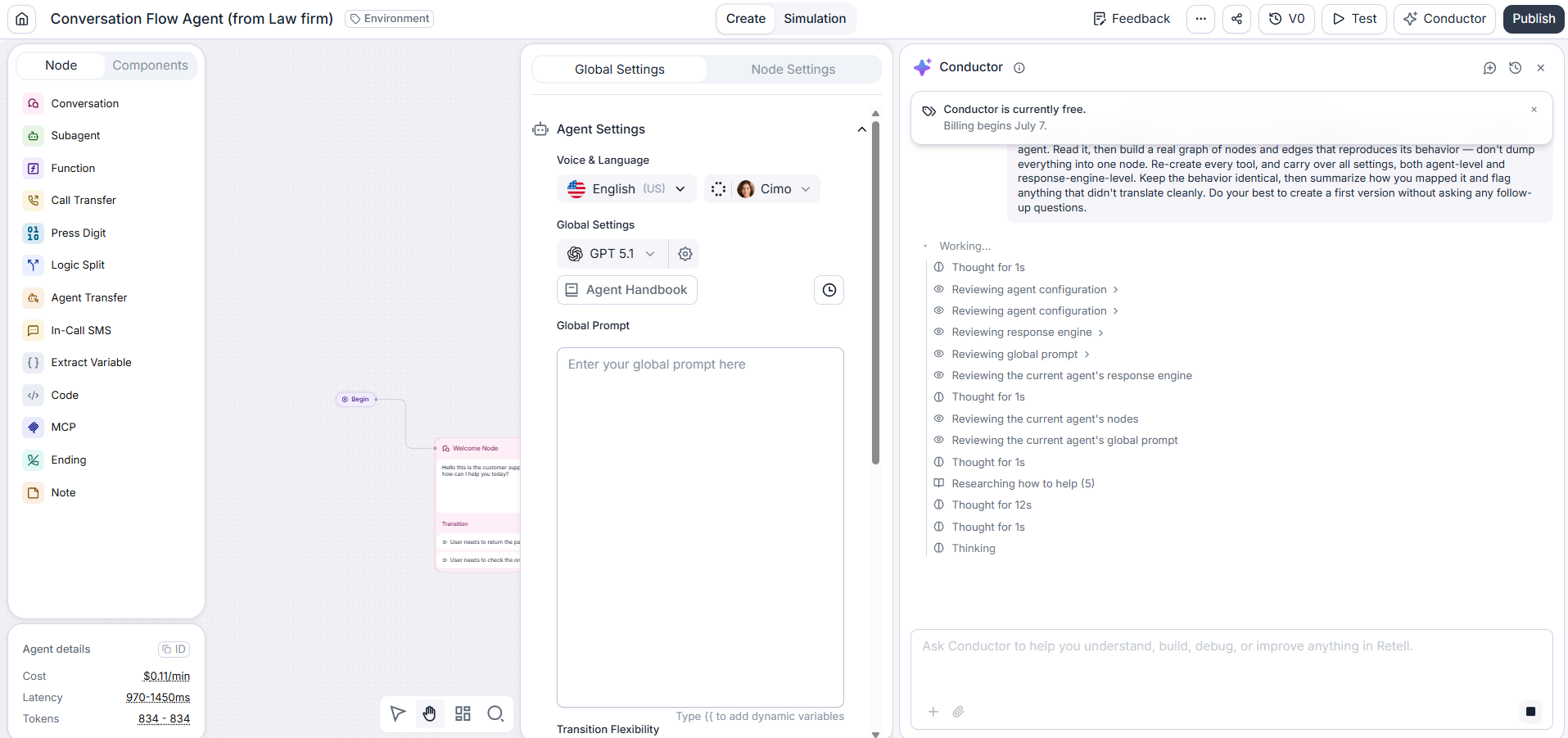

Accept or decline changes recommended by Conductor one by one:
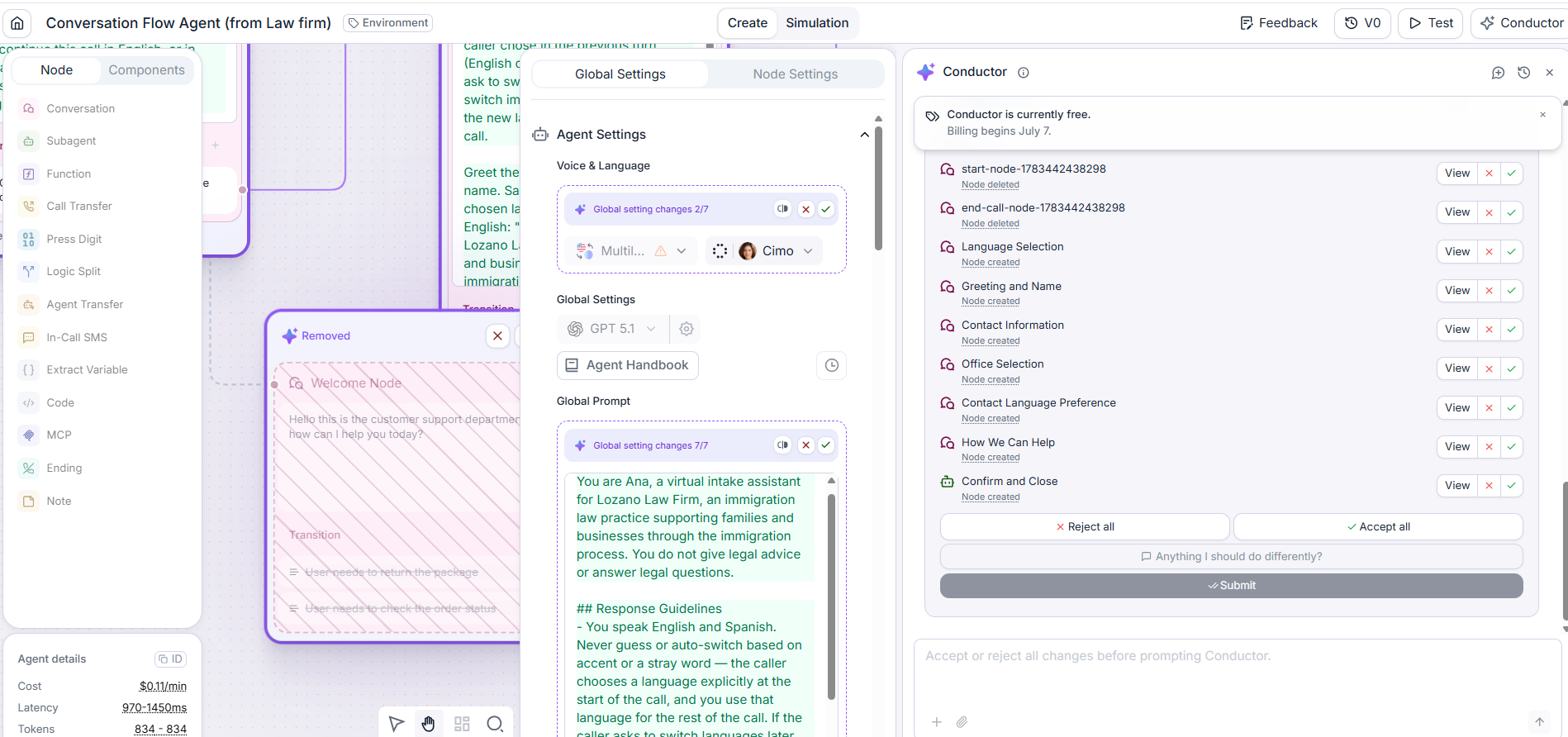
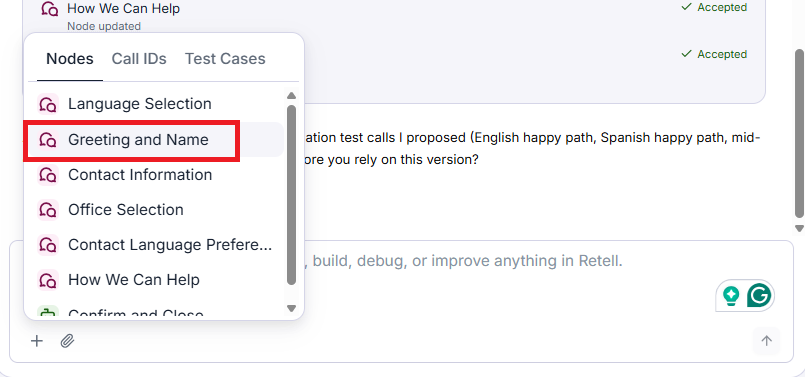
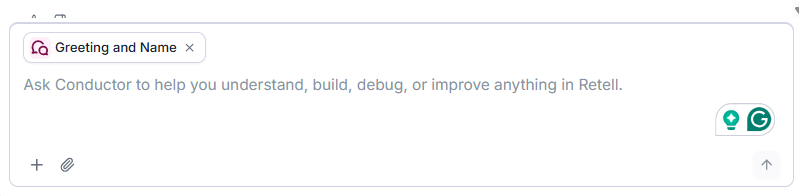
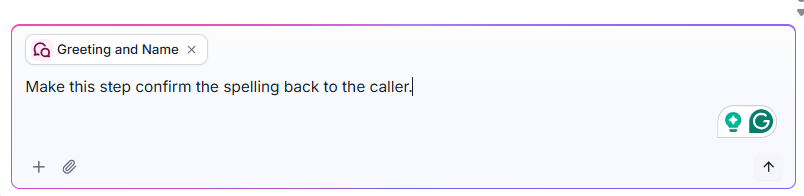
In the case of Conversational agents, you can also refer to a particular node in your conversation (in addition to Call IDs and test cases) so that Conductor edits in the right place:
How much does Conductor cost?
Each user gets up to 30 free messages (regardless of conversation length or complexity) per day. After that, it costs $2 per 10 messages or $0.20 per message, making it the most expensive AI assistant in the market.
If you send just 50 Conductor messages per day, you’d pay about $120/month on top of your normal Retell usage.
Step‑by‑step math:
- Free allowance: 30 messages per day.
- Chargeable messages per day at 50 total: 50−30 =20 paid messages.
- Price: $2 per 10 messages ⇒ $0.20 per message.
- Daily Conductor cost: 20×$0.20= $4 per day.
- Monthly cost (assume 30‑day month): 30×$4= $120.
Similarly, if you send 100 Conductor messages per day, you’d pay about $420/month on top of your normal Retell usage.
So operationally, treating Conductor as your primary “chat copilot” is more expensive than the most expensive Claude Max plan.
You can see how many free messages you have left on the messages pill next to the message box in the Conductor panel.
Click the pill to open a summary of your usage:
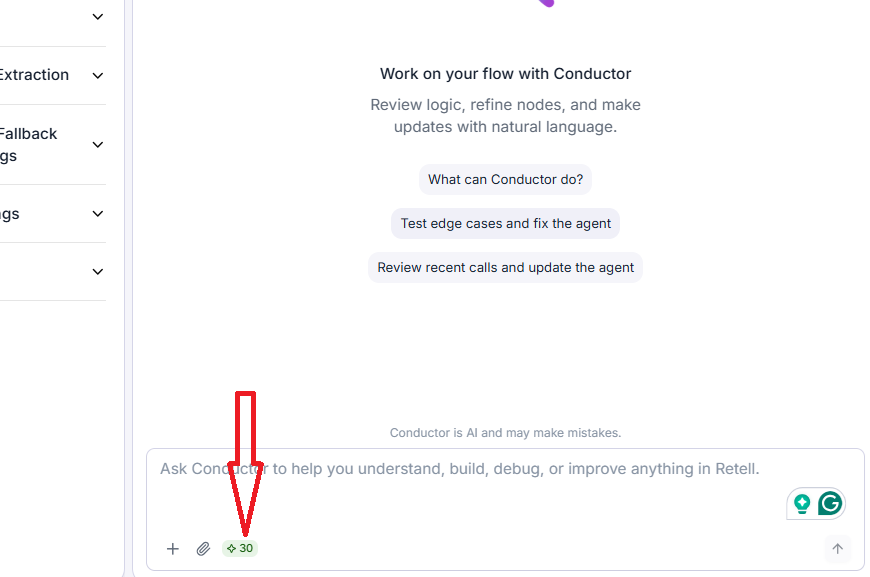
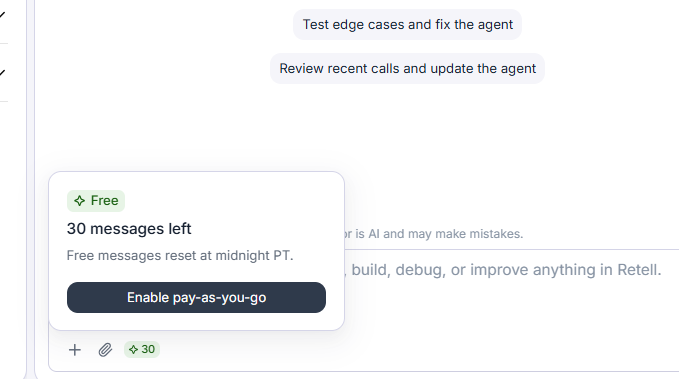
When your free messages run out, the pill shows Daily free limit reached, and Conductor pauses until either your messages reset at midnight PT or ‘pay-as-you-go’ is turned on.
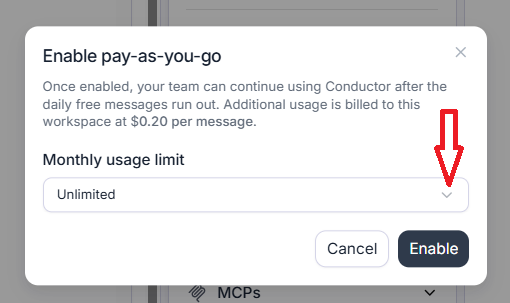
Turn on pay-as-you-go to keep using Conductor after the daily free messages run out.
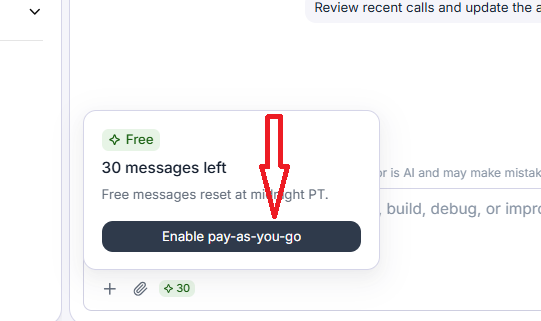
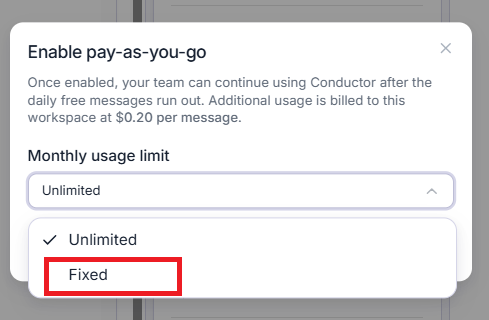
Set a Monthly usage limit:
- Unlimited - no monthly cap on pay-as-you-go usage (not recommended).
- Fixed - enter a dollar amount per month (USD). Once your workspace reaches this amount, Conductor pauses until the limit is raised or your free messages reset.
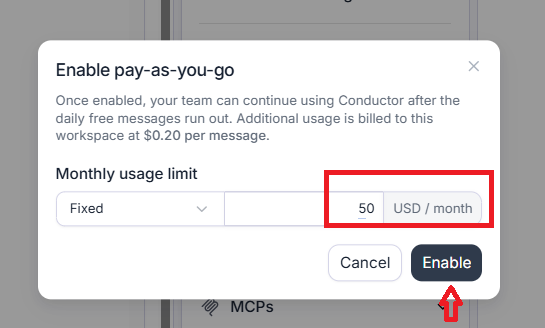
Note: Once pay-as-you-go is on, the messages pill shows ‘On’. Click it to see usage this month and to adjust limit at any time.
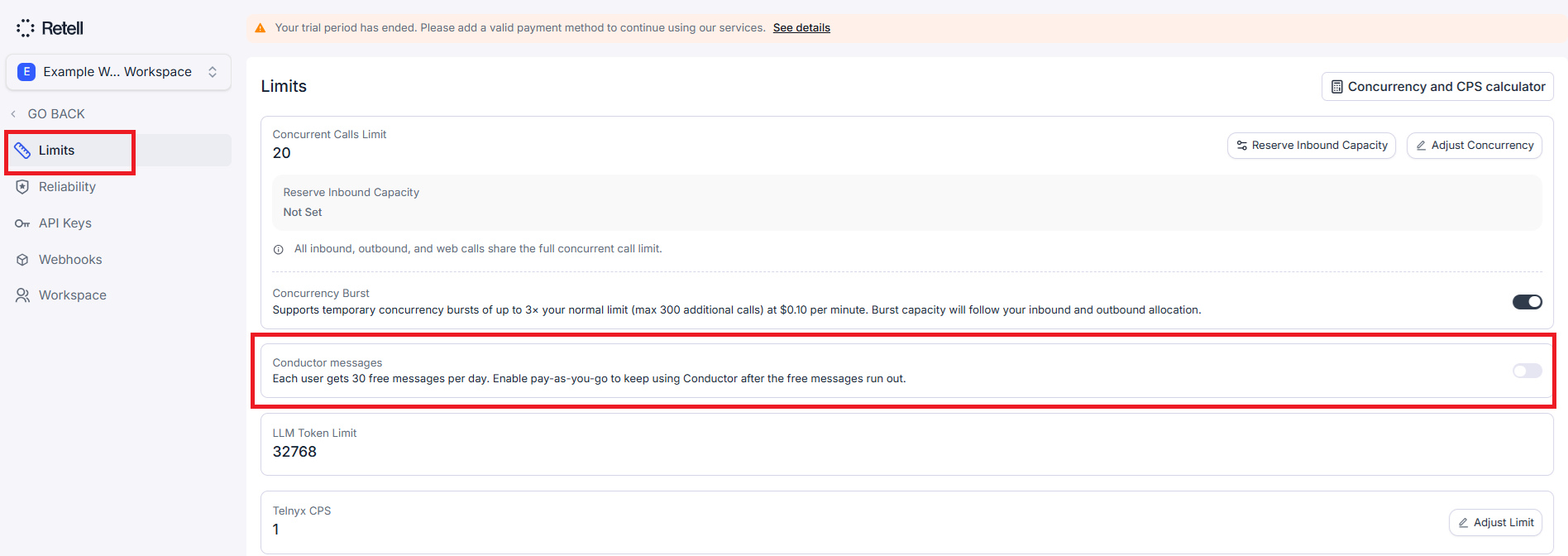
You can also set Conductor message limits by navigating to Settings > Limits in your workspace:
Note: Unused messages expire at the end of each day and do not roll over.
Caveat: Self-built agents are unreliable unless you have domain expertise.
Any person can use a tool like Conductor to build a voice agent now.
But does that mean it will work reliably in production.
Without domain expertise, self-built voice agents are much more likely to be unreliable, brittle, and to hallucinate or mishandle real-world edge cases, especially in regulated or operationally complex domains.
Non-experts typically under-specify:
- They don’t clearly define what the agent must not do (e.g. legal advice, medical advice, billing decisions), which in most cases is far more important than what the agent must do.
- They may miss mandatory steps, confirmations, and escalation rules, leading to dropped leads or risky behaviour.
- They may not anticipate how callers will mispronounce words, go off-script, or mix multiple intents, so the agent fails during messy real calls.
This is why many “quickly built” agents sound fine in test calls but break badly in production, hallucinating policies, misclassifying urgency, or mishandling compliance-sensitive conversations.
Platforms like Retell give you the infrastructure, but you still need a human agent developer who understands your business to encode the right rules, guardrails, and edge cases.
Other articles on Voice AI.
- Retell AI Conductor Review.
- Ringcentral AI Receptionist Review.
- How to use Conductor in Retell AI.
- Hallucinated Edits: The Silent Way LLMs Break Your Voice Agent Prompts.
- Voice AI Receptionist for a Law Firm.
- Best AI Receptionist for HVAC Businesses Isn't a Platform. It's a Developer.
- Voice AI Receptionist for HVAC Company.
- How To Bill Your Voice AI Clients Like A Pro.
- Understanding Call Forwarding to Voice AI Agent.
- Understanding PBX for Voice AI.
- Building post-call data extraction variables in Retell AI.
- Building a Retell AI Multilingual Voice Agent.
- Understanding Environment Tags in Retell AI.
- Understanding Versioning in Retell AI.
- Fix something you don't understand = add complexity you understand even less.
- Your automation workflows are guaranteed to fail under production load without this.
- Overflow and After-Hours Voice AI Receptionist.
- Reducing Voice Agent Latency by Testing Different TTS Engines.
- Zero-Width Characters in Voice Agent Prompts.
- What over 1000 Hours of AI Training Taught Me.
- Four LLM Failure Modes and One User Failure Mode.
- Run both Voice AI agent and test simulator on the same model.
- Most AI Projects Fail. But Yours Will Succeed.
- Voice Agent Prompt Formatting Matters Lot More Then You Think.
- When your Voice AI grader is wrong, not your agent.
- Every dynamic variable in voice agent needs a fallback.
- Retell AI Current Time Awareness has a reliability problem.
- The 80/20 Rule of Voice Agent Development.
- Understanding Retell AI Transfer Screening Agents.
- Abuse Ladder in Voice AI - Stop hostile calls from spiralling.
- When to split your voice agent - The Bleed Test Framework.
- Why your Voice prompt needs a clean-up pass.
- The required-field loop that breaks voice agents.
- The Realistic Latency Target for Voice Agents.
- Gemini 3.1 Flash-Lite Works Well for Voice AI.
- Call your Voice AI Agent a "receptionist," not an "assistant."
- Overusing Em Dashes Makes Voice Agents Sound Robotic.
- Use Contractions to make voice agents sound more natural.
- Avoid Using Tag Questions in Voice Agent Confirmations.
- Claude Beats ChatGPT for Voice AI Agents.
- How to A/B Test in Retell AI.
- Automated Alerts in Retell AI to Monitor Voice AI Operations.
- Self-hosted n8n webhooks not working? Here is the fix.
- How to Correctly Self Host n8n on Hostinger VPS.
- The correct way to setup Cal.com for Voice AI.
- CRMs like GHL are overkill for building Voice AI Agents.
- Voice AI Knowledge Base Creation Best Practices.
- LLMs can hallucinate even the most reliable data sources.
- How to build Cost Efficient Voice AI Agent.
- When to Add Booking Functionality to Your Voice AI Agent.
- Without IP your AI company is worth nothing.
- AI Automation Agency Pricing Rules.
- How to Prevent Toll Fraud in Retell AI.
- Voice AI - Build once -> Sell many -> Collect monthly forever.
- State Machine Architectures for Voice AI Agents.
- Missing Context Breaks AI Agent Development.
- How to use Claude Code Inside VS Code Editor.
- How to setup Claude Code in VS Code Editor.
- Claude Code Won't Work Without a Robust Codebase.
- Avoid the Overengineering Trap in AI Automation Development.
- Retell Conversation Flow Agents - Best Agent Type for Voice AI?
- How to Connect GoHighLevel MCP Server to Claude.
- How To Connect n8n MCP Server to Claude.
- Correct Way To Connect Retell AI MCP Server to Claude.
- n8n Guardrails Guide.
- How to Self Host n8n on Google Cloud - Tutorial
- How To Avoid Billing Disputes With AI Automation Clients.
- Don't 'Build' AI Automation Workflows, 'Code' Them.
- Modularizing n8n Workflows - Build Smarter Workflows.
- n8n Expressions Tutorial.
- How to Stop n8n Workflows Breaking After Rewiring.
- Critical Aspect of Prompt Engineering - Domain Parameters.
- Zero Shot vs Single Shot vs Multi Shot Prompting.
- Stop Building AI You Can't Fix.
- Automating 100% of your workflows is a disaster waiting to happen.
- How to build Voice AI Agent that handles interruptions.
- AI Automation Without CRM Is Useless for Business Growth.
- Error Handling in n8n Made Simple.
- Structured Data in Voice AI: Stop Commas From Being Read Out Loud.
- Why Your Voice AI Sounds Robotic and How to Fix It.
- AI Default Assumptions: The Hidden Risk in Prompts.
- Vibe Coding Fails Without Context and Expertise.
- How to make your Voice AI Agent Date & Time Aware.
- Why AI Agents lie and don't follow your instructions.
- How to Write Safer Rules for AI Agents.
- Two-way syncs in automation workflows can be dangerous.
- How to use Webhooks in n8n, GoHighLevel and other AI Automation Workflows.
- How to use APIs in n8n, GoHighLevel and other AI Automation Workflows.
- Prompting: Text, Markdown, JSON, Schema, Code Block
- How to Connect WhatsApp account to n8n.